Amazon Quick Sight is a core feature within Amazon Quick — an agentic, AI-powered digital workspace designed to maximize end-user productivity— that provides AI-powered BI capabilities through natural language queries, interactive dashboards, and embedded analytics from trusted enterprise data sources.
Amazon Quick Sight assets such as dashboards, analyses, datasets, and data sources can be backed up using the AssetsAsBundle APIs described in this post. A backup strategy helps protect against accidental deletions, unintended modifications, and regional disruptions. For teams that rely on Quick Sight to support critical business decisions, a well-designed backup plan is recommended.
This post is the first in a two-part series covering backup and restore for Amazon Quick Sight BI assets:
- Part 1 (this post): Covers how to design and implement a backup strategy, including asset selection, the APIs available for export, and a ready-to-use sample automation tool.
- Part 2: Covers the restore process. You can use the backups created in Part 1 to recover assets after accidental deletion, unintended changes, or as part of a broader disaster recovery plan.
An effective backup strategy is especially critical for organizations in heavily regulated industries such as financial services, healthcare, and energy, for multiple reasons:
- Data loss prevention protects against human errors, accidental deletions, and events like ransomware.
- Meeting recovery objectives helps organizations achieve their Recovery Point Objectives (RPO) and Recovery Time Objectives (RTO), minimizing data loss during incidents.
- Audit and reporting supports tracking and reporting on assets throughout their lifecycle (creation, updates, and deletion).
- Increased workload resiliency enables quick restoration of systems to previous states, reducing downtime and improving reliability. This aligns with the Reliability pillar of the AWS Well-Architected Framework.
- Disaster recovery (DR) preparedness provides a foundation for implementing a DR process that anticipates technology-related disasters and contributes to your organization’s business continuity plan (BCP).
For more information about the disaster recovery capabilities of Quick, and how to assess them against organizational requirements, see the Amazon Quick disaster recovery and resiliency guide.
In this post, we cover best practices for implementing an effective backup strategy for BI assets in Quick Sight. We start by covering the options for selecting the assets to include in your backup, then explain the high-level APIs available for that purpose, and finalize with sample code to help you get started quickly.
Backup practices for business intelligence
BI systems present unique business continuity challenges because of their role in supporting decision-making processes and key stakeholders. You must protect them against service disruptions by implementing an effective backup plan. Before building this plan, it’s important to understand the architecture and the dimensions to consider as part of your DR plan.
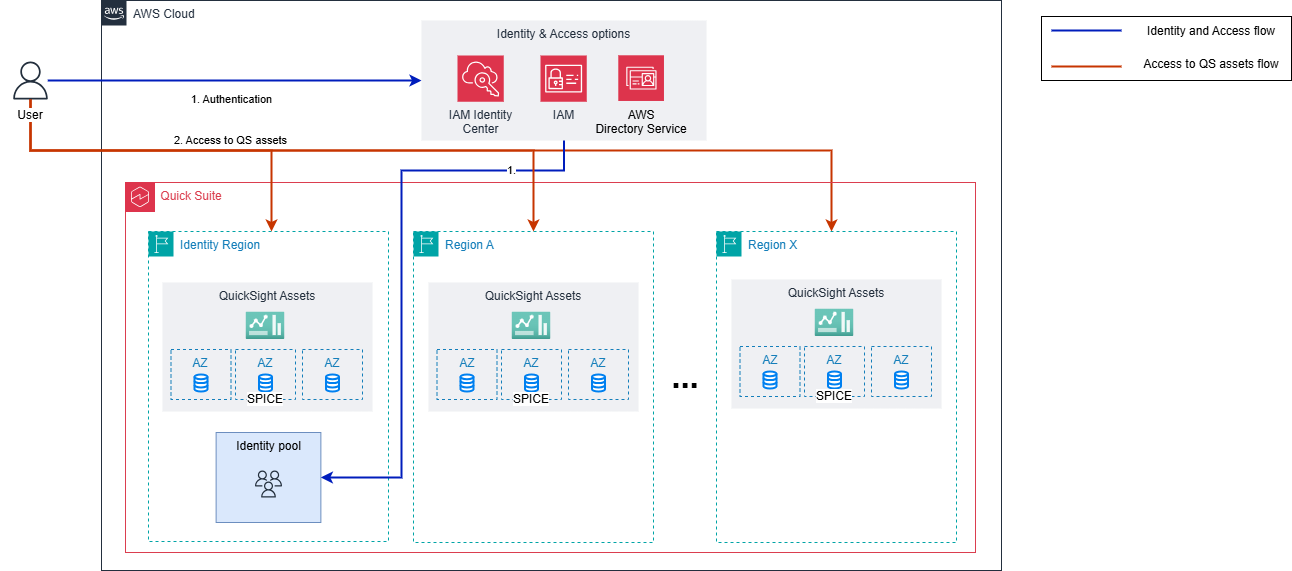
The preceding diagram shows that Quick Sight relies on AWS’s global infrastructure across multiple AWS Regions to provide high availability for Quick Sight assets, including data sources, datasets, analyses, and dashboards.
The Super-fast, Parallel, In-memory Calculation Engine (SPICE) stores and encrypts imported data with high availability (HA) through redundant copies across multiple Availability Zones (AZs) within the Quick Sight Region.
With this regional design, you can maintain resources in multiple Regions and use a secondary Region in the unlikely event of a regional outage affecting your primary BI resources.
For user and identity management, Quick Sight uses a single Region that you define during the initial account subscription process. The diagram shows that this Region hosts user and group identity information and must be available for users to access Quick Sight.
For example, if a user wants to access a dashboard in the eu-west-1 Region but the Quick Sight main Region is us-east-1, both Regions must be available to finish the user access flow. Quick Sight uses regional architecture with AZs for redundancy. However, if your business needs protection against the unlikely event of a regional outage, you must design your disaster recovery (DR) strategy accordingly.
Tip: If you’re unsure of your Quick Sight main Region, you can retrieve this information by running the following command:
Note: This aws quicksight describe-account-settings command specifies us-east-1 as the endpoint Region. If you receive a 200 status, your identity Region is us-east-1. Otherwise, you receive an error like the following, which instructs you to point to your current identity Region (for example, eu-west-1):
Defining Quick Sight assets to include in the backup plan
With a clearer understanding of Quick Sight architecture, the next step is selecting the assets to include in your backup plan, for this you can follow two strategies:
Back up specific assets:
This option is suitable when you define a backup or DR strategy focused on protecting critical assets for your business operations that you can conveniently restore after a disaster or accidental deletion. This includes specific dashboards (and their dependent assets) that key stakeholders use to make business decisions or that operating teams (finance, logistics, procurement, and so on) use to support continued business operation.
This option is recommended when you require a straightforward backup plan and when the BI assets that are key to business continuity are a subset of all the assets available in your Quick Sight instance.
Back up all assets:
This strategy is recommended when you want to define a backup strategy that covers both versioning and potential disaster recovery. By backing up all assets, you can perform in-place rollback of any asset to a previous state if a human error causes an unintended modification or deletion. Additionally, because you have a backup of all assets in your account, you can select specific assets to restore as part of your DR plan.
This approach gives you maximum coverage but also requires more complex orchestration and automation. This post focuses on this strategy and provides sample code that you can adapt to minimize time to production.
After you select your strategy, choose the type of BI assets to export. Quick Sight offers the following asset types:
- Dashboards: Read-only assets targeted at reader users, published from an analysis. You can also save a dashboard to an analysis to make edits.
- Analyses and dashboards: An analysis is an editable version of a dashboard. Only the authors you choose can access it.
- Data sources: A data source implements the connection to your data, which can come from analytic sources such as databases or data warehouses, AWS services such as Amazon Simple Storage Service (Amazon S3), or third-party software as a service (SaaS) data providers such as Jira and ServiceNow.
- Datasets: An asset type that uses a data source to access external data that you can use to prepare and structure the data that powers your analyses and dashboards.
- VPC connections: A feature that you can use to integrate with your VPC resources such as databases and data warehouses that are located in that VPC or reachable from it (peered VPCs or networks connected through VPN or AWS Direct Connect).
- Themes: A collection of styling and appearance settings that you can apply to multiple analyses and dashboards to match an aesthetic standard that meets your product or corporate branding needs.
All these assets have dependencies between each other, with analyses and dashboards at the top of this dependency chain, as the following diagram illustrates.
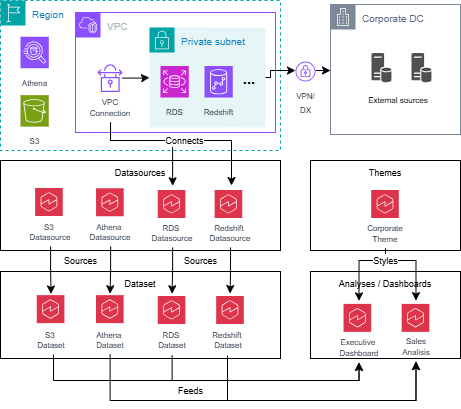
When you choose the asset types to back up, be aware of these dependencies so you can fully restore assets from the backup. For example, when you back up a dashboard, you also need to back up its dependencies, which might include datasets, data sources, VPC connections, and a theme. The next sections explain how Quick Sight export APIs handle these dependencies.
Backup process overview
The mechanism we cover in this post uses the AssetsAsBundle APIs available in Quick Sight. AssetsAsBundle APIs (also referenced as AAB APIs) are a set of high-level APIs designed to support programmatic export and import of Quick Sight resources. They cover a range of use cases such as release management, backup and restore, cross-account migration, and continuous integration and continuous delivery (CI/CD) workflows.
This set of APIs includes the following operations:
- StartAssetBundleExportJob: Creates a package (bundle) that contains the assets exported as part of the operation. The package is a zip file with text files. The format can be either JSON or AWS CloudFormation depending on the value specified in the ExportFormat parameter. Depending on the format, you can import these assets using the AAB APIs directly or use CloudFormation infrastructure as code (IaC) for provisioning. After the asynchronous operation finishes, the system uploads the bundle to a temporary S3 location for downloading.
- StartAssetBundleImportJob: Takes a previously exported bundle and restores the assets packed in it. You can use the import operation to define overrides for a wide set of parameters such as asset names and data source connection parameters (host, port, workgroup, and more).
- DescribeAssetBundleImportJob and DescribeAssetBundleExportJob: Both AssetBundle operations are asynchronous. You can use these APIs to describe the operation, poll for its status, and act after it finishes. When you perform an export job, you can use
DescribeAssetBundleExportJobto retrieve theDownloadUrlfor the bundle, which is valid for 5 minutes. You can renew the URL with further calls toDescribeAssetBundleExportJob.
Supported assets and current limitations of AssetsAsBundle APIs
AssetsAsBundle APIs support a list of Quick Sight assets including analyses, dashboards, data sources, datasets, shared folders, restricted folders, refresh schedules, themes, and VPC connections. However, some asset types have limitations.
Unsupported data sources: Adobe Analytics, File, GitHub, Jira, Salesforce, ServiceNow, Amazon S3 (with locally uploaded manifest files), and Twitter.
Unsupported datasets: Datasets that contain machine learning (ML) columns generated using inference through connected SageMaker ML models.
You must exclude these assets from your backup plan to avoid an InvalidParameterValueException error when you issue the StartAssetBundleExportJob operation.
To work around this, you can replace unsupported data sources and datasets by following these procedures.
For Amazon S3 data sources with local manifest files:
- Create a new Amazon S3 data source.
- Upload the manifest file to Amazon S3.
- Reference the manifest file from your data source.
- Replace the data source in the dependent datasets using the UpdateDataSet API.
For other unsupported data sources and datasets:
Follow this procedure to transform your incompatible dataset into a compatible one:
- Create an analysis connected to the data source you want to support in your backup.
- Create a table visual that displays all dataset columns.
- Export the data as a CSV file.
- Create an Amazon S3 dataset using a manifest uploaded to Amazon S3.
- Update your analyses and dashboards with the new dataset using the replace dataset functionality.
Other assets to consider as part of your backup
Although Quick Sight resources are the key assets to back up, you need to include some additional resources and configurations in your backup plan for potential restore or disaster recovery situations.
You can export Quick Sight assets along with their permissions, including the users and groups that have access to them. You control this by setting the IncludePermissions flag to true.
Because each Quick Sight asset is owned by a user, you need to back up users and groups to have a full and restorable backup.
AssetsAsBundle APIs don’t cover users and groups, but you can use DescribeUser, DescribeGroup, and DescribeGroupMembership to include this information in the backup.
In addition to users and groups, consider backing up account settings such as account customization (the DescribeAccountCustomization API), customized brands (the DescribeBrand API), and folders (the ListFolders, DescribeFolder, and DescribeFolderPermissions APIs).
Technical implementation
In this section, we cover how to create an automation that orchestrates the invocation of the Quick Sight APIs needed to perform an effective backup implementation. We provide sample code at the end of this section that implements both users and groups backup and Quick Sight assets backup.
Backup orchestration flow
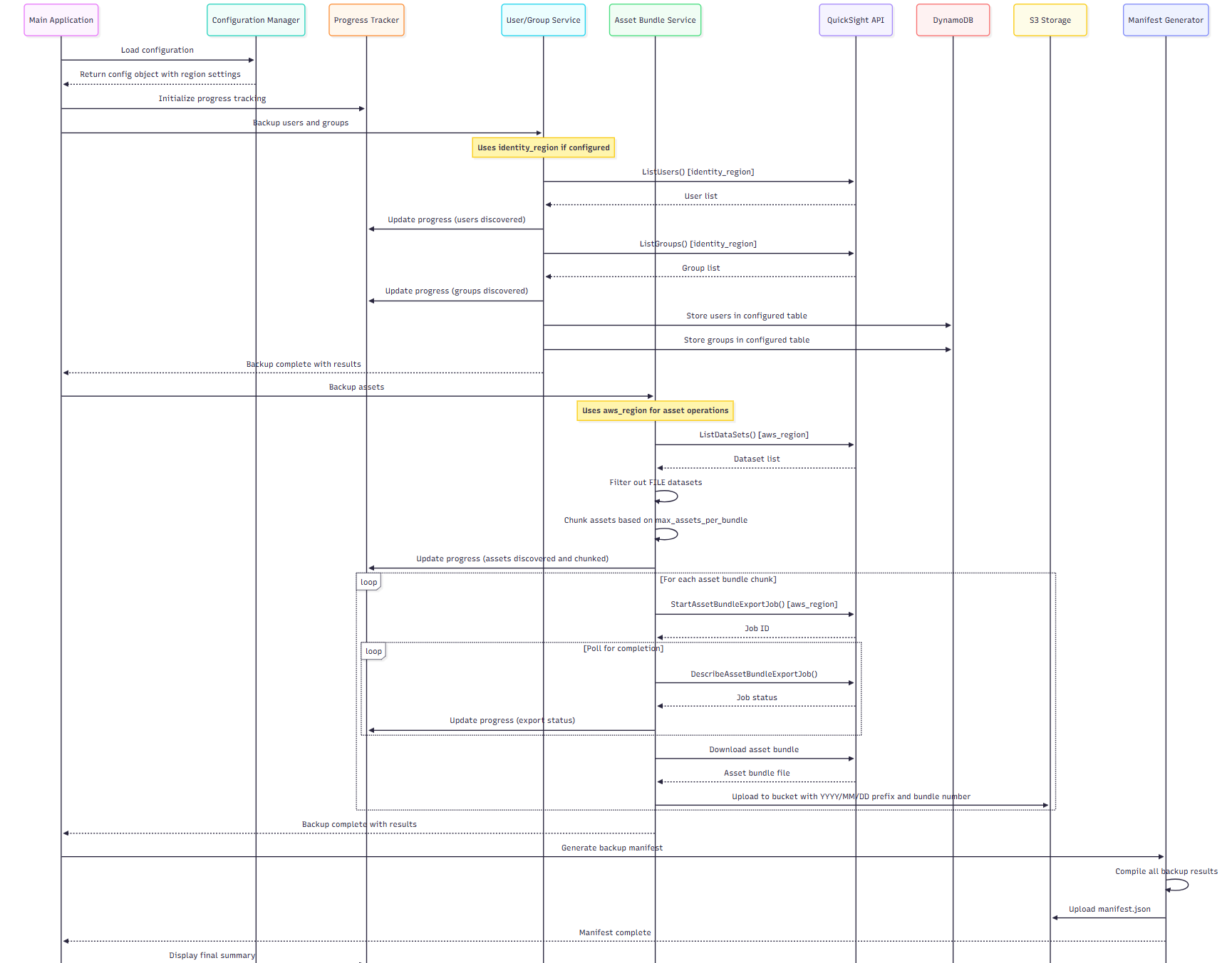
The automation tool supports three modes of operation: user backup only, assets backup only, and both. This provides maximum flexibility when you perform your backup plan. The following diagram shows the flow that the tool follows depending on the selected operation mode.
Users and group backup
The user and groups backup service uses the Quick Sight user and group APIs to read your account’s current state and store the retrieved user and group data in Amazon DynamoDB. The service uses date-based suffixes for DynamoDB table names to preserve historical backup data and prevent overwrites. This allows point-in-time recovery and backup history tracking. This design also simplifies restore operations because you don’t need to filter by date suffixes when you query data within a specific backup.
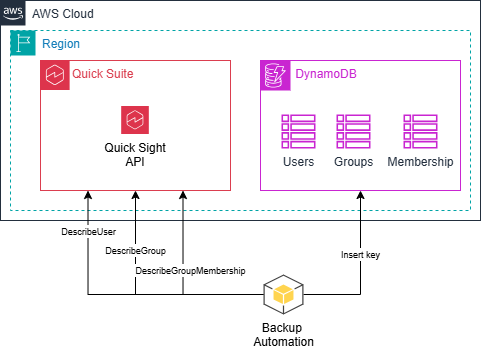
Example for a backup run on 2025-10-19:
- Users: quicksight-users-backup-2025-10-19
- Groups: quicksight-groups-backup-2025-10-19
- User-Group Memberships: quicksight-users-groups-backup-2025-10-19
Users Table Schema:
Groups Table Schema:
Users-Groups Membership Table Schema:
Note: The user and group backup service implements dual-Region support. User and group operations use the identity_region configuration parameter, while backup asset operations use the standard aws_region. This design addresses enterprise scenarios where Quick Sight identity management is configured in a different Region than asset storage.
Assets backup
The assets bundle backup service coordinates the export of assets within a Region and uploads the generated bundle to an Amazon S3 location for later use. The automation backs up the following assets: data sources, datasets, analyses, dashboards, and themes. By default, the backup includes all dependencies. You can disable this setting if needed.
At a high level, the service performs the following tasks:
- Lists all data sources using the ListDataSources API, filtering out Amazon S3 manifest-based data sources and data sources with invalid VPC connection names. Names must contain only alphanumeric characters separated by hyphens.
- Lists all datasets using the ListDataSets API, filtering out
FILEdatasets by checking theImportModefield. - Lists all analyses using the ListAnalyses API.
- Lists all dashboards using the ListDashboards API.
- Groups assets by type for separate export jobs. You can configure the number of assets to include in each bundle, with a maximum of 100 (the API limit).
- Checks the export job status using the DescribeAssetBundleExportJob API and implements exponential backoff to avoid throttling.
- Uploads the completed asset bundle to Amazon S3 using the following prefix structure.
Note: The bundle number string is present only when the number of assets to back up exceeds the configured value in max_assets_per_bundle.
End-to-end tool for backup creation
The QuickSight-backup tool provides a simple way to export all your Quick Sight assets and their dependencies into durable, inexpensive storage such as Amazon S3. The tool creates new prefixes for generated bundles, so previous backups aren’t overwritten. The tool also exports users and groups using the same principle: DynamoDB stores this data, and table names contain the date when the backup was generated. With this approach, you can use backups as a source for your recovery strategy and track the history of changes to your Quick Sight assets and associated users.
The code uses the Boto3 Python SDK and includes packaging support through setuptools for setup and use.
Tooling usage and configuration
Before using the tool, make sure you meet the following prerequisites:
- Python 3.8 or higher.
- A Quick Sight account with Enterprise edition or higher.
- AWS Command Line Interface (AWS CLI) configured with appropriate credentials.
- Required AWS permissions. See the Permissions section in the code.
Clone from source
Create a Python venv (recommended)
Install the package
Create a configuration file
To get started, refer to the config-basic.yaml file in the repo or create one from scratch. This configuration file defines key parameters for the tool, including the following:
- AWS account.
- Region.
- Backup locations (DynamoDB tables and Amazon S3 bucket prefixes).
Using the tool
After installation, you can run the tool as follows:
You only need to provide the --config parameter. You can omit the rest. The --mode parameter controls the backup type (full, users-only, or assets-only), where full is the default mode. The following list describes the arguments the tool supports.
Optional arguments
--mode,-m: Backup mode (full,users-only,assets-only); default isfull.--output-dir,-o: Output directory for reports and manifests.--verbose,-v: Enable verbose (DEBUG) logging.--log-file: Path to log file.--dry-run: Validate configuration without running the backup.--no-progress: Disable progress indicators.--generate-manifest: Generate a backup manifest file.--generate-report: Generate a human-readable backup report.--version: Show version information.
For more information, see the tool README file.
Tool code
You can find the code for this tool in the aws-samples repository. This tool helps you get started quickly. Use it as a foundational reference to refine and adapt for your specific backup requirements.
Before you implement a backup solution in your production environment, confirm that you:
- Review and adapt the code to align with your specific infrastructure requirements, security policies, and compliance standards.
- Conduct thorough testing in a non-production environment to validate functionality and performance.
- Implement appropriate security controls including encryption, access management, and audit logging required by your organization.
- Validate recovery procedures to confirm your backup strategy meets your defined Recovery Time Objectives (RTO) and Recovery Point Objectives (RPO).
- Consider cost optimization strategies and monitoring to keep the solution within your operational budget.
- Avoid concurrent tool execution: This tool relies on the AssetsAsBundle APIs, which have low throttling thresholds. The sample tool is not designed to run multiple instances in parallel within the same AWS account. If multiple teams need to use the tool, consider implementing a concurrency control mechanism (for example, a lock table in DynamoDB or a database-level lock) to prevent concurrent runs that could trigger API throttling.
Scheduled execution
The sample tool described in the previous section is designed for on-demand execution and is well suited for getting started or running ad-hoc backups. For a production-grade backup strategy, you might want to automate backup runs on a recurring schedule so that your Quick Sight assets are consistently protected without manual intervention.
This section outlines the high-level architecture for a scheduled, fully automated backup solution. Detailed implementation and code for this architecture are outside the scope of this post.
Architecture overview
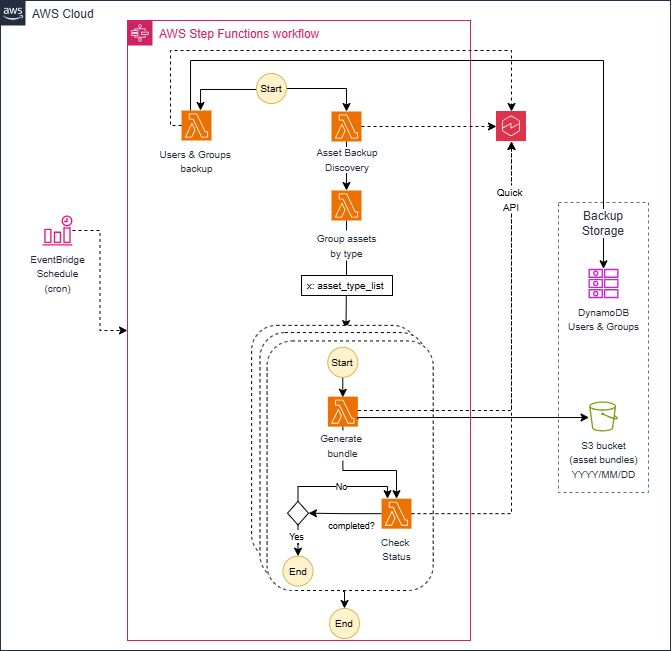
The scheduled execution architecture is built on three AWS managed services that work together to provide a reliable, serverless, and cost-effective automation pipeline:
- Amazon EventBridge is the scheduler. It triggers the backup workflow at a defined cadence, for example, daily at midnight. EventBridge rules let you define flexible cron-based or rate-based schedules without managing any underlying infrastructure.
- AWS Step Functions is the orchestration layer. It coordinates the run of the individual backup steps in the correct sequence. Step Functions provides built-in error handling, retry logic, and execution history, which makes it well suited for long-running workflows that span multiple API calls and asynchronous operations.
- AWS Lambda implements each individual backup step as an independent, stateless function. Splitting the backup logic across multiple Lambda functions addresses the time constraints inherent in the backup process. Each export job is asynchronous and might take several minutes to finish, depending on the number and size of assets being exported.
Workflow steps
Because the end-to-end backup process can take a significant amount of time, the automation is decomposed into discrete steps, each implemented by a dedicated Lambda function. AWS Step Functions orchestrates these functions in sequence, passing state between them and handling retries for transient failures. The workflow consists of the following steps:
- Users and groups backup: Retrieves all Quick Sight users, groups, and group memberships using the Quick Sight identity APIs and persists the data to DynamoDB with date-based table suffixes, as described in the Technical implementation section. This operation can run in parallel with the asset backup operations because it doesn’t have any dependency.
- Asset backup discovery: Lists all Quick Sight assets in the target Region (data sources, datasets, analyses, and dashboards), applies the necessary filters to exclude unsupported asset types, and groups assets into lists of up to 100 items each. The output of this step is passed to subsequent steps as input.
- Generate bundle: Initiates export jobs for all the assets included in the list specified as the input parameter, polls for job completion, and uploads the resulting ZIP bundles to the designated Amazon S3 prefix.
- Check status: Periodically polls the active bundle execution and notifies the AWS Step Functions state machine when the export finishes.
The following diagram illustrates the high-level flow of the scheduled execution architecture.
Key design considerations
- Asynchronous polling: The check-status Lambda function polls the job initiated by the generate-bundle Lambda function using the
DescribeAssetBundleExportJobAPI until the job reaches a terminal state (SUCCESSFULorFAILED). The check-status Lambda function runs in a loop with a waiting condition (for example, 30 seconds) between calls. - Parallelism: Configure an adequate level of parallelism to control the volume of API calls performed by the steps in your workflow, especially on the generate-bundle step that calls the
DescribeAssetBundleExportJobandStartAssetBundleExportJobAPIs, which have low concurrent rate limits. You can use the inline map state MaxConcurrency field to limit the number of concurrent runs of the generate-bundle step. - Error handling: Step Functions lets you define catch blocks and retry policies at each stage. A failure in one step (for example, an unsupported asset type) doesn’t abort the entire backup run.
- Cost: When scheduling is enabled, costs scale with backup frequency and retention period. For guidance on estimating storage costs, see the Cost estimation section.
Cost estimation
The following sections estimate the costs of running the backup tool on Amazon S3 (for asset bundles) and DynamoDB (for user and group metadata).
Amazon S3: asset bundle storage
Asset bundles are compressed ZIP files uploaded to Amazon S3 after each export job. Based on the solution design, each bundle of up to 100 assets averages approximately 500 KB when compressed.
Key takeaway: Amazon S3 storage costs for asset bundles are minimal. Even for very large Quick Sight deployments with thousands of assets, the compressed bundle size remains in the low megabytes range, resulting in a monthly storage cost well below $0.01.
Amazon DynamoDB: user and group metadata storage
User and group information is stored in DynamoDB tables with date-based suffixes to preserve backup history. DynamoDB storage is priced at approximately $0.25 per GB per month (Standard table class, on-demand mode).
Each item stored in DynamoDB represents a single user or group definition (including all associated attributes such as ARN, email, role, group memberships, and backup timestamp). Based on the schema described in this post, the average item size is approximately 256 KB.
You can use this formula to estimate the size of your DynamoDB tables:
Table size estimate = Number of items × Average item size (256 KB)
Key takeaway: For small and medium organizations, DynamoDB storage costs remain minimal (under $0.10 per month per backup snapshot). For large organizations with tens of thousands of users, costs are still modest, in the low single-digit dollar range per snapshot.
Summary
For a single, unscheduled backup run, the total AWS cost is effectively near zero, dominated by a few cents of Amazon S3 and DynamoDB storage at most. If you implement scheduled backups (covered in the Scheduled execution section), costs scale linearly with backup frequency and retention period. Even with daily backups retained for 90 days, total storage costs remain in the low single-digit dollar range for most deployments. Consider using Amazon S3 Lifecycle policies and DynamoDB Standard-IA to optimize costs as your backup history grows.
Conclusion
In this post, we covered how to design and implement a comprehensive backup strategy for Amazon Quick Sight assets so you can maintain business continuity, meet regulatory requirements, and protect against data loss.
We covered how to use AssetsAsBundle APIs to programmatically export and preserve critical BI assets, including dashboards, analyses, datasets, and data sources, along with their dependencies and permissions. To help you get started, this post includes a sample automation tool that you can test and adapt to your organization’s needs. The code orchestrates these APIs, stores asset bundles in Amazon S3, and preserves user and group information in DynamoDB for point-in-time recovery.
Ready to protect your Quick Sight BI assets? Get started today by cloning the sample backup tool from the AWS Samples repository and testing it in your non-production environment. Begin with a simple configuration to back up your most critical dashboards, then expand to a production-ready backup strategy as you validate the process. To learn more about Amazon Quick Sight, see the Amazon Quick Sight User Guide.
About the author