

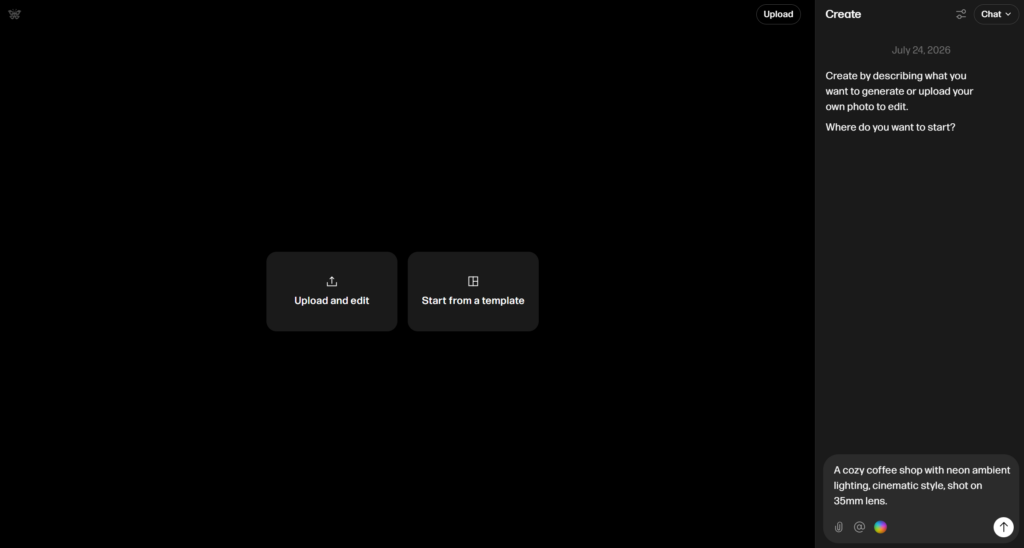
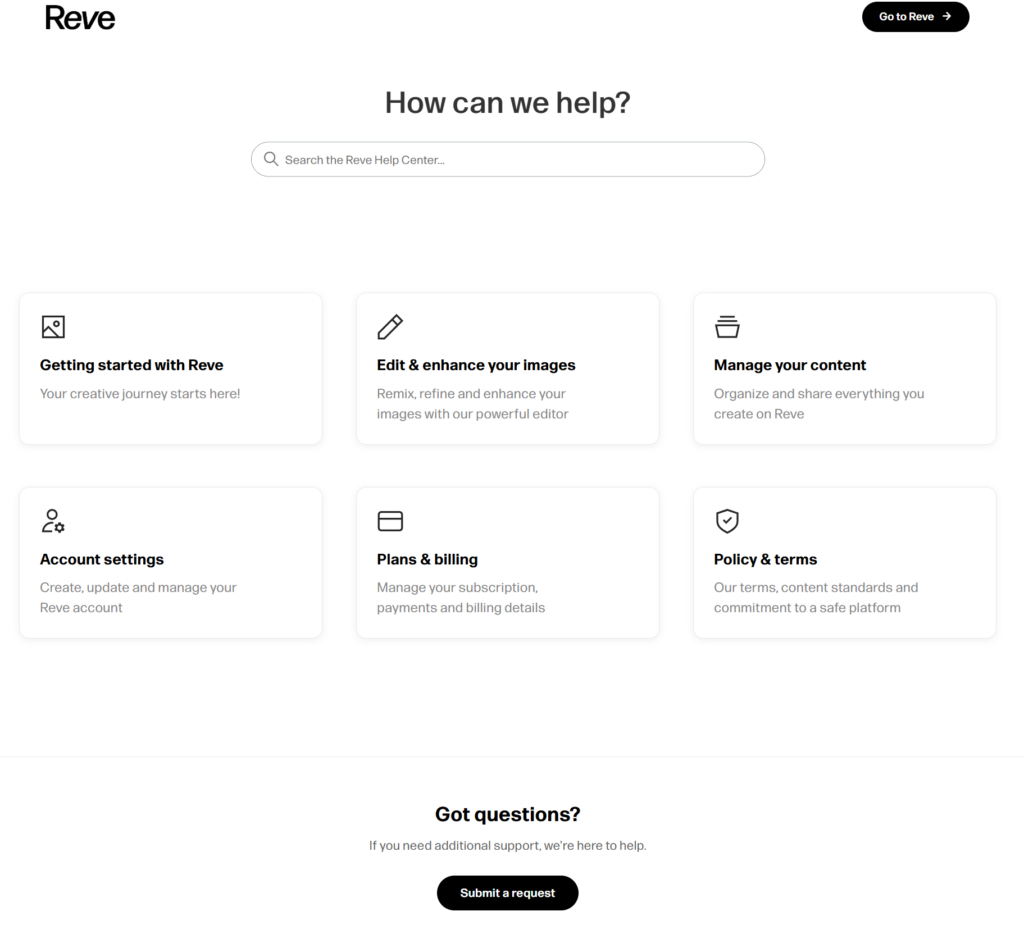
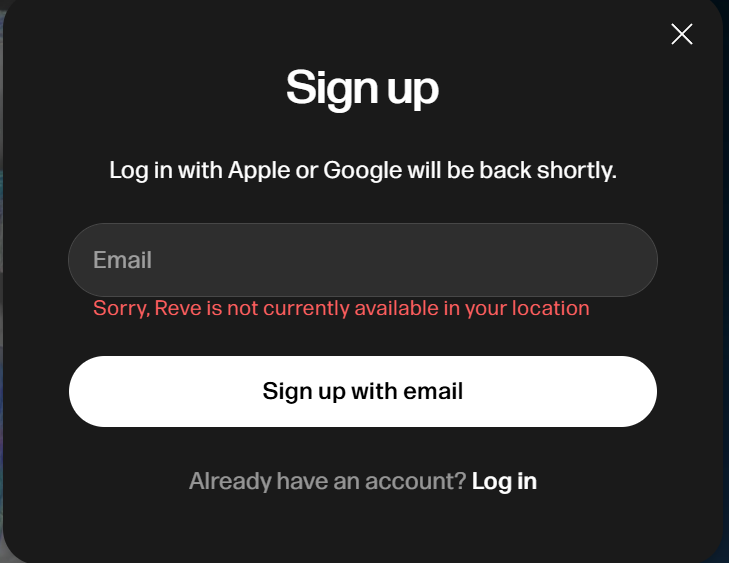
Visit Reve website for full experience

Remarks
Founded by researchers with backgrounds at Google Brain and NVIDIA, Reve AI treats an image as a set of structured, editable components rather than just a flat pixel grid.
Key Usages & Workflows
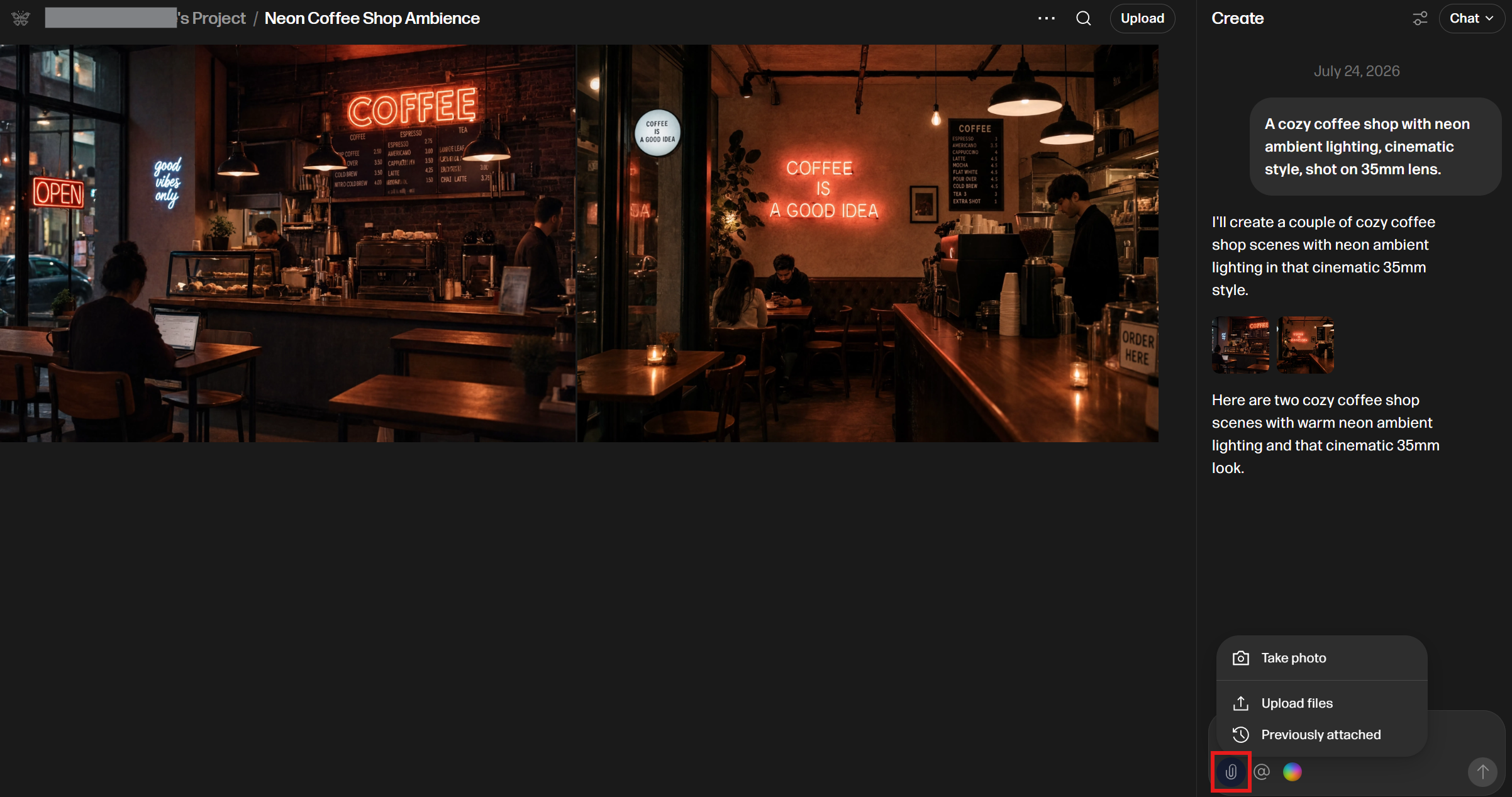
- Layout-First & Object Detection: Rather than regenerating an entire picture when you want a change, Reve breaks down scenes into distinct elements (objects, text blocks, subject layers, backgrounds). You can select, move, recolor, or remove individual objects without disturbing the rest of the image.
- Native 4K Output: Provides high-resolution 4K generation directly without relying on heavy external post-upscaling filters.
- Precise Typography & Text: Excels at typography, producing legible, well-aligned text for logos, banners, posters, and product labels.
- Multi-Reference Blending & Consistency: Allows you to blend multiple reference images (e.g., combining a specific character, a setting, and a style) while maintaining subject identity.
Limitation
- Organic & Micro Details: While wide shots and structured environments look crisp, very fine organic details (e.g., animal fur flow, complex foliage textures, or crowded background faces) can sometimes appear overly uniform or synthetic.
- Complex Scale & Proportions: Struggles occasionally with relative scale when compositing multiple products or subjects into a tight frame.
- Iterative Quality Loss: Repeatedly making dozens of sequential chat edits on the same local element can slowly degrade localized fidelity over time.
- Small/Paragraph Text: Prominent headlines and logos render cleanly, but tiny body text, dense paragraphs, or complex multilingual script may still show minor distortion.



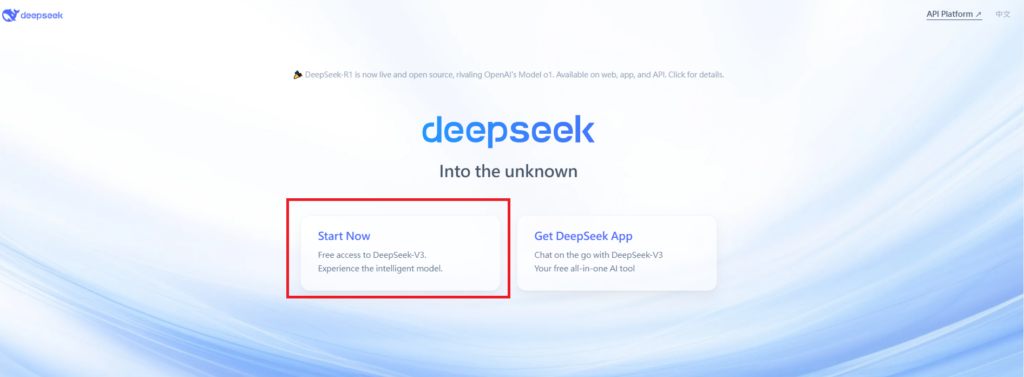
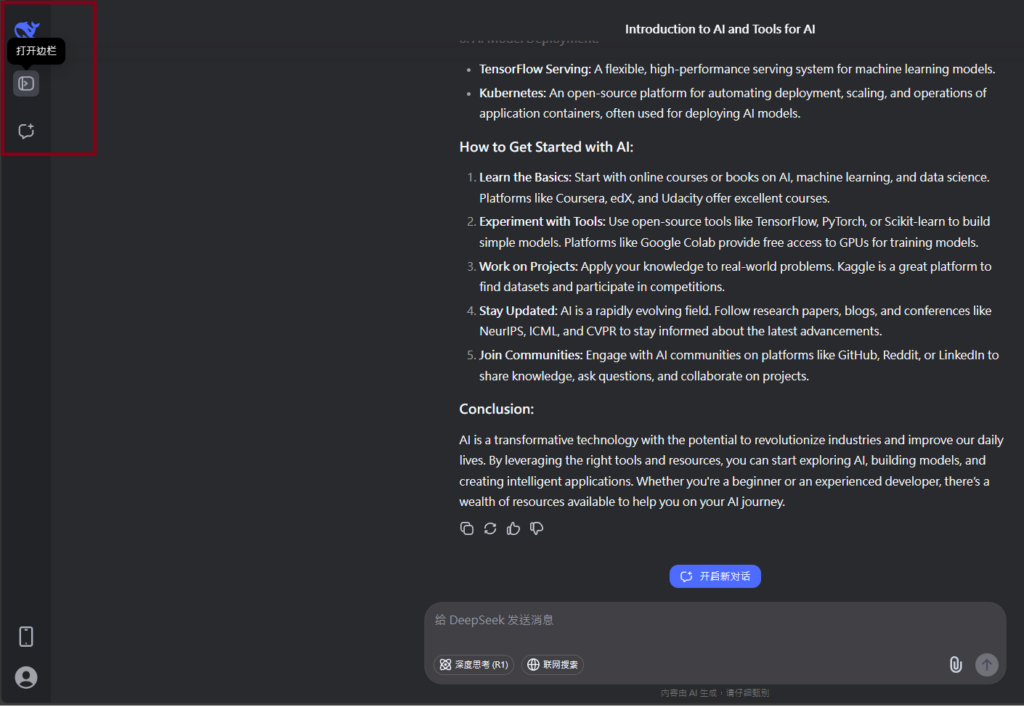
Visit Deepseek website for full experience
Remarks
DeepSeek is an AI-powered tool designed for deep information retrieval, analysis, and content generation. It is commonly used in areas such as:
- Advanced Information Retrieval
- DeepSeek can process and analyze large datasets to extract relevant insights.
- It helps users find precise information beyond standard search engines.
- Natural Language Processing (NLP) Applications
- Used for text summarization, sentiment analysis, and question-answering systems.
- Supports various languages and can generate human-like responses.
- AI-Assisted Research and Writing
- Helps researchers analyze academic papers, generate summaries, and suggest references.
- Useful for drafting articles, reports, and creative writing.
- Code Assistance and Debugging
- Provides AI-powered code suggestions, optimizations, and bug fixes.
- Supports multiple programming languages, aiding developers in software development.
- Business and Decision-Making Support
- Analyzes market trends, customer feedback, and financial data for businesses.
- Assists in generating insights for strategic decision-making.
limitation:
- Accuracy and Hallucination Issues
- AI models can sometimes generate incorrect or misleading information.
- Requires human verification before relying on outputs.
- Limited Real-Time Data Access
- May not always provide the latest information if it’s not connected to live data sources.
- Some AI models work with pre-trained datasets, limiting real-time updates.
- Context Limitations
- Struggles with highly nuanced or ambiguous queries.
- Long conversations may lead to context loss or inconsistencies.
- Ethical and Bias Concerns
- AI models can reflect biases present in training data.
- Requires careful consideration when used in sensitive applications.
- Computational Resource Constraints
- Running deep learning models requires significant computational power.
- Latency issues may arise during complex queries or large-scale data analysis.


Lorem ipsum dolor sit amet, consectetur adipiscing elit. Ut elit tellus, luctus nec ullamcorper mattis, pulvinar dapibus leo.