
Visit Kortex website for full experience
Remarks
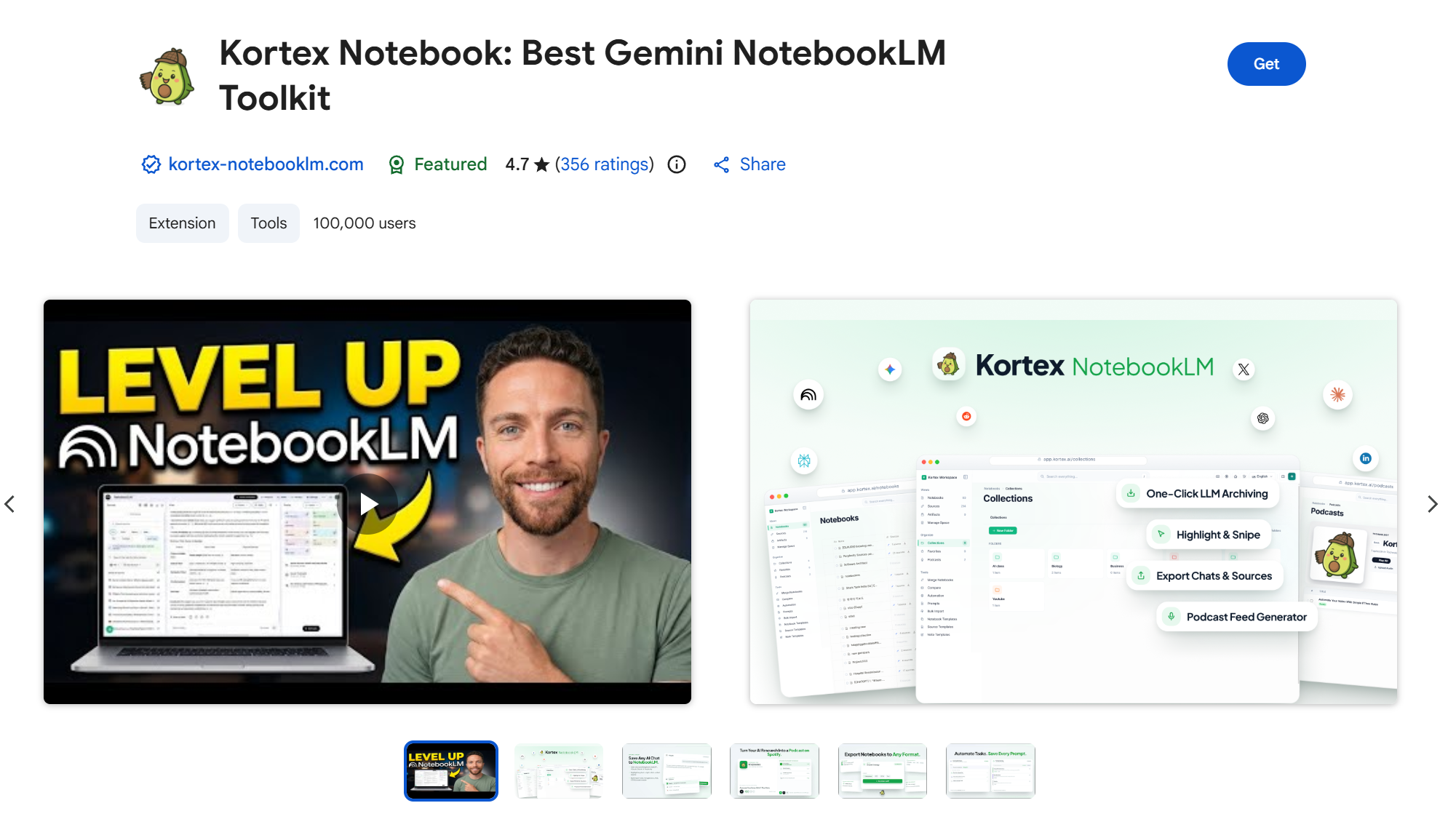
Kortex AI is an AI-powered knowledge management workspace and browser companion designed to function as a “second brain”. It allows researchers, writers, and power users to capture web sources, structure notes, store reusable prompts, and integrate directly with AI research platforms like Google’s NotebookLM and conversational models (such as ChatGPT, Claude, and Gemini).
Key Usages & Workflows
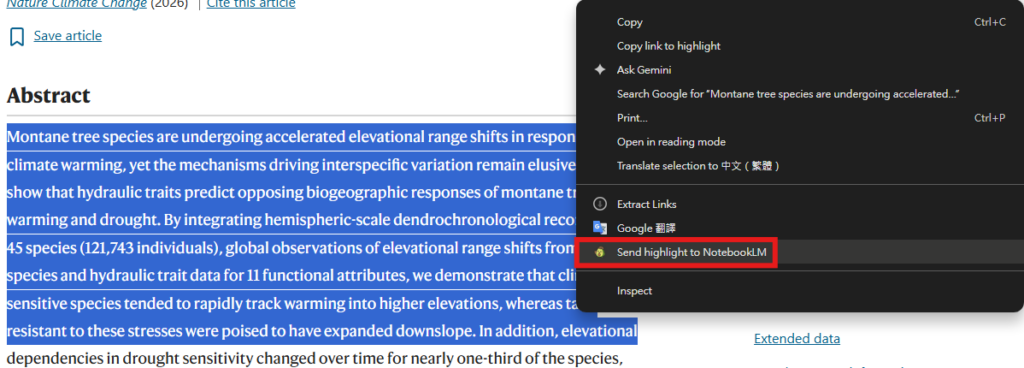
- Web Research & Source Capture: Highlight snippets from articles, forums (e.g., Reddit), or social posts and instantly save them with preserved links and citations.
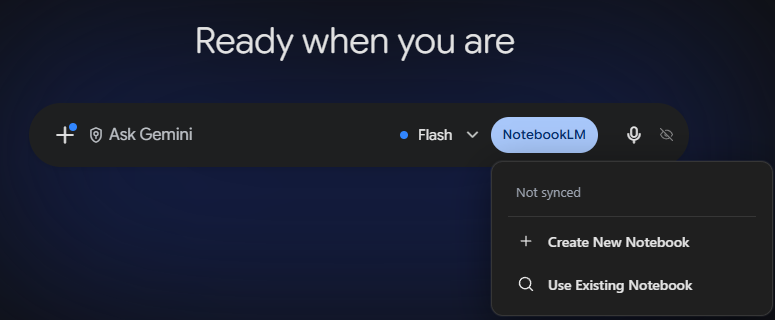
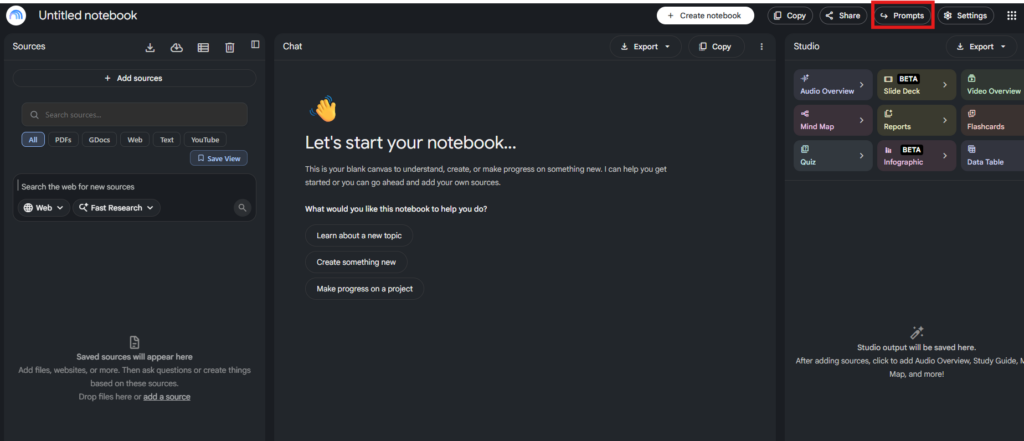
- NotebookLM / Gemini Enhancement: Connect directly to NotebookLM to import whole chat threads, group references into folders, organize prompts, and bypass standard UI limits.
- Multi-Model LLM Workspaces: Access and switch between multiple models (like Claude, ChatGPT, and Gemini) within a single document or chat workspace for drafting, summarizing, or analyzing files.
- Audio & Podcast Generation: Convert curated research notebooks into custom audio overviews or private podcast RSS feeds (compatible with Spotify or Apple Podcasts) to listen to research on the go.
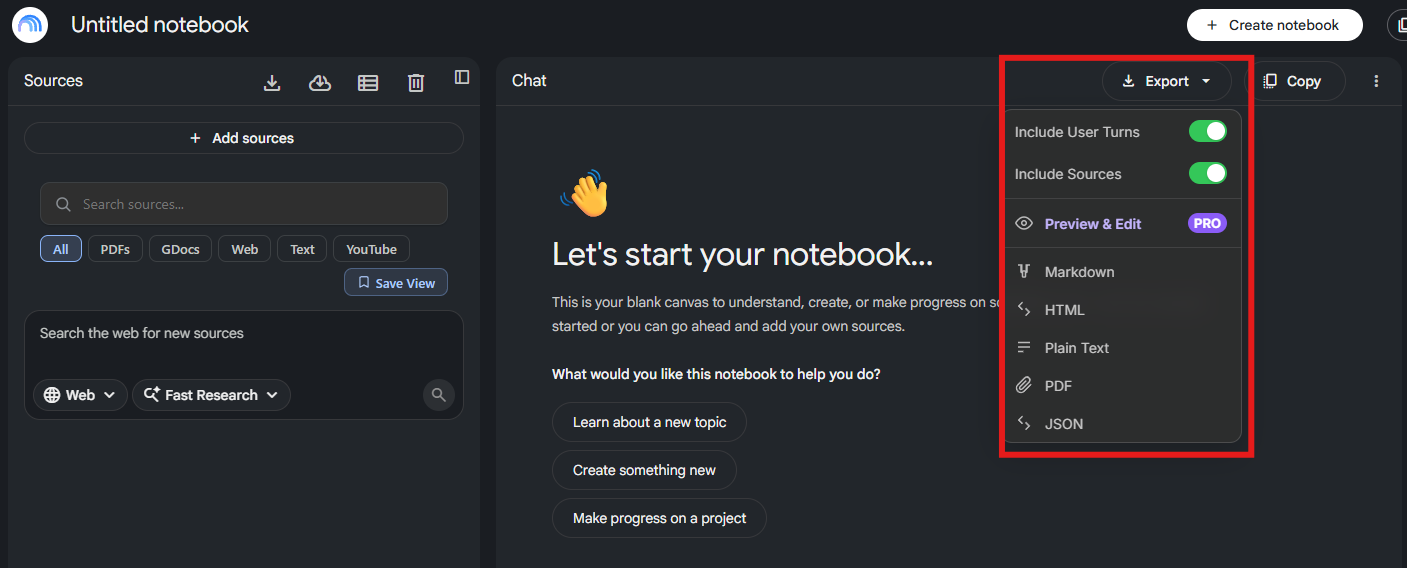
- Content & Prompt Management: Store reusable prompt libraries, tag/organize notes with nested folders, and export research bundles into clean Markdown, PDF, or ZIP files.
Limitation
- Third-Party API Dependency: Features relying on integrations or extensions (such as NotebookLM, Claude, or ChatGPT) are vulnerable to UI changes or reverse-engineered API updates from external platforms.
- Tiered & Usage-Based Caps: Premium AI model requests, audio-generation minutes (for podcast feeds), and bulk imports are subject to tiered monthly limits or credit quotas depending on your plan.
- Browser & Platform Constraints: Primarily built as a Chromium browser extension (Google Chrome, Edge, Brave), limiting native mobile workflows or non-Chromium environments.
- Quality & Hallucination Risks: Inherits standard LLM limitations—output quality depends directly on the accuracy and context of the ingested source material.

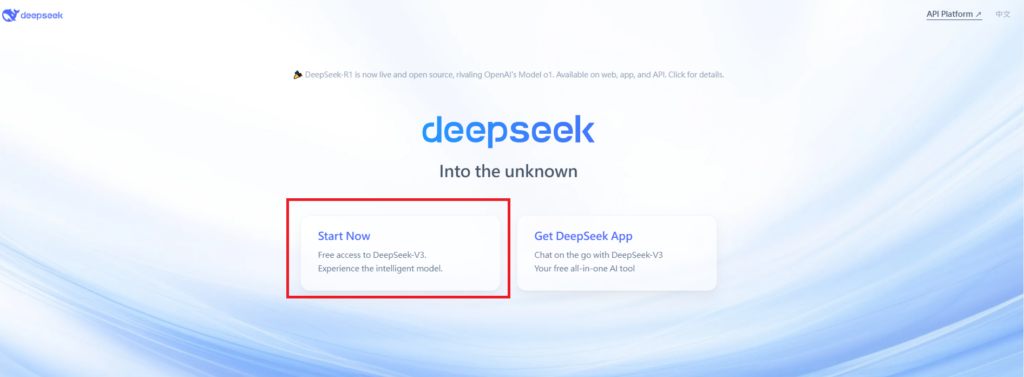
Visit Deepseek website for full experience
Remarks
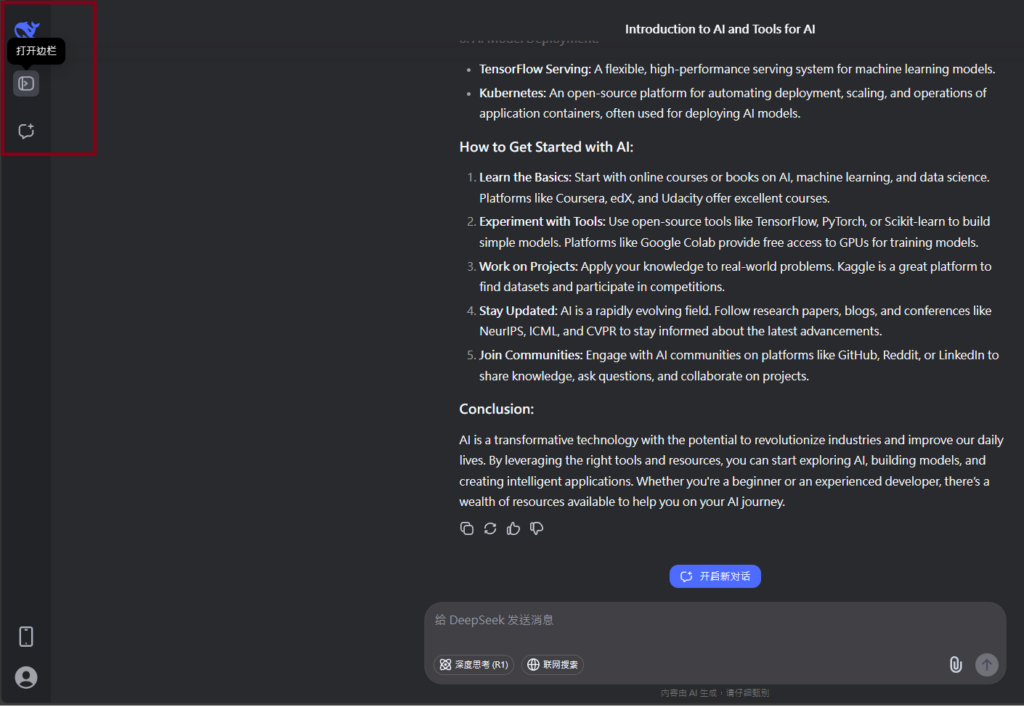
DeepSeek is an AI-powered tool designed for deep information retrieval, analysis, and content generation. It is commonly used in areas such as:
- Advanced Information Retrieval
- DeepSeek can process and analyze large datasets to extract relevant insights.
- It helps users find precise information beyond standard search engines.
- Natural Language Processing (NLP) Applications
- Used for text summarization, sentiment analysis, and question-answering systems.
- Supports various languages and can generate human-like responses.
- AI-Assisted Research and Writing
- Helps researchers analyze academic papers, generate summaries, and suggest references.
- Useful for drafting articles, reports, and creative writing.
- Code Assistance and Debugging
- Provides AI-powered code suggestions, optimizations, and bug fixes.
- Supports multiple programming languages, aiding developers in software development.
- Business and Decision-Making Support
- Analyzes market trends, customer feedback, and financial data for businesses.
- Assists in generating insights for strategic decision-making.
limitation:
- Accuracy and Hallucination Issues
- AI models can sometimes generate incorrect or misleading information.
- Requires human verification before relying on outputs.
- Limited Real-Time Data Access
- May not always provide the latest information if it’s not connected to live data sources.
- Some AI models work with pre-trained datasets, limiting real-time updates.
- Context Limitations
- Struggles with highly nuanced or ambiguous queries.
- Long conversations may lead to context loss or inconsistencies.
- Ethical and Bias Concerns
- AI models can reflect biases present in training data.
- Requires careful consideration when used in sensitive applications.
- Computational Resource Constraints
- Running deep learning models requires significant computational power.
- Latency issues may arise during complex queries or large-scale data analysis.


Lorem ipsum dolor sit amet, consectetur adipiscing elit. Ut elit tellus, luctus nec ullamcorper mattis, pulvinar dapibus leo.