

Visit Google Stitch website for full experience
Remarks
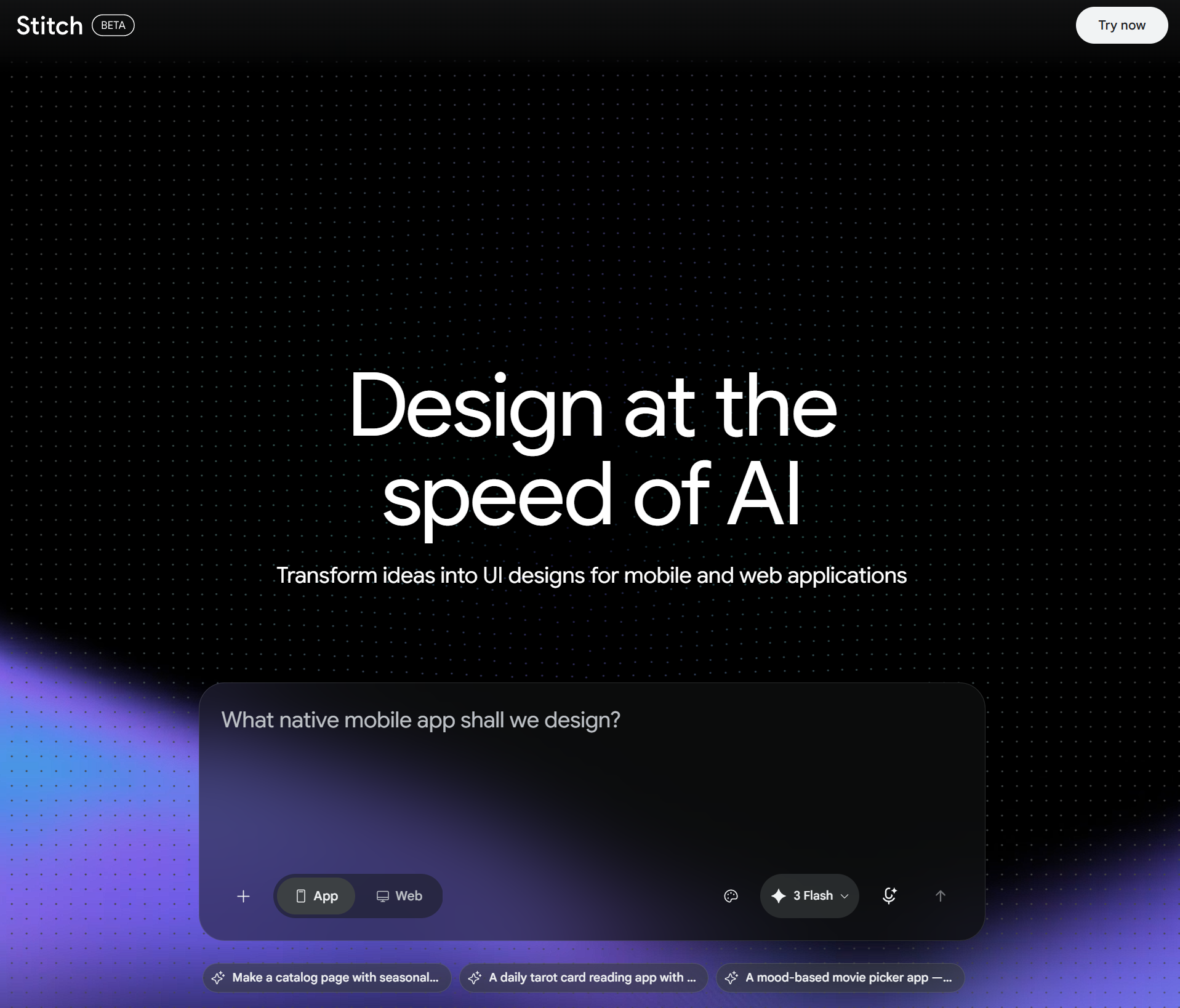
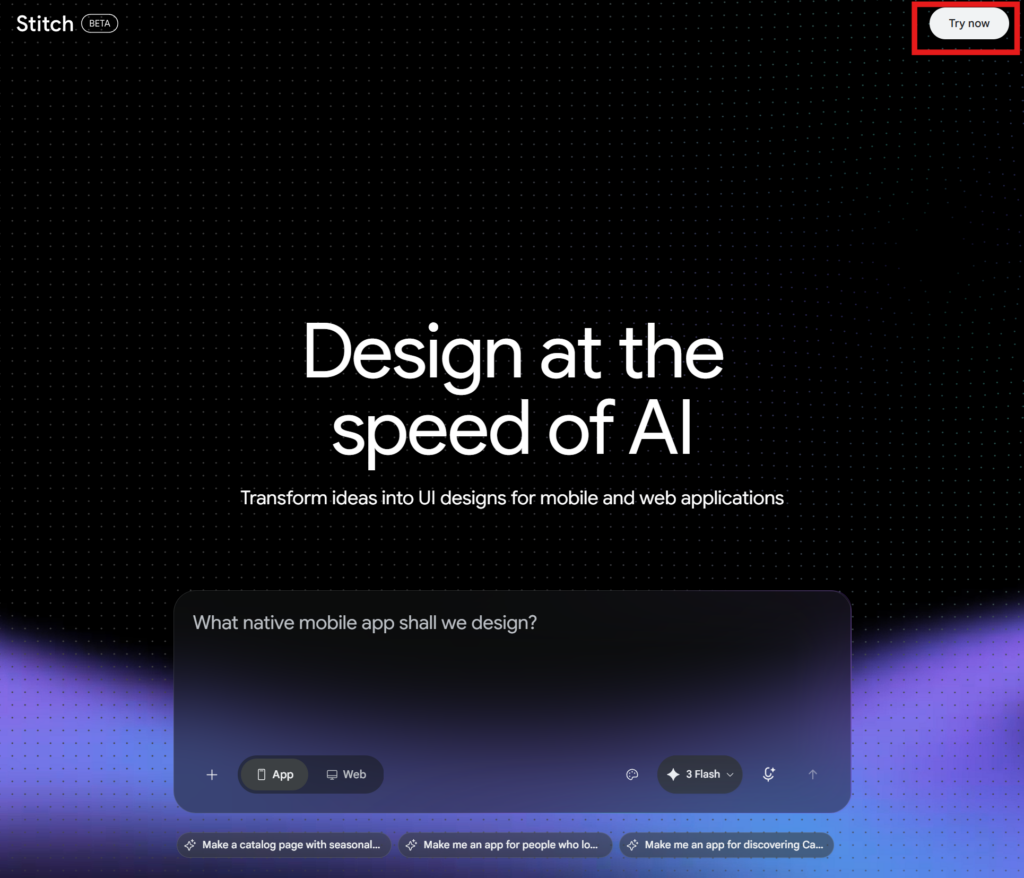
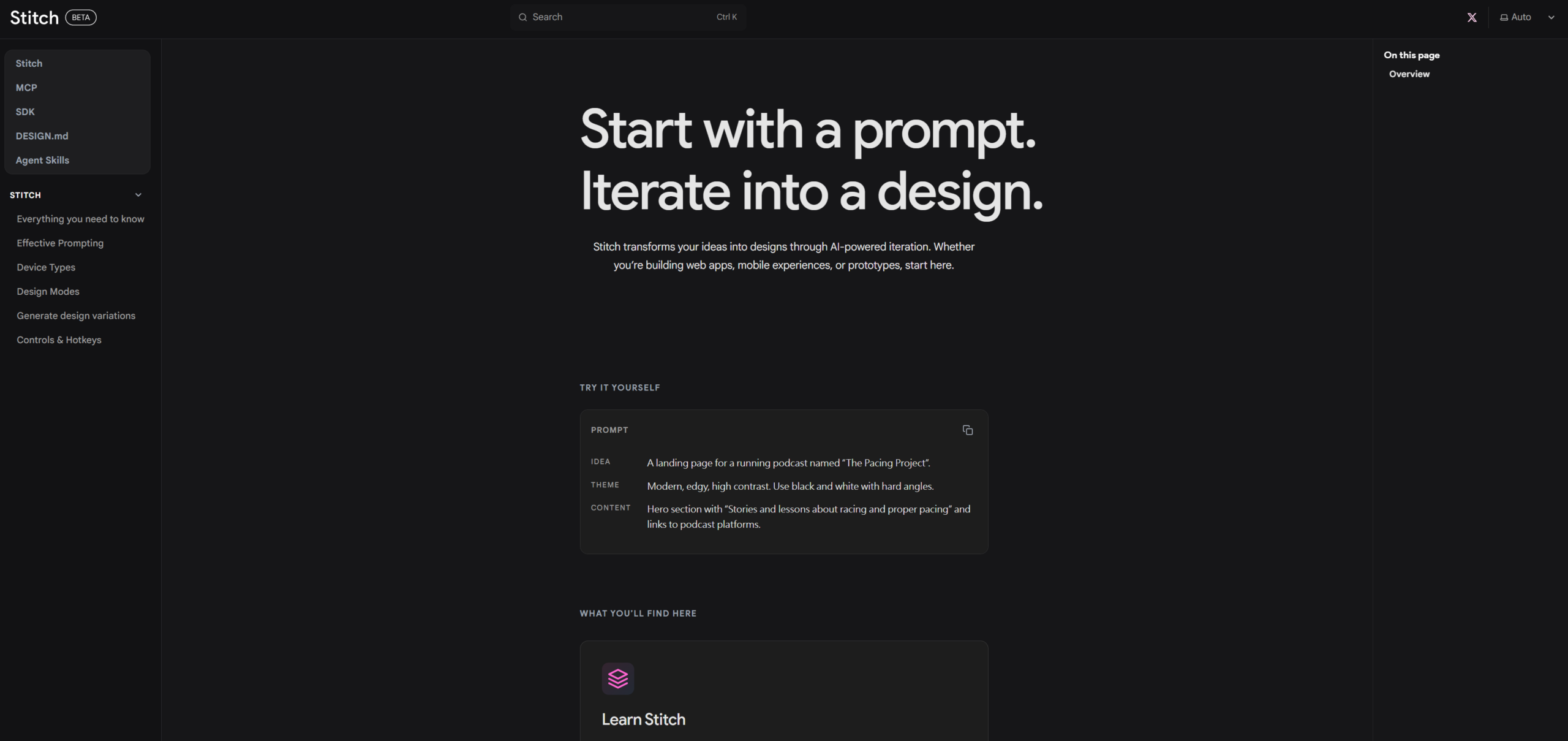
Google Stitch is an AI-native design canvas developed by Google Labs that translates natural language prompts, sketches, or screenshots into high-fidelity user interface (UI) mockups and functional frontend code. Powered by Google’s Gemini models, it functions as a highly collaborative “design agent” on an infinite canvas, allowing developers, product managers, and UI/UX designers to bypass tedious manual layout grids and move instantly from conceptual ideas to clickable, testable prototypes.
Key Usages & Workflows
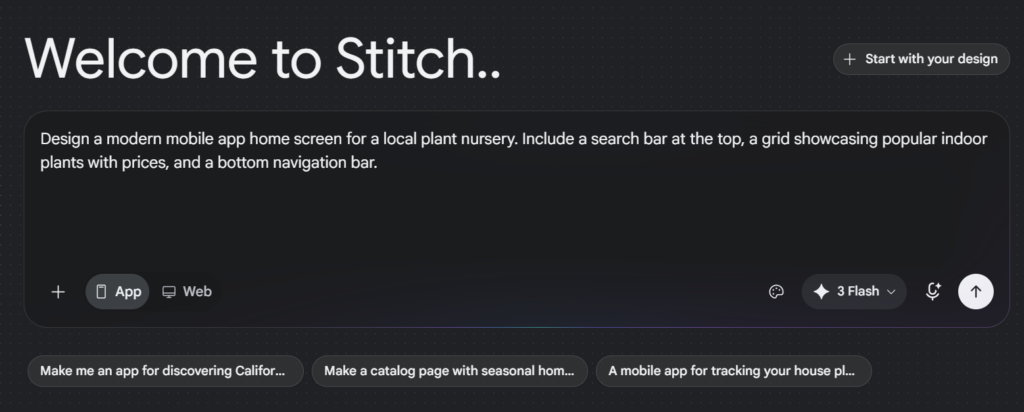
- The Core Prompt: You provide Stitch with a highly detailed, natural language description:
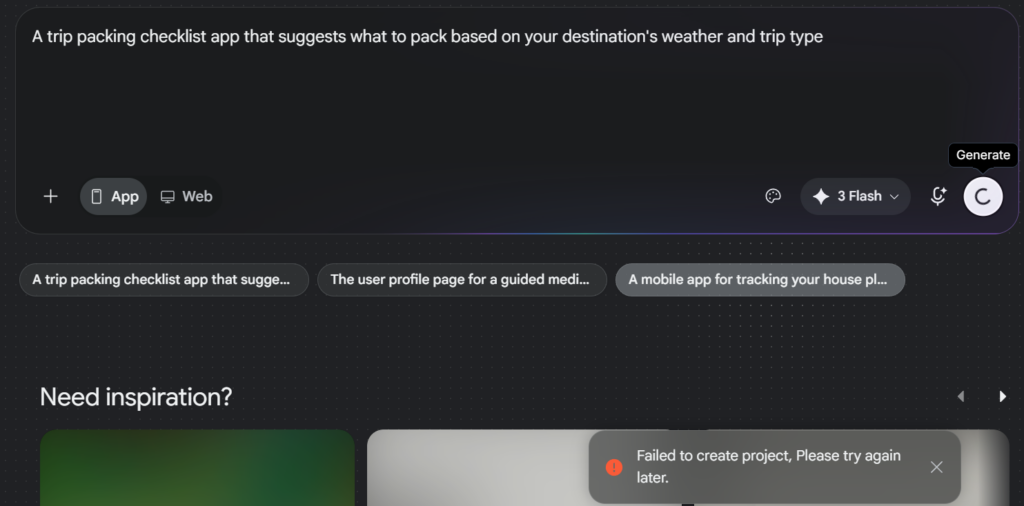
“Design a dark-mode mobile dashboard for an IoT smart home app. Include a top section for overall home status, interactive grid cards for individual rooms (Living Room, Kitchen), and a persistent bottom navigation bar.” - AI Generation: Stitch acts on the prompt in about 45 seconds to generate multiple layout variations directly onto an infinite canvas.
- Conversational Refinement: You notice the room cards feel cluttered. Instead of manually editing layers, you simply prompt: “Simplify the room cards and make the borders rounded.” The design agent adjusts the elements on the fly.
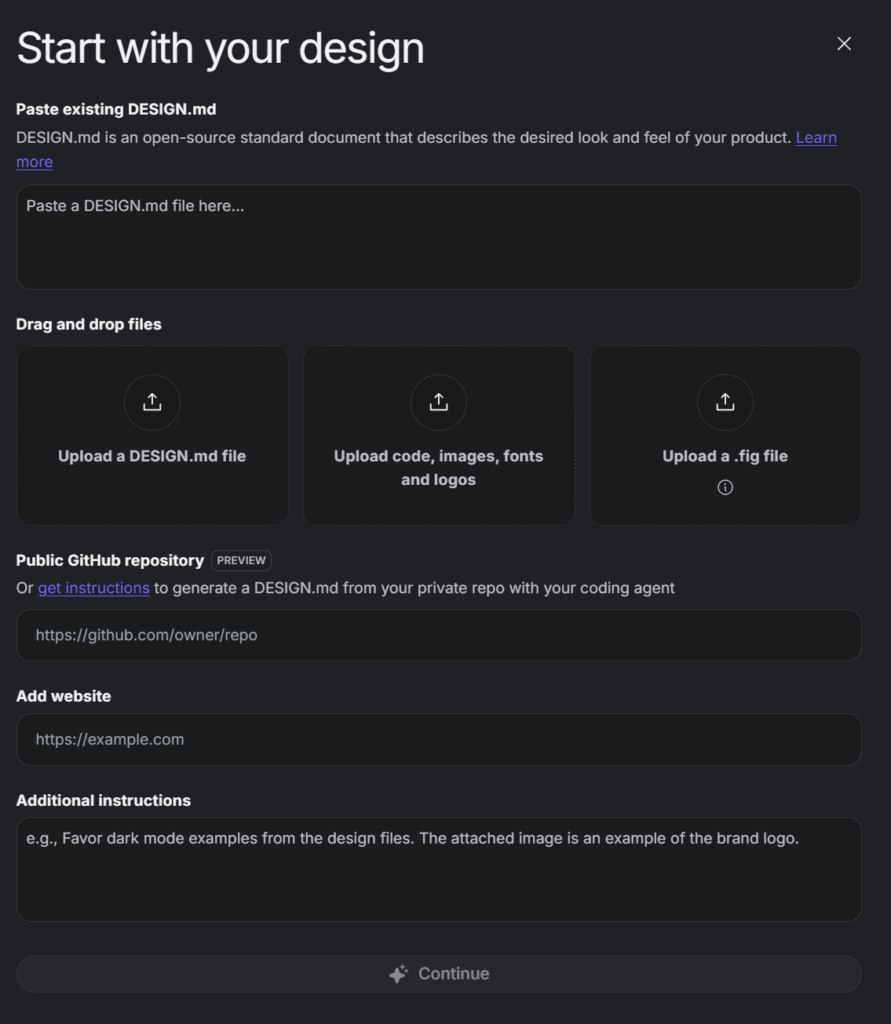
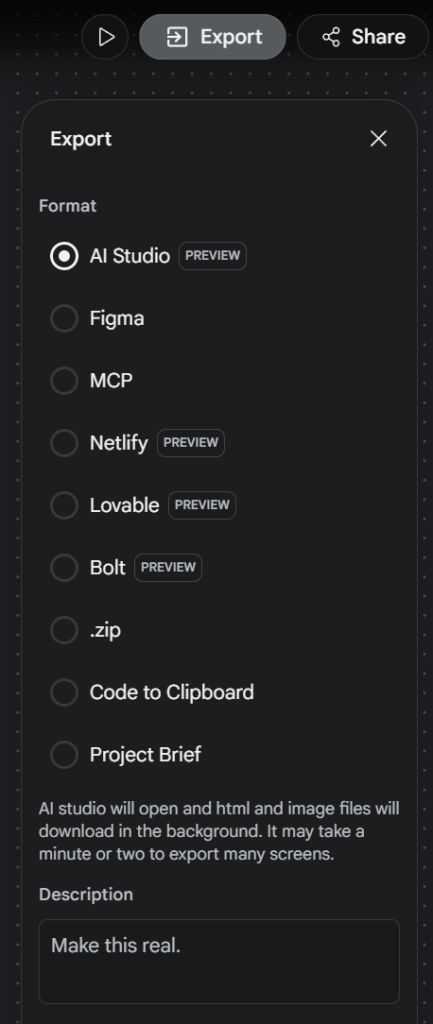
- Handoff: Once satisfied, you can copy the generated frames seamlessly into Figma (preserving auto-layouts and editable layers) or export clean, production-ready frontend code (like HTML/CSS, Tailwind, or React) to jumpstart actual development.
Limitation
- Strict Focus on UI/UX Layouts: Stitch is explicitly built for interface design (app screens, SaaS dashboards, landing pages). It is not a general graphic design tool; you cannot use it to generate marketing banners, presentations, social media graphics, or illustrative vector artwork.
- Design Depth over Logic: While it creates interactive prototypes where you can simulate clicking, text input, or scrolling, it does not build real backend functionality, databases, or active data pipelines. The underlying logic must still be wired up separately by a developer.
- Usage Caps on the Free Tier: Currently hosted as a free experiment in Google Labs, it relies on a monthly generation allowance. Users are capped at a specific allotment of generations (typically 350 for Standard speed/Gemini Flash and 200 for Experimental/Gemini Pro modes), meaning heavy daily design stress-testing can exhaust your monthly limits quickly.

Visit Deepseek website for full experience
Remarks
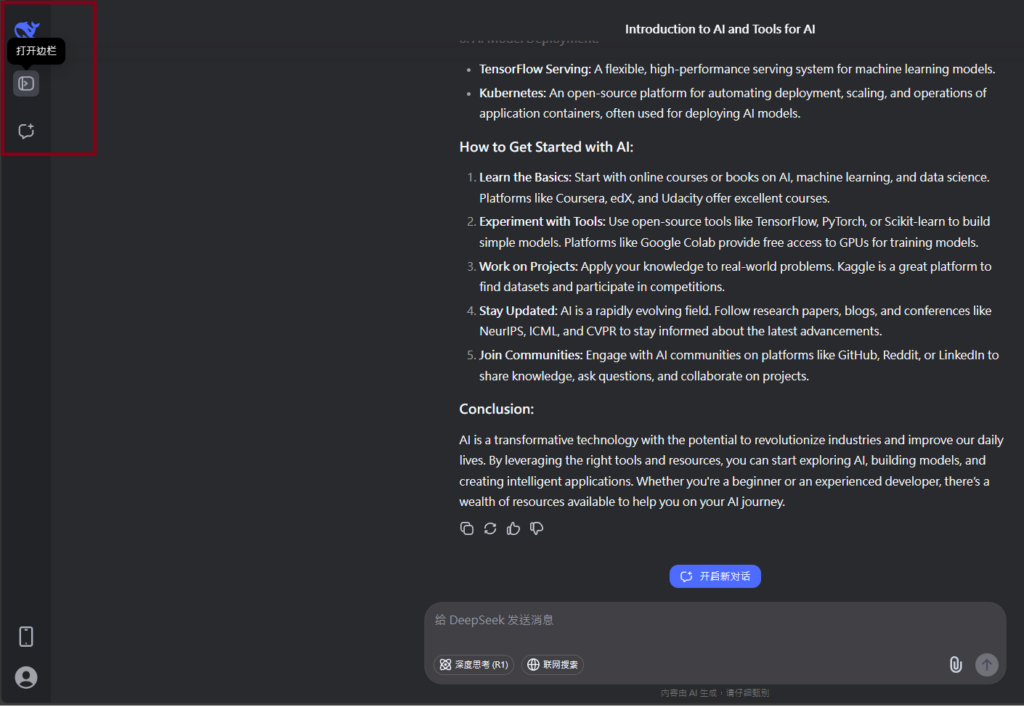
DeepSeek is an AI-powered tool designed for deep information retrieval, analysis, and content generation. It is commonly used in areas such as:
- Advanced Information Retrieval
- DeepSeek can process and analyze large datasets to extract relevant insights.
- It helps users find precise information beyond standard search engines.
- Natural Language Processing (NLP) Applications
- Used for text summarization, sentiment analysis, and question-answering systems.
- Supports various languages and can generate human-like responses.
- AI-Assisted Research and Writing
- Helps researchers analyze academic papers, generate summaries, and suggest references.
- Useful for drafting articles, reports, and creative writing.
- Code Assistance and Debugging
- Provides AI-powered code suggestions, optimizations, and bug fixes.
- Supports multiple programming languages, aiding developers in software development.
- Business and Decision-Making Support
- Analyzes market trends, customer feedback, and financial data for businesses.
- Assists in generating insights for strategic decision-making.
limitation:
- Accuracy and Hallucination Issues
- AI models can sometimes generate incorrect or misleading information.
- Requires human verification before relying on outputs.
- Limited Real-Time Data Access
- May not always provide the latest information if it’s not connected to live data sources.
- Some AI models work with pre-trained datasets, limiting real-time updates.
- Context Limitations
- Struggles with highly nuanced or ambiguous queries.
- Long conversations may lead to context loss or inconsistencies.
- Ethical and Bias Concerns
- AI models can reflect biases present in training data.
- Requires careful consideration when used in sensitive applications.
- Computational Resource Constraints
- Running deep learning models requires significant computational power.
- Latency issues may arise during complex queries or large-scale data analysis.


Lorem ipsum dolor sit amet, consectetur adipiscing elit. Ut elit tellus, luctus nec ullamcorper mattis, pulvinar dapibus leo.