Today we’re announcing the general availability of TwelveLabs Marengo Embed 3.0 as an embedding model in Amazon Bedrock Knowledge Bases.
Video and media assets remain largely unsearchable by meaning. Teams in media, sports analytics, education, security, and retail need to find specific moments in hours of footage using natural language. An example query is “show me the penalty kick in the second half”. Building semantic search over video today requires stitching together a complex pipeline of transcription services, frame extraction pipelines, embedding models, vector databases, and synchronization logic.
Amazon Bedrock Knowledge Bases is a fully managed Retrieval Augmented Generation (RAG) service that handles storage, ingestion, embedding, re-ranking, and retrieval. It supports video files (MP4, MOV), images (JPEG, PNG), and audio tracks, with native connectors for Amazon Simple Storage Service (Amazon S3), SharePoint, Confluence, and more.
Marengo Embed 3.0 is a multimodal embedding model that jointly encodes video, audio, images, and text into a compact, storage-efficient 512-dimensional vector space.
With Marengo Embed 3.0 now available as an embedding model option, natural language search through video, audio, and image content becomes a fully managed experience. Managed Knowledge Bases (Managed MKB) automatically generates multimodal embeddings, capturing visual, textual, speech, and audio signals into a unified vector representation.
Walkthrough
This walkthrough shows how to create a knowledge base (KB) powered by Marengo 3.0 using the Amazon Bedrock console. The scenario contains a 10-minute clip of the 2022 FIFA World Cup final.
We ingest the video and run natural language queries against it.
Prerequisites
- An active AWS account. If you don’t have one, see Create an AWS Account.
- Access to Amazon Bedrock with TwelveLabs Marengo Embed 3.0 enabled in a supported Region. For details, see Model access in the Amazon Bedrock documentation.
- An Amazon S3 bucket to store your video and image files.
- AWS Identity and Access Management (IAM) permissions for Amazon Bedrock and Amazon S3.
1. Prepare your media assets
First, upload video files to an Amazon S3 bucket. There’s no pre-processing required as Managed MKB handles segmentation, frame sampling, and transcription internally.
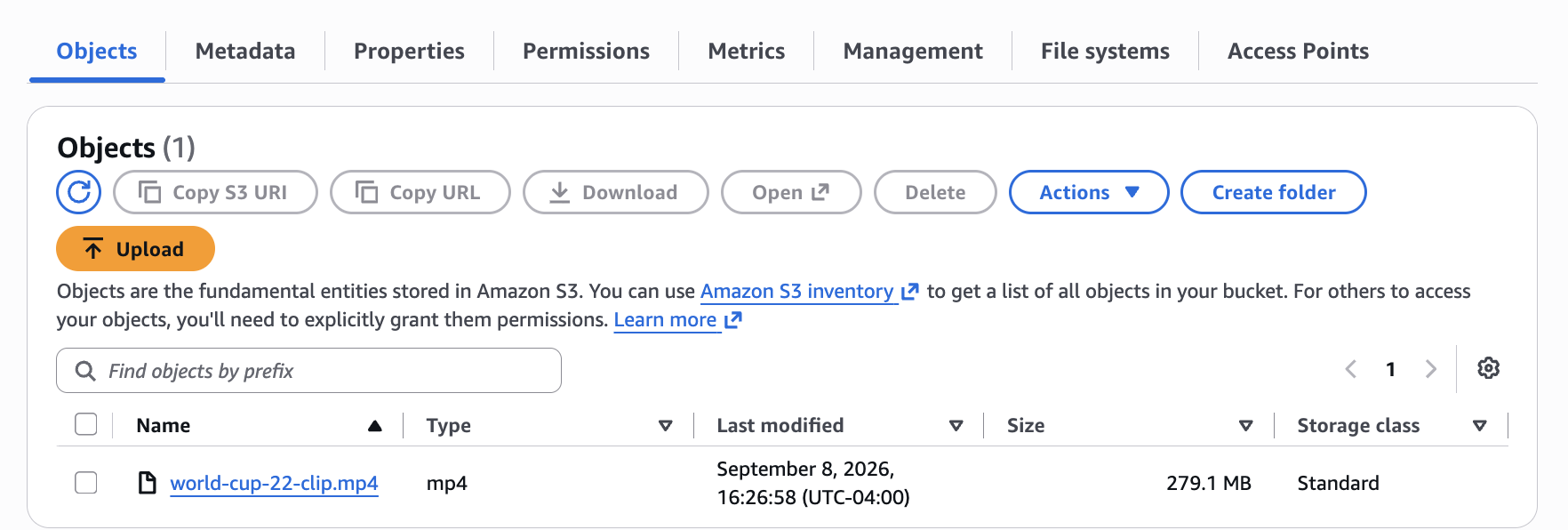
Figure 1: Amazon S3 bucket containing the uploaded soccer video file for knowledge base ingestion
2. Create a managed knowledge base
In the Amazon Bedrock console, navigate to Knowledge Bases and choose Create Managed KB.
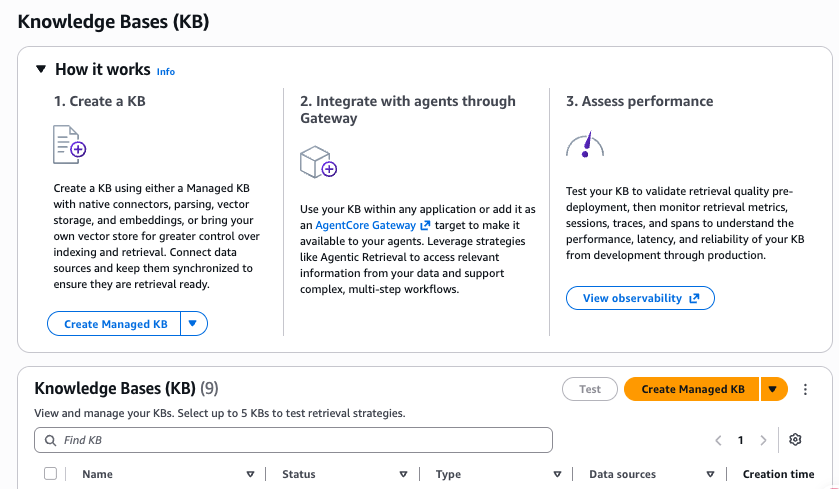
Figure 2: Amazon Bedrock Knowledge Bases console with the Create managed KB button
Expand the Additional Configuration pane and select Amazon Bedrock embeddings model for Embeddings model. Amazon Titan Text is selected by default. Choose the pen icon to edit the model choice.
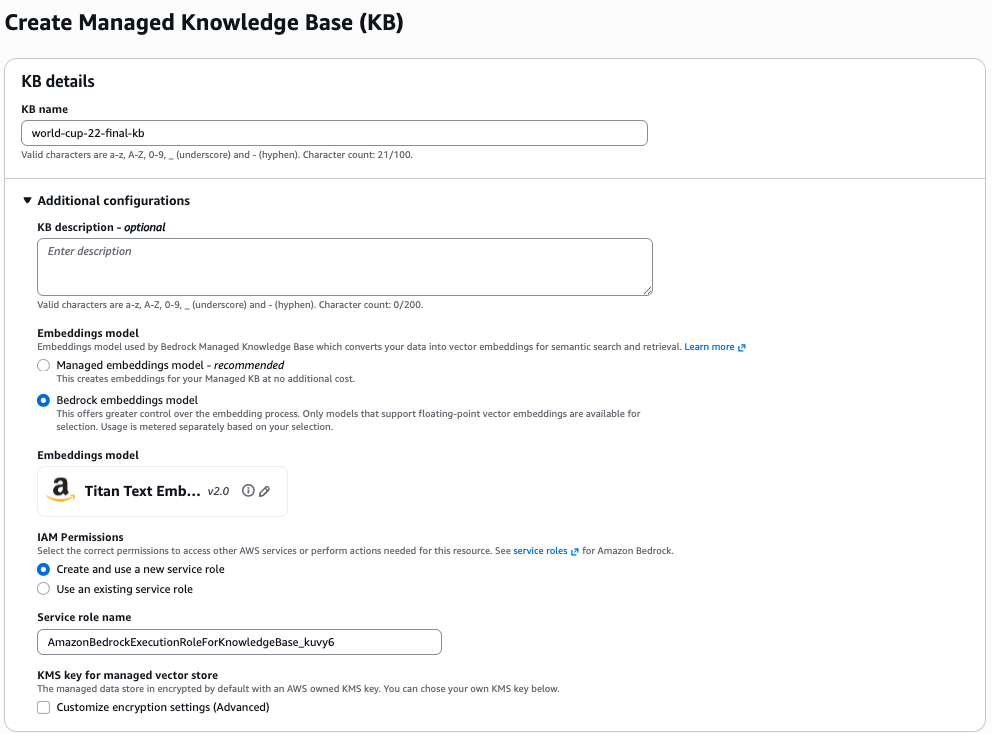
Figure 3: Knowledge base creation form showing the KB name, service role, and embeddings model configuration
Select TwelveLabs/Marengo Embed 3.0 as shown in the following figure.
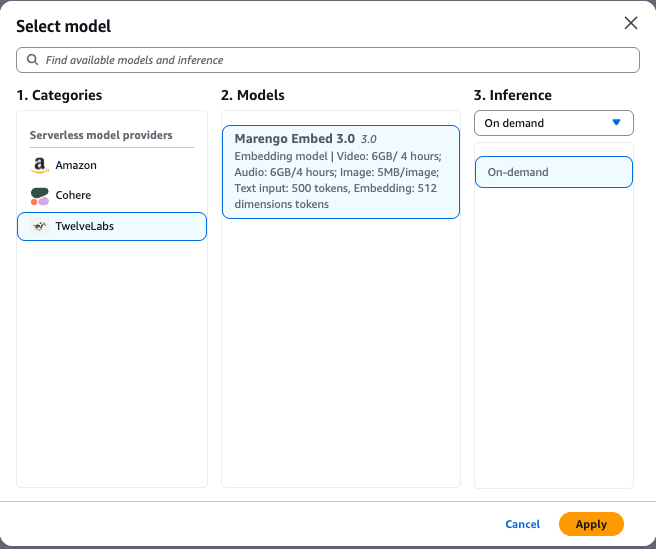
Figure 4: Model selection dialog with TwelveLabs Marengo Embed 3.0 selected as the embedding model
Next, expand the Data source pane, select Amazon S3 as Data source type, and configure the S3 URI of the bucket containing your video assets.
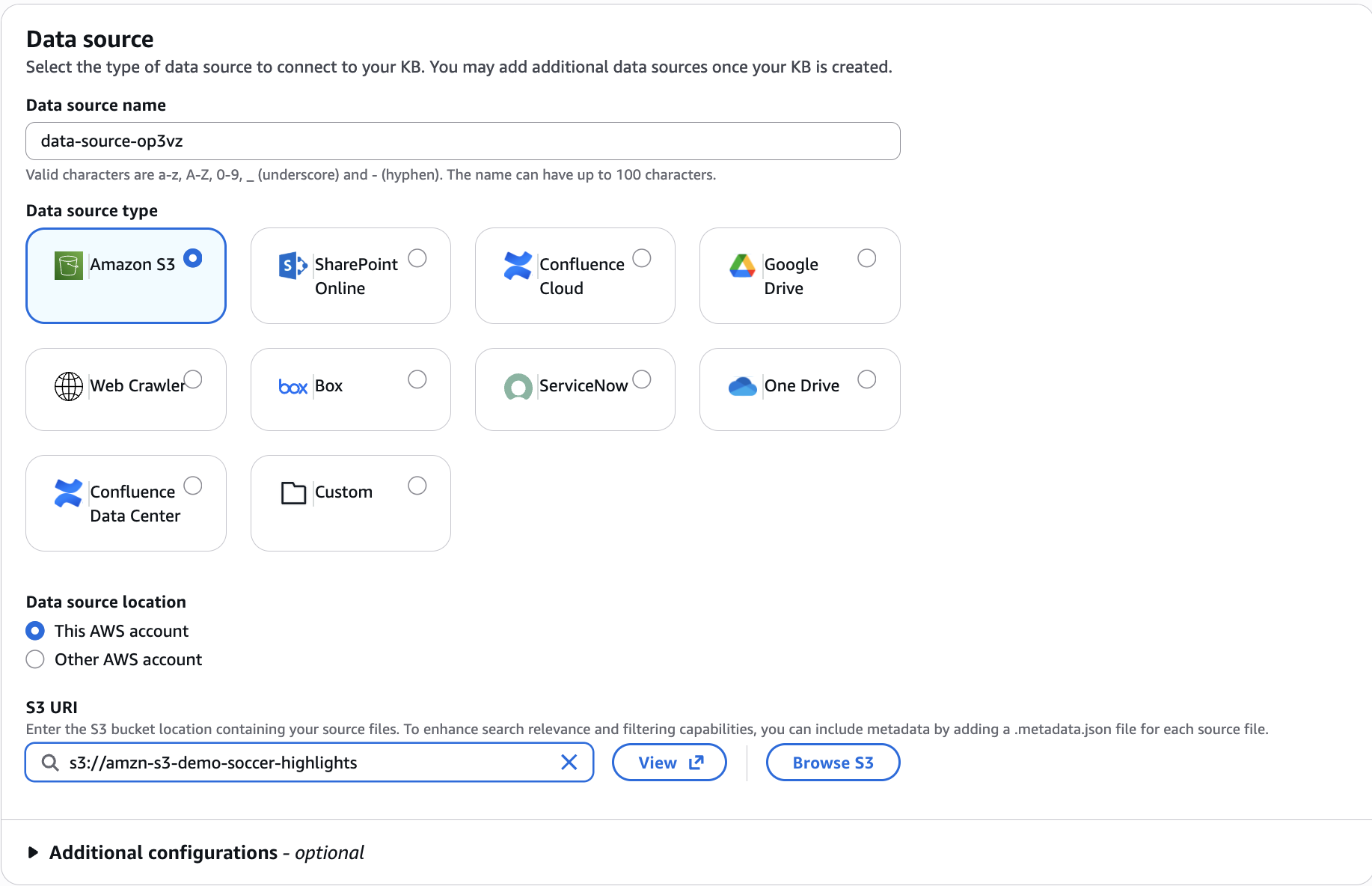
Figure 5: Data source configuration pane with Amazon S3 selected and the S3 URI specified
In the Audio/video segmentation configuration section under Advanced configurations, you can configure audio and video segmentation durations. The default is 4 seconds for both modalities.
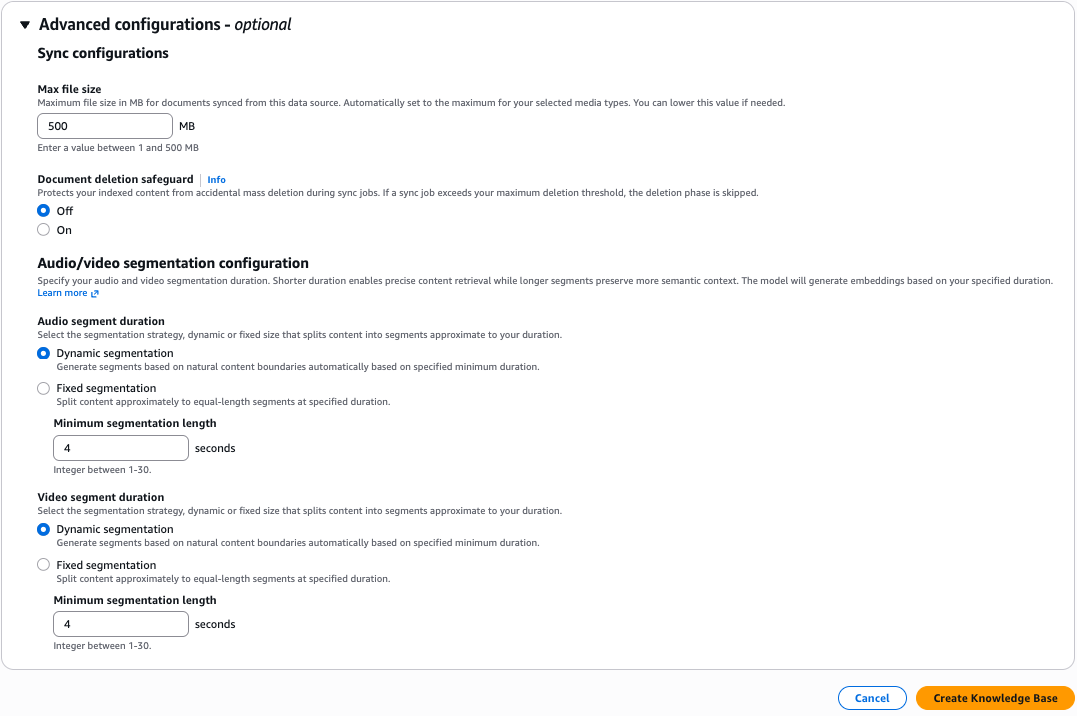
Figure 6: Advanced configuration options including audio and video segmentation settings
Leave the advanced parameters unchanged and choose Create Knowledge Base at the bottom right of the page.
3. Sync and ingest your data
After the KB has been created, choose Sync to start ingestion. Managed MKB automatically extracts frames, transcribes audio, generates Marengo Embed 3.0 embeddings for each segment, and writes vectors to the index.
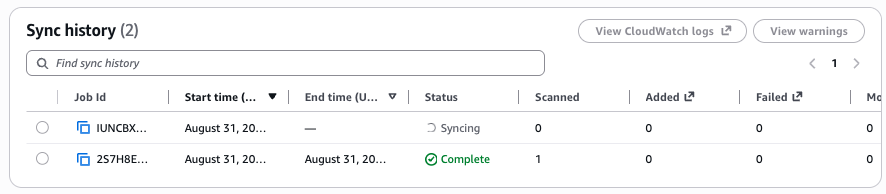
Figure 7: Sync history panel showing a completed data ingestion job
4. Run a semantic search
You can test your KB without leaving the console using the Test feature. Configure how many source chunks to retrieve, apply metadata filters, and run a query such as “show me the penalty kicks from this soccer match.”
The response returns ranked results with metadata including chunk start time, chunk end time, source URI, and embedding type, so you can extract the relevant sections as needed.
In this example, the top results identify moments where penalty kicks were attempted.
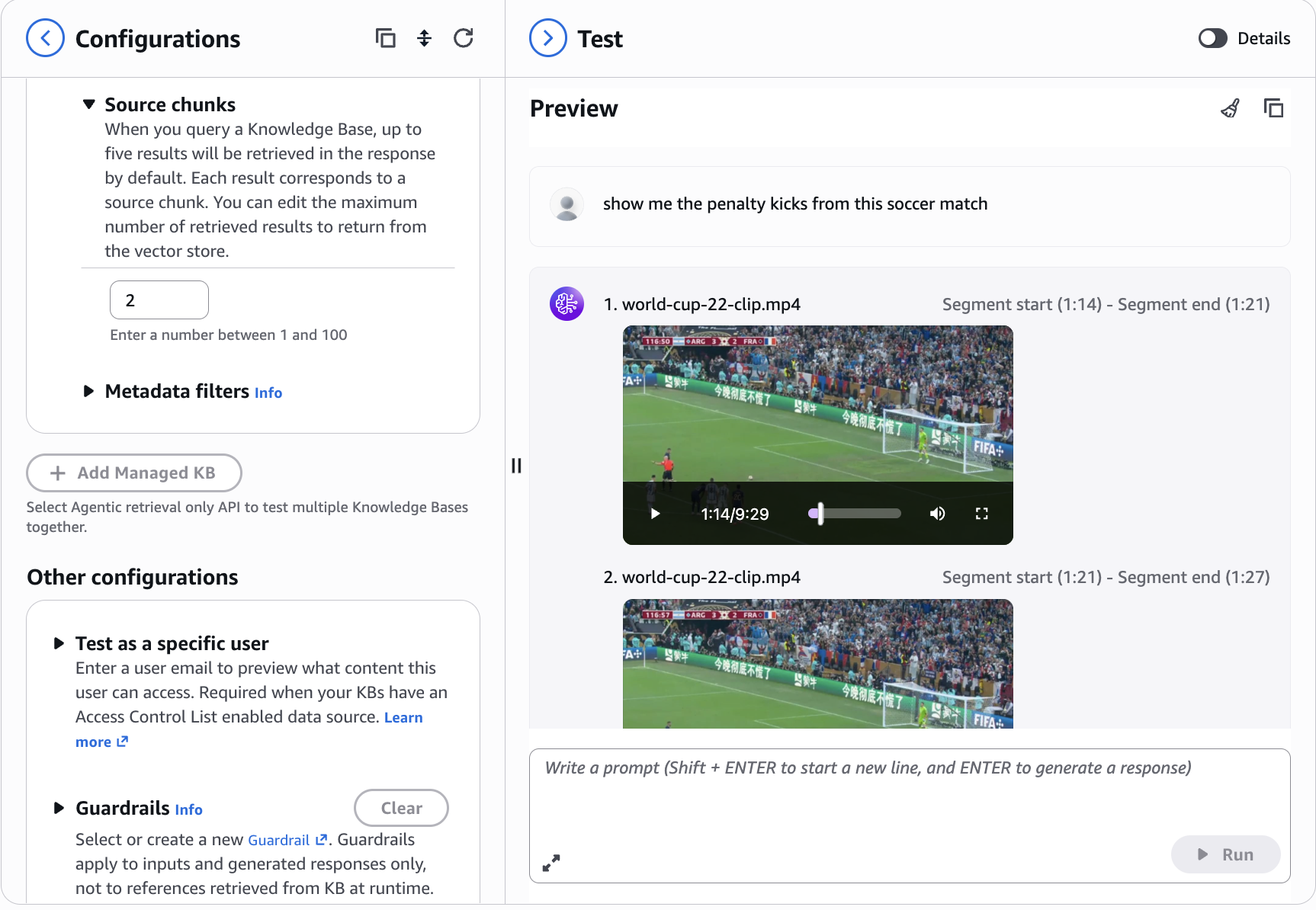
Figure 8: Knowledge base test interface showing semantic search results with video playback and source chunk timeline
5. Clean up
To clean up your resources, complete the following steps:
- On the Amazon Bedrock console, choose Knowledge Bases.
- Select your knowledge base and note both the IAM service role name and the Amazon Resource Name (ARN) of the S3 Vector index.
- Choose Delete and confirm.
- On the IAM console, find the role created earlier during knowledge base creation.
- Select and delete the role.
- On the Amazon S3 console, find your S3 bucket.
- Select and delete the files that you uploaded for this tutorial.
Integrate with your application
You can use the Amazon Bedrock Retrieve API to power downstream applications. Copy the invocation code from the Details page as a starting point.
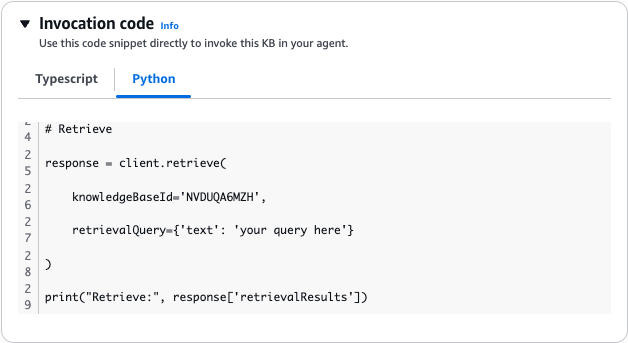
Figure 9: Python code example using the Amazon Bedrock Retrieve API to query the knowledge base
The following architecture shows how multimodal content flows from Amazon S3 through Managed Knowledge Bases with Marengo 3.0 for embedding and indexing. Downstream, applications query the knowledge base through the Boto SDK Retrieve API or as an Amazon Bedrock Gateway target in Amazon Bedrock AgentCore.
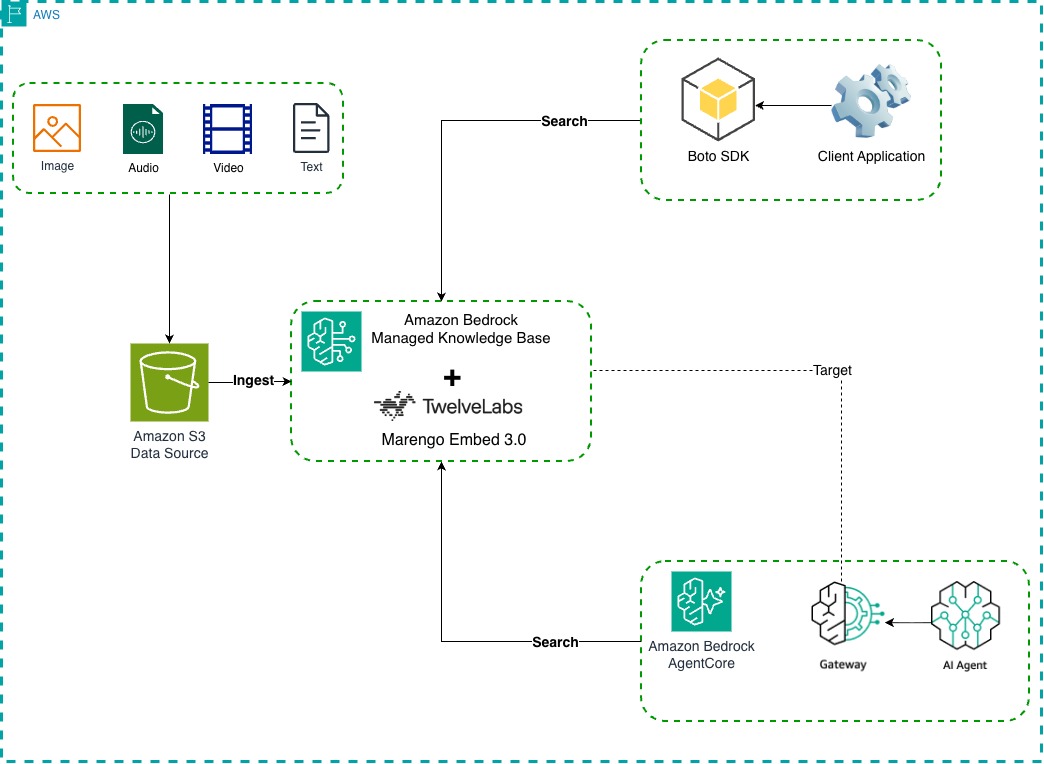
Figure 10: Architecture diagram showing the multimodal content flow from Amazon S3 through Managed Knowledge Bases with Marengo 3.0 to downstream applications
Conclusion
With the general availability of Marengo 3.0 in Amazon Bedrock Knowledge Bases, you can now unlock the full value of your video, audio, and image assets through natural language search, without building or managing complex infrastructure. Point your data source, sync, and search.
The business impact spans industries:
- Sports analytics: Find specific plays, formations, or player actions across entire seasons of footage.
- Media and entertainment: Media asset management, semantic search through media archive or streaming service content.
- Security and safety: Search security camera footage for specific incidents or activities.
- Education and training: Locate lecture segments by concept, not only keywords.
- Retail: Search product demo videos for feature demonstrations.
Availability and pricing
Managed Knowledge Bases for Amazon Bedrock with Marengo Embed 3.0 is available in the US East (N. Virginia) AWS Region (us-east-1) and the US West (N. California) Region (us-west-1). For a complete list of supported models and Regions, see Supported models by AWS Region in Amazon Bedrock.
With Managed Knowledge Bases for Amazon Bedrock, you pay only for what you store and retrieve. Embeddings generation with Marengo Embed 3.0 is charged at the standard Amazon Bedrock model invocation rate.
For more information, see the pricing documentation page.
Next steps
Get started with fully managed multimodal retrieval:
- Explore the documentation: Review the Amazon Bedrock Knowledge Bases documentation and Build a managed knowledge base for additional technical details.
- Experiment with code examples: Check out the Amazon Bedrock samples repository for hands-on notebooks demonstrating multimodal retrieval.
- Learn more about Marengo Embed 3.0: Check out Marengo 3.0 documentation for deeper technical insights.
About the authors