Visit Tripo AI website for full experience
Remarks
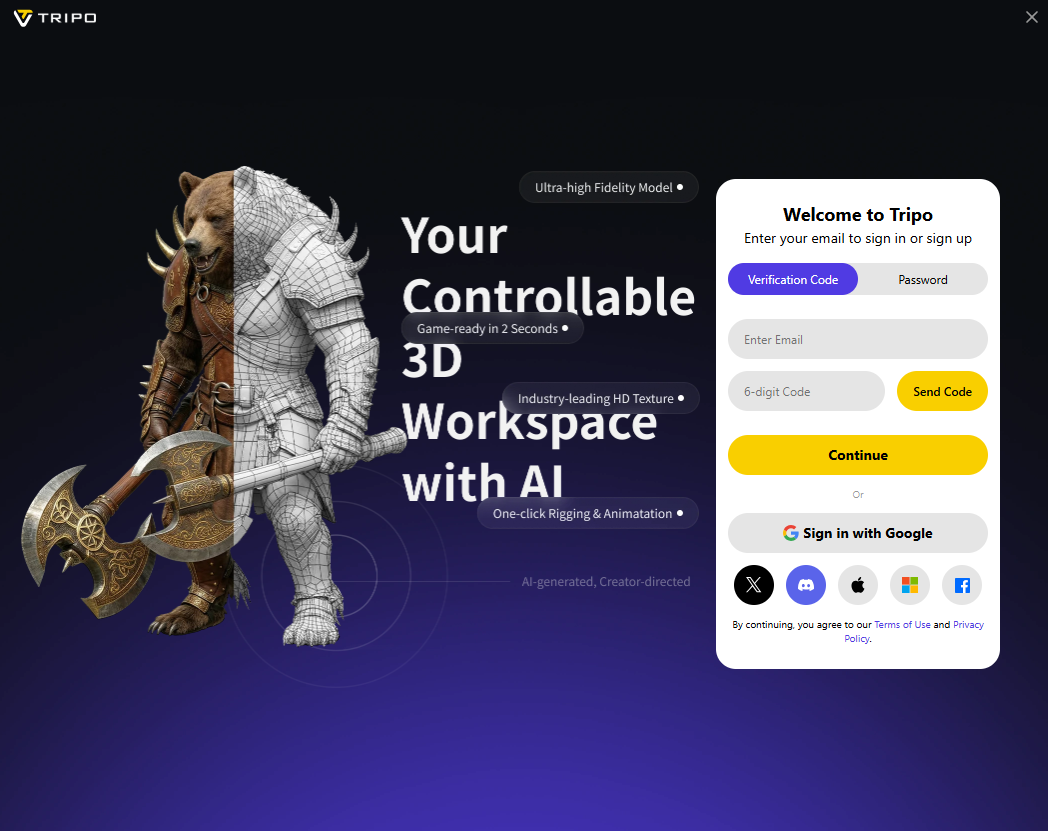
Tripo AI (often referred to as Tripo3D or Tripo Studio) is a generative AI platform built to fast-track 3D modeling. It uses machine learning models to instantly convert text prompts or 2D images into fully realized 3D models, complete with textures and meshes.
It is designed to bridge the gap for creators, game developers, and 3D artists who need to rapidly prototype assets without spending hours poly-modeling from scratch.
Key Usages & Workflows
Tripo AI is primarily used to streamline the 3D asset creation pipeline. Its core applications include:
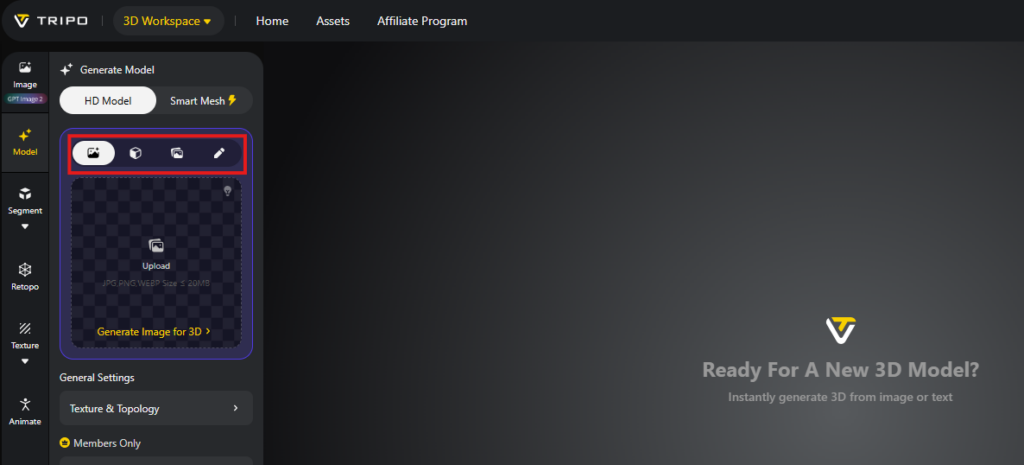
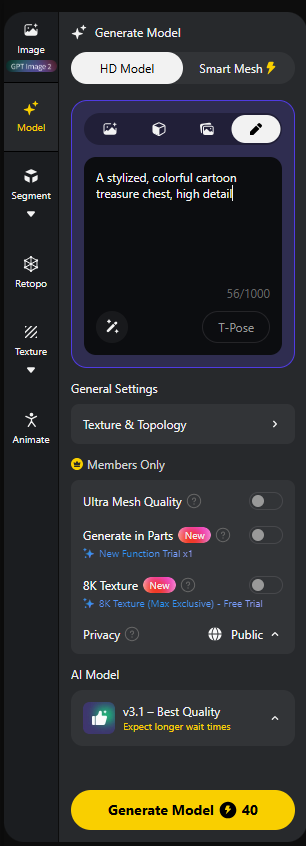
- Text-to-3D Generation: Typing a descriptive prompt (e.g., “a futuristic sci-fi helmet, high detail”) to generate a 3D asset from scratch in seconds.
- Image-to-3D Conversion: Uploading a single 2D image or concept art piece, which the AI then extrudes and builds out into a 3D object with matching textures.
- Rapid Prototyping: Game developers and digital artists use it to quickly draft “block-out” shapes or placeholder assets for scenes, levels, or figurine concepts before committing to manual high-poly sculpting.
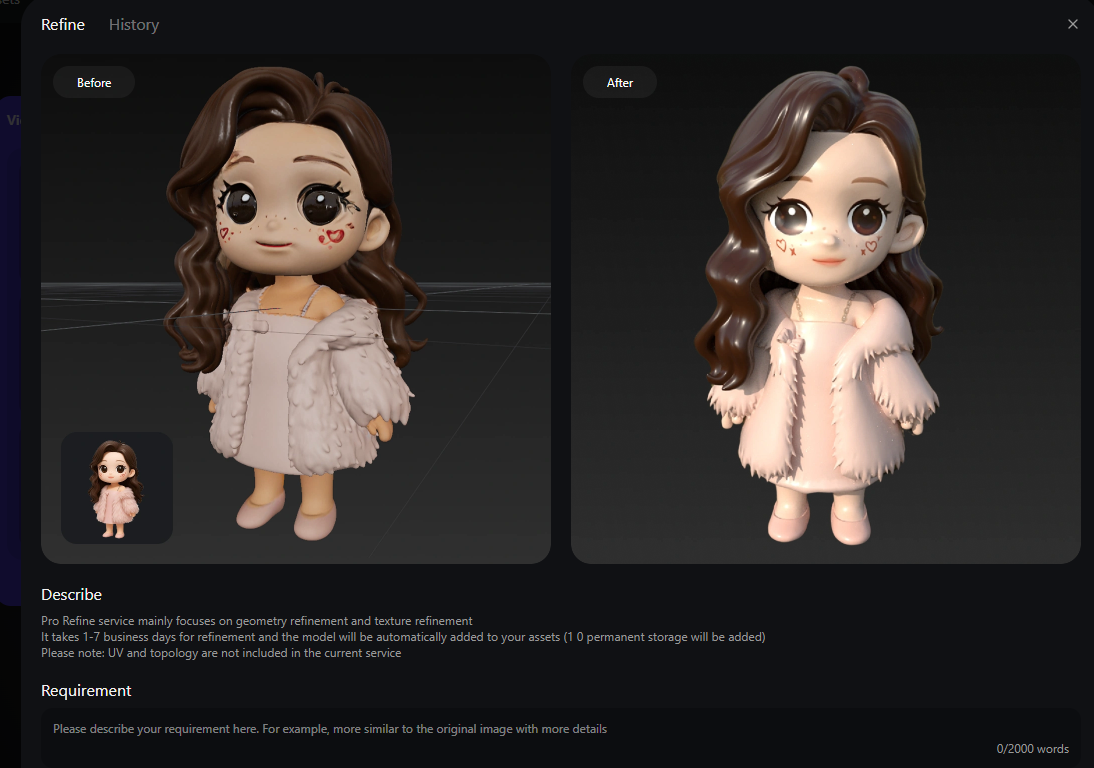
- Refinement & Animation Prep: The platform offers automatic rigging (adding a digital skeleton) for certain character models, making them ready for basic animation right out of the box.
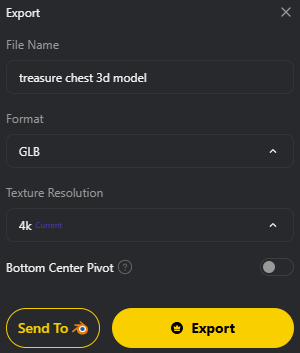
- Export Flexibility: It supports standard 3D file formats like
.obj,.fbx, and.gltf/.glb, ensuring compatibility with software like ZBrush, Blender, Unreal Engine, and Unity.
Limitation
While it is an incredible tool for speeding up workflows, it isn’t a magic wand that replaces traditional 3D artists. Here are the main constraints to keep in mind:
- Topology and Mesh Cleanliness: Like most generative 3D tools, the output meshes can sometimes be messy, containing irregular triangles or dense, unoptimized topology. If you need clean quad-based topology for precise deformation or high-end game optimization, you will still need to manually retopologize the model.
- Intricate Details & Hard Surfaces: The AI handles organic shapes well, but sharp, precise mechanical details (like complex clockwork gears or exact industrial hard-surface modeling) can sometimes come out looking slightly soft or warped.
- Single-View Blind Spots: When converting a single 2D image into 3D, the AI has to “guess” what the back of the object looks like. If the hidden side is complex, the result might require manual texture painting or sculpting corrections.
- Texturing Limitations: While the generated textures are impressive for quick visuals, they might lack the separation of PBR (Physically Based Rendering) maps (like separate roughness, metallic, and normal maps) required for AAA-grade rendering without further baking or editing.