

Visit Canva AI website for full experience
Remarks
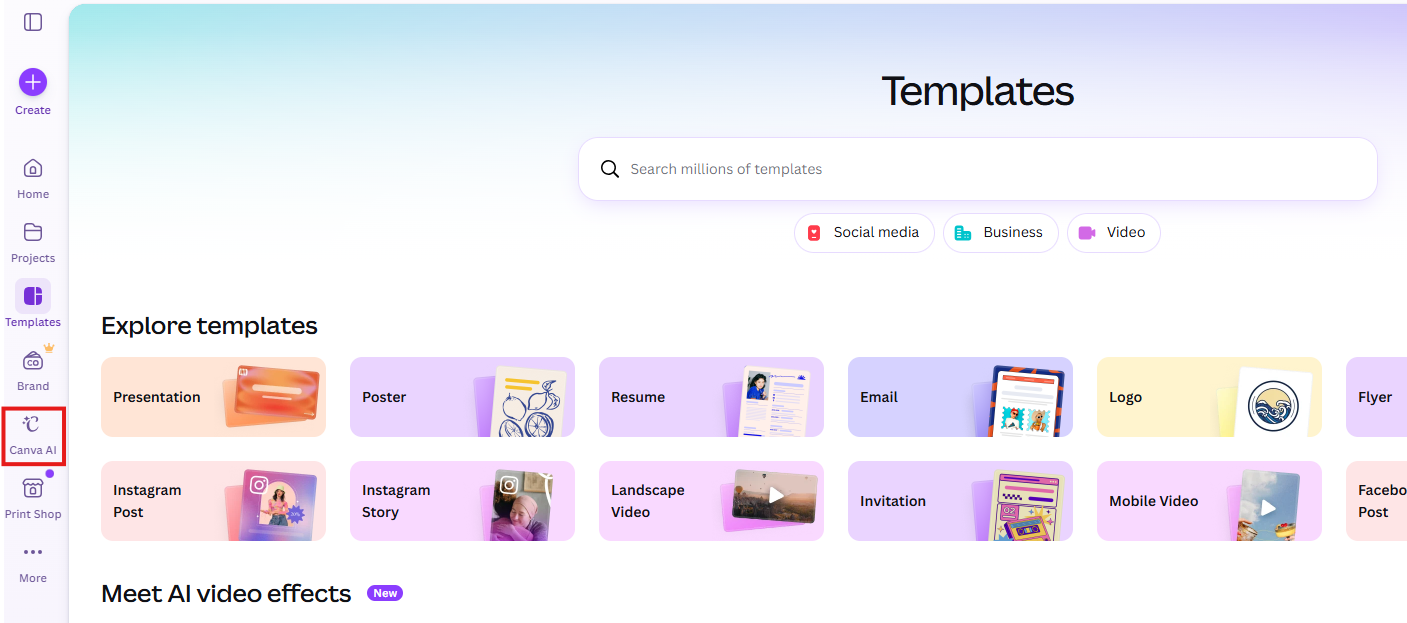
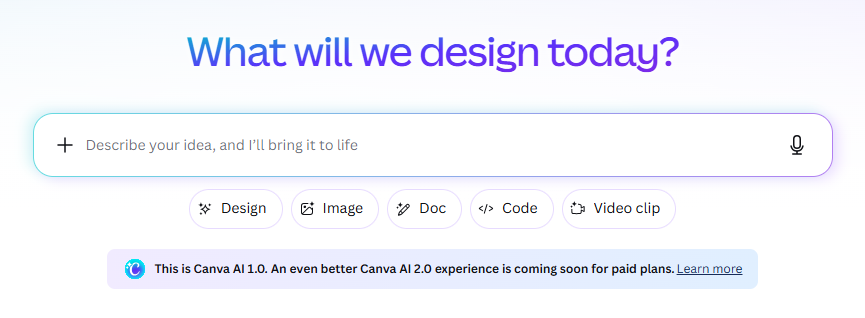
Canva AI is a collection of generative tools powered by models like OpenAI’s DALL-E, Google’s Imagen, and Canva’s proprietary technology. It allows you to generate images, videos, text, and even entire slide decks from simple natural language prompts.
As of early 2026, Canva introduced AI 2.0, which allows the AI to take multiple autonomous actions—like resizing, recoloring, and layout adjustments—simultaneously.
The tools are generally categorized into three tiers (Standard, Premium, and Ultra) based on their complexity and output quality:
- Magic Media: Generates unique images and videos from text descriptions.
- Magic Write: A copy assistant that can change tone, summarize long documents, or brainstorm social media captions.
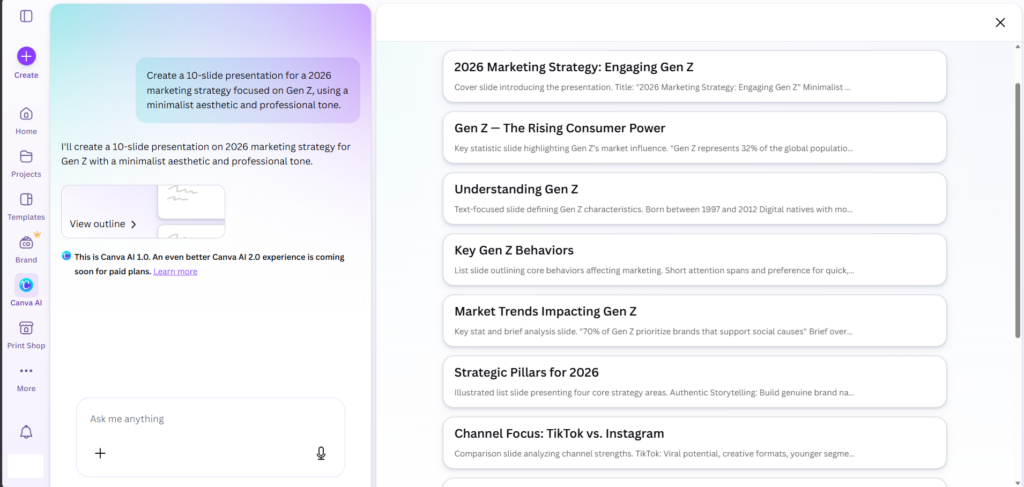
- Magic Design: Allows you to upload a photo or type a prompt to generate a fully designed presentation, social post, or video template instantly.
- Magic Switch: Automatically converts a presentation into a blog post or summarizes a whiteboard into an email.
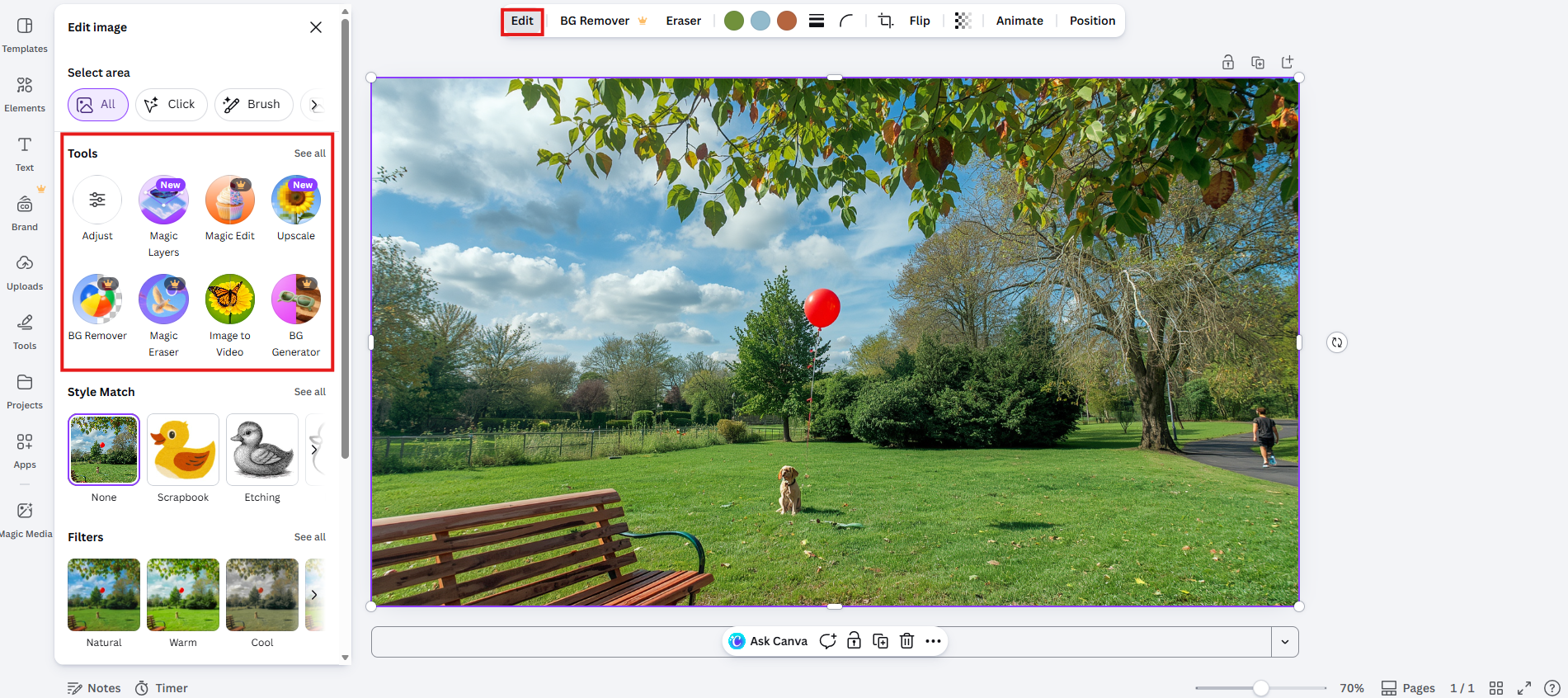
- Magic Edit & Grab: Lets you “brush” over an object in a photo to replace it with something else or literally grab an object out of a flat image to move it around.
Limitation
- Non-Unique Outputs: Because the AI learns from patterns, other users might occasionally get outputs that look very similar to yours.
- Ownership Nuances: While you own the rights to the final design, you do not necessarily own the “standalone” AI-generated components (like a specific AI-generated audio track or a modified stock photo).
- Strict Moderation: The system automatically blocks prompts involving sensitive topics, public figures (in some contexts), or copyrighted characters to avoid legal issues.
- “The Pause”: If you are a Pro user and hit your limit, the system doesn’t always cut you off entirely but may introduce “pauses” (cooldown timers) between generations to throttle usage.
- Text within Images: While improved, the AI still occasionally struggles with spelling complex words inside generated images.
- Historical/Factual Data: Magic Write can hallucinate facts. It is designed for creative brainstorming, not as a primary research tool.
- Credit & Allowance Limits: The number of AI generations you get depends on your subscription tier:
| Plan | Standard AI (Light) | Premium AI (Moderate) | Ultra AI (High Quality) |
| Canva Free | Up to 200 uses | Up to 20 uses | No Access |
| Canva Pro / Teams | Up to 2,000 uses | Up to 200 uses | Up to 20 uses |
| Canva Business | Up to 4,000 uses | Up to 400 uses | Up to 40 uses |
Visit Deepseek website for full experience
Remarks
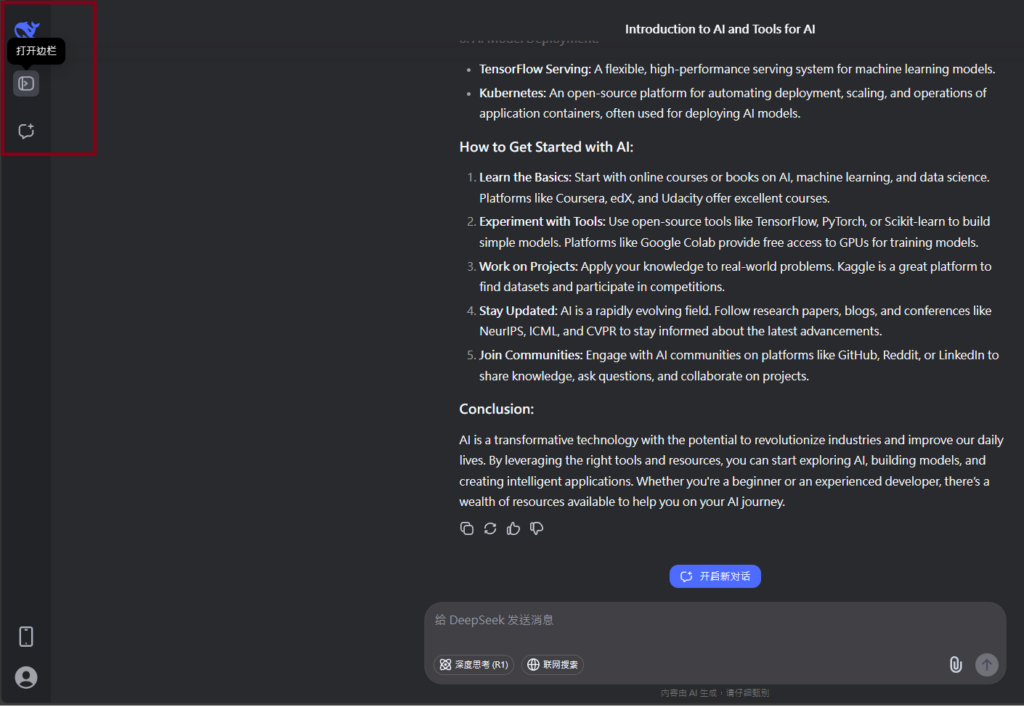
DeepSeek is an AI-powered tool designed for deep information retrieval, analysis, and content generation. It is commonly used in areas such as:
- Advanced Information Retrieval
- DeepSeek can process and analyze large datasets to extract relevant insights.
- It helps users find precise information beyond standard search engines.
- Natural Language Processing (NLP) Applications
- Used for text summarization, sentiment analysis, and question-answering systems.
- Supports various languages and can generate human-like responses.
- AI-Assisted Research and Writing
- Helps researchers analyze academic papers, generate summaries, and suggest references.
- Useful for drafting articles, reports, and creative writing.
- Code Assistance and Debugging
- Provides AI-powered code suggestions, optimizations, and bug fixes.
- Supports multiple programming languages, aiding developers in software development.
- Business and Decision-Making Support
- Analyzes market trends, customer feedback, and financial data for businesses.
- Assists in generating insights for strategic decision-making.
limitation:
- Accuracy and Hallucination Issues
- AI models can sometimes generate incorrect or misleading information.
- Requires human verification before relying on outputs.
- Limited Real-Time Data Access
- May not always provide the latest information if it’s not connected to live data sources.
- Some AI models work with pre-trained datasets, limiting real-time updates.
- Context Limitations
- Struggles with highly nuanced or ambiguous queries.
- Long conversations may lead to context loss or inconsistencies.
- Ethical and Bias Concerns
- AI models can reflect biases present in training data.
- Requires careful consideration when used in sensitive applications.
- Computational Resource Constraints
- Running deep learning models requires significant computational power.
- Latency issues may arise during complex queries or large-scale data analysis.


Lorem ipsum dolor sit amet, consectetur adipiscing elit. Ut elit tellus, luctus nec ullamcorper mattis, pulvinar dapibus leo.