
Visit Manus website for full experience

Remarks
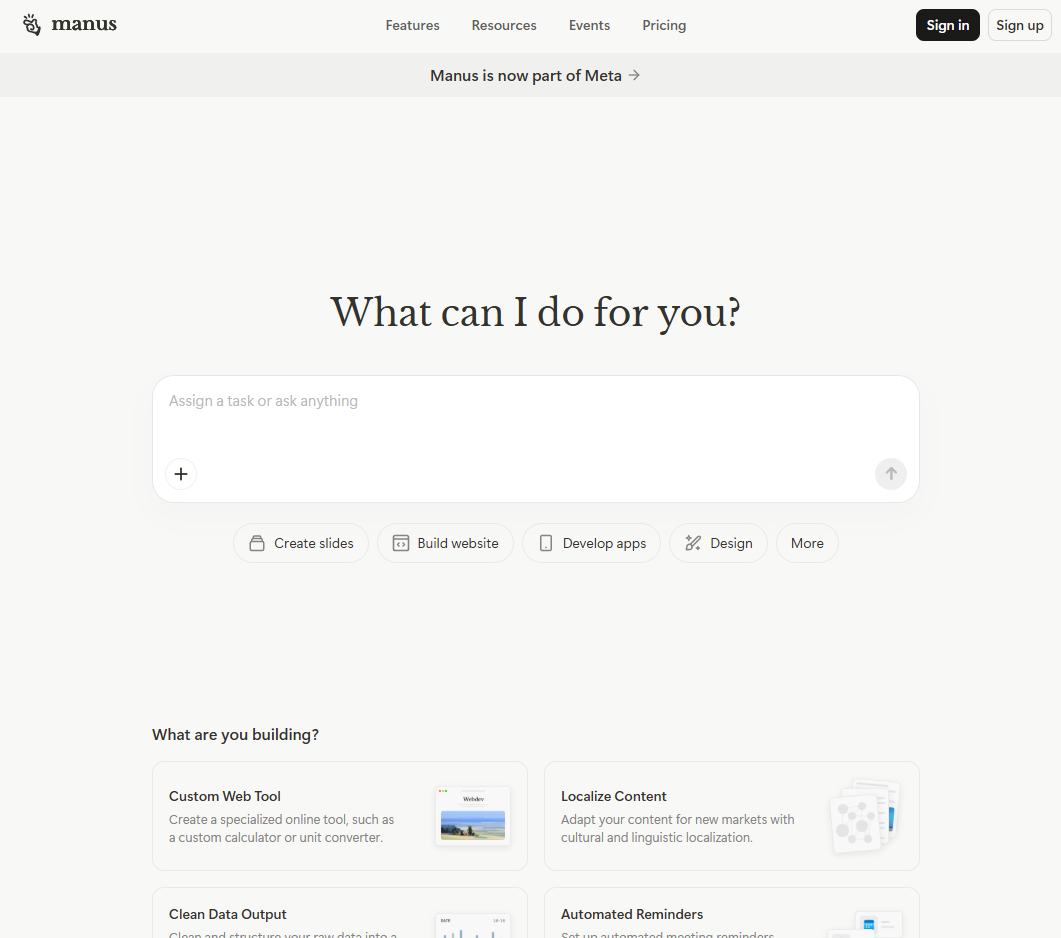
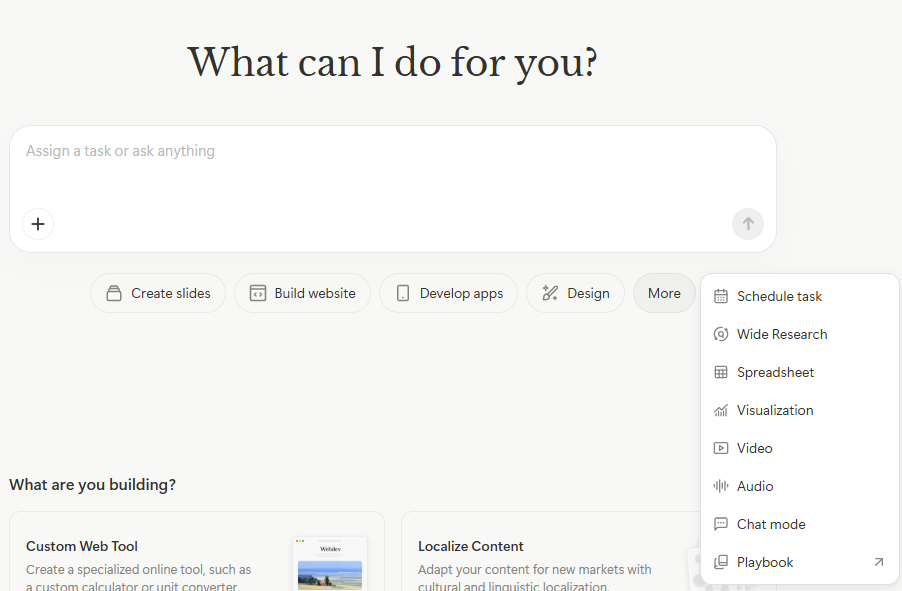
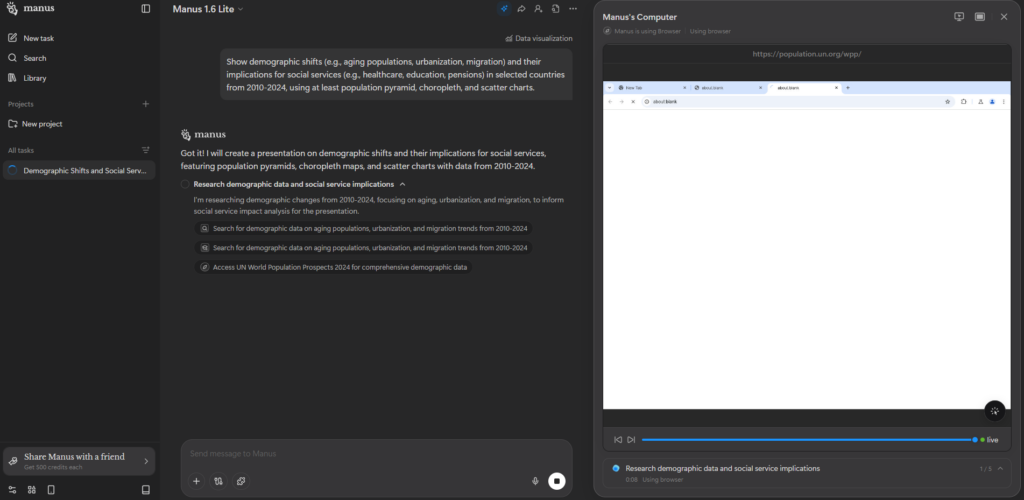
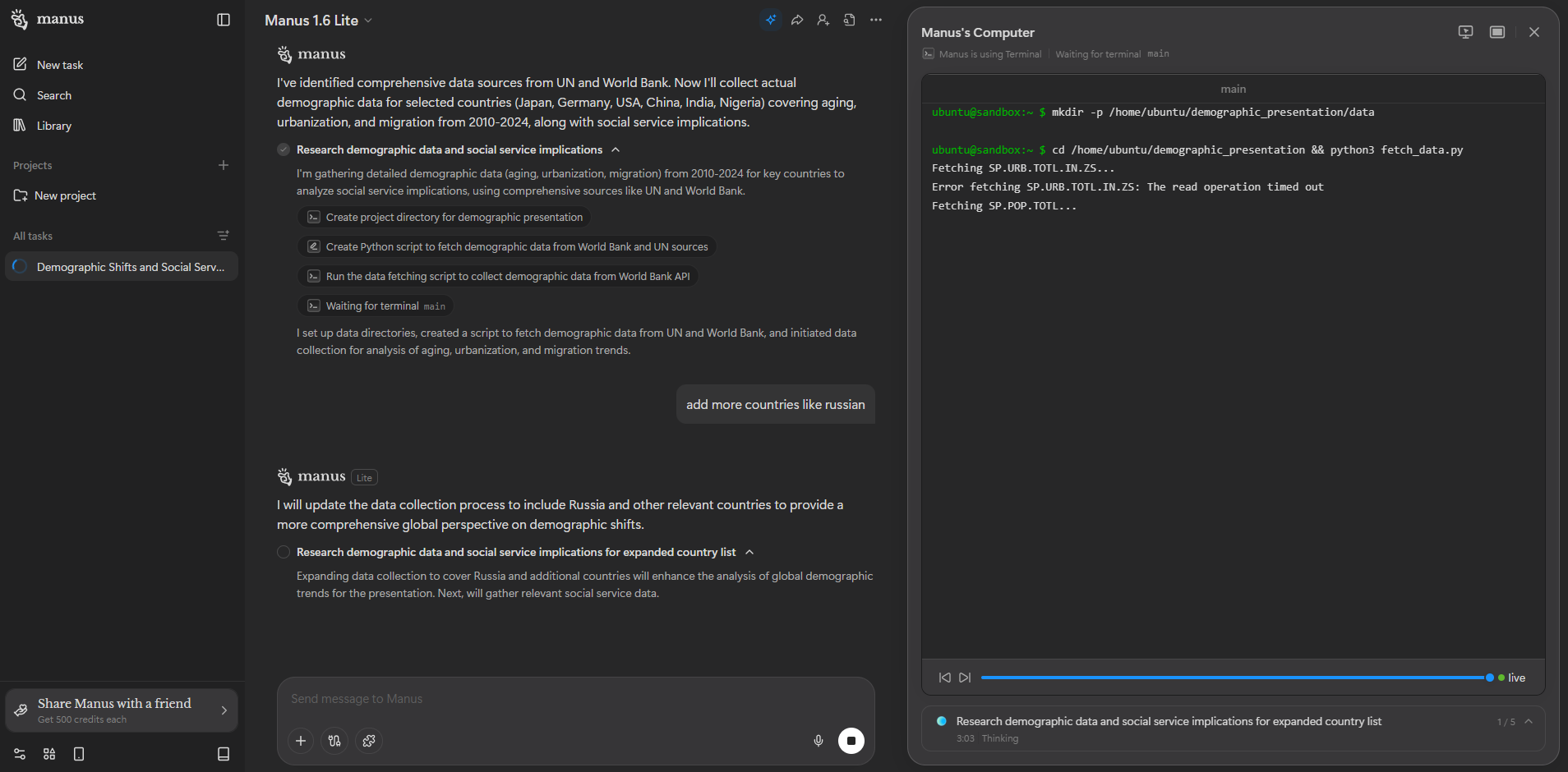
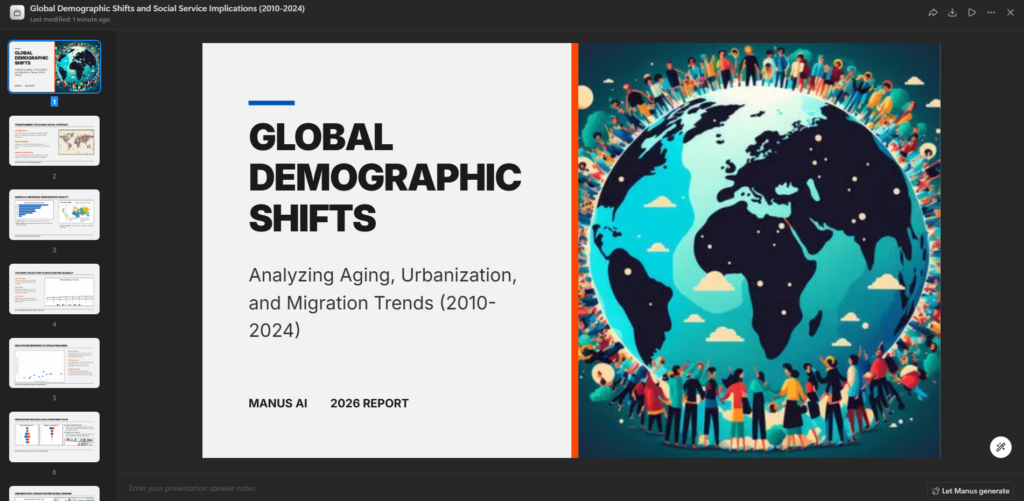
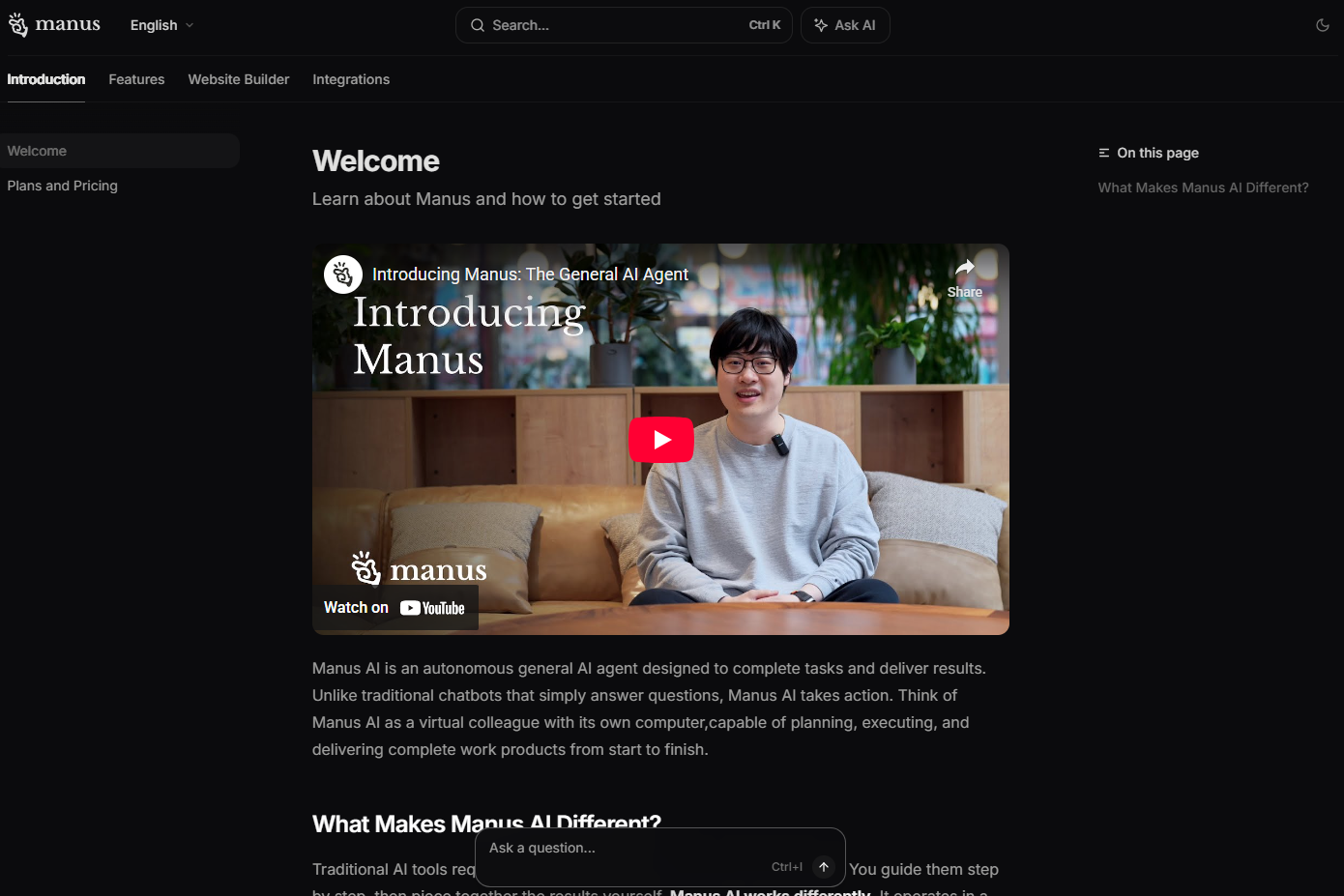
Manus is designed for “General Purpose Automation.” Instead of just telling you how to do something, it actually does it.
- Deep Market Research: It can browse multiple financial sites, download data, perform Python-based analysis, and output a formatted investment report or Excel sheet.
- Web Development & Deployment: You can ask it to “Build a weather app for my city,” and it will write the code, set up the backend, and deploy it to a live URL.
- Data Extraction & Processing: It can take a zip file of 50 resumes, extract specific details into a table, and rank them based on your criteria.
- Workflow Integration: It can handle multi-step tasks like “Find me a list of software vendors, compare their pricing in a table, and draft an introductory email to the top three.”
Limitations
Because it is still in an early/rapid growth phase (launched March 2025 and recently acquired by Meta), there are several hurdles:
- Access & Scaling: It is currently in Beta and often requires an invitation code. Because it performs heavy computations, servers can be slow or temporarily unavailable during peak hours.
- “Brittle” Creativity: While excellent at data and logic, it can struggle with tasks requiring high emotional intelligence or nuanced creative writing (it tends to be very “matter-of-fact”).
- Web Barriers: It generally cannot bypass paywalls, solve complex CAPTCHAs, or create user accounts on external websites for you.
- Verification: It can occasionally “hallucinate” an action (thinking it completed a step when it didn’t), so humans still need to verify the final output for high-stakes work.
Visit Deepseek website for full experience
Remarks
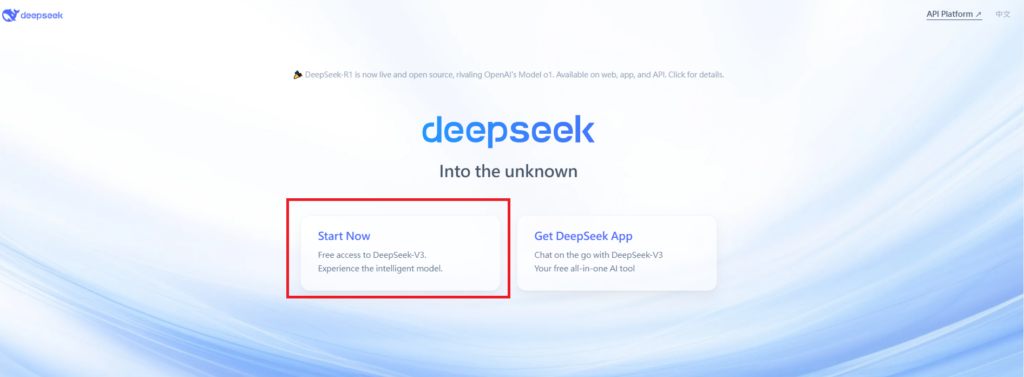
DeepSeek is an AI-powered tool designed for deep information retrieval, analysis, and content generation. It is commonly used in areas such as:
- Advanced Information Retrieval
- DeepSeek can process and analyze large datasets to extract relevant insights.
- It helps users find precise information beyond standard search engines.
- Natural Language Processing (NLP) Applications
- Used for text summarization, sentiment analysis, and question-answering systems.
- Supports various languages and can generate human-like responses.
- AI-Assisted Research and Writing
- Helps researchers analyze academic papers, generate summaries, and suggest references.
- Useful for drafting articles, reports, and creative writing.
- Code Assistance and Debugging
- Provides AI-powered code suggestions, optimizations, and bug fixes.
- Supports multiple programming languages, aiding developers in software development.
- Business and Decision-Making Support
- Analyzes market trends, customer feedback, and financial data for businesses.
- Assists in generating insights for strategic decision-making.
limitation:
- Accuracy and Hallucination Issues
- AI models can sometimes generate incorrect or misleading information.
- Requires human verification before relying on outputs.
- Limited Real-Time Data Access
- May not always provide the latest information if it’s not connected to live data sources.
- Some AI models work with pre-trained datasets, limiting real-time updates.
- Context Limitations
- Struggles with highly nuanced or ambiguous queries.
- Long conversations may lead to context loss or inconsistencies.
- Ethical and Bias Concerns
- AI models can reflect biases present in training data.
- Requires careful consideration when used in sensitive applications.
- Computational Resource Constraints
- Running deep learning models requires significant computational power.
- Latency issues may arise during complex queries or large-scale data analysis.


Lorem ipsum dolor sit amet, consectetur adipiscing elit. Ut elit tellus, luctus nec ullamcorper mattis, pulvinar dapibus leo.