Visit Notion website for full experience
Remarks
- Notion:
The foundation. It is a highly customizable, block-based workspace that combines note-taking, document collaboration, wikis, and relational databases into a single interface. - Notion AI:
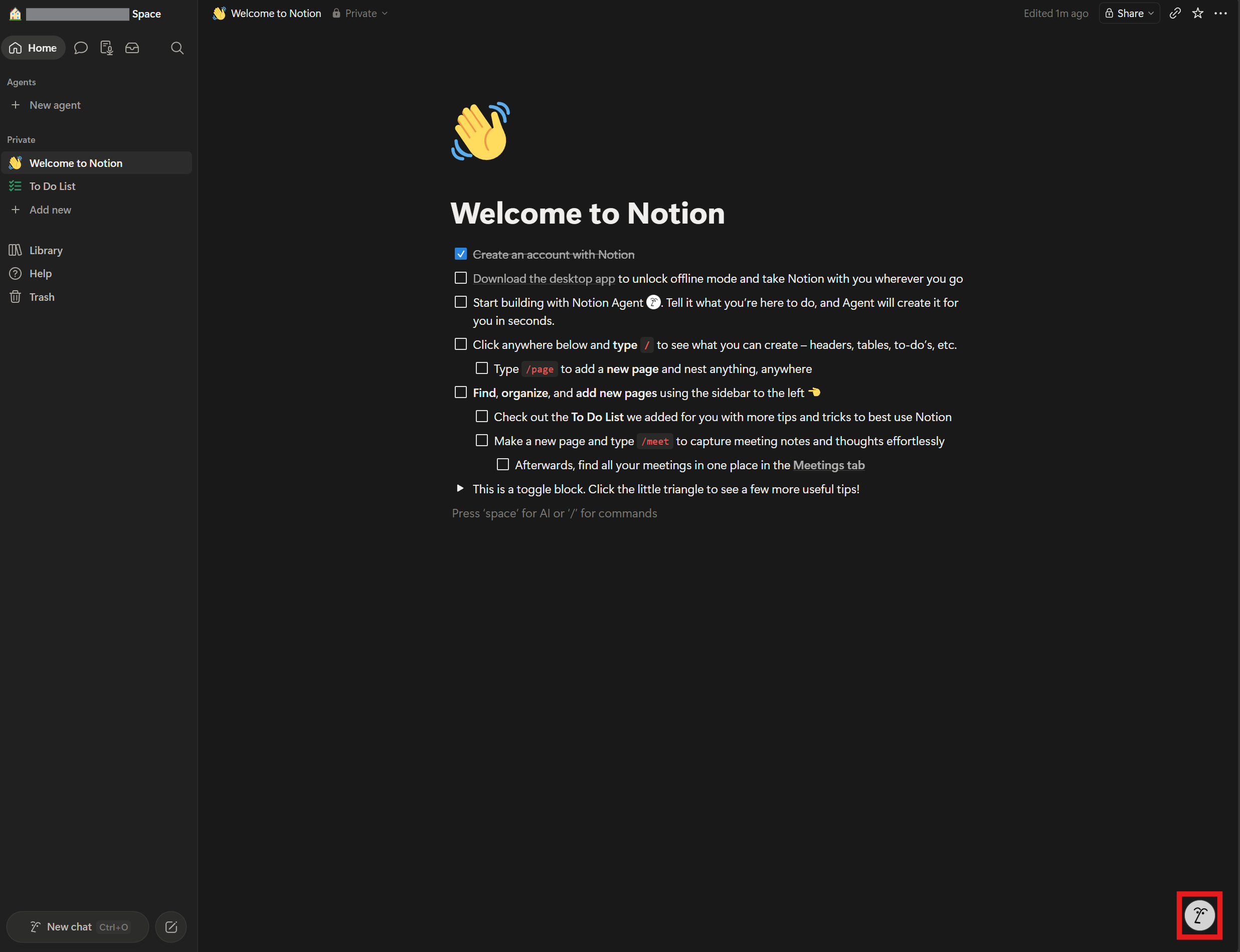
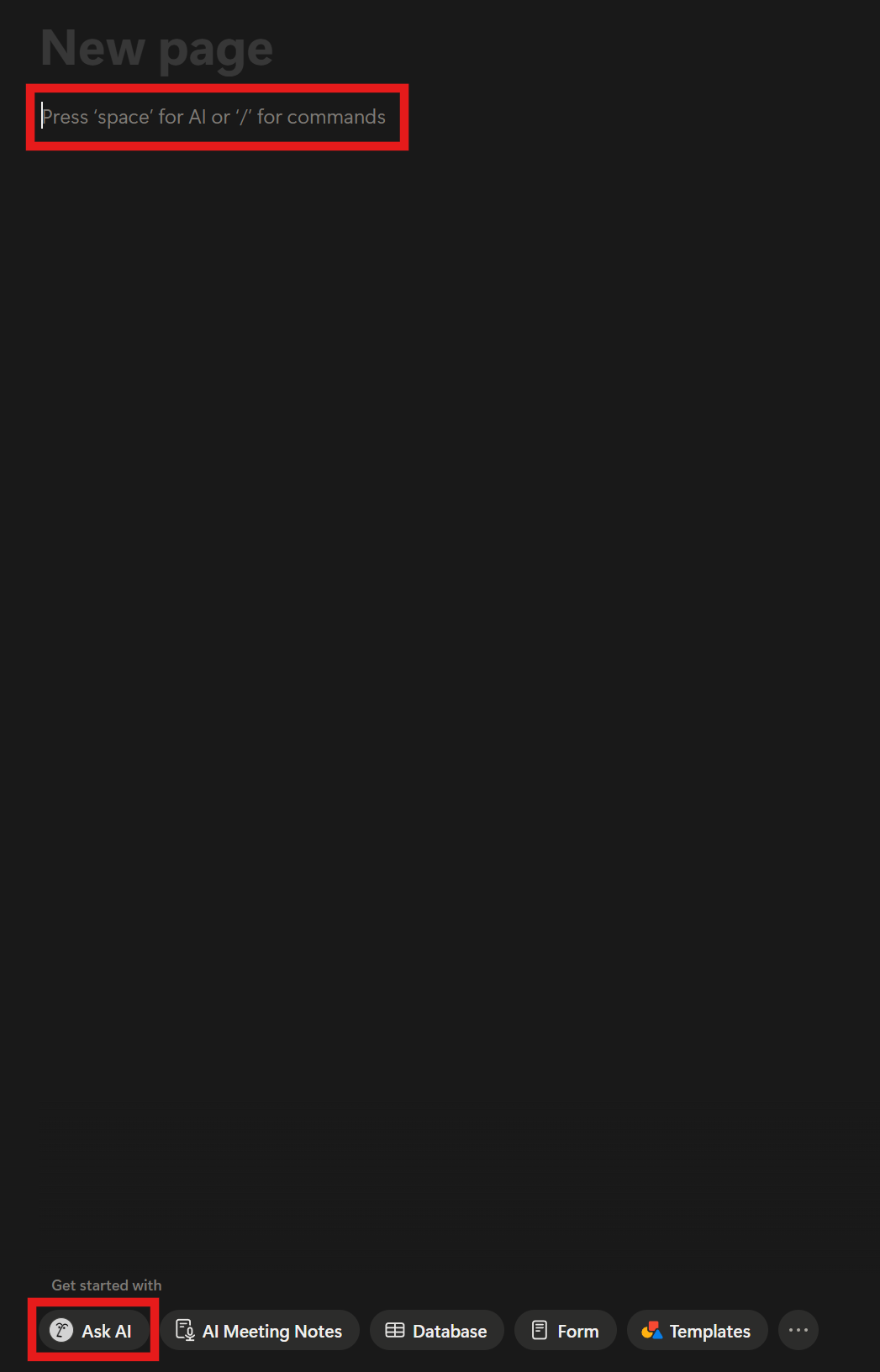
The baseline intelligent assistant embedded across your workspace. It acts as a reactive partner. When you highlight text or open the AI side-panel, it helps you brainstorm, summarize massive pages, fix grammar, translate, or auto-fill database properties based on your page content. - Notion Agent (Personal & Custom):
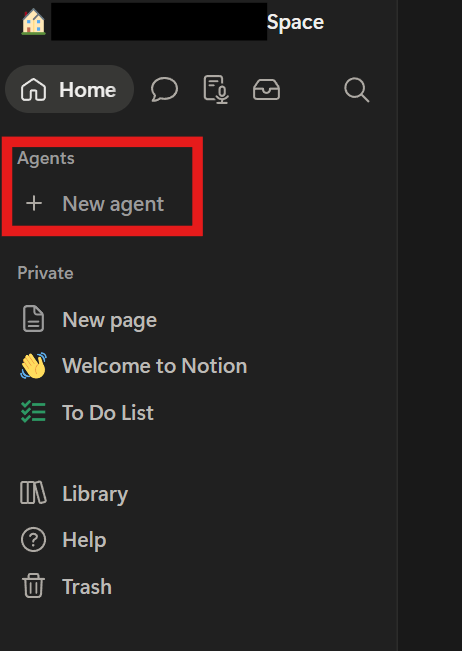
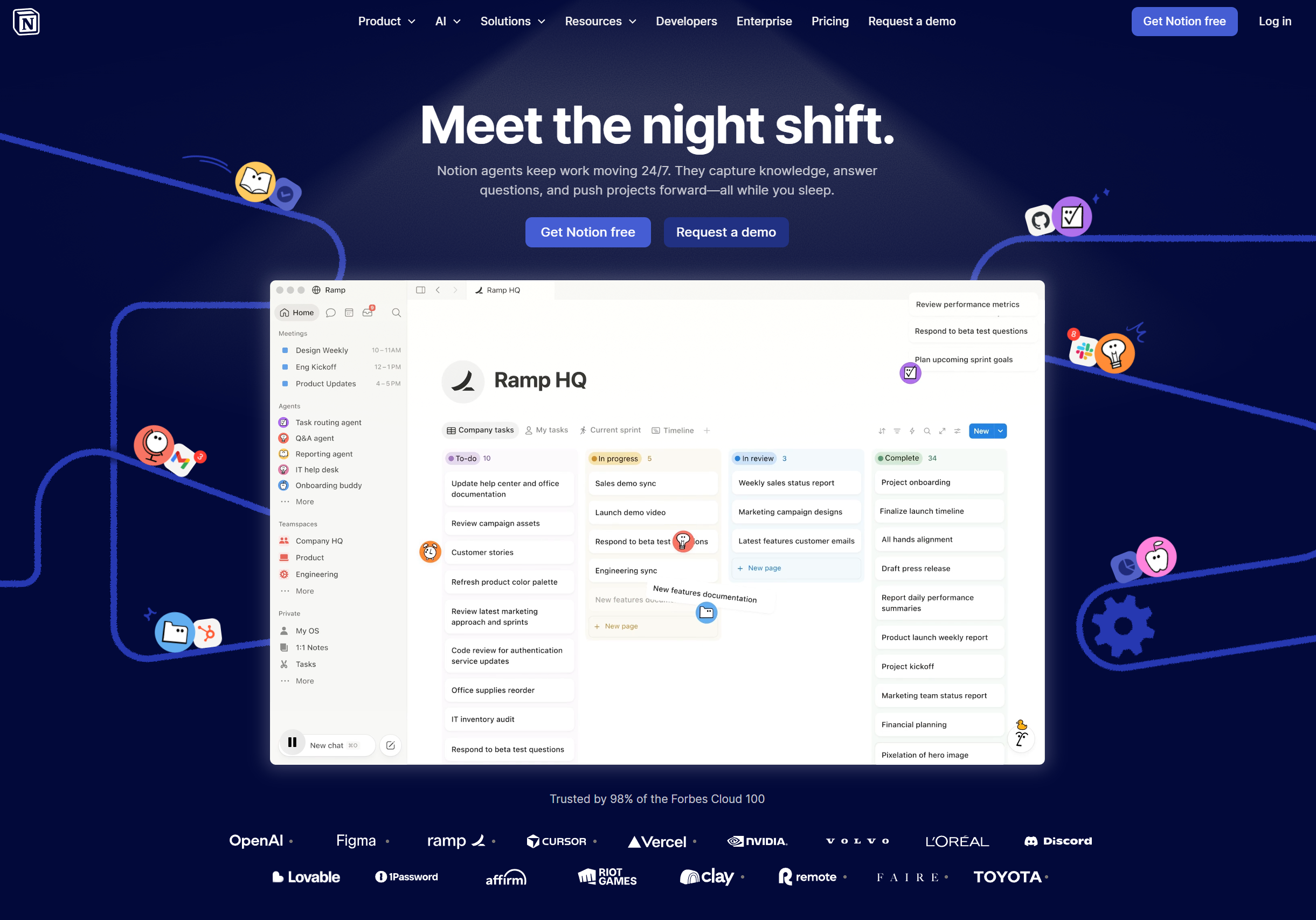
The evolutionary leap. Released as a major feature upgrade, Notion Agents move from “answering” to proactively doing. They can chain multiple complex steps together, execute actions across hundreds of pages simultaneously, and connect to external tools like Slack or Gmail.
Personal Agent: A reactive assistant that inherits your exact user permissions and works across your workspace when prompted.
Custom Agents: Autonomous agents that run on background triggers or schedules 24/7 (e.g., “Every Friday at 4 PM, analyze all weekly client feedback from Slack, build a summary database, and draft email responses”).
Key Usages & Workflows
- Workspace Automation & Database Building:
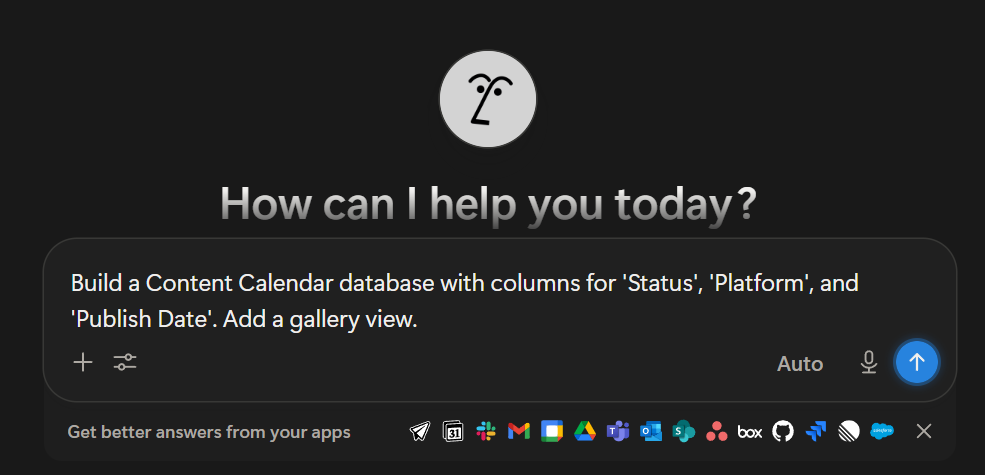
Instead of manually building dashboards, you can prompt the Agent: “Create a marketing campaign database with columns for owner, due date, and priority, then populate it with three tasks for our next launch.” The Agent will physically build the database schema and rows for you. - Cross-App Intelligence:
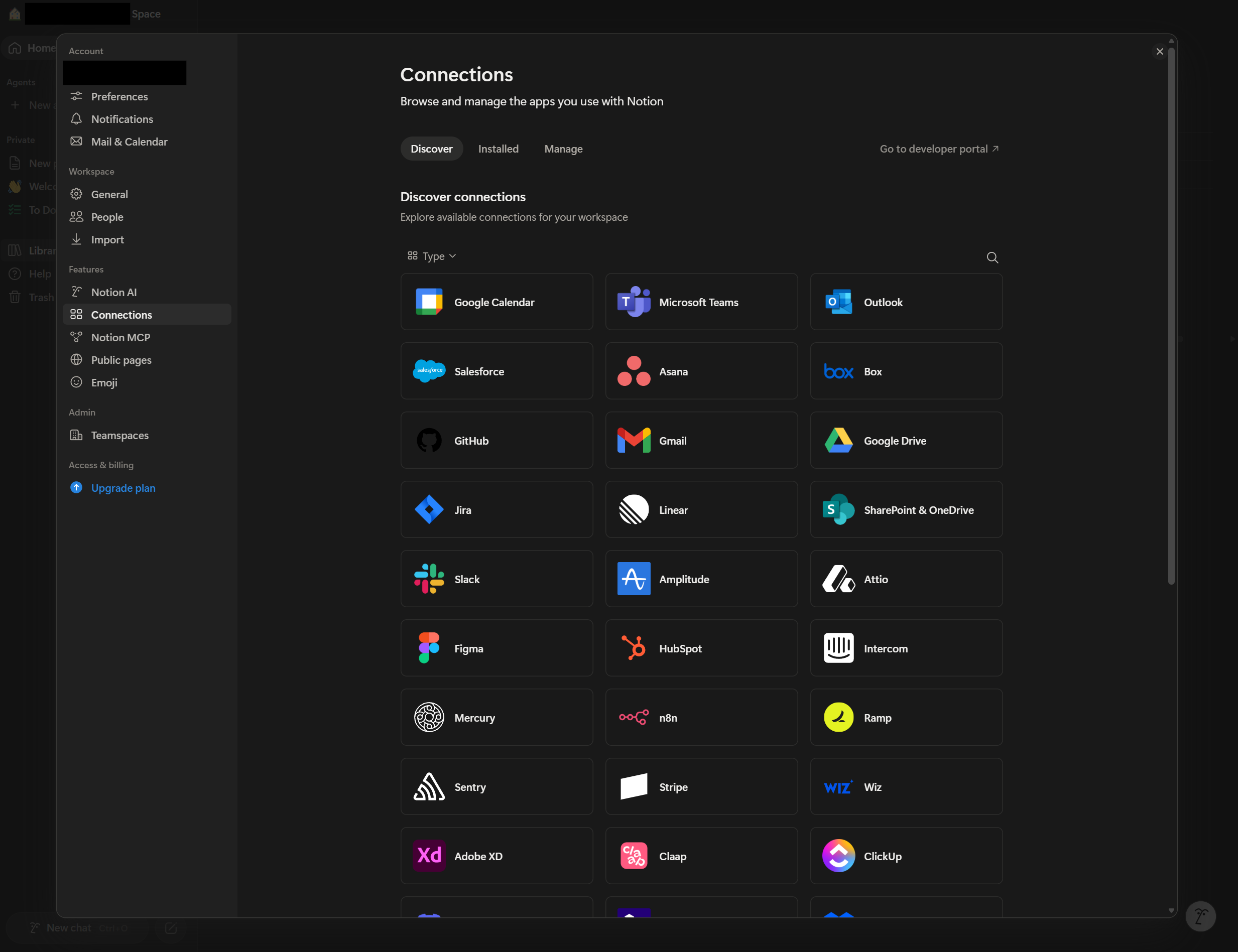
Through Notion AI Connectors, the agent bridges the gap between your apps. It can scan an influx of messages in a Slack channel, cross-reference them with a Google Doc or Jira ticket, and generate an actionable project roadmap directly inside a Notion page. - Automatic Meeting Memorization & Execution:
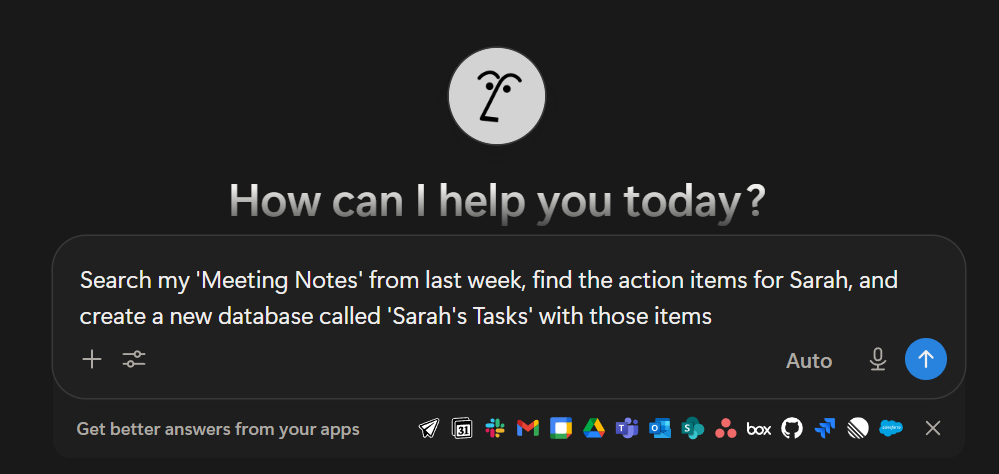
With integrated AI Meeting Notes, the system can listen to or read transcripts of a meeting, extract action items, assign them to team members in a task database, and pre-draft follow-up emails in Gmail or Notion Mail. - Advanced Knowledge Synthesis:
You can upload massive CSV or PDF files into Notion. The Agent can process the entire dataset, extract trends, map out variance analysis tables (e.g., budgeting vs. actuals), and cite the specific source notes.
Limitation
While incredibly powerful, Notion’s AI tools have strict guardrails and technical limitations you need to look out for:
- No Settings Control: The Agent cannot modify workspace settings, manage billing, or add/remove team members.
- No Security Delegation: You cannot ask the Agent to change sharing permissions or grant a specific user access to a restricted page.
- Permission Mirrors: A Personal Agent can only see what you can see. If you don’t have access to a specific private folder, the agent cannot pull data from it.
- Database Engineering Hurdles: While it can create databases and simple properties, it cannot natively build complex backend logic like advanced formulas, rollups, or database templates. (It can, however, write the formula code for you to manually paste in).
- The “Context Overload” & Freeze Risk: When pulling in massive context from long discussions or hundreds of pages, the interface can occasionally lag or freeze the active browser tab.
- Interactivity Missing: Agents cannot create or modify interactive operational blocks like native Notion Forms or buttons. They also tend to ignore inline page comments, missing out on localized team discussions.
- Pricing and Credit Restrictions:
Tier Bottleneck: The deep autonomous capabilities of Notion Agents require a Business or Enterprise plan.
The Notion Credit System: Custom Agents operate on a credit-based system (typically priced around $10 per 1,000 credits). Highly complex, multi-step autonomous tasks running on loops 24/7 can deplete your team’s credit pool quickly if not carefully managed by workspace owners.