

Visit Locally AI website for full experience
Remarks
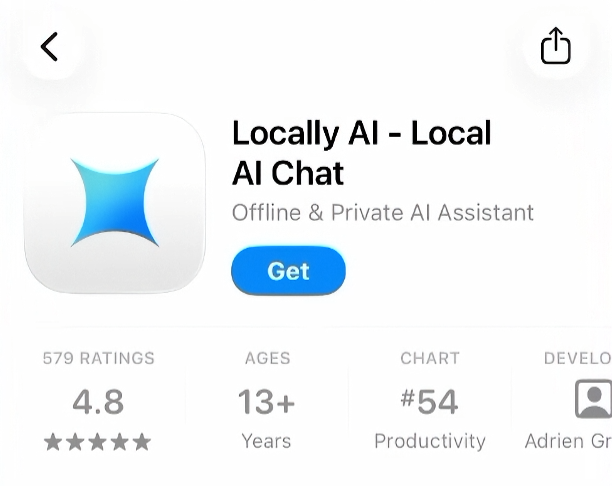
In early 2026, Locally AI officially joined the LM Studio family, making it the premier mobile companion in the LM Studio ecosystem. By leveraging Apple’s MLX machine learning framework, it is highly optimized for Apple Silicon to maximize speed and efficiency without sending your data to the cloud.
Key Usages & Workflows
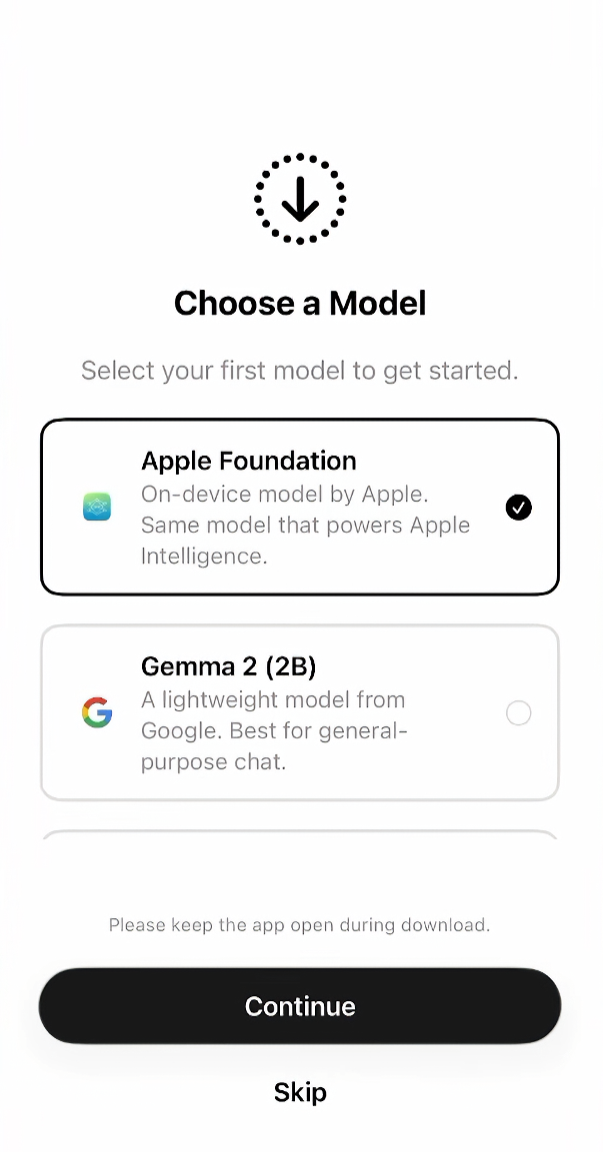
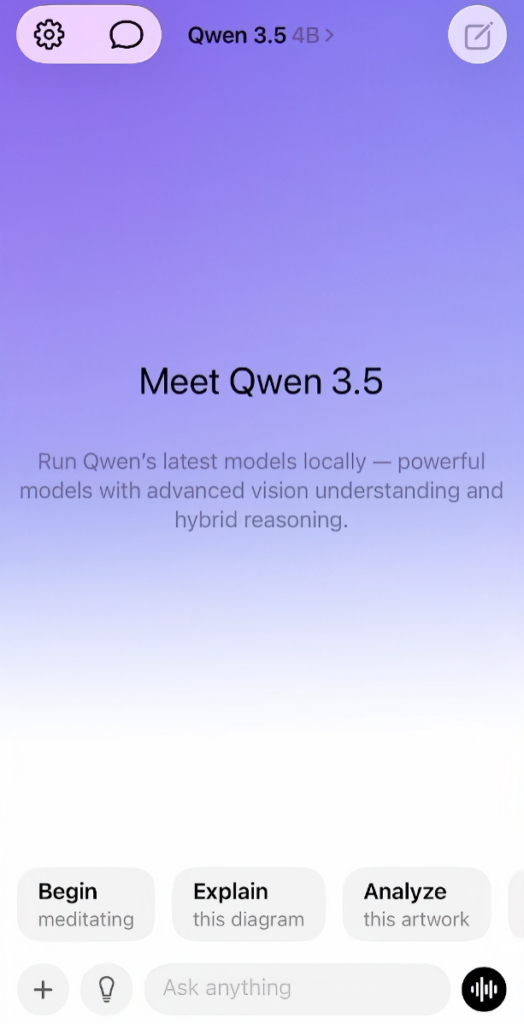
- 100% Private, Offline Chat: You can download a model (like Llama 3.2 1B or 3B) directly onto your phone and have complete, un-throttled conversations, brainstorm, or draft emails without an internet connection.
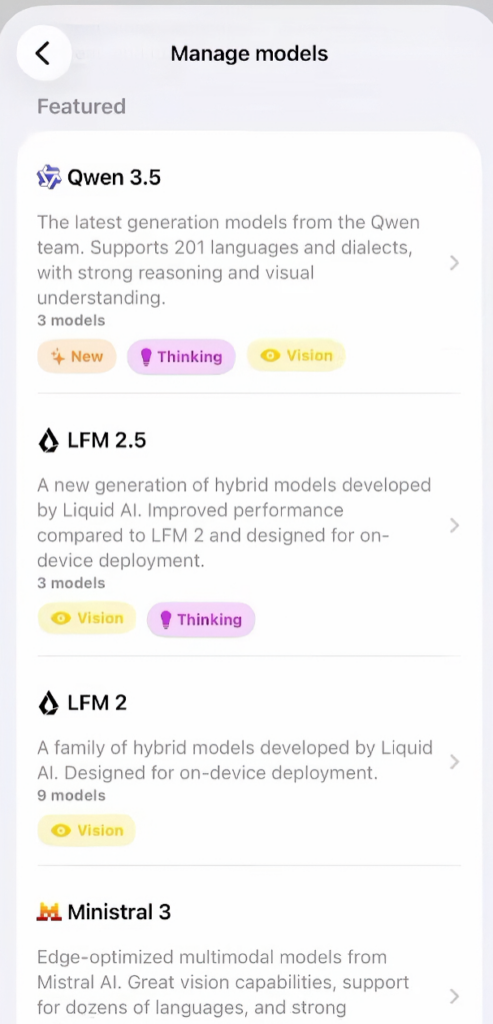
- Image & Document Analysis: Using vision-capable models (like Qwen 2 VL), you can upload photos, CSVs, or code files for local analysis, summarization, and debugging entirely on your device.
- LM Link (Remote Hosting): If you want to run massive models (like 30B+ parameters) that your iPhone’s RAM cannot handle, you can use LM Link to securely connect Locally AI to LM Studio running on your home PC or Mac. It runs the model on your computer but lets you chat seamlessly on your phone.
- iOS Ecosystem Integration: The app supports local voice mode, integrates directly with Siri (“Hey Locally AI”), can be triggered via Action Buttons/Lock Screen controls, and works within Apple Shortcuts for automated workflows.
Limitation
- Hardware & RAM Bottlenecks: Running models on-device is incredibly memory-intensive. Base iPhones with limited RAM (e.g., 6GB or 8GB) will struggle to run larger models (like 8B+ parameter models) without crashing. You need high-end Apple Silicon (like M-series iPads/Macs or Pro-series iPhones) to run advanced models smoothly.
- Severe Battery & Heat Drain: Heavy inference puts massive stress on the CPU and GPU. Using the app continuously to process long files or write extensively will heat up your device and drain the battery much faster than standard cloud-based apps.
- Massive Storage Requirements: Unlike cloud apps that take up mere megabytes, running local models requires you to download them. A single lightweight model can easily occupy 2GB to 8GB of storage on your device.
- The Intelligence Gap: The small models optimized to run on phones (usually 1B to 3B parameters) are excellent for drafting and simple logic, but they cannot match the reasoning, deep coding, or general intelligence of massive, multi-billion-parameter cloud APIs (like GPT-4o or Claude 3.5 Sonnet).
Visit Deepseek website for full experience
Remarks
DeepSeek is an AI-powered tool designed for deep information retrieval, analysis, and content generation. It is commonly used in areas such as:
- Advanced Information Retrieval
- DeepSeek can process and analyze large datasets to extract relevant insights.
- It helps users find precise information beyond standard search engines.
- Natural Language Processing (NLP) Applications
- Used for text summarization, sentiment analysis, and question-answering systems.
- Supports various languages and can generate human-like responses.
- AI-Assisted Research and Writing
- Helps researchers analyze academic papers, generate summaries, and suggest references.
- Useful for drafting articles, reports, and creative writing.
- Code Assistance and Debugging
- Provides AI-powered code suggestions, optimizations, and bug fixes.
- Supports multiple programming languages, aiding developers in software development.
- Business and Decision-Making Support
- Analyzes market trends, customer feedback, and financial data for businesses.
- Assists in generating insights for strategic decision-making.
limitation:
- Accuracy and Hallucination Issues
- AI models can sometimes generate incorrect or misleading information.
- Requires human verification before relying on outputs.
- Limited Real-Time Data Access
- May not always provide the latest information if it’s not connected to live data sources.
- Some AI models work with pre-trained datasets, limiting real-time updates.
- Context Limitations
- Struggles with highly nuanced or ambiguous queries.
- Long conversations may lead to context loss or inconsistencies.
- Ethical and Bias Concerns
- AI models can reflect biases present in training data.
- Requires careful consideration when used in sensitive applications.
- Computational Resource Constraints
- Running deep learning models requires significant computational power.
- Latency issues may arise during complex queries or large-scale data analysis.



Lorem ipsum dolor sit amet, consectetur adipiscing elit. Ut elit tellus, luctus nec ullamcorper mattis, pulvinar dapibus leo.