

Visit Flowith website for full experience
Remarks
Rather than relying on linear back-and-forth prompts, Flowith lets users run multi-threaded tasks, connect different AI models, and deploy autonomous agents to tackle complex projects visually.
Key Usages & Workflows
- Infinite Canvas: A visual node system (similar to Notion combined with Miro) where prompts, generated outputs, images, and files exist as interconnected blocks.
- Agent Neo & Autonomous Execution: An integrated AI agent capable of breaking down vague goals into multi-step execution plans. It handles browser research, file generation, and deep-dive tasks independently.
- Multi-Model Integration: Access and switch between multiple underlying models (like Claude, OpenAI GPT series, DeepSeek, and image/video generators) within a single canvas workspace.
- Knowledge Garden: An automated second-brain retrieval system where uploaded documents, links, and past outputs are organized into indexed seeds for context retrieval.
| Usage Category | Common Applications |
| Deep Research & Analysis | Aggregating competitive analysis, analyzing financial filings, and synthesizing multi-source market reports into interactive dynamic tables. |
| Content Operations | Long-form drafting, omnichannel content generation, and automatically repurposing master assets for social media platforms. |
| No-Code & Visual Prototyping | Drafting interactive web layouts, generating starter code/UI structure, and designing visual brand assets on canvas. |
| Workflow Automation | Running parallel threads for distinct stages of a project (e.g., brainstorming on Node A, writing copy on Node B, generating visuals on Node C simultaneously). |
Limitation
- Steep Learning Curve: The non-linear canvas layout and agent framework require a mindset shift away from standard chat boxes, making it overwhelming for simple queries.
- Fast Credit Consumption: Deep research, multi-agent runs, and video/image generation burn through workspace subscription credits rapidly.
- Draft-Stage Reliability: While Agent Neo automates long-horizon tasks, final technical deliverables (like full-stack code or legal text) still require human auditing and manual refinement.
- Overkill for Basic Tasks: For quick single-turn answers, standard tools (like Perplexity or ChatGPT) are faster and more cost-effective.


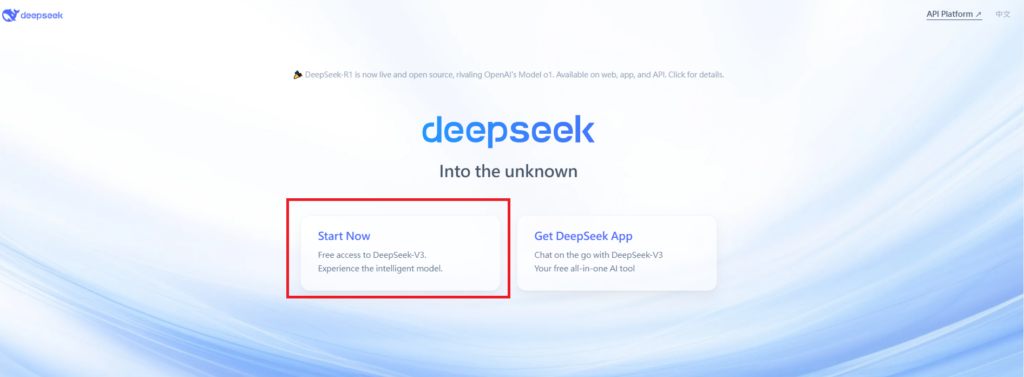
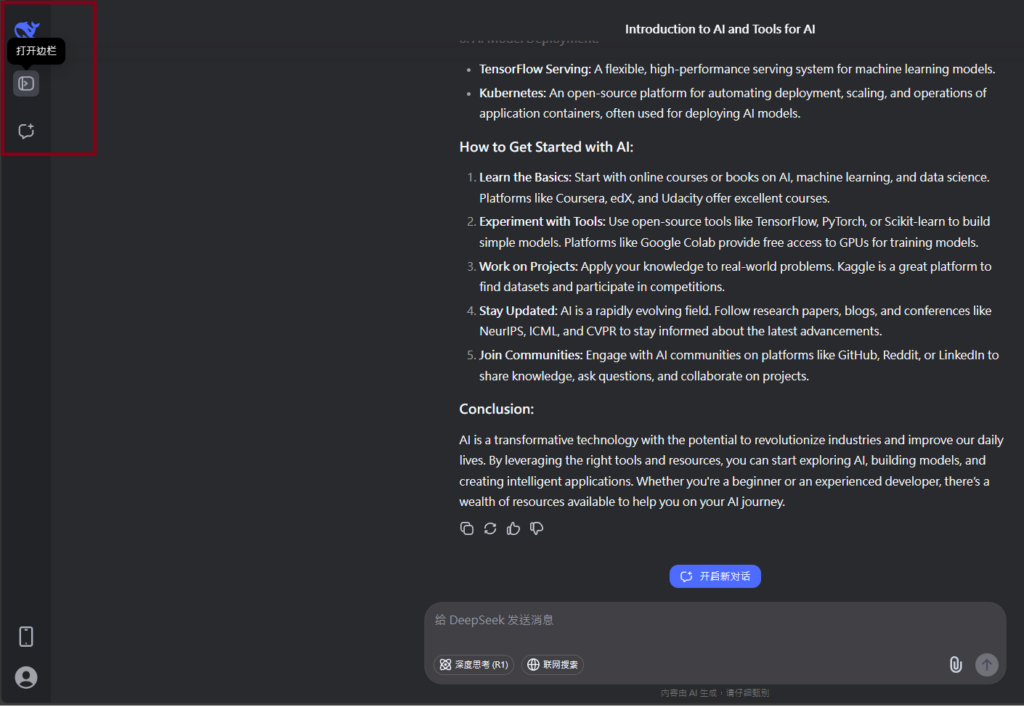
Visit Deepseek website for full experience
Remarks
DeepSeek is an AI-powered tool designed for deep information retrieval, analysis, and content generation. It is commonly used in areas such as:
- Advanced Information Retrieval
- DeepSeek can process and analyze large datasets to extract relevant insights.
- It helps users find precise information beyond standard search engines.
- Natural Language Processing (NLP) Applications
- Used for text summarization, sentiment analysis, and question-answering systems.
- Supports various languages and can generate human-like responses.
- AI-Assisted Research and Writing
- Helps researchers analyze academic papers, generate summaries, and suggest references.
- Useful for drafting articles, reports, and creative writing.
- Code Assistance and Debugging
- Provides AI-powered code suggestions, optimizations, and bug fixes.
- Supports multiple programming languages, aiding developers in software development.
- Business and Decision-Making Support
- Analyzes market trends, customer feedback, and financial data for businesses.
- Assists in generating insights for strategic decision-making.
limitation:
- Accuracy and Hallucination Issues
- AI models can sometimes generate incorrect or misleading information.
- Requires human verification before relying on outputs.
- Limited Real-Time Data Access
- May not always provide the latest information if it’s not connected to live data sources.
- Some AI models work with pre-trained datasets, limiting real-time updates.
- Context Limitations
- Struggles with highly nuanced or ambiguous queries.
- Long conversations may lead to context loss or inconsistencies.
- Ethical and Bias Concerns
- AI models can reflect biases present in training data.
- Requires careful consideration when used in sensitive applications.
- Computational Resource Constraints
- Running deep learning models requires significant computational power.
- Latency issues may arise during complex queries or large-scale data analysis.


Lorem ipsum dolor sit amet, consectetur adipiscing elit. Ut elit tellus, luctus nec ullamcorper mattis, pulvinar dapibus leo.