

Visit Zapier website for full experience
Remarks
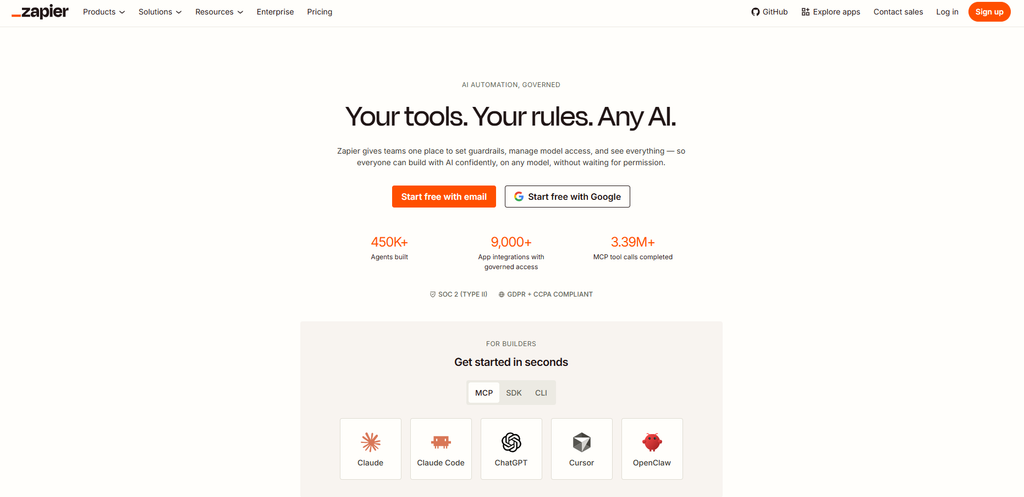
Rather than just connecting App A to App B, Zapier AI introduces smart decision-making, content generation, and autonomous task handling directly into your automations.
Key Usages & Workflows
- Lead Enrichment & Routing: A form lead comes in; AI evaluates the lead’s business model, scores fit based on custom criteria, summarizes key details, and alerts sales on Slack.
- Support & Ticket Triage: Incoming customer emails are analyzed for tone and topic. AI categorizes the ticket, drafts a suggested response, and tags the right support engineer.
- Content Operations: A new blog post triggers AI to generate social media snippets, draft a newsletter excerpt, and log everything in a Zapier Table.
- Meeting & Document Summaries: Zoom/Teams transcripts are passed through AI to extract actionable task items and automatically add them to Notion or Trello.
Limitation
- Hard Execution Timeouts (30-Second Limit): Live Zapier action steps have a 30-second execution limit. If an AI prompt involves processing a massive PDF, multi-page document, or generating very long text, the step will time out and fail.
- High “Task” & Token Consumption: Every action step executed by an AI module counts toward your Zapier monthly task limit. Heavy, multi-step AI workflows can consume tasks significantly faster than simple data-sync Zaps.
Large prompts or contexts are subject to AI model token limits and can fail if requests are too vague or lengthy. - Non-Deterministic Output & Hallucinations: Because LLMs are probabilistic, outputs aren’t guaranteed to be identical every time. Without strict formatting guidelines or secondary validation filters, AI steps might generate unexpected formats that break downstream app steps.
- Compliance & Privacy Constraints: Zapier AI is not HIPAA-compliant for handling sensitive health data. Highly regulated industries (finance, healthcare) need to be cautious about sending private PII through standard LLM steps.
- Beta Features & Evolving Functionality: Advanced features like Zapier Agents and Copilot remain evolving features subject to UI changes, feature updates, or occasional rate limits.


Visit Deepseek website for full experience
Remarks
DeepSeek is an AI-powered tool designed for deep information retrieval, analysis, and content generation. It is commonly used in areas such as:
- Advanced Information Retrieval
- DeepSeek can process and analyze large datasets to extract relevant insights.
- It helps users find precise information beyond standard search engines.
- Natural Language Processing (NLP) Applications
- Used for text summarization, sentiment analysis, and question-answering systems.
- Supports various languages and can generate human-like responses.
- AI-Assisted Research and Writing
- Helps researchers analyze academic papers, generate summaries, and suggest references.
- Useful for drafting articles, reports, and creative writing.
- Code Assistance and Debugging
- Provides AI-powered code suggestions, optimizations, and bug fixes.
- Supports multiple programming languages, aiding developers in software development.
- Business and Decision-Making Support
- Analyzes market trends, customer feedback, and financial data for businesses.
- Assists in generating insights for strategic decision-making.
limitation:
- Accuracy and Hallucination Issues
- AI models can sometimes generate incorrect or misleading information.
- Requires human verification before relying on outputs.
- Limited Real-Time Data Access
- May not always provide the latest information if it’s not connected to live data sources.
- Some AI models work with pre-trained datasets, limiting real-time updates.
- Context Limitations
- Struggles with highly nuanced or ambiguous queries.
- Long conversations may lead to context loss or inconsistencies.
- Ethical and Bias Concerns
- AI models can reflect biases present in training data.
- Requires careful consideration when used in sensitive applications.
- Computational Resource Constraints
- Running deep learning models requires significant computational power.
- Latency issues may arise during complex queries or large-scale data analysis.


Lorem ipsum dolor sit amet, consectetur adipiscing elit. Ut elit tellus, luctus nec ullamcorper mattis, pulvinar dapibus leo.