LearnWorlds AI

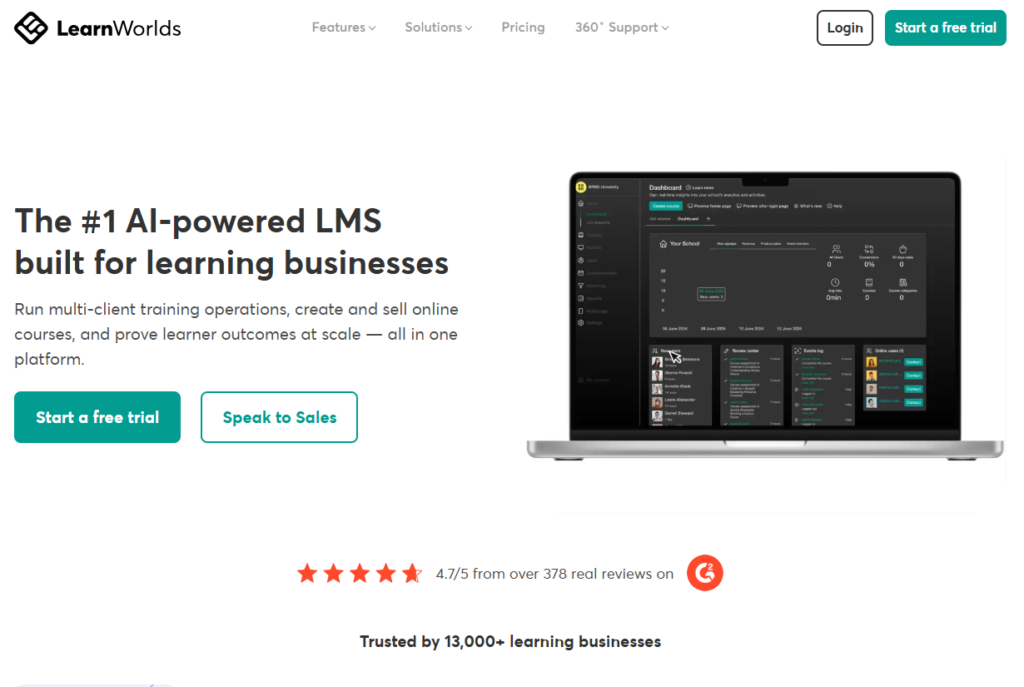
LearnWorlds AI is a built-in AI Assistant integrated directly into the LearnWorlds e-learning platform. Driven by large language models behind the scenes, it functions as a digital instructional designer, copywriter, and administrative assistant to help course creators build, market, and manage online academies much faster.

Visit LearnWorlds AI website for full experience
Remarks

LearnWorlds AI is an intelligent assistant integrated directly into the LearnWorlds learning management system (LMS). It acts as a digital co-creator for educators and entrepreneurs, taking over the heavy lifting of curriculum planning, content writing, and administrative setup so you can launch online schools faster.

Key Usages & Workflows

LearnWorlds AI focuses heavily on cutting down the hours required to plan, write, and structure an online course.

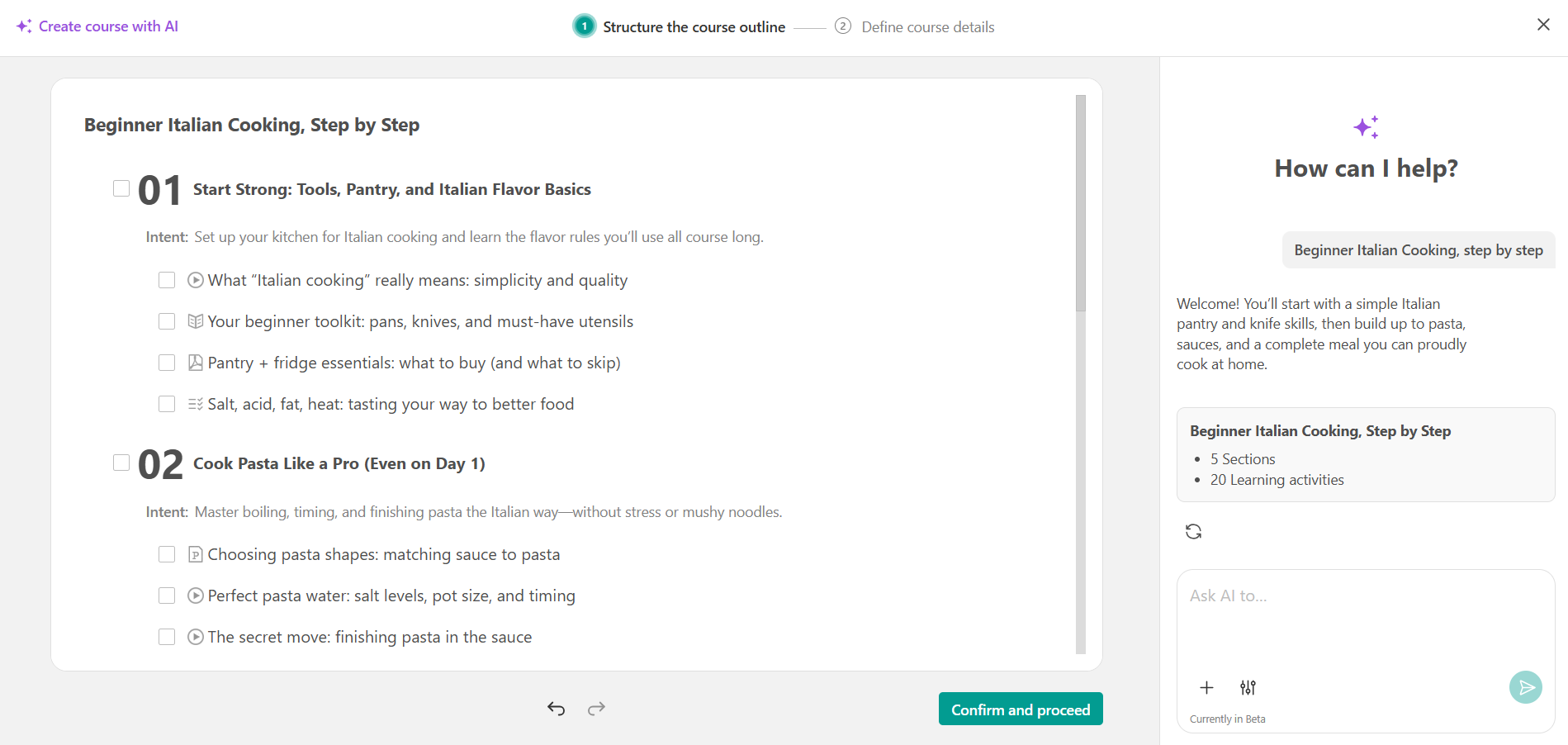
  1. Course & Curriculum Planning: It can instantly generate a structured course outline or curriculum based on a simple prompt, topic, or specific learning objectives.
  2. Content Generation & Editing: It assists in writing lesson content, creating educational ebooks, summarizing long texts, expanding short notes, or translating course materials into different languages. It also offers built-in text styling commands (e.g., “make it catchy”, “make it formal”).
  3. Assessment Creation: The AI can read through your existing lesson content and instantly generate quiz questions, including multiple-choice, true/false, and open-ended prompts.
  4. Marketing & Communication: It drafts sales landing page copy, course descriptions, and automated email campaigns to engage and onboard students.
  5. Student Feedback: Instructors can use it to draft personalized, professional feedback for assignments and student submissions.

Limitation

While the tool speeds up the structural heavy lifting, it does have specific functional boundaries.

  1. Credit/Prompt Caps: AI usage is tied to a credit system based on your subscription tier. Standard plans grant a limited number of prompts per month (e.g., Starter gets 300, Learning Center gets 1,000). To get unlimited usage, you have to integrate your own external OpenAI API key or buy an add-on pack.
  2. Quality & Accuracy Checks Needed: Because it relies on generative language models, the AI can sometimes hallucinate or generate generic text. LearnWorlds officially advises that all AI output be reviewed for accuracy, bias, and alignment with your true brand voice before publication.
  3. Lack of Creative Media Generation: The native AI assistant is heavily text-based. It does not natively generate fully custom visual media (like auto-generating custom illustrations, slides, or full video content from scratch).
  4. Rigid Frameworks: If you have highly non-traditional course layouts or very niche pedagogical frameworks, the AI might default to standard, formulaic structures that require manual rearranging.
Step 1: Access the Platform

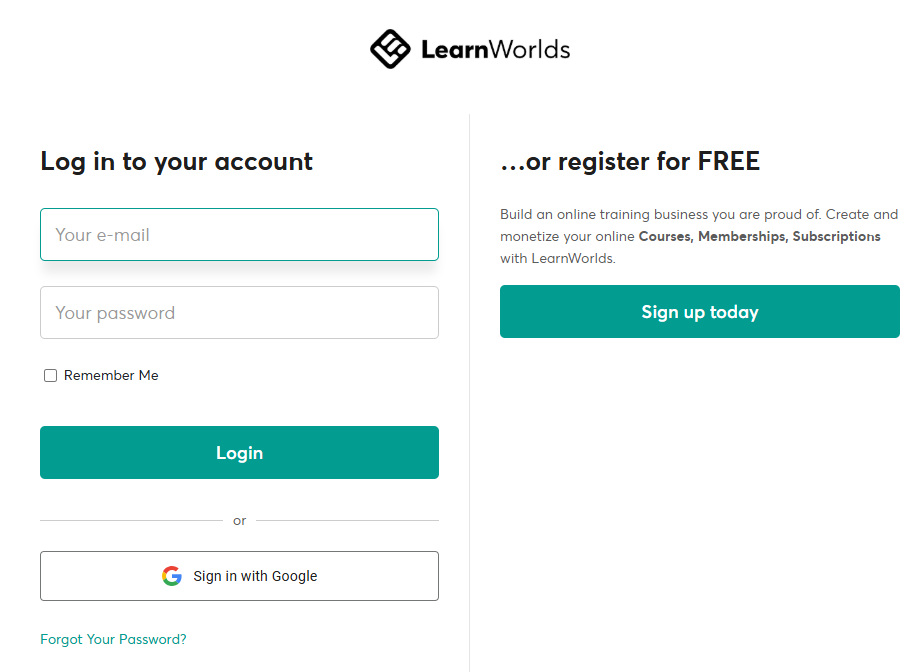
Since LearnWorlds is a cloud-based Learning Management System (LMS), you don’t download it to your computer. You access the “AI Assistant” via your browser.
Login: Go to LearnWorlds.com and log in to your academy admin dashboard.
Mobile App (Optional): If you want to manage your school on the go, download the LearnWorlds Academy app from the iOS or Google Play store. Note: Most AI content creation is easier on the desktop version.
Check Credits: Go to Settings → Account Details to ensure you have AI credits (most plans include a monthly allowance, typically 300–1000 prompts).

Step 2: Generating Your First Course

The AI is most powerful when you are staring at a blank screen. Here is how to use it to build a course structure in under 60 seconds.
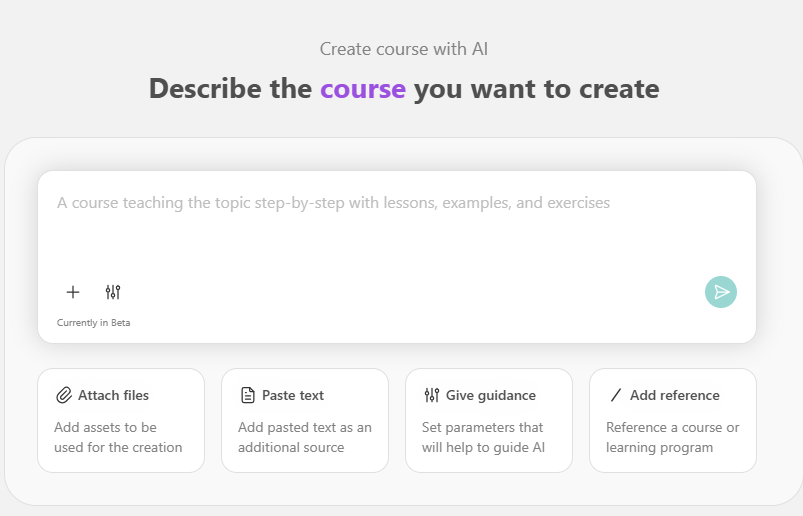
1.Open the Wizard:Click the “Create Course” button on your main dashboard.
2.Select AI Assistant:When asked how you’d like to build, select “Create outline with AI”
3.Define Your Topic:Enter your course topic (e.g., “Beginner Italian Cooking”). You will then pick a Learning Model (e.g., “Step-by-Step” or “Problem-Solving”) and a Tone of Voice.
4.Generate & Refine:
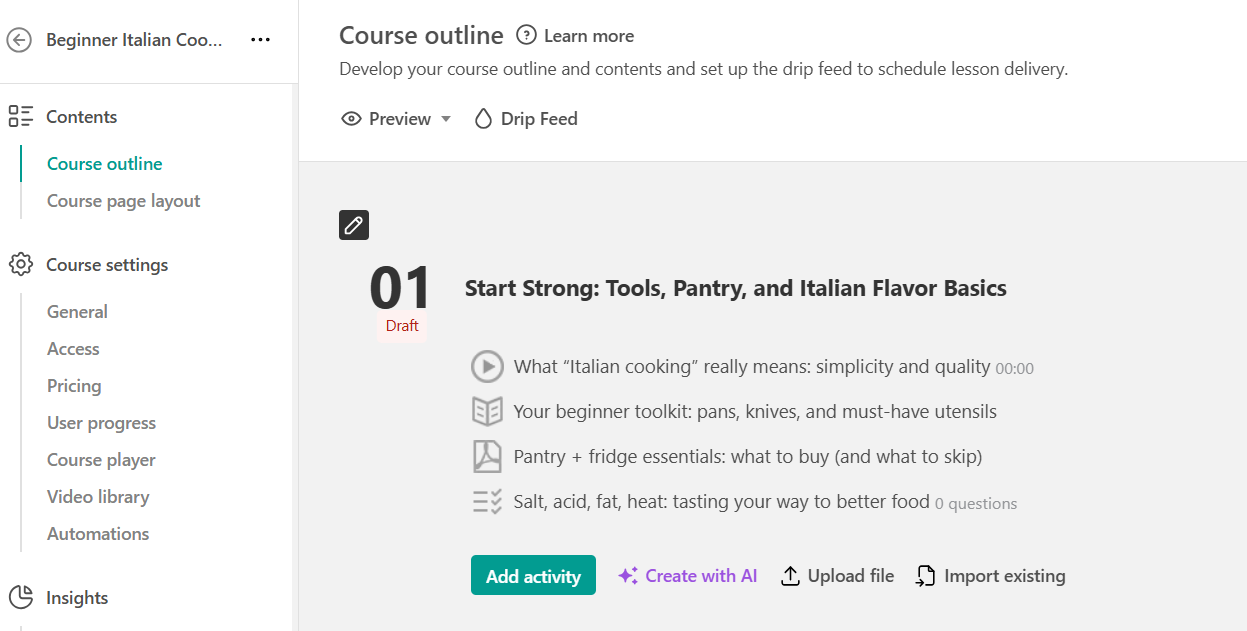
Review the AI-generated modules and lessons. You can click “Regenerate” for specific sections or “Confirm” to automatically build the actual course pages.

Step 3: Choose Your Generation Mode

Once your course structure is built, you can use the AI to do the “heavy lifting” of writing.

In the Content Editor: Highlight any text you’ve written. An “AI Assistant” icon will appear. Click it to:
Summarize: Turn a long lecture into a quick bulleted recap.
Change Tone: Make formal text sound more friendly or professional.
Expand: Ask it to “Give me three real-world examples of this concept.”

Assessment Generation: Inside any “Quiz” activity, click “Generate with AI.” It will read your lesson content and automatically create Multiple Choice or True/False questions based on what was actually taught.

Step 4: Automated Grading

One of the most advanced features is AI-Guided Feedback.
Open-Ended Questions: You can now set up assignments where students submit a written essay.
The Workflow: You provide the AI with a “Grading Rubric” (e.g., “Look for mentions of X, Y, and Z”). The AI will read the student’s submission, score it, and provide a personalized feedback report instantly, saving you hours of manual grading.

Remarks: Official Support Resources

To learn the fundamental functions of LearnWorlds AI, explore the following resources for more comprehensive information:
Support : LearnWorlds Help Center : https://support.learnworlds.com/support/home?_gl=11e6csix_upMQ.._gs*MQ..&

01

LearnWorlds: Welcome to the Evolution of eLearning Platforms!

02

Welcome to LearnWorlds: Build Your World of Learning!

03

Train customers, employees & partners with the #1 lightweight LMS

04

How to Track Learner Progress in LearnWorlds

Scroll to Top