Teams can integrate Atlassian Confluence Cloud with Amazon Quick to search and manage documentation without switching between multiple systems. When documentation lives in Confluence, but related data sits in other systems, teams waste time switching tools, re-searching for context, and manually gathering information. These interruptions slow decisions and create gaps between available knowledge and actionable insights. The direct integration with Confluence Cloud reduces context switching by making your Confluence content searchable through natural language queries directly from the Quick interface. Teams can query Confluence pages, retrieve documentation, and update content while accessing data from other integrated systems such as Amazon Simple Storage Service (Amazon S3), Atlassian JIRA, or other business applications.
In this post, you will learn how to set up the Confluence Cloud integration with Quick. This includes creating a knowledge base for semantic search, setting up Actions to query and manage Confluence pages, and organizing resources in Quick Spaces. Quick integrates with your current enterprise technology stack, from internal knowledge repositories and corporate intranets to business-critical applications and AWS data services. These integrations span three categories: Actions for executing tasks across connected applications, knowledge bases for indexing unstructured content like documents and wikis, and Topics and Datasets for natural language querying over structured data sources like Amazon Redshift. This post focuses on setting up Knowledge bases and Actions.
Actions connect Quick to external systems at the time of prompt or query. You can read, write, and automate tasks directly within Quick. There are three ways to set up an Action integration:
- Through a built-in connector (a pre-built, configuration-driven integration for popular tools like Confluence Cloud, Jira, and Salesforce)
- Using a custom REST API using an OpenAPI specification (for connecting your own or third-party APIs)
- Through an Model Context Protocol server (MCP) (a flexible, standards-based approach that allows dynamic tool discovery from custom or third-party MCP servers).
Some services, like Confluence Cloud, support multiple integration paths. This post will focus on setting up an action integration using the built-in connector.
Knowledge bases index content before users query it. When you create a knowledge base, Quick connects to external systems like Confluence Cloud or JIRA, retrieves your documents and wikis, and builds a searchable index. When users ask questions, Quick retrieves relevant information from this pre-built index rather than connecting to the external system in real time. This approach makes unstructured content instantly searchable through natural language queries.
Together, Actions and knowledge bases give you flexible, complementary ways to bring your enterprise data and workflows into Quick.
Prerequisites
Before you set up Confluence integration, make sure that you have the following:
- Atlassian Confluence Cloud and developer account with administrator permissions to create OAuth 2.0 applications and manage API scopes
- Amazon Quick subscription: Quick Enterprise (to create integrations) or Quick Professional (to use existing integrations)
- AWS account with appropriate AWS Identity and Access Management (IAM) permissions to access Quick and create integrations
The integration in this post follows the AWS shared responsibility model: AWS manages the security of the infrastructure and underlying services, while you’re responsible for configuring OAuth permissions, managing API scopes, controlling access to your Confluence content through the permission settings, and verifying alignment with your organization’s data governance policies.
Amazon Quick maintains security of data throughout this integration with encryption at rest and in transit. For more information, see AWS security in Quick.
Solution overview
Now that you understand the benefits, you will now create the Confluence Cloud integration in Quick, create knowledge bases and actions to sync your Confluence content, configure permissions, and interact with your Confluence cloud space through natural language queries. By the end, you can use the content in your Confluence wiki pages to create meaningful insights.
Creating the Atlassian Confluence Cloud knowledge base
A knowledge base in Quick is an organized, indexed collection of documents or content from data sources that Quick improves on for generative AI-powered retrieval and question answering. You can use Knowledge base integrations to create searchable repositories of information from external sources.
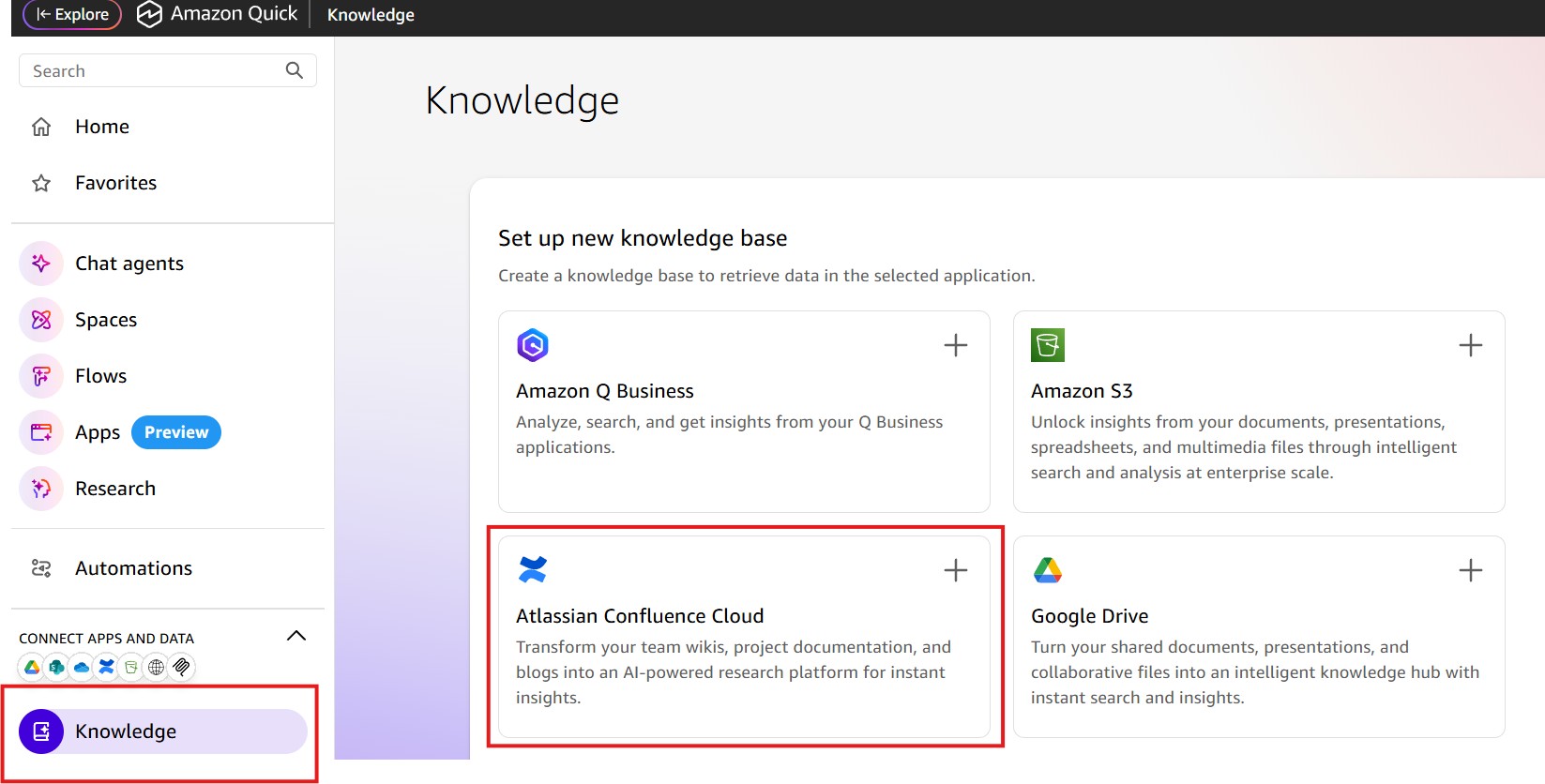
In the Quick Console, choose the Knowledge button to set up a new integration. In the Set up new knowledge base section, select the plus (+) icon in the Atlassian Confluence Cloud card. The Atlassian Confluence Cloud card is displayed alongside other available knowledge base integrations such as Amazon S3 and Atlassian Jira Cloud.
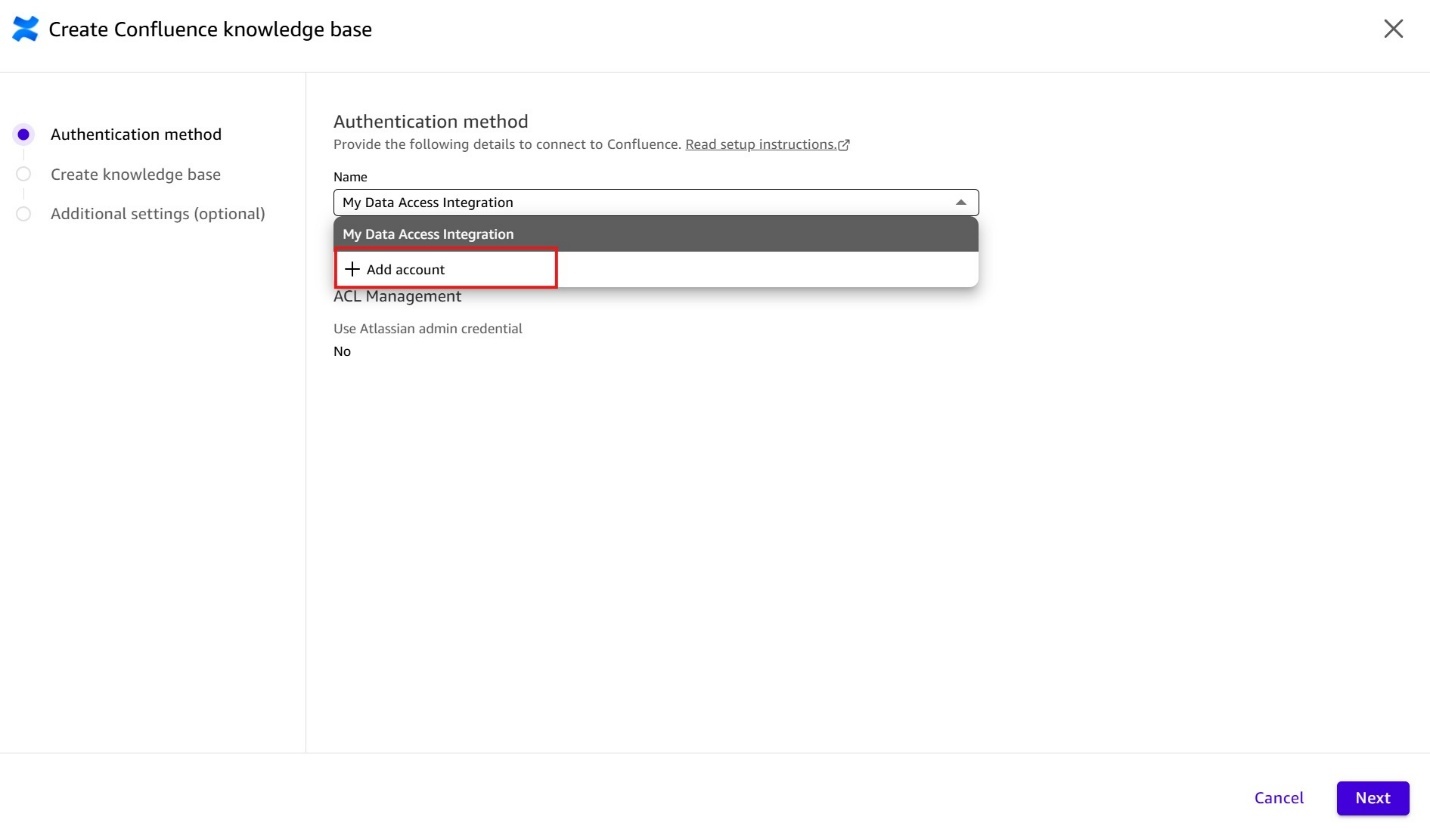
In the Create Confluence Knowledge base page, choose the My Data Access Integration dropdown menu and select Add account to connect your Confluence Cloud instance.
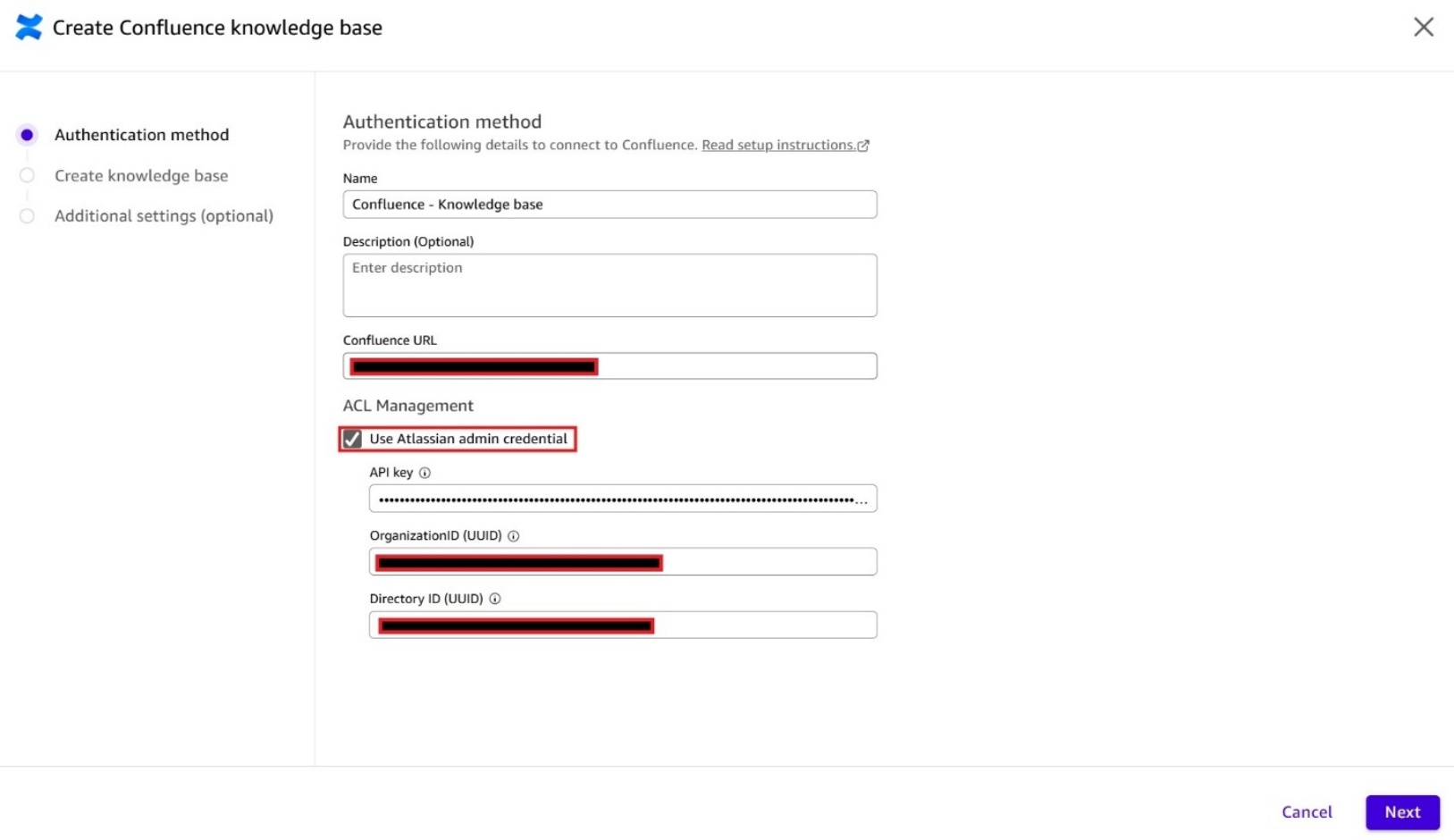
In the Authentication Method screen, enter your base Confluence URL in the Confluence URL text box. The URL for Confluence Cloud must be the base URL, ending with .atlassian.net (for example, yourinstance.atlassian.net).
Connecting Confluence Cloud to a Quick knowledge base requires no administrator involvement. Enter your Confluence URL and accept the OAuth permission prompt. Quick handles the authentication for you. Any user can set this up independently, without needing API keys, admin console access, or IT involvement.
Document-level access controls (ACLs) is an optional advanced feature for organizations that need Quick to enforce per-user Confluence permissions — ensuring users only see answers from content they’re already authorized to access. Enabling ACLs requires Atlassian admin credentials (API key, Organization ID, and Directory ID).
For more information, see Document-level access controls. If you do not enable ACLs, access is controlled at the knowledge base level. Anyone who has access to the knowledge base can get insights from all the content within it.
This blog post uses the ACL-enabled connection.
To enable document-level access controls, check the Use Atlassian admin credential check box under ACL Management and fill in the API Key, Organization ID and Directory ID fields. Please see here on how to obtain these Atlassian admin credentials.
When enabled, Amazon Quick verifies a user’s access in real time and crawls the following Confluence ACL resources:
- Spaces – Space permissions apply to all documents in the space by default.
- Pages – Pages can be restricted to specific users and groups. Nested pages inherit restrictions from the parent page and can have their own restrictions.
- Blogs – Blog posts can be restricted to specific users and groups in the space.
- Attachments – Files attached to pages or blog posts inherit the access controls of their parent document.
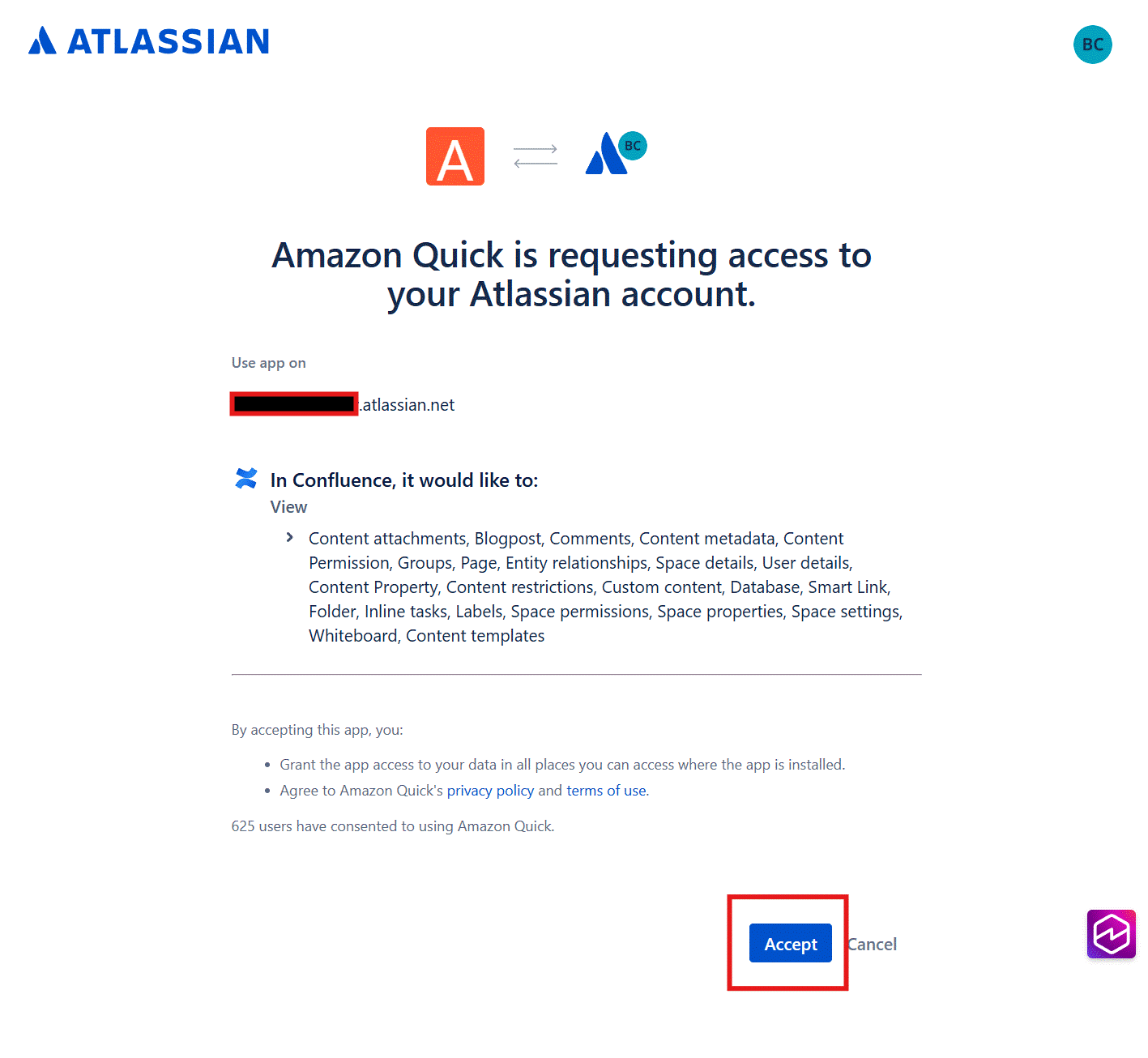
When the Amazon Quick requesting access to your Atlassian account pop-up window appears, review the permissions listed and choose Accept to complete the authorization and sign-in process.
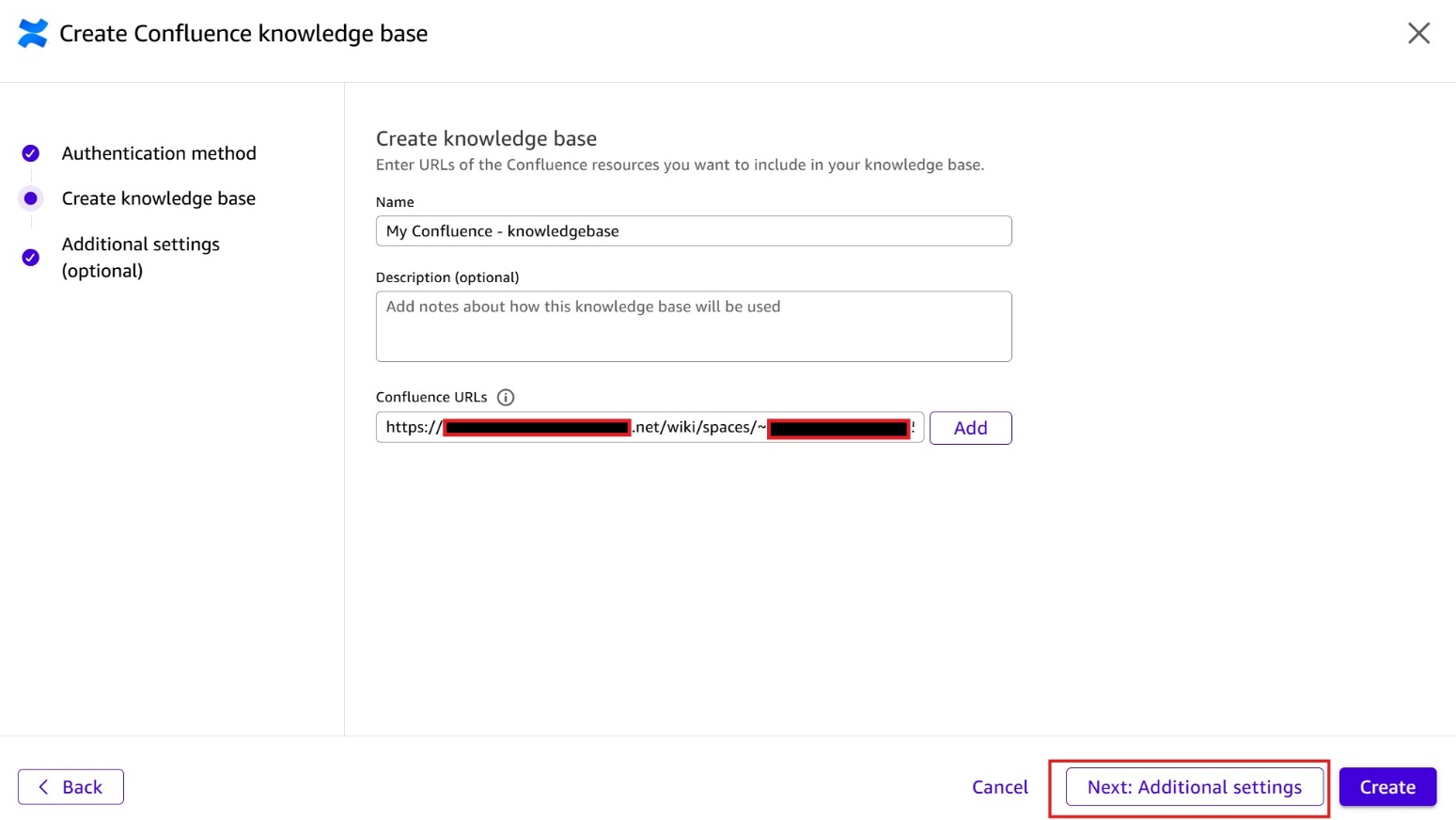
After you’re signed in, enter a descriptive name for your knowledge base and provide the Confluence URL including the space key (for example, yourinstance.atlassian.net/wiki/spaces/SPACEKEY).
Choose Add and then Next: Additional settings to complete the knowledge base setup.
After you successfully create the knowledge base, it appears in the Existing Knowledge bases section. The Status column shows the current sync state of your knowledge base.
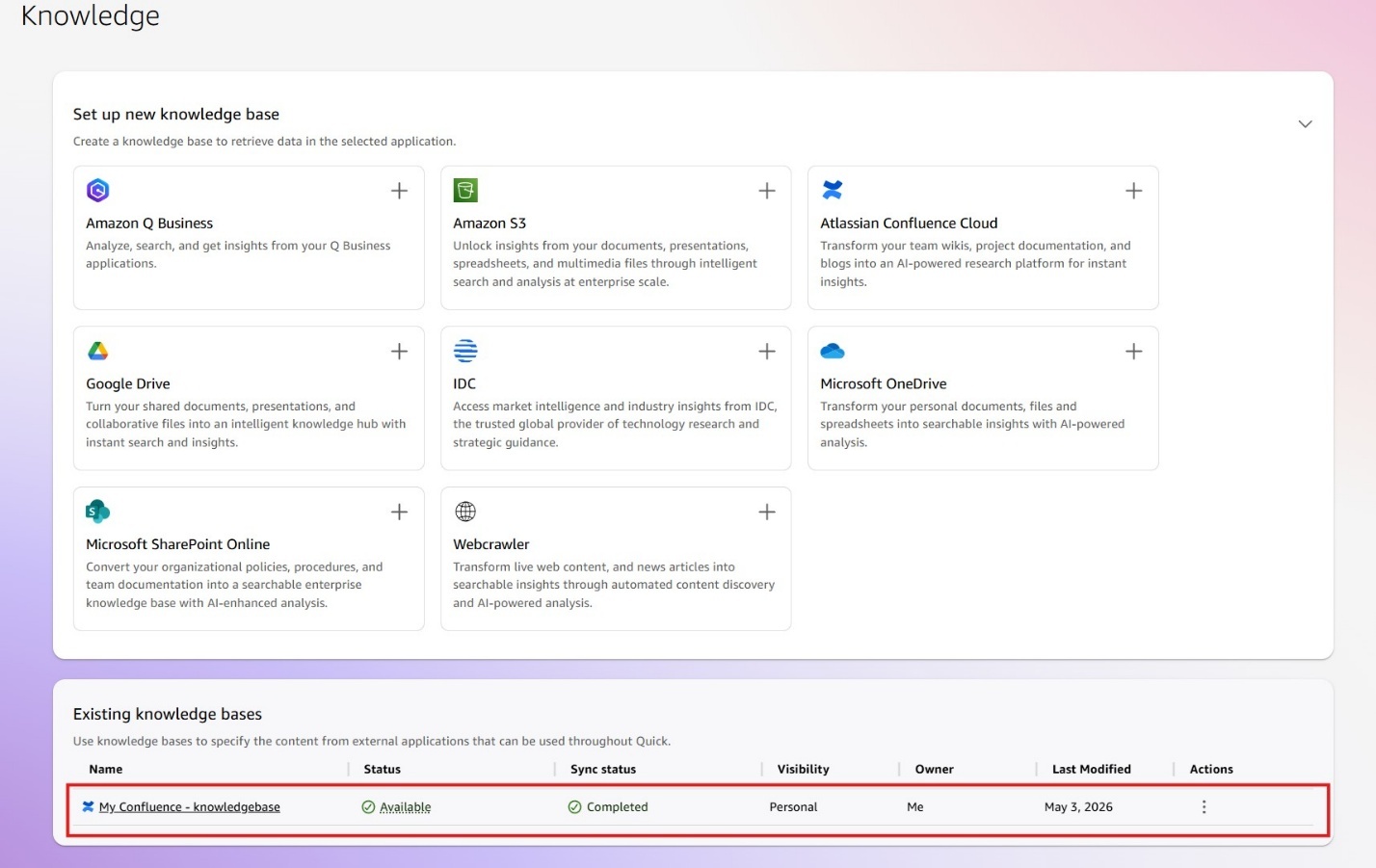
A successfully created knowledge base in Quick syncs with the available content in Confluence Cloud. After the sync is complete, the Status field changes to Available.
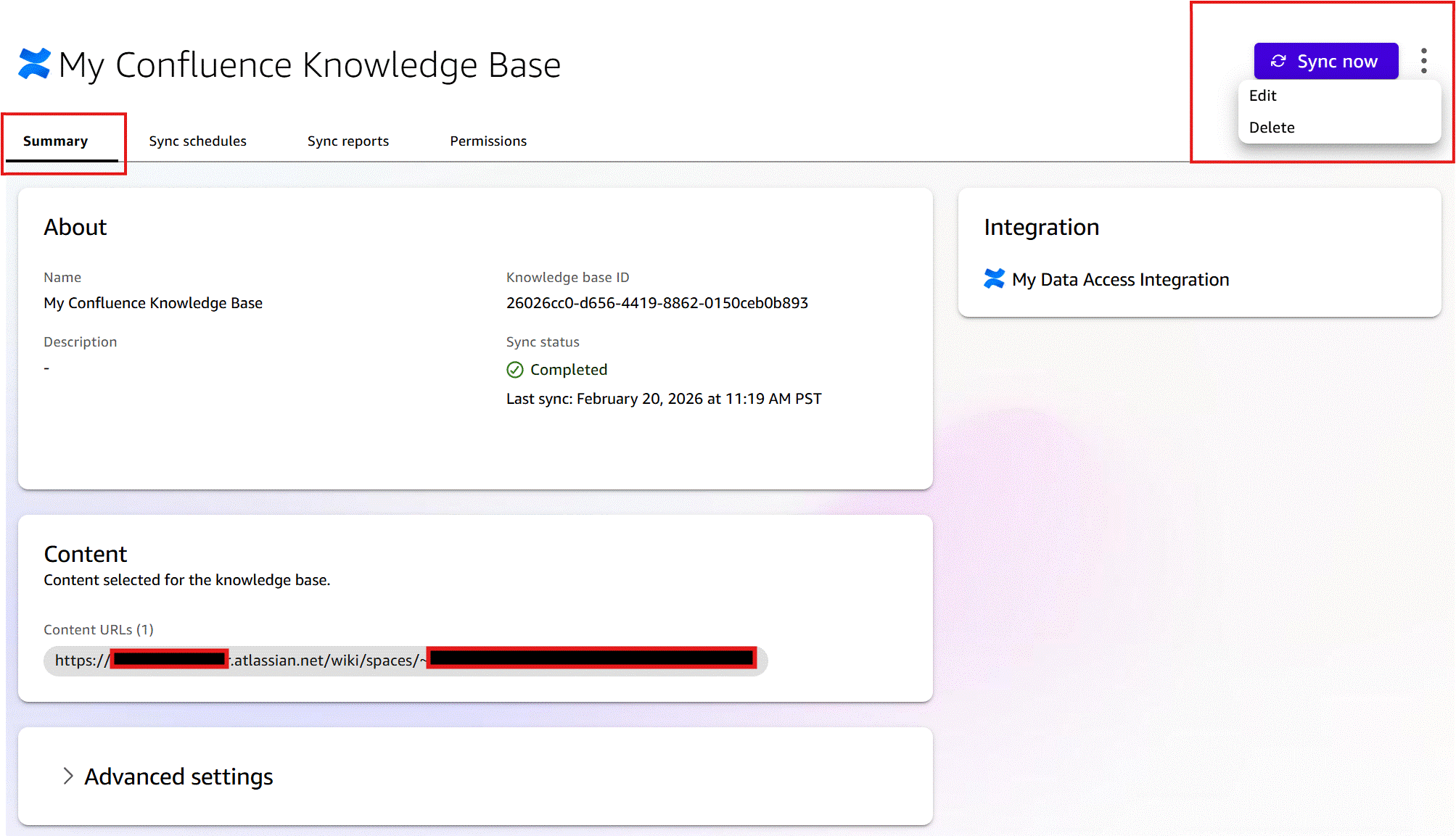
You can view more details about the knowledge base by choosing the ellipsis (…) button in the Action column and selecting View knowledge base.

In the knowledge base details page, you can view the Summary, Sync Schedules, Sync Reports, and Permissions for that knowledge base.
The Summary tab of the knowledge base details page displays the knowledge base status, its last refresh timestamp, and the content URL that Quick crawled. You can choose Sync now to trigger a manual refresh or Edit to modify the knowledge base configuration, such as adding additional content URLs and other advanced indexing settings.
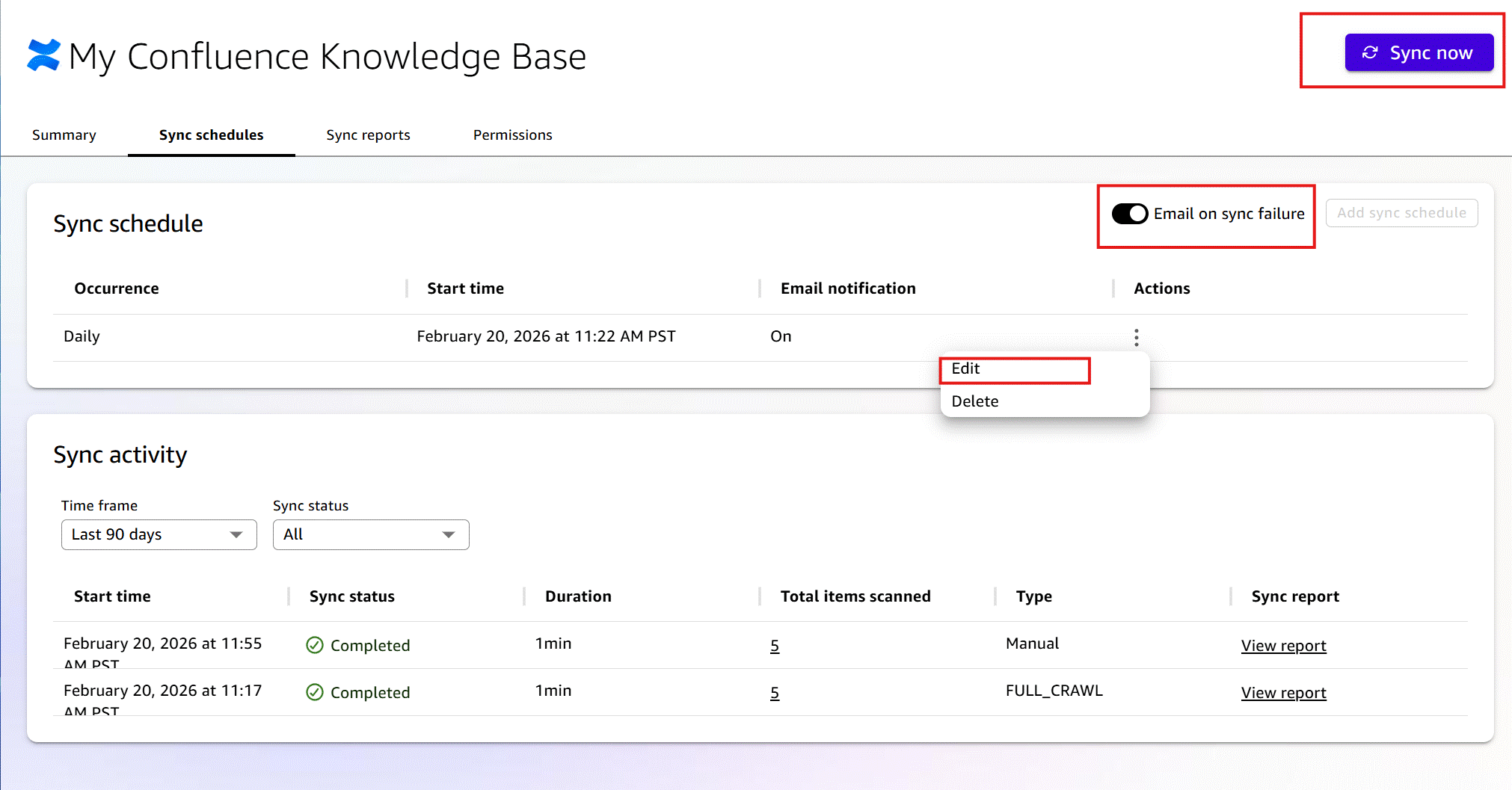
The Sync Schedules tab displays the current sync schedules and the history of refreshes. You can change the current schedule by choosing Add new Schedule or run an on-demand refresh by selecting Sync now.
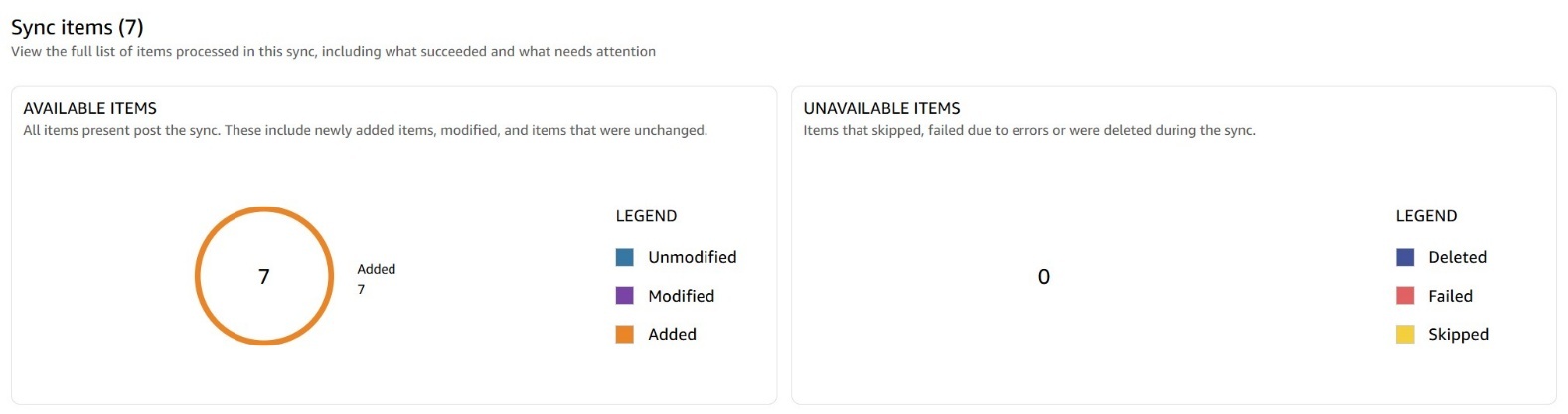
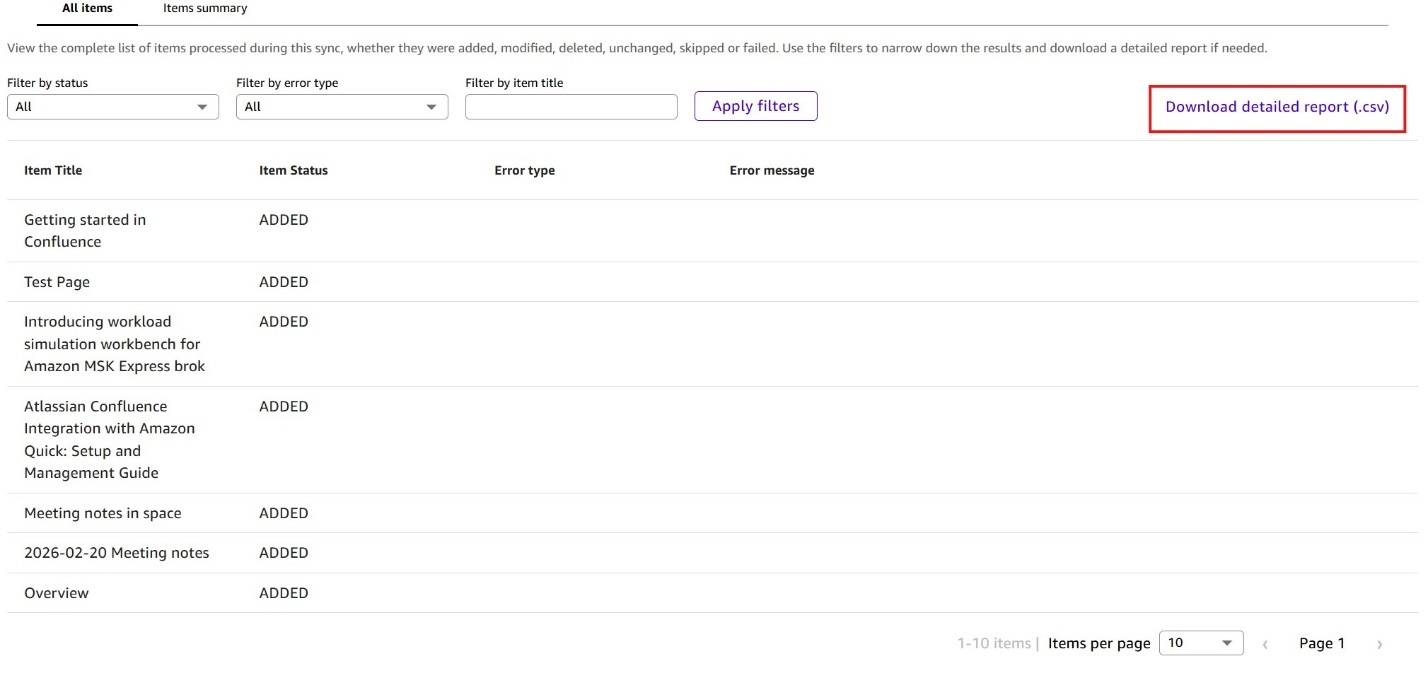
The Sync Reports tab gives you an overview of items that Quick synced or refreshed along with items that skipped or failed. Here, you can also download a detailed CSV report for further analysis of sync results.

Configuring knowledge base permissions
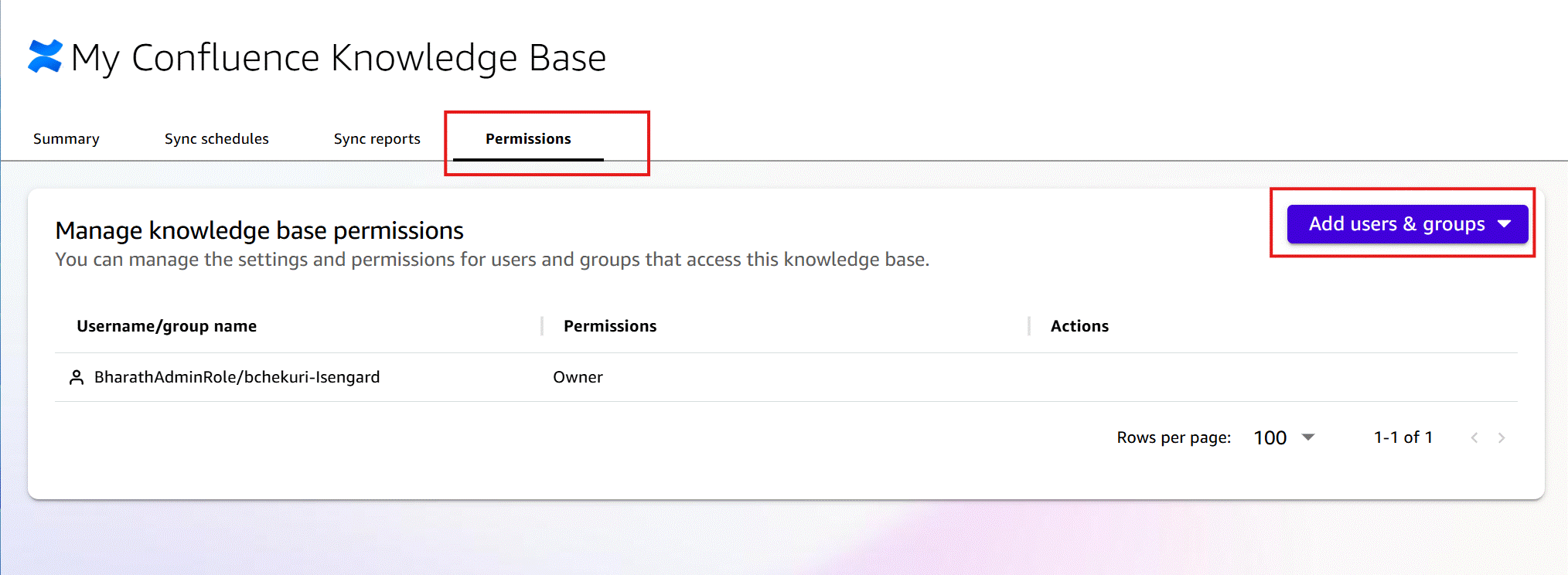
You can manage the knowledge base permissions on the Permissions tab. Add or remove users and groups to control who has access to query the indexed Confluence content within Quick.
Querying your knowledge base
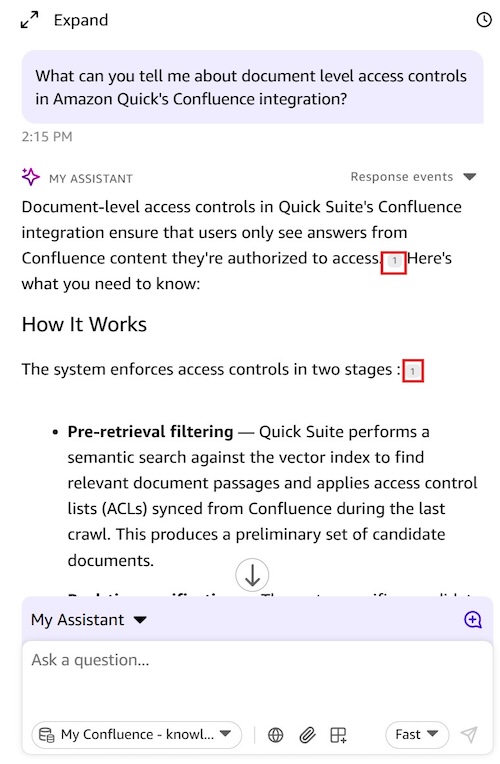
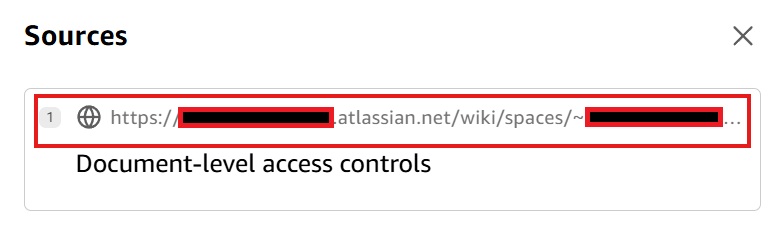
With your knowledge base configured, you can now start asking questions to validate that Quick indexed your Confluence content correctly before wiring everything together. Optionally, you can also consider adding your Knowledge base to a Quick Space. We will cover this in a later section of this blog. You can now query your knowledge base. Quick searches your indexed Confluence content and returns a response with source references pointing back to the original Confluence pages.
Creating Quick Actions
Knowledge bases handle breadth, ingesting and indexing Confluence content so Quick can perform semantic search and Retrieval Augmented Generation (RAG) across your documentation. Actions deliver precision. Actions connect Quick directly to live Confluence Cloud APIs, powering real-time, targeted queries and write operations: creating pages, updating content, retrieving specific records, and triggering workflows.
Quick supports Confluence cloud action integration via user authentication (3LO) and service authentication (API key). This blog focuses on user authentication (3LO).
For more information, refer to the Amazon Quick’s Confluence Cloud Action integration.
To integrate Quick actions with Confluence Cloud using user authentication (3LO), you must first create an OAuth 2.0 application in Atlassian’s developer console. The following section walks through these steps.
Creating the OAuth 2.0 application
Log in to your account from the Atlassian Developer Page.
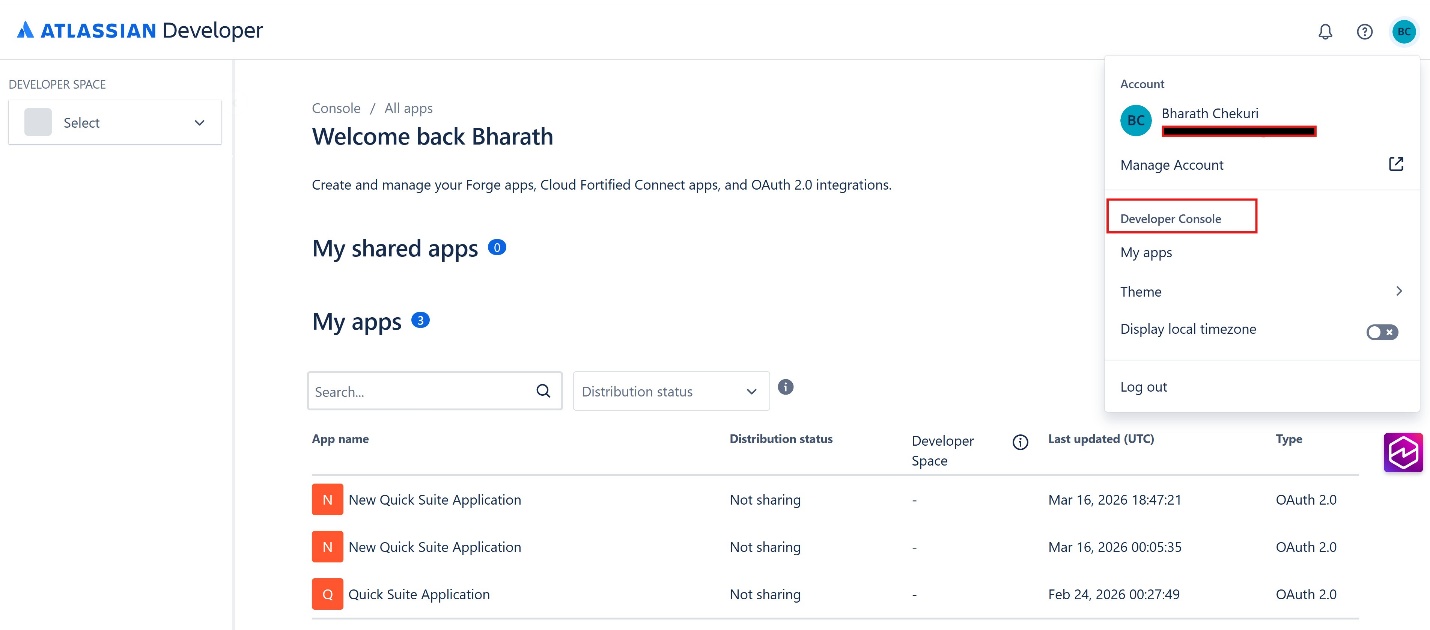
Log in to your account from the Atlassian Developer Page. Select the profile icon from the top-right corner. Then, from the menu that opens, select Developer Console.
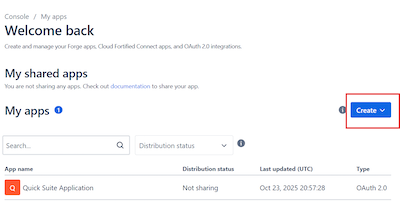
From the Welcome page, select Create and then select OAuth 2.0 Integration.
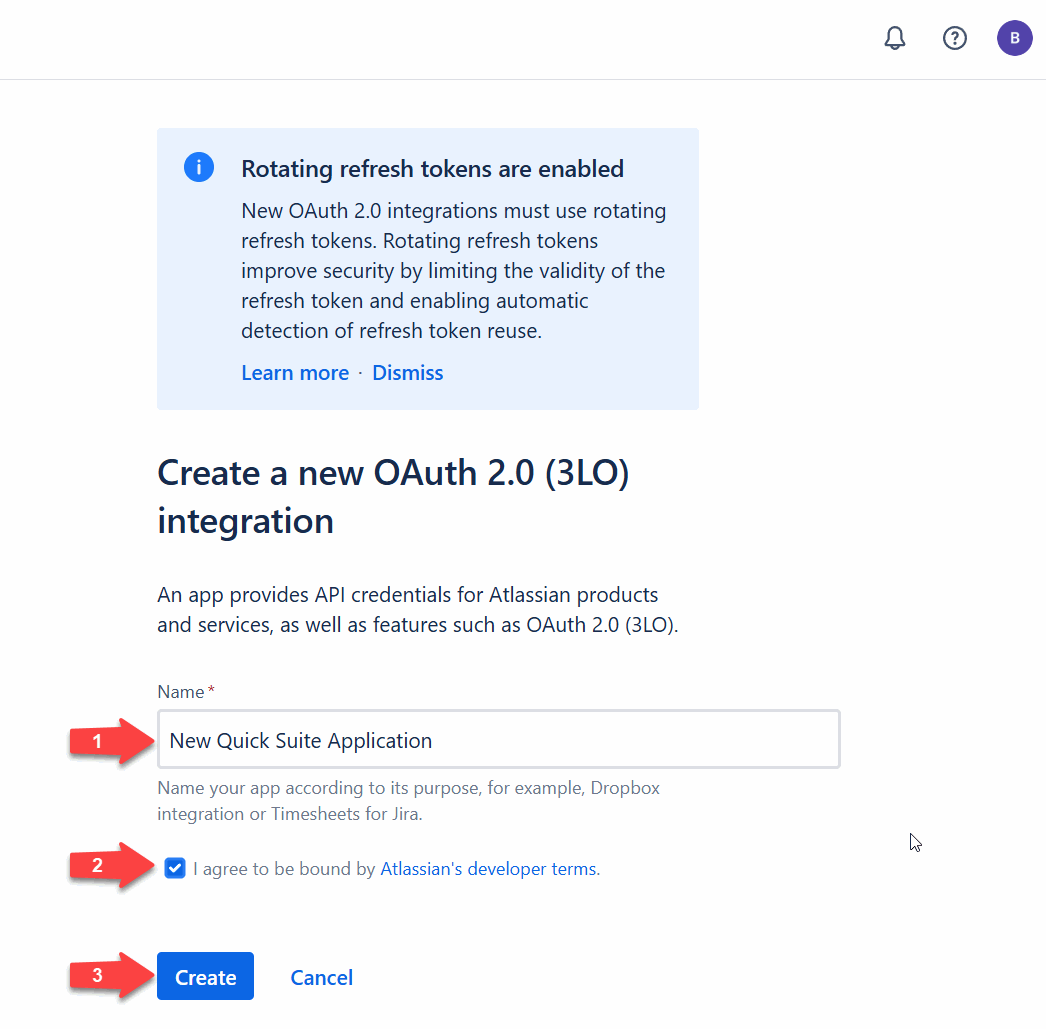
On the Create a new OAuth 2.0 (3LO – Three-legged OAuth) integration page, for Name, enter a descriptive name for the OAuth 2.0 application. Select the I agree to be bound by Atlassian’s developer terms checkbox, and choose Create.
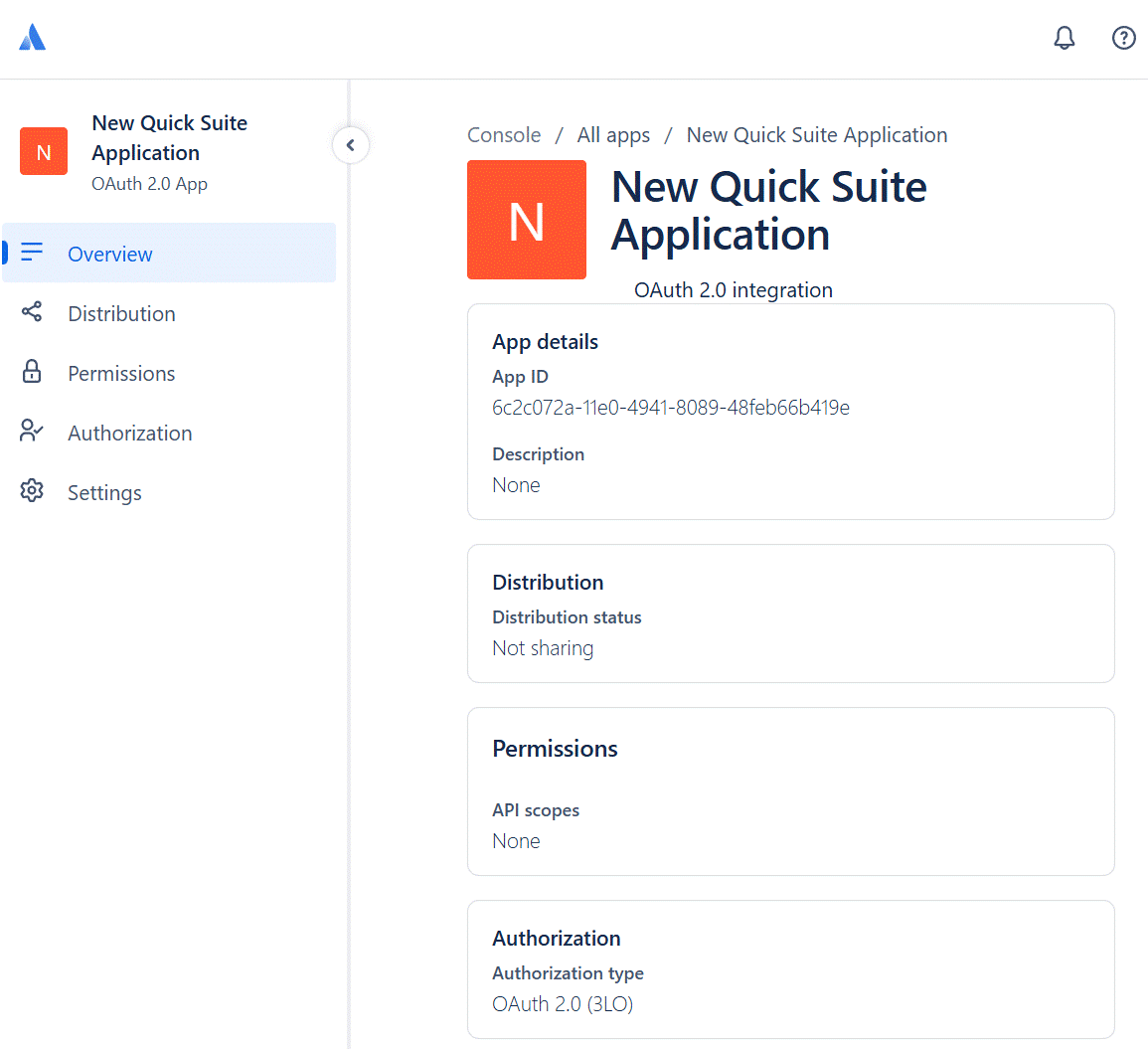
The console displays a summary page outlining the details of the OAuth 2.0 app that you created. You will use this application’s credentials in later steps to configure the action integration in Quick.
Authorizing the configuration
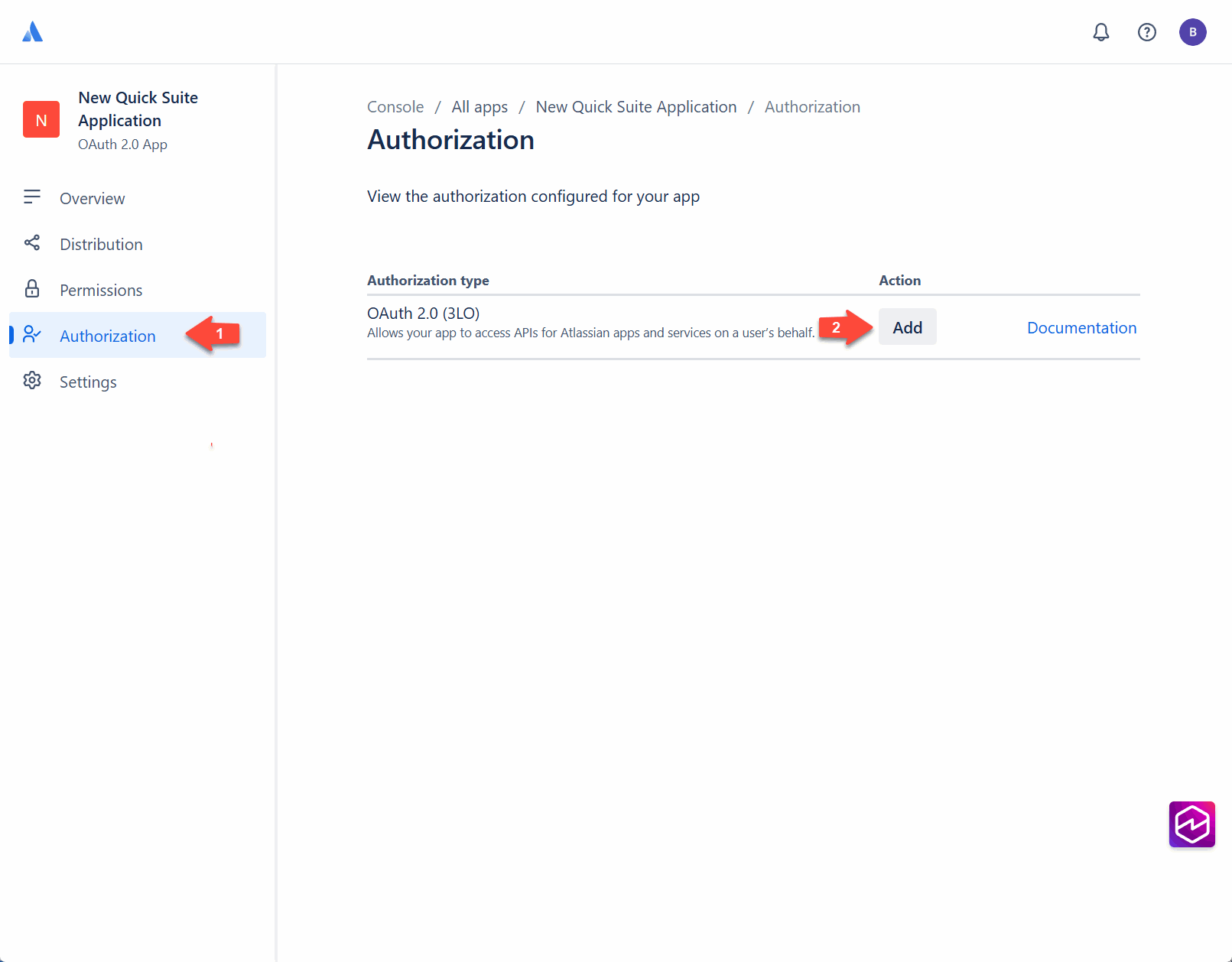
From the left navigation menu, choose Authorization. On the Authorization page, choose Add next to OAuth 2.0 (3LO) to add three-legged OAuth authorization to your application.
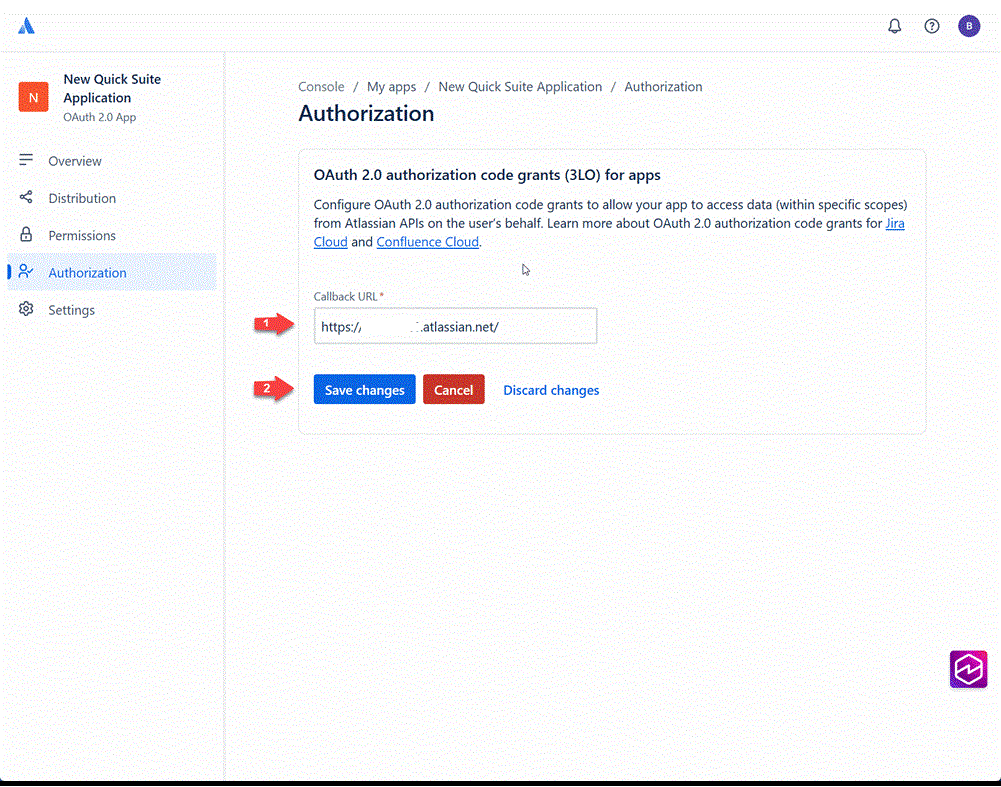
In the OAuth 2.0 authorization code grants (3LO) for apps section, enter the Callback URL and choose Save changes. Note that this is a temporary Callback URL that you must update after you create an action integration in Amazon Quick. Quick generates a callback URL in the following format: https://{region}.quicksight.aws.amazon.com/sn/oauthcallback
Replace {region} with the AWS Region where you deployed your Quick instance.
From the Authorization URL generator section that appears at the bottom of the Authorization page, choose Add APIs to navigate to the Permissions page where you will configure the required API scopes.

Setting API scopes
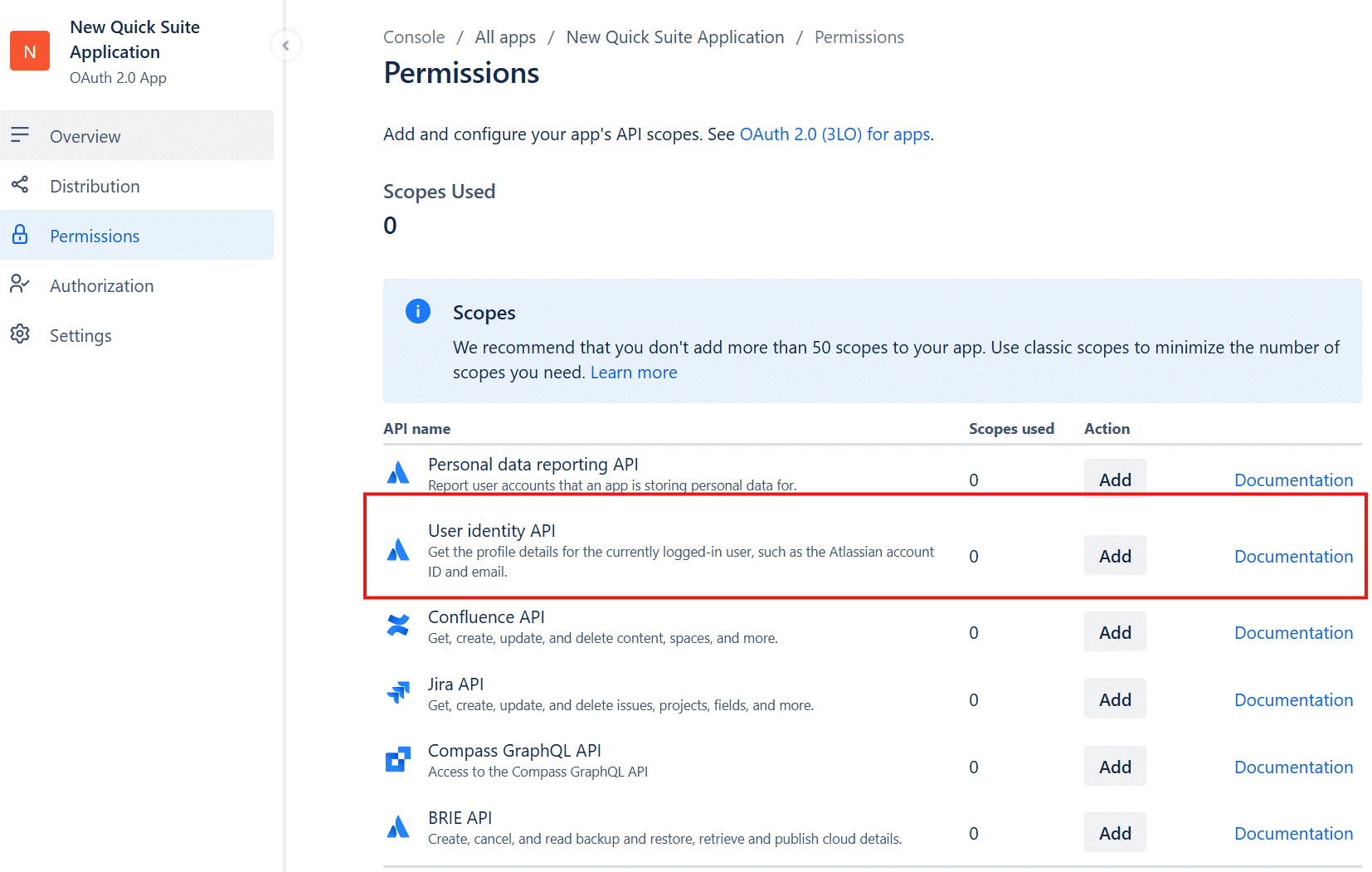
On the Permissions page, for Scopes, navigate to User Identity API. Choose Add, and then choose Configure to set the required scopes.
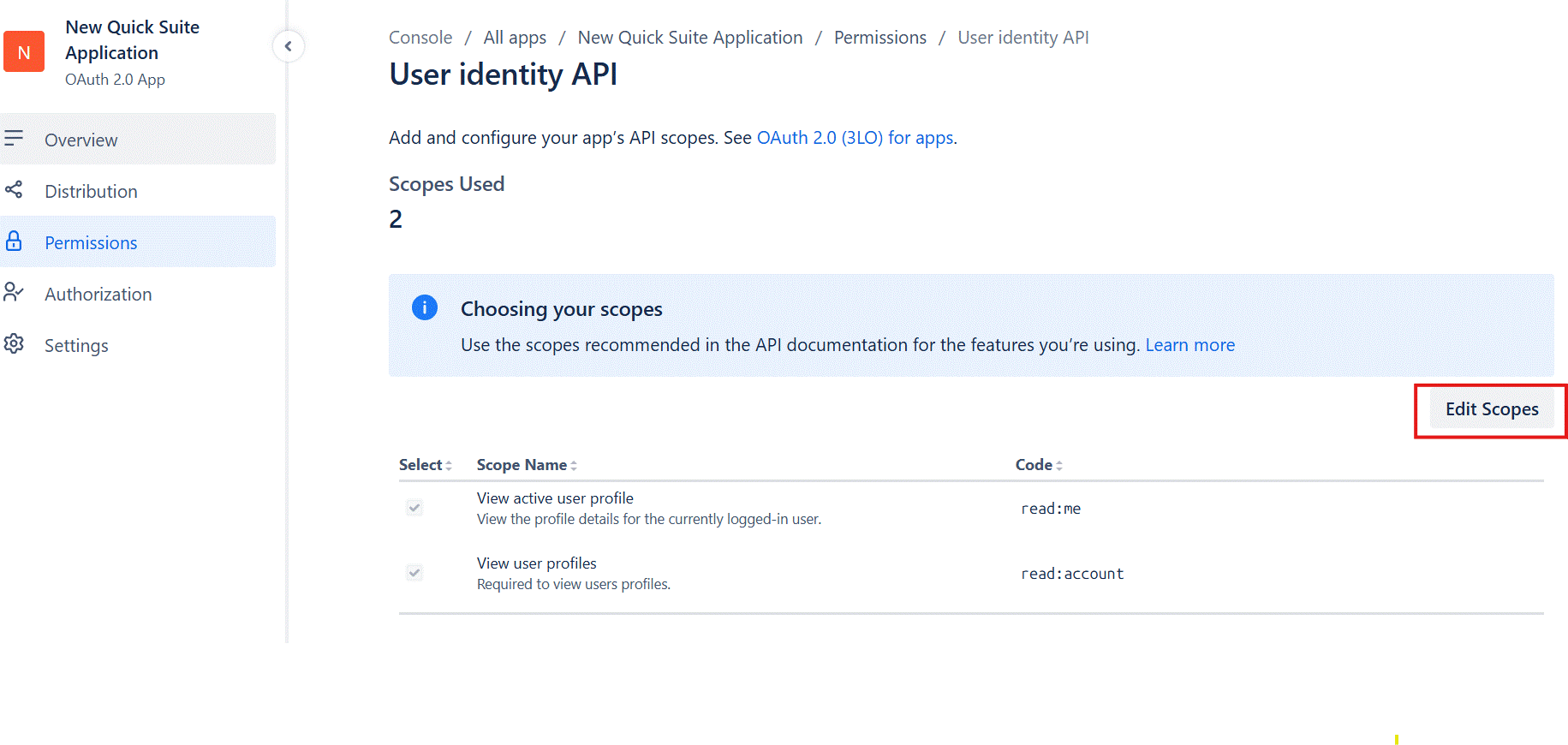
On the User Identity API page, choose Edit Scopes, and then add the following read scopes:
- read:me – View active user profile
- read:account – View user profiles
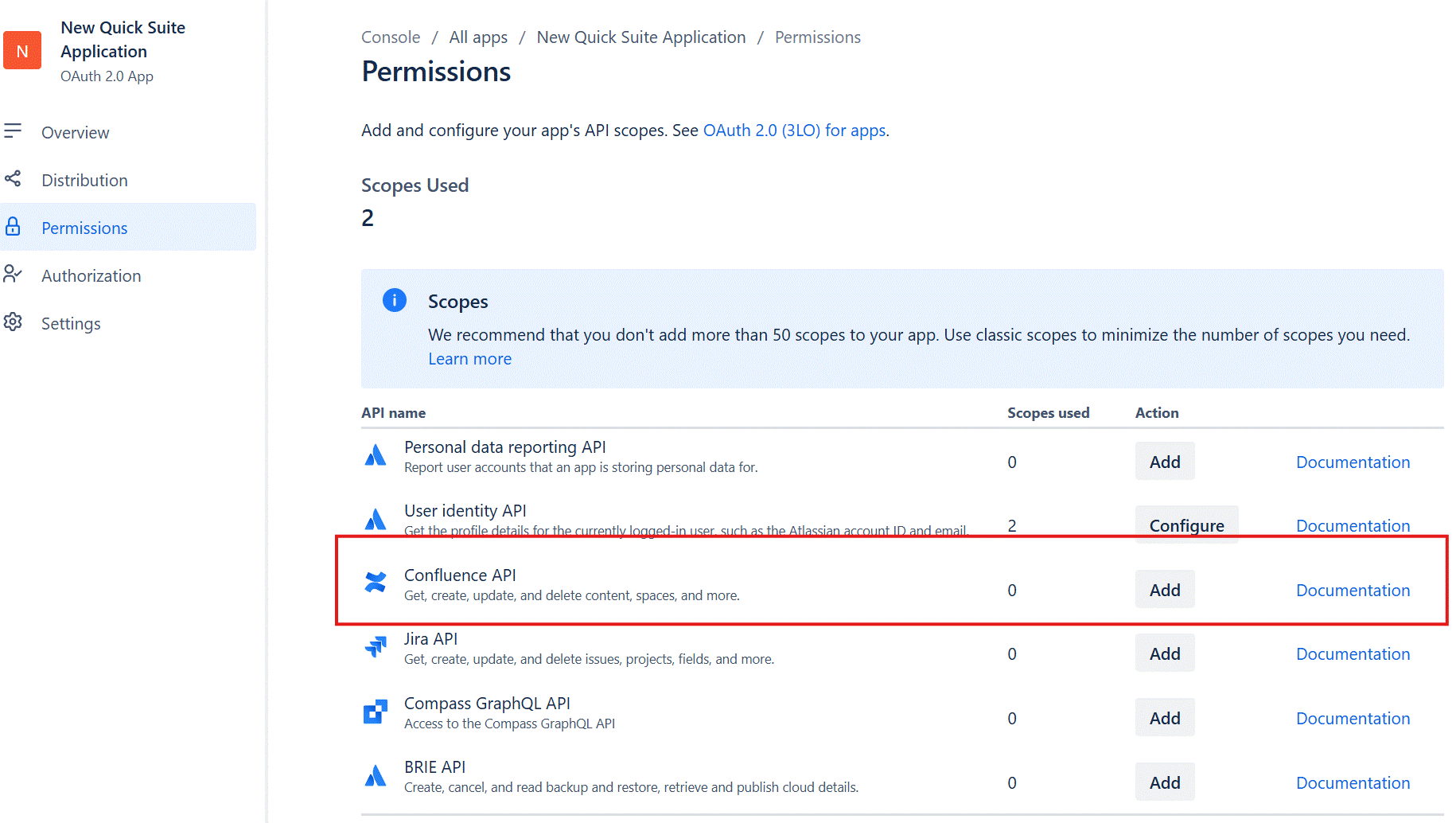
Return to the Permissions page. From Scopes, navigate to Confluence API. Choose Add, and then choose Configure to set the required Confluence scopes.
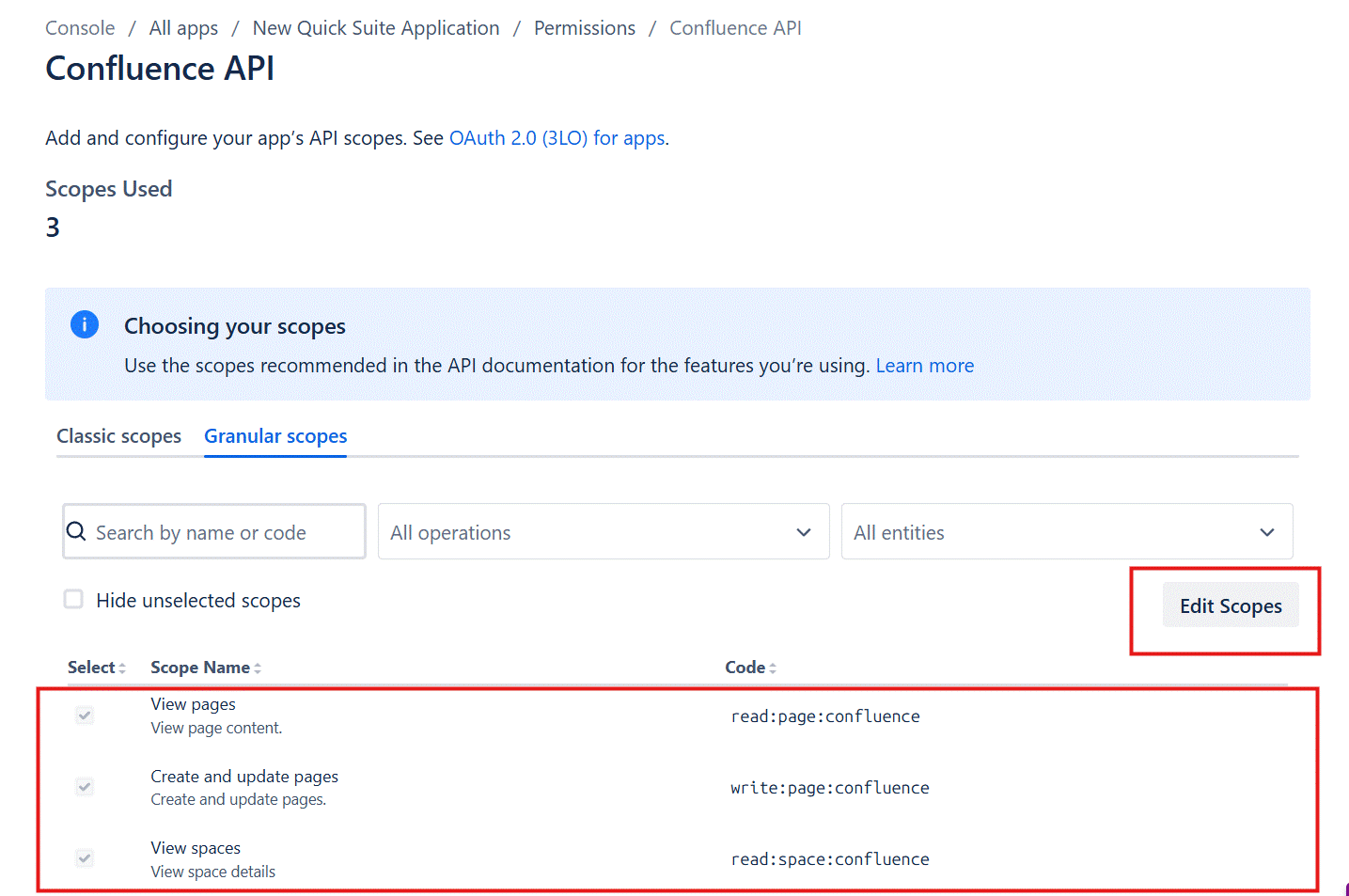
Select the following required scopes from the Classic scopes and Granular scopes tabs.
search:confluence– Search Confluence content. This is a classic scope in Confluence.read:page:confluence– Read page content. This is a granular scope in Confluence.write:page:confluence– Create and modify pages. This is a granular scope in Confluence.read:space:confluence– Access space information. This is a granular scope in Confluence.
For more information, see Implementing OAuth 2.0 (3LO) and Determining the scopes required for an operation in Atlassian Developer.
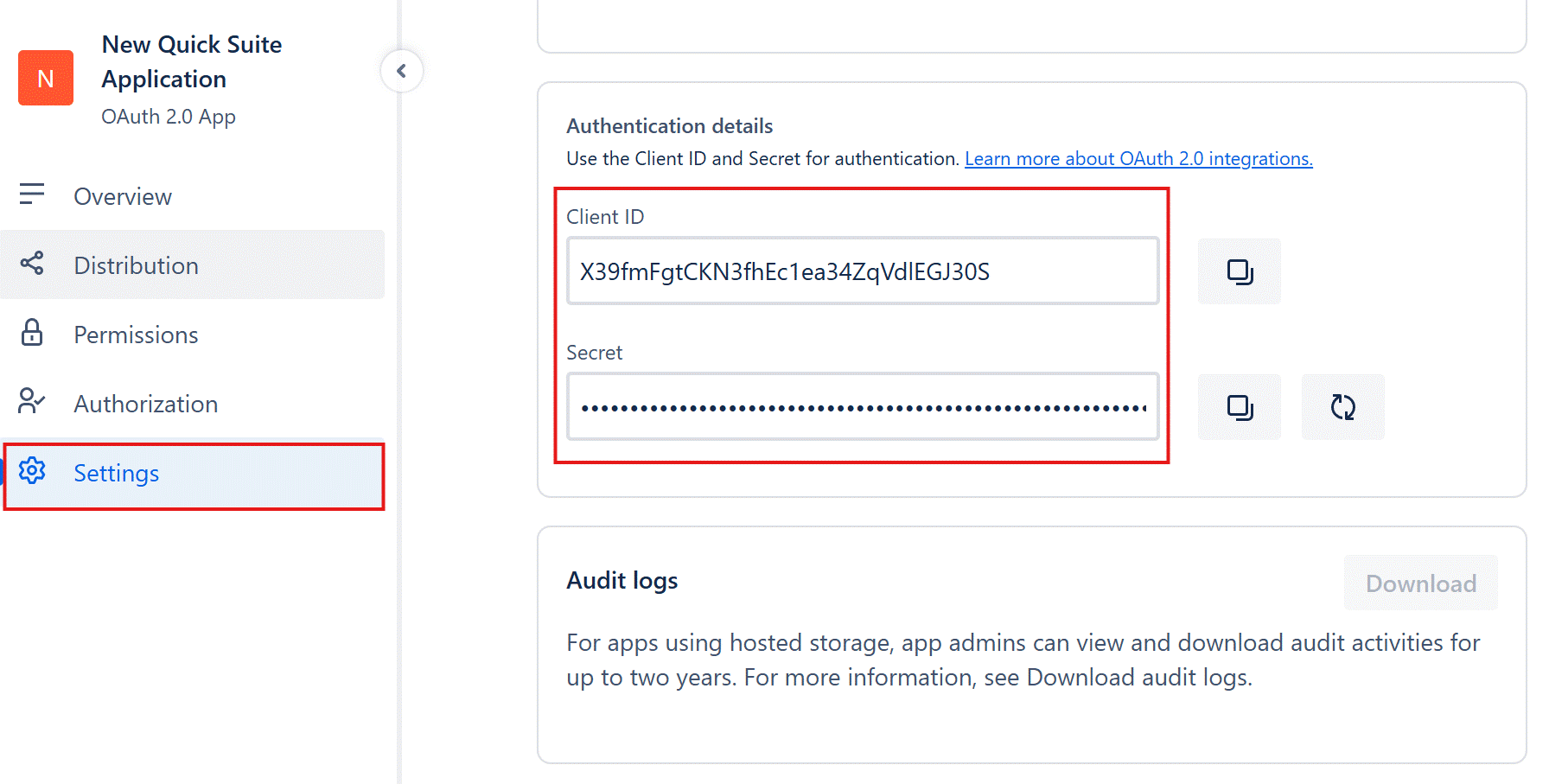
Retrieve the Client ID and Secret from the Settings page. Copy these values and store them securely. You will need them when configuring the action integration in Amazon Quick.
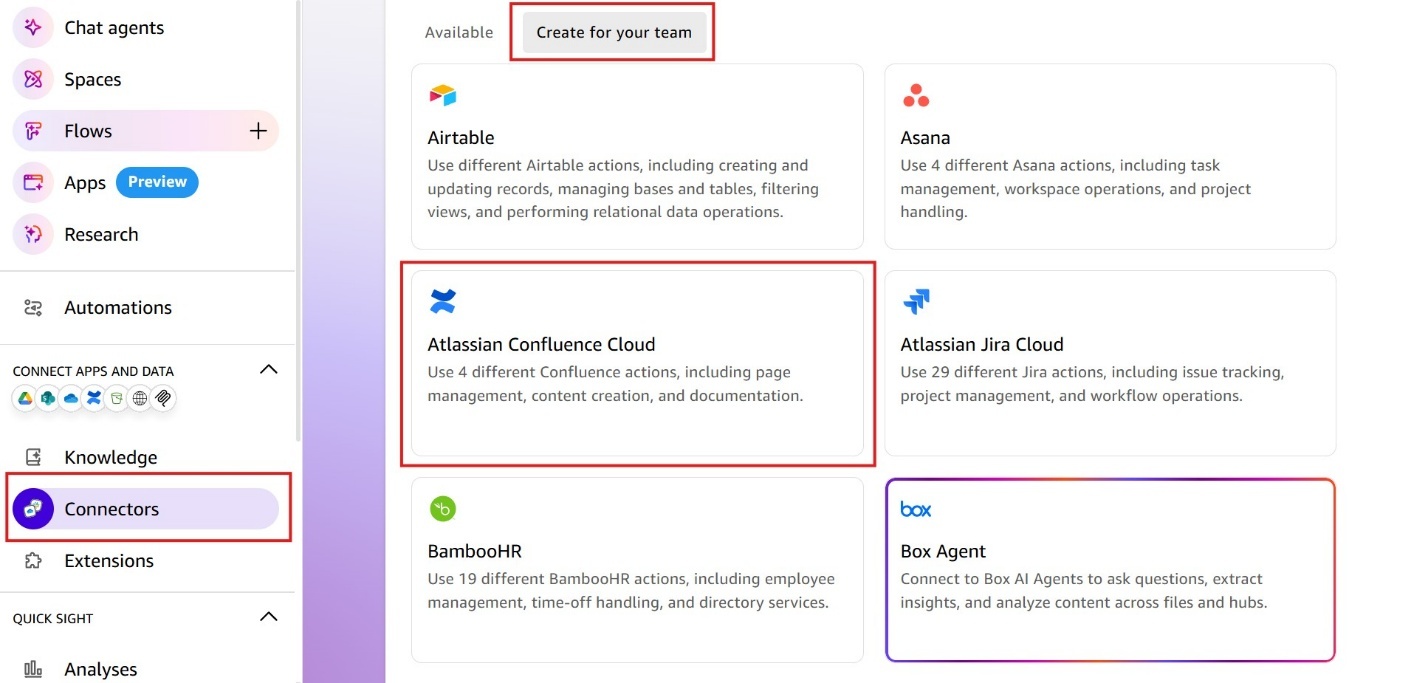
Now that you have configured the OAuth application, it’s time to create an Action integration. From the Connectors page, select the Create for your team tab and simply click the Atlassian Confluence Cloud card.
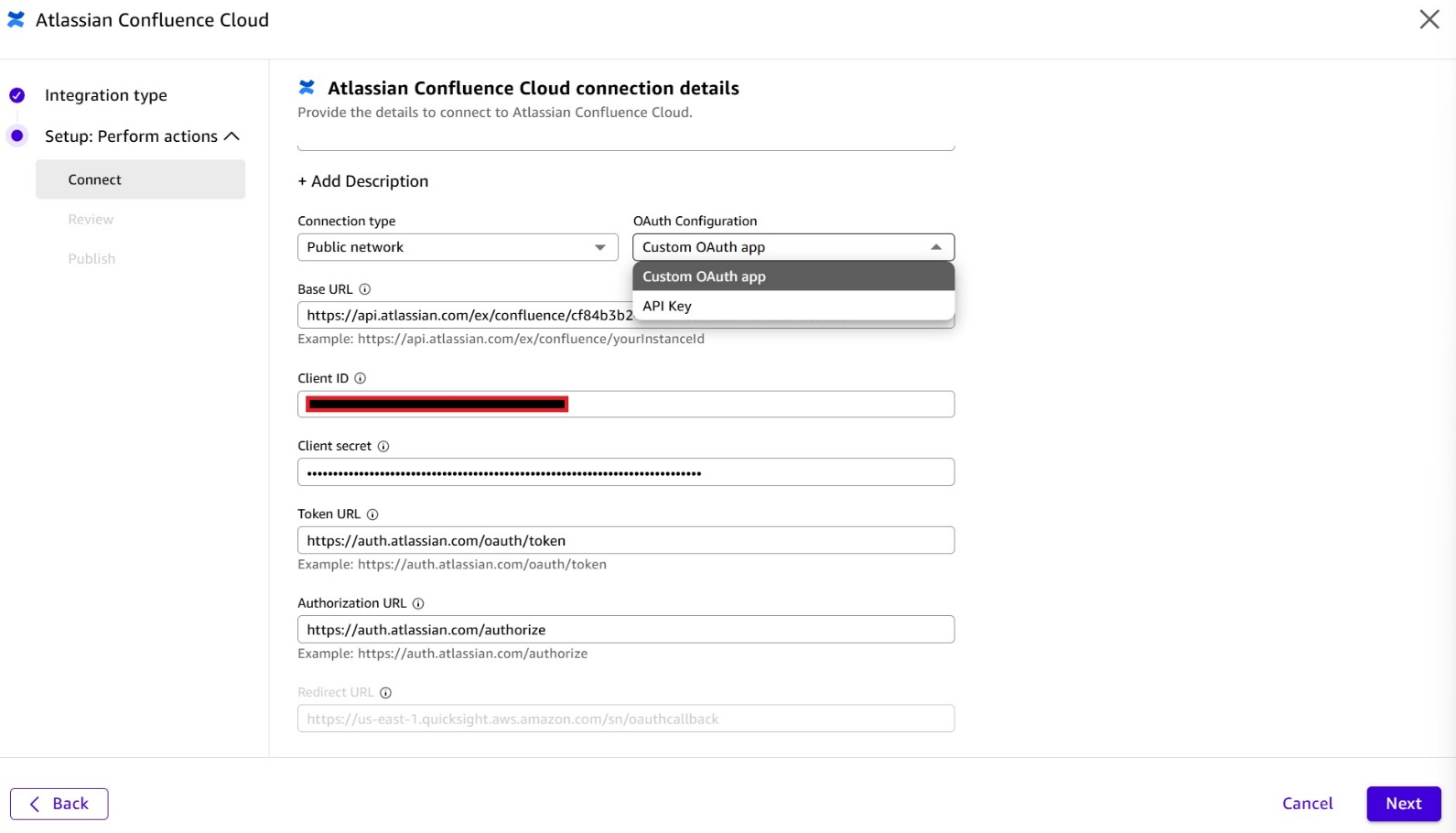
On the Atlassian Confluence Cloud connection details page, choose Custom OAuth app in the OAuth Configuration drop down. Provide the Base URL, Client ID, Client Secret, Token URL, Authentication URL, and Redirect URL and then choose Next.
For more information about each of these fields, see Atlassian Confluence Cloud integration.
BaseURL – is in the following format – Example: https://api.atlassian.com/ex/confluence/yourInstanceId“yourInstanceId” as it shows in the previous example can be found by navigating to https://support.atlassian.com/jira/kb/retrieve-my-atlassian-sites-cloud-id/
Client ID and Client secret – Refer to the “Creating the OAuth 2.0 application section of this document.
TokenURL and AuthorizationURL – you can use the default examples displayed under each of the textboxes in the Create Integration page.
RedirectURL – You can keep the default as it is.
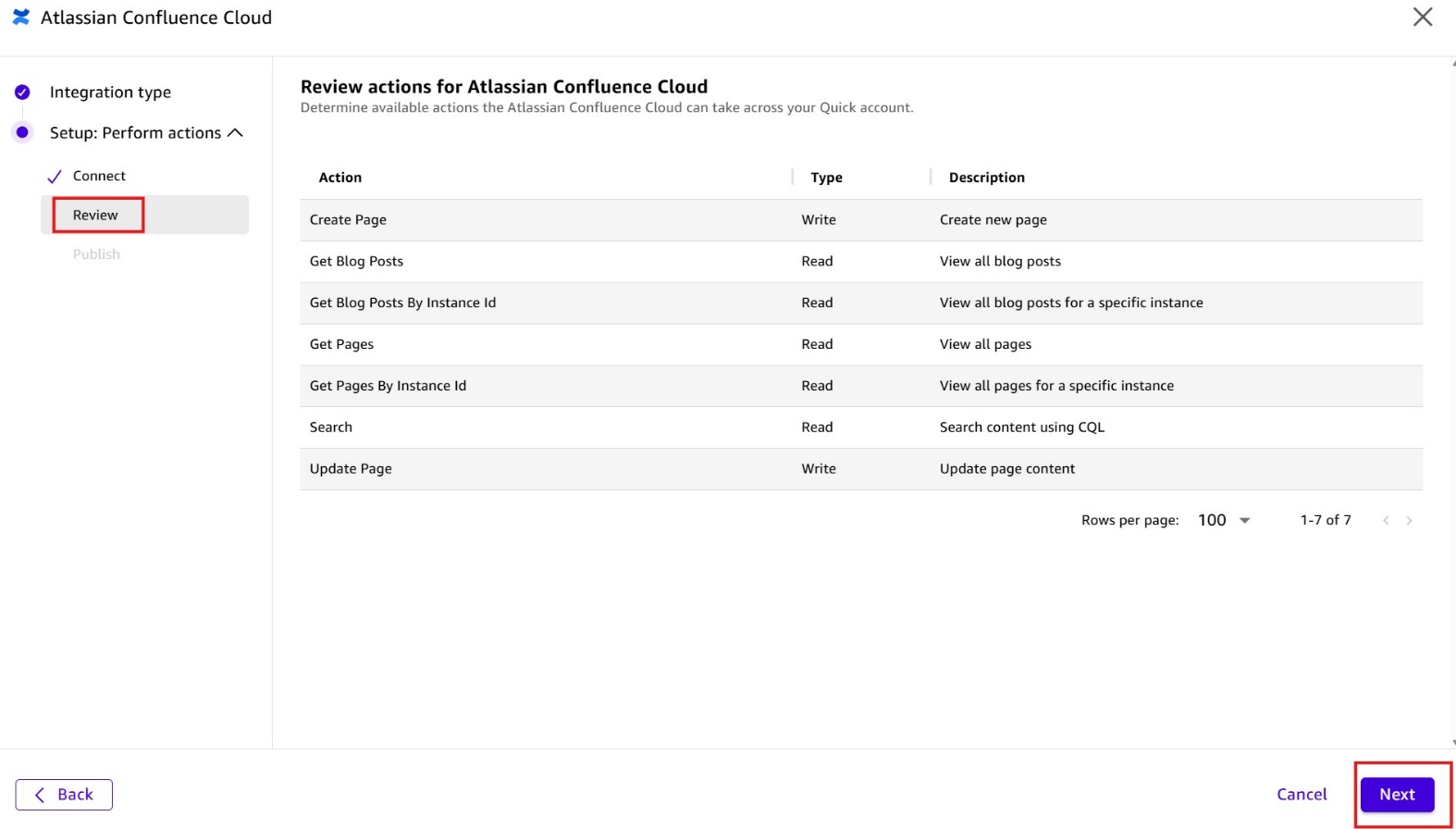
In the Review actions for Atlassian Confluence Cloud page, review the available actions that Quick will expose through this integration. Choose Next to proceed.
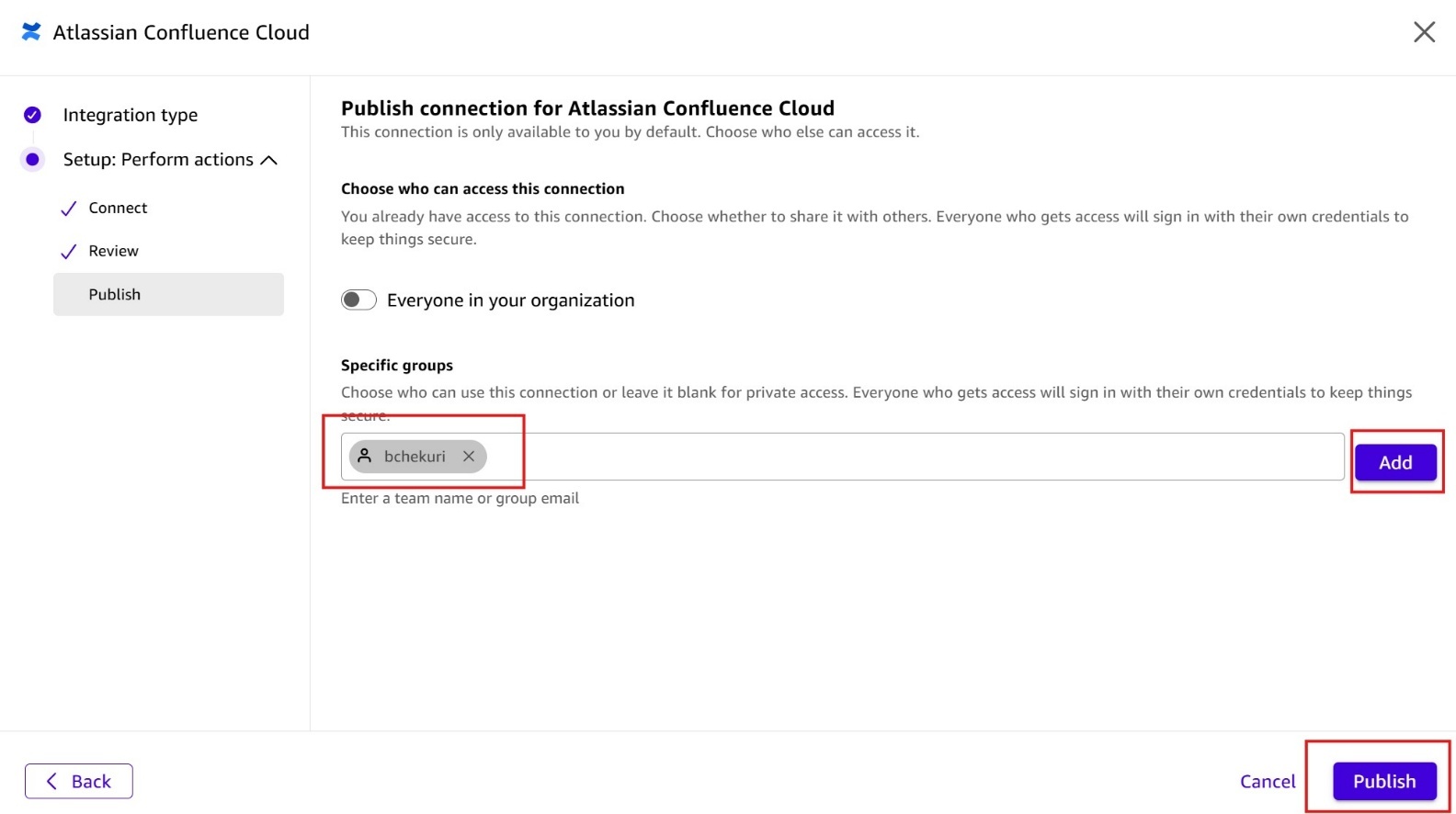
Optionally, you can share this integration with other team members on the Share Integration page. Choose Publish to finalize and publish the action integration.
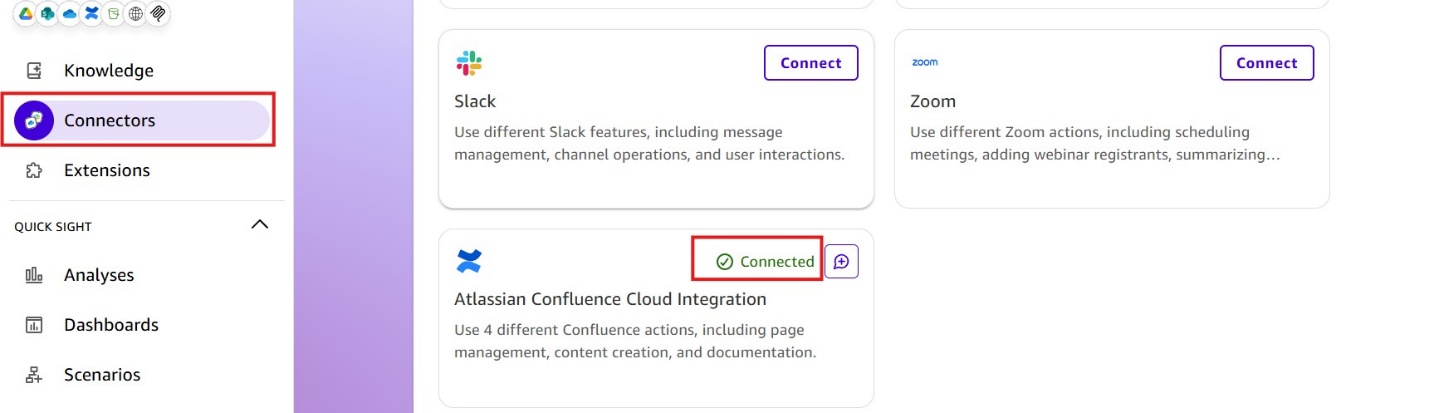
After you successfully create the action integration, the Atlassian Confluence Cloud Integration card shows a Connected status.
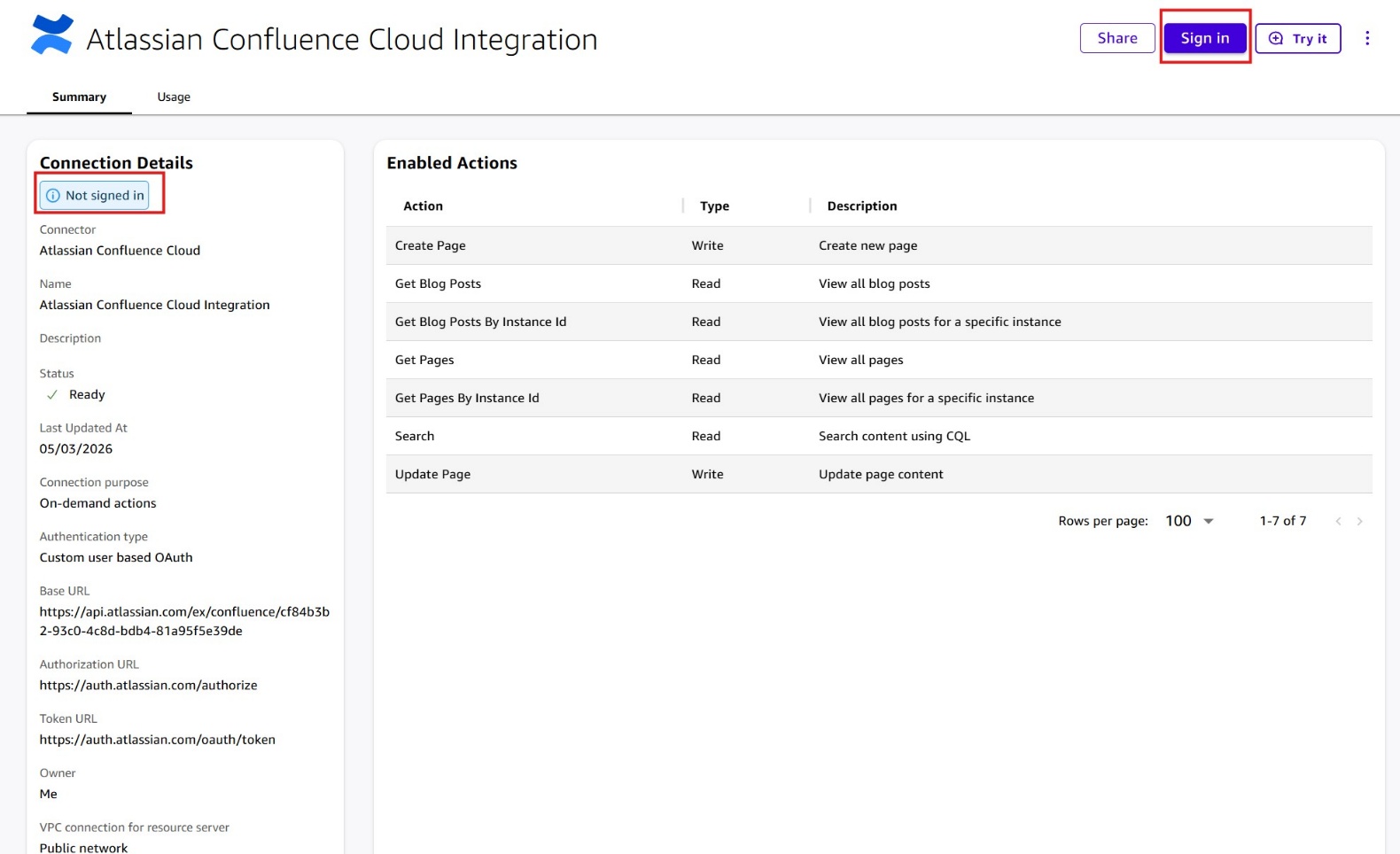
Click the Atlassian Confluence Cloud Integration card to view its details. On the Atlassian Confluence Cloud Integration page, the Connection Details section shows Not signed in. Choose Sign in to authorize Quick to access your Confluence account using the OAuth 2.0 credentials you configured earlier.
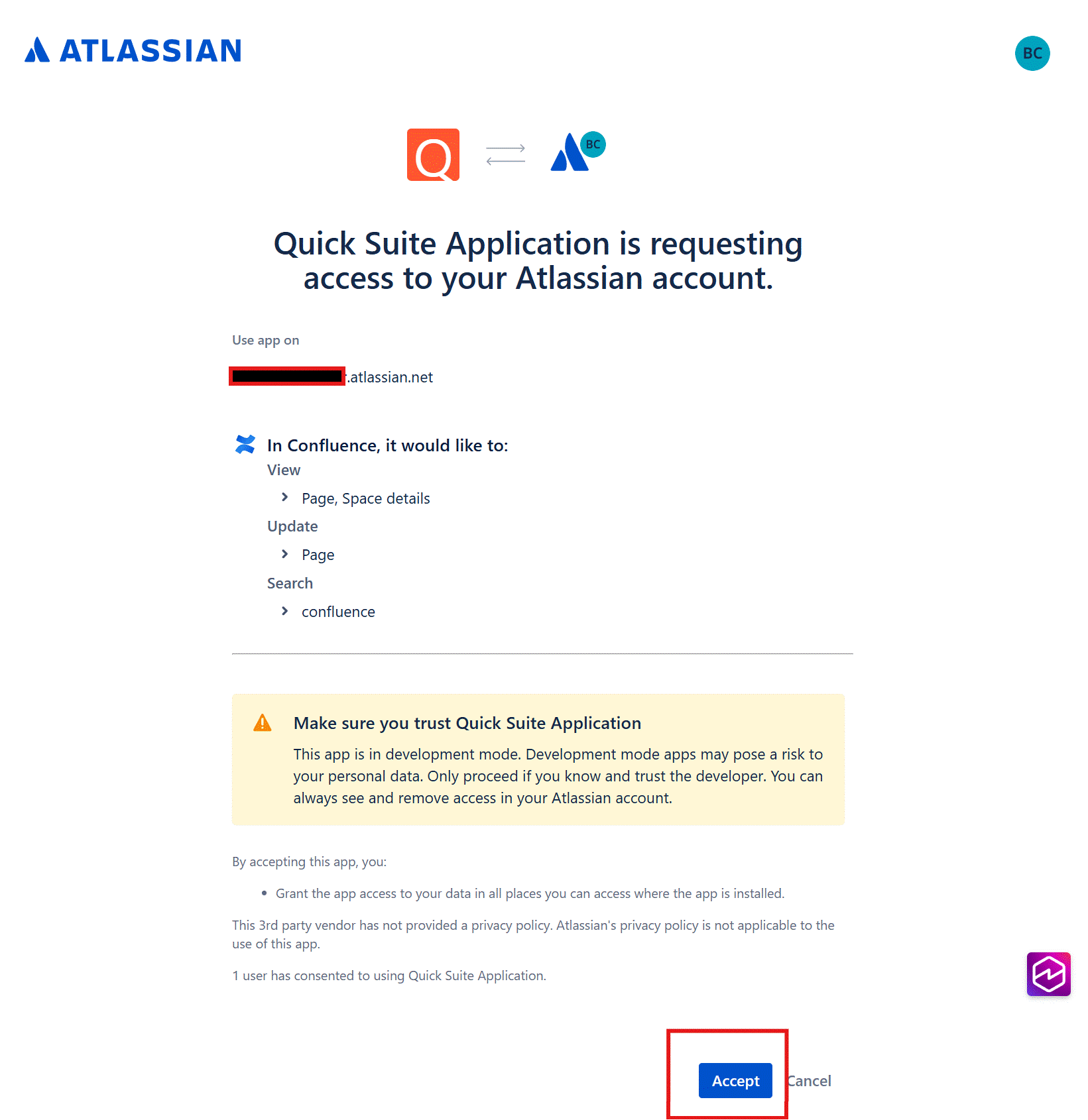
After you choose Sign in, a pop-up window appears requesting you to approve access to your Confluence Cloud account. Choose Accept. If the connection is successful, the Connection Details section updates to Signed in.
You have now successfully created and configured your action integration with Confluence Cloud.
Quick Spaces
While you can use Quick to work with Knowledge Bases and Actions separately, Spaces offer a better way to organize your Confluence integration. A Space groups your Confluence resources: Knowledge Bases, Actions, files, and dashboards into one collection for streamlined access and collaboration. This unified workspace means that you can access Confluence components together instead of switching between individual resources, and focused Spaces help Quick understand your full resource set for more accurate responses. Additionally, you can share entire collections with colleagues for consistent access across your organization. Grouping Confluence integrations in a Space creates an organized hub that improves both individual efficiency and team workflows.The next sections show you how to create and use Spaces in Quick to query and perform actions in Confluence Cloud.
Creating Quick Spaces
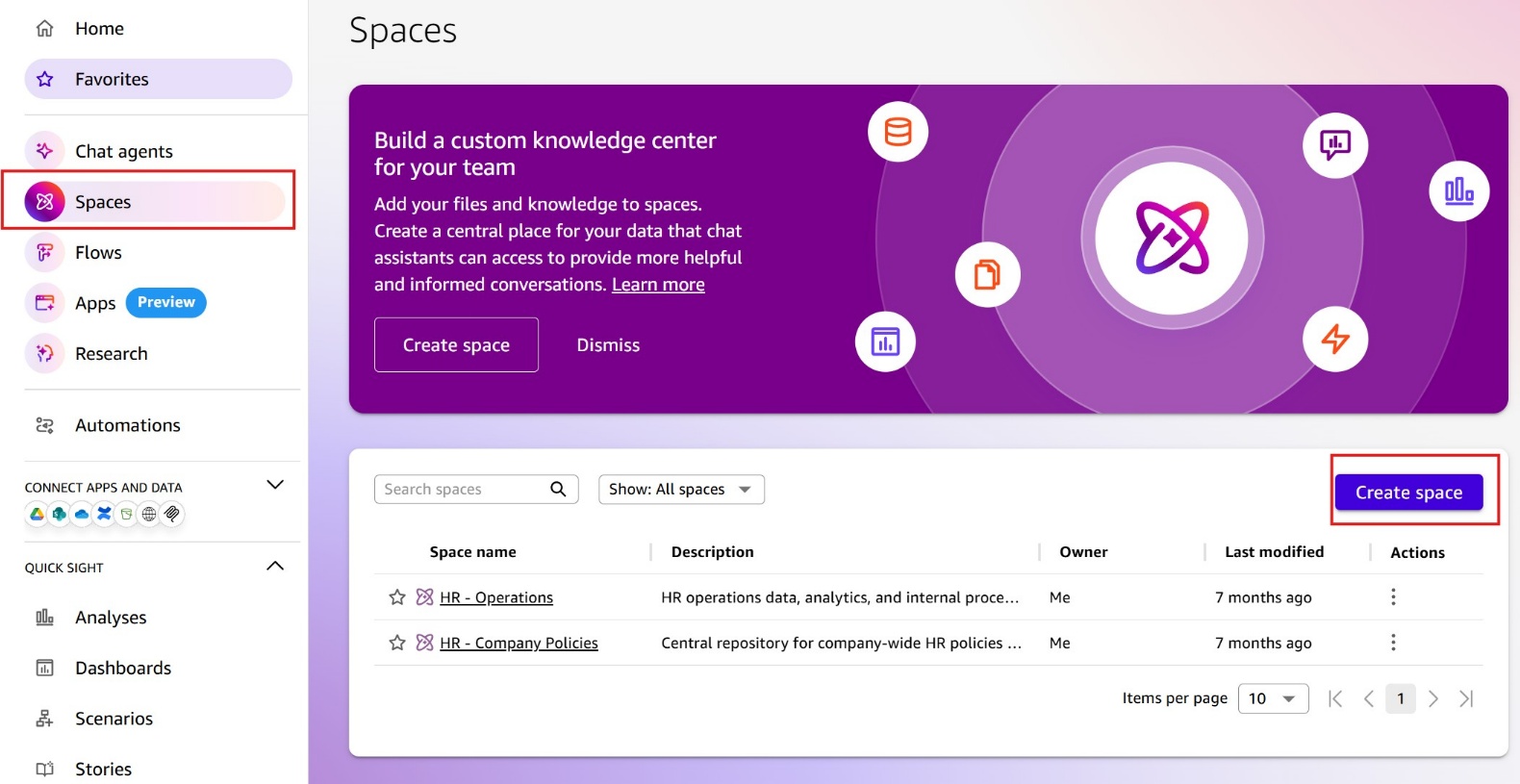
To create a Space in Quick, select Spaces in the navigation panel in the console and choose the Create Space button.
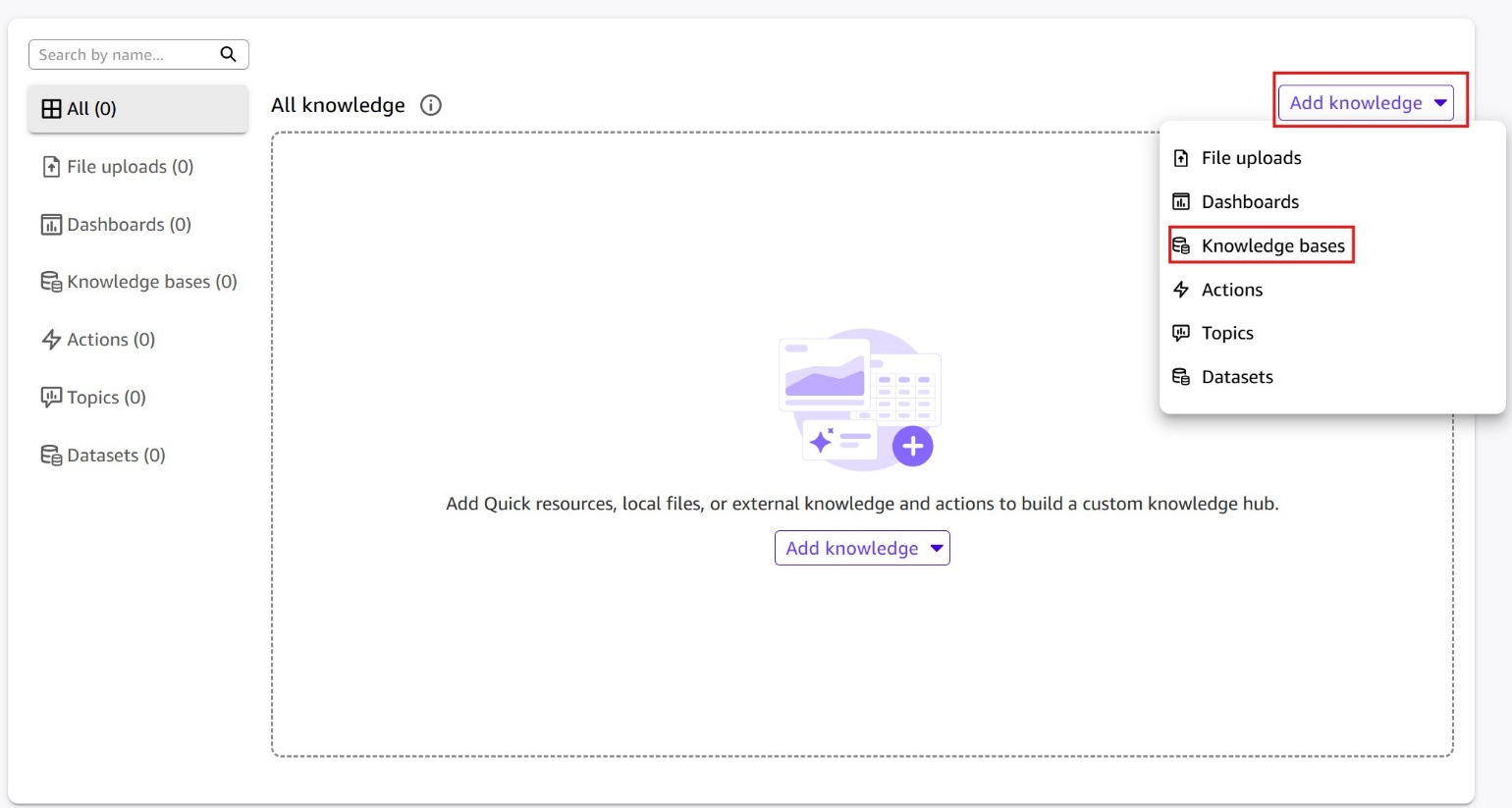
Give the Space a descriptive name, choose Add Knowledge, and then select knowledge bases from the dropdown menu to add your Confluence knowledge base to this Space.
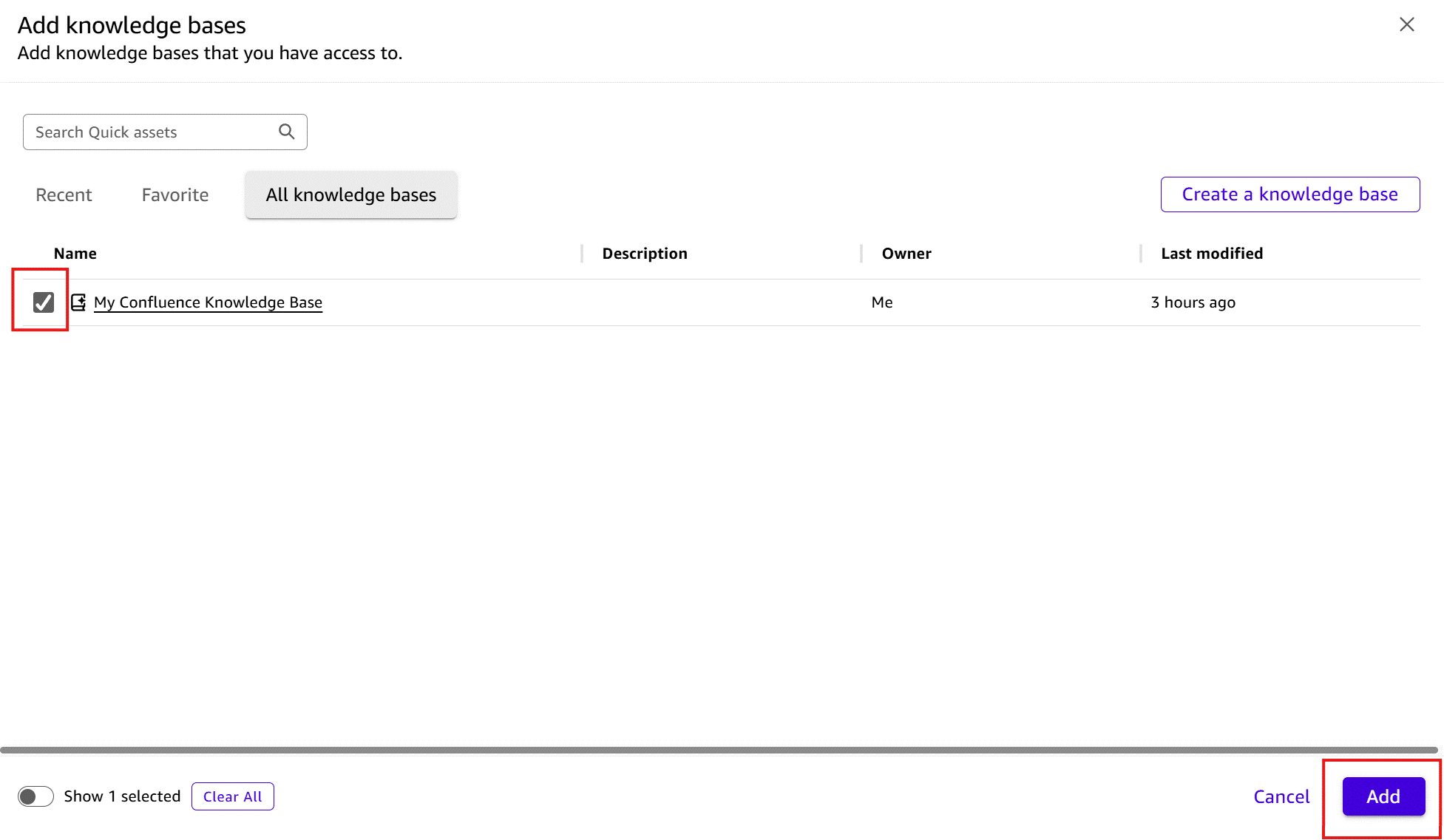
In the Add knowledge bases dialog, select the checkbox next to your Confluence Cloud knowledge base and choose Add.
Now that your Confluence knowledge base is added to a Space, it becomes available across Quick’s full ecosystem — not just for chat queries. Team members can use the Space for collaboration (sharing a consistent, governed view of Confluence content across your organization), custom agents (building purpose-built agents that draw on your Confluence documentation as their knowledge source), Quick Flows (automating workflows that reference or update Confluence content), and Quick Research (running in-depth analysis reports grounded in your Confluence knowledge base). This means a single knowledge base setup unlocks value across the full range of Quick capabilities your team uses every day.
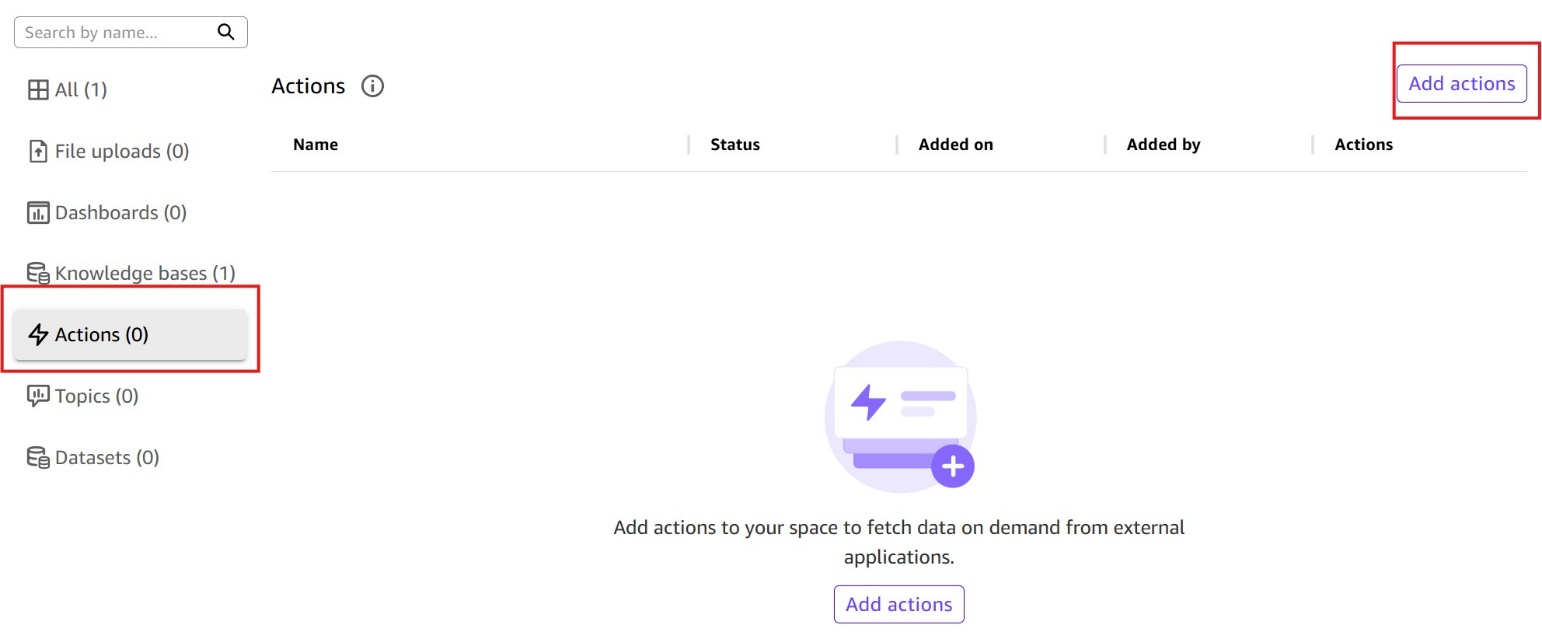
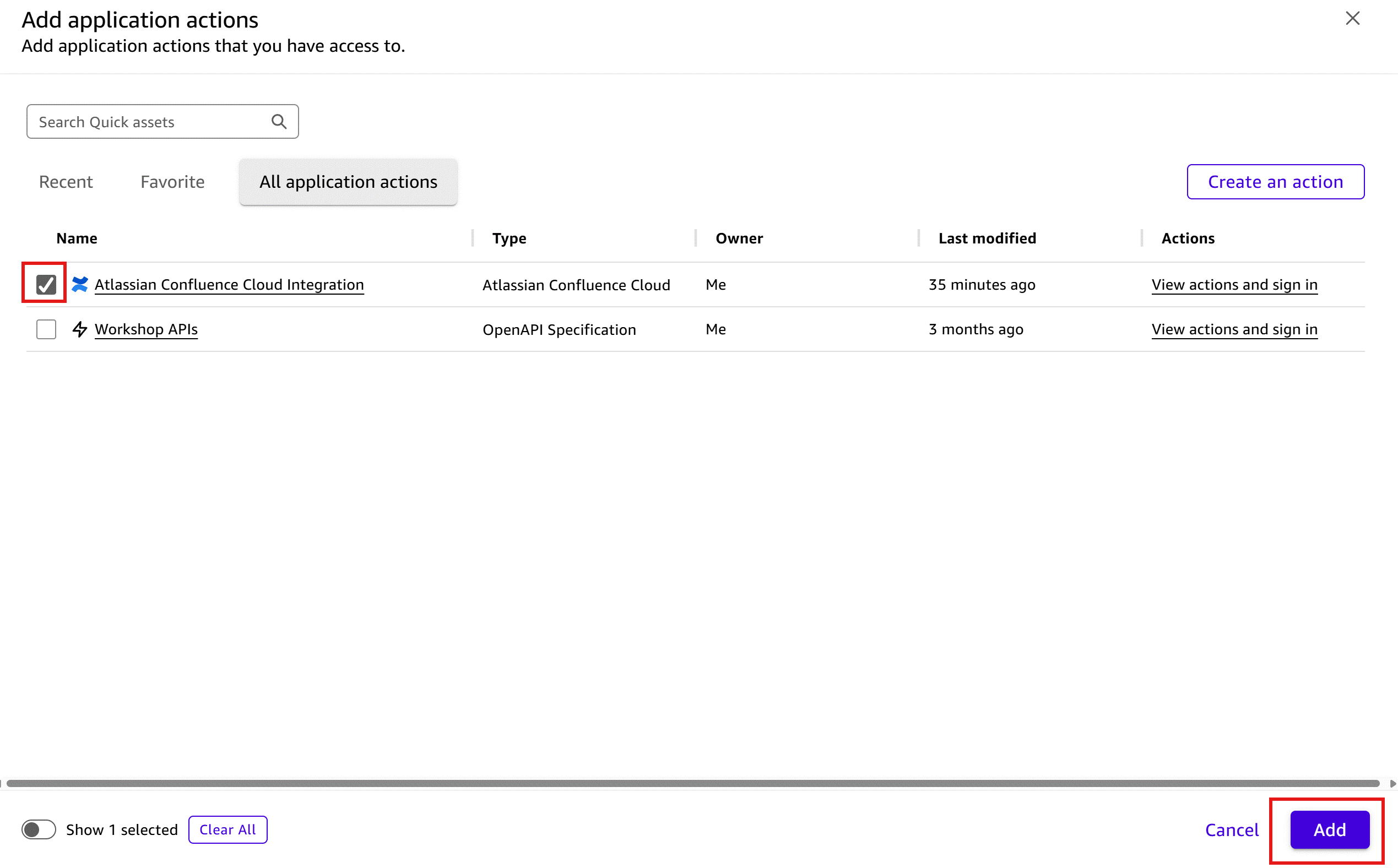
To add the newly configured action integration to your Quick Space, navigate to the Actions button and choose Add actions.
After adding both resources, you will see the knowledge base and the action integration displayed in the All Knowledge section of the Quick Space.
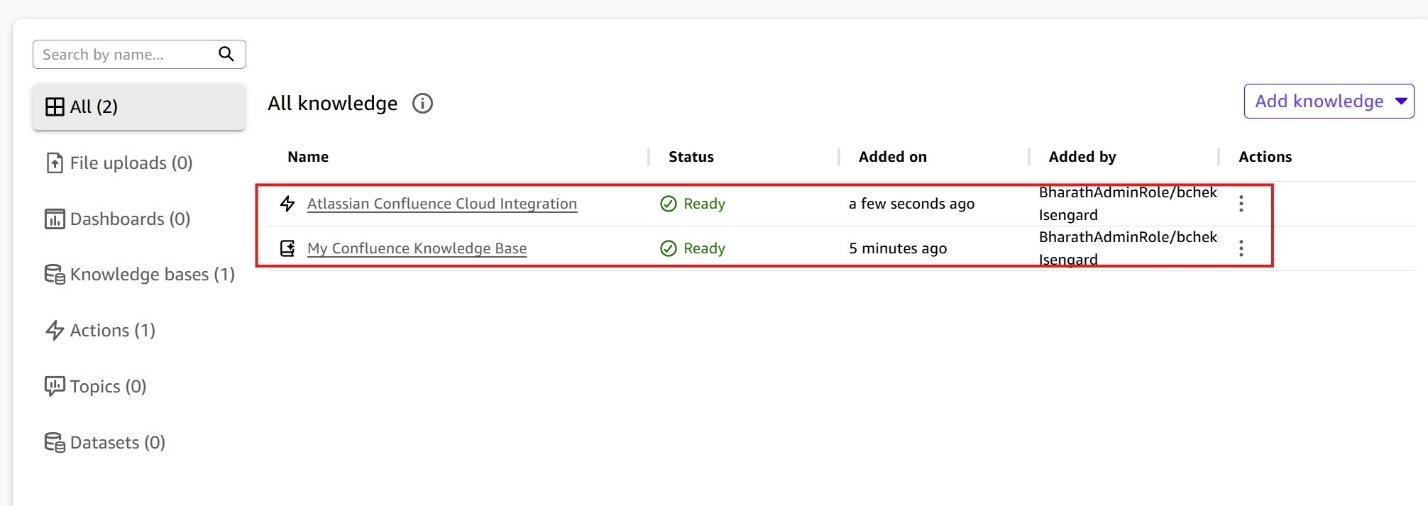
Now that you have successfully added both the knowledge base and the action to your Quick Space, it’s time to interact with Confluence Cloud using Quick Spaces.
Using Quick Spaces to interact with Confluence Cloud
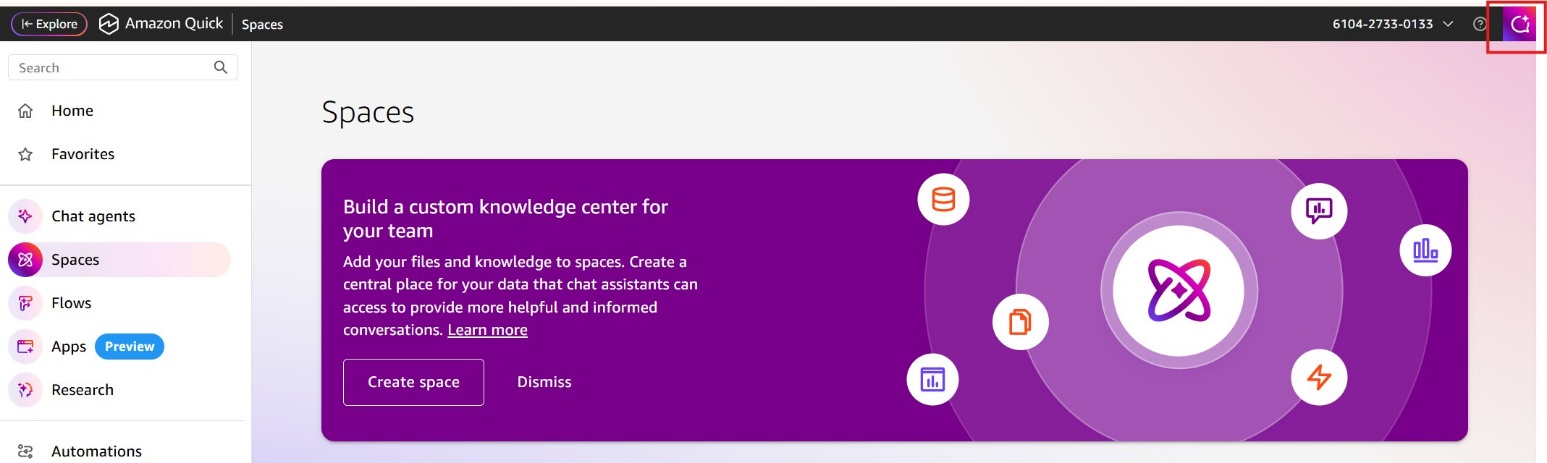
To use this Space and ask questions about the content in the configured Confluence Cloud, choose the Open Chat icon in your browser from anywhere in Quick.
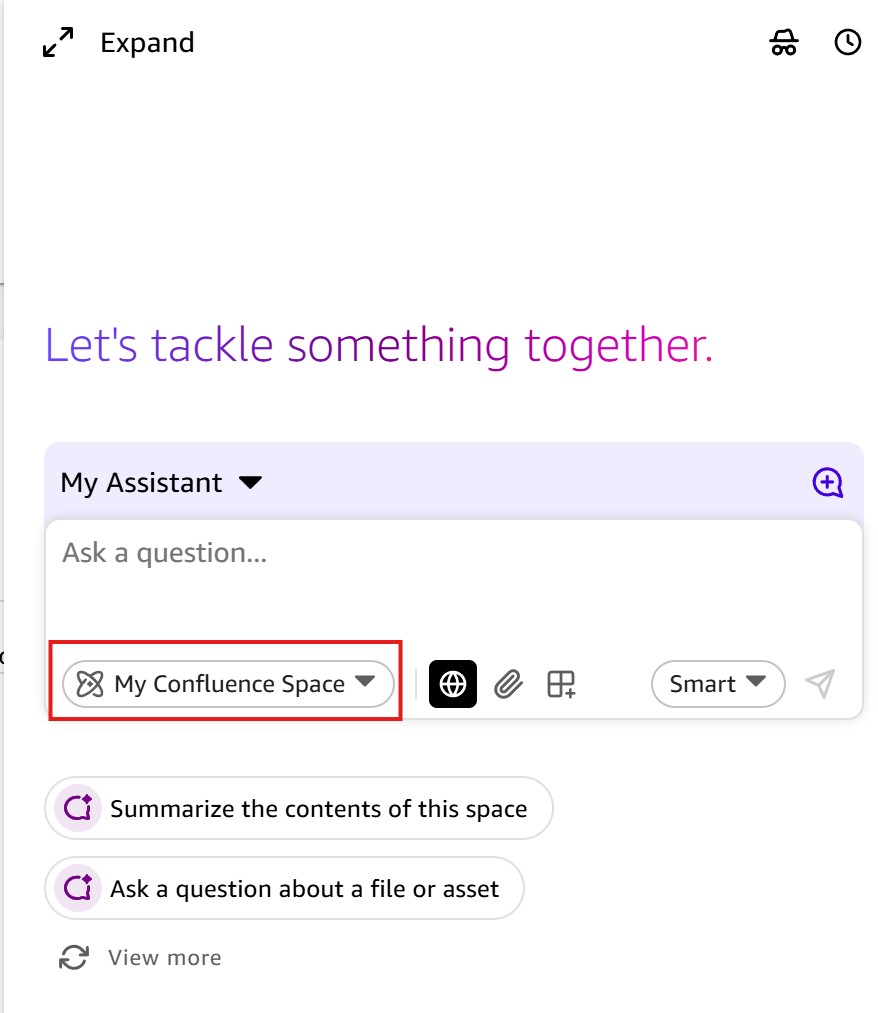
In the chat window, notice that your configured Confluence Cloud Space is already selected and ready to answer your questions.
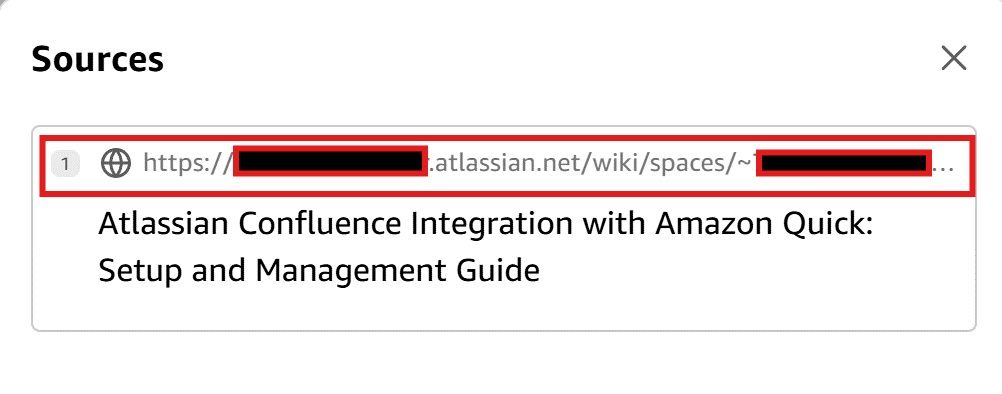
You can now start asking questions about your Confluence Cloud content. To demonstrate this functionality, I’ll use a test blog post about Confluence-Quick integration. When you submit a question, Quick provides a detailed response to your query, along with source references for the information. You can choose the Sources button to see where Quick pulled the information from. In this example, you will notice that the source is singular, pointing to our test Confluence page.
![Screenshot of an Amazon Quick AI assistant conversation in a Space context. A user asks 'In my confluence space is there any documentation on integrating Confluence with Quick?' The AI assistant ('MY ASSISTANT') responds confirming it found comprehensive documentation on the topic, listing Integration Capabilities including Knowledge Base Creation and Action Connectors, and Key Features. A citation marker [1] appears after the source attribution. A 'Response events' dropdown is visible. This image demonstrates Amazon Quick's ability to search and retrieve information from a connected Confluence knowledge base.](https://d2908q01vomqb2.cloudfront.net/f1f836cb4ea6efb2a0b1b99f41ad8b103eff4b59/2026/05/09/ML-1995143.gif)
Performing actions on Confluence pages
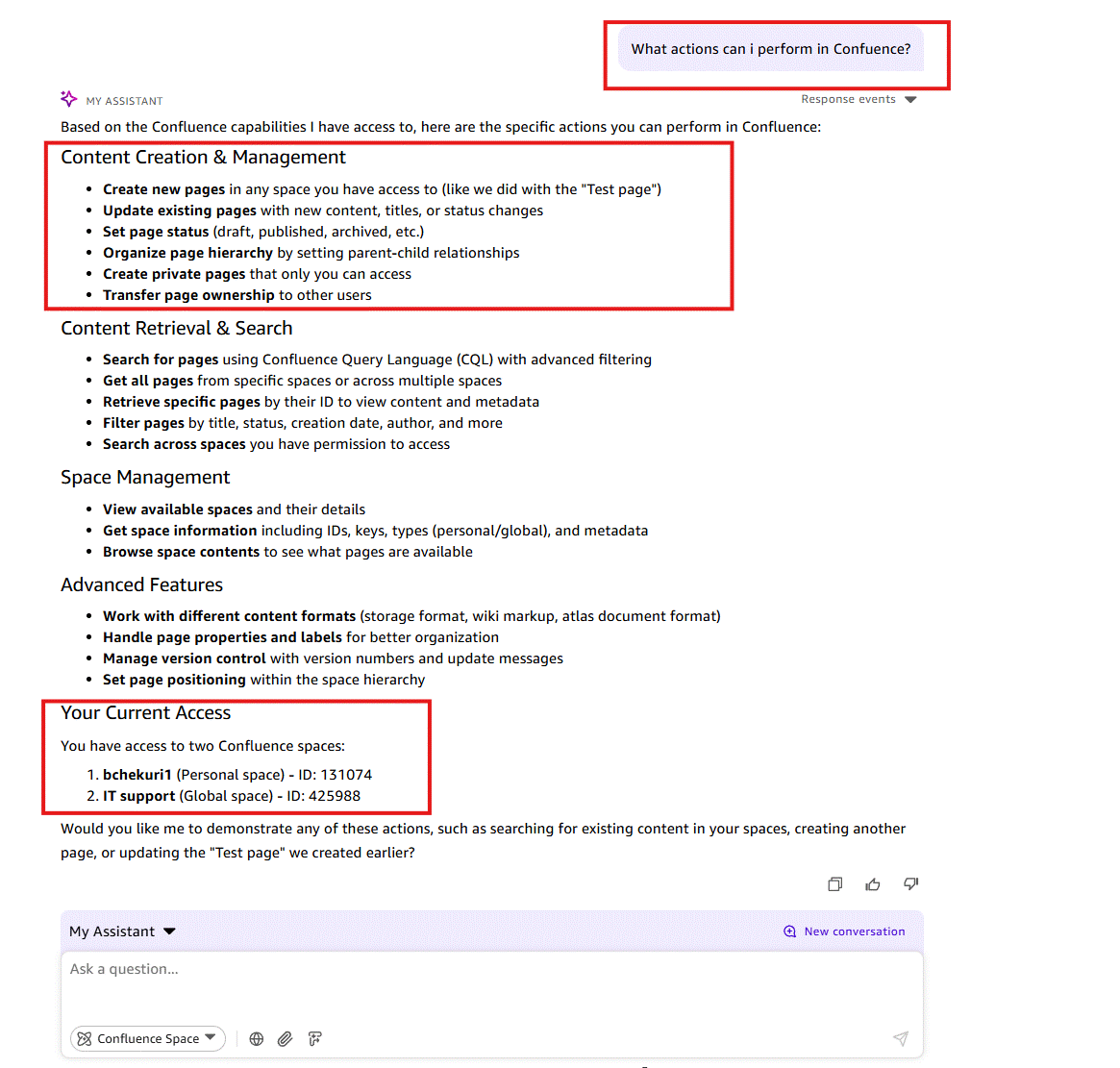
With Confluence actions, you can create, update, and manage pages, spaces, and other Confluence objects directly through Quick. With these action capabilities, you can streamline content management tasks without leaving your Quick environment. To perform Confluence actions, you can ask in the chat window what actions are available. Quick provides a list of supported actions and the Confluence spaces that you have access to.
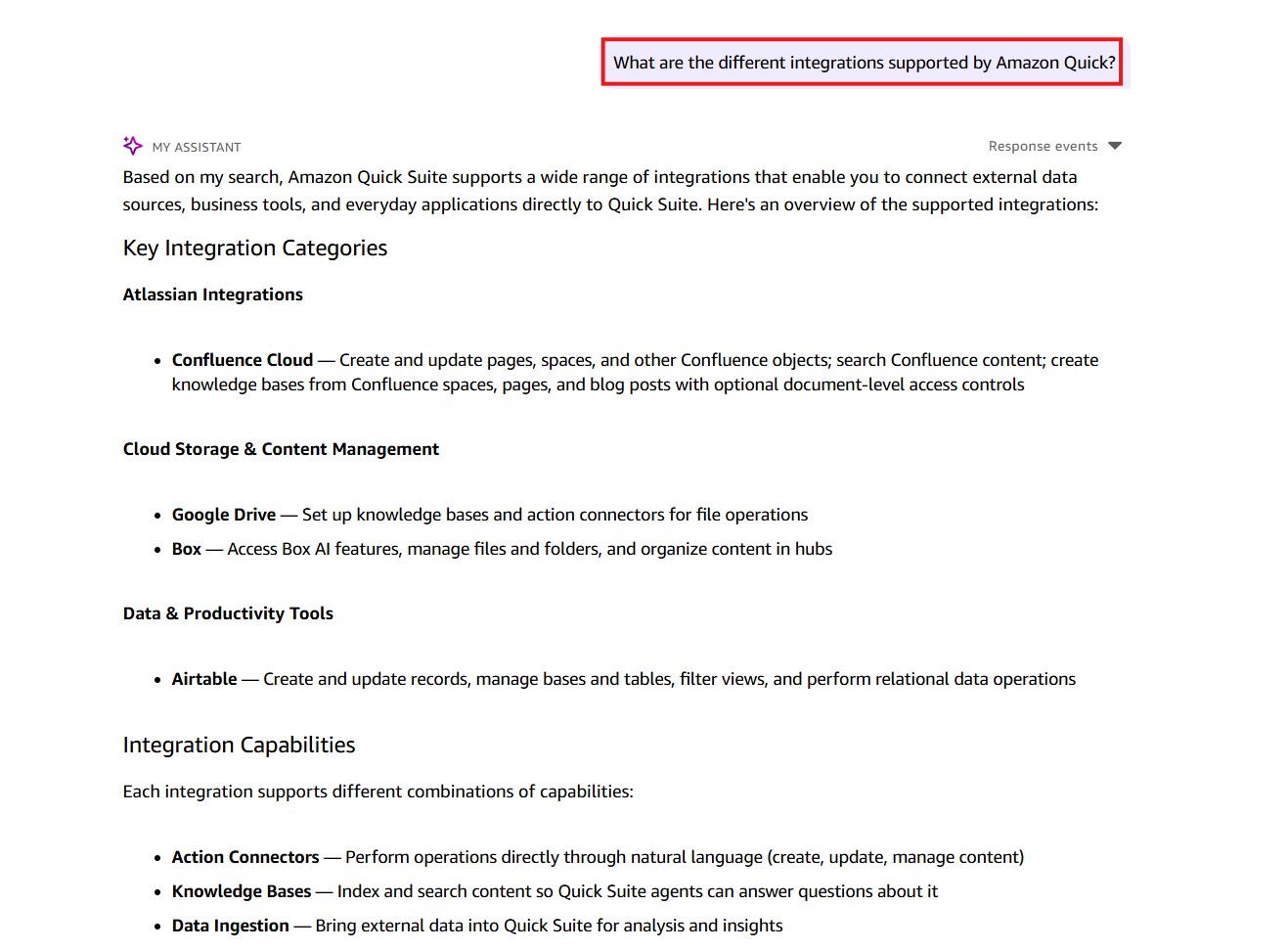
A good use case for performing actions is using generated responses from multiple sources and posting a consolidated response into Confluence. In the following example, a query about all integrations supported by Amazon Quick is sourced from the Internet since this content does not exist in the attached Confluence space.
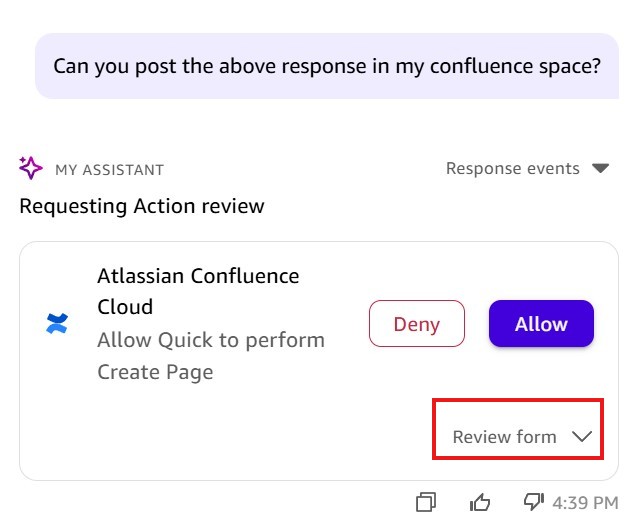
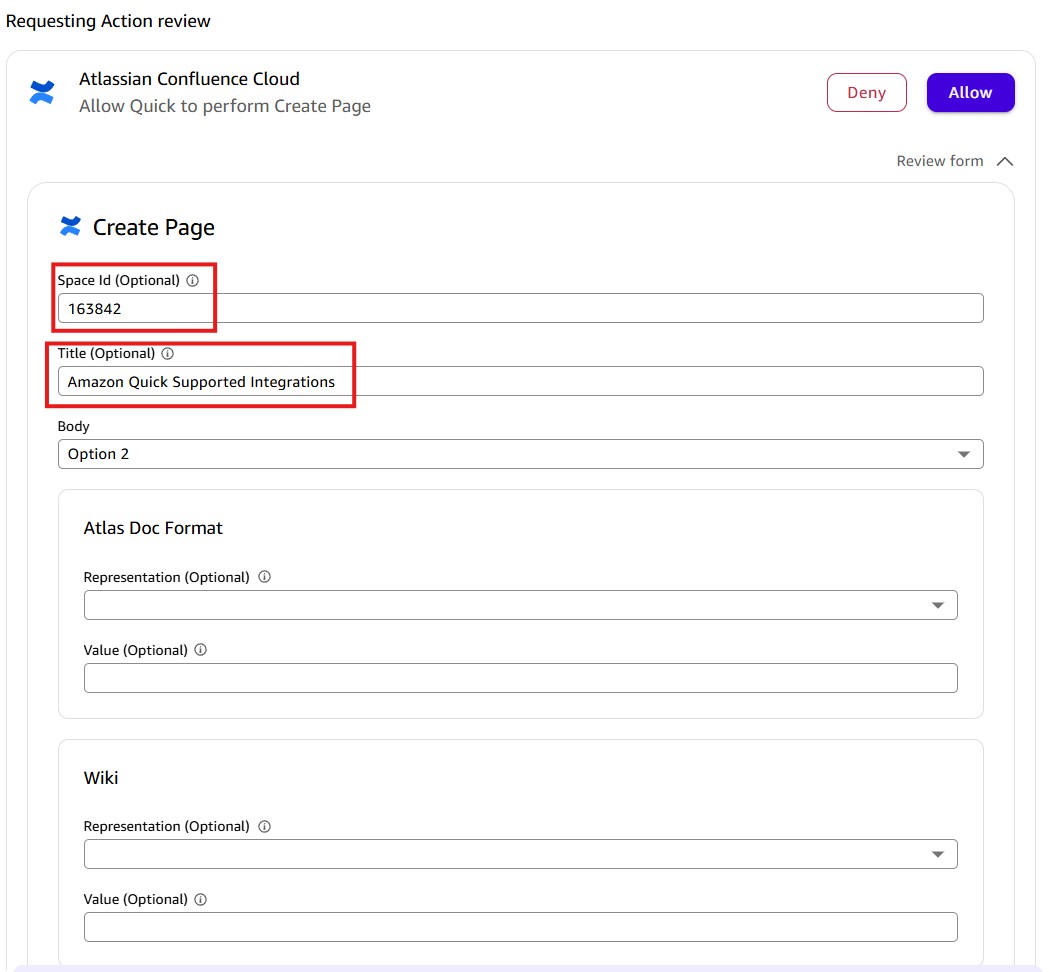
When you ask Quick to post the above content into your Confluence space, it presents an Requesting Action review card with Allow and Deny buttons and a Review Form option to inspect the page details before approving the request.
Review the page details in the Create Page form, including the page title, space ID, and content. Note that Quick selected a default space ID based on your previous conversation and provided a page title. Verify the details are correct and choose Allow to publish the content to Confluence.
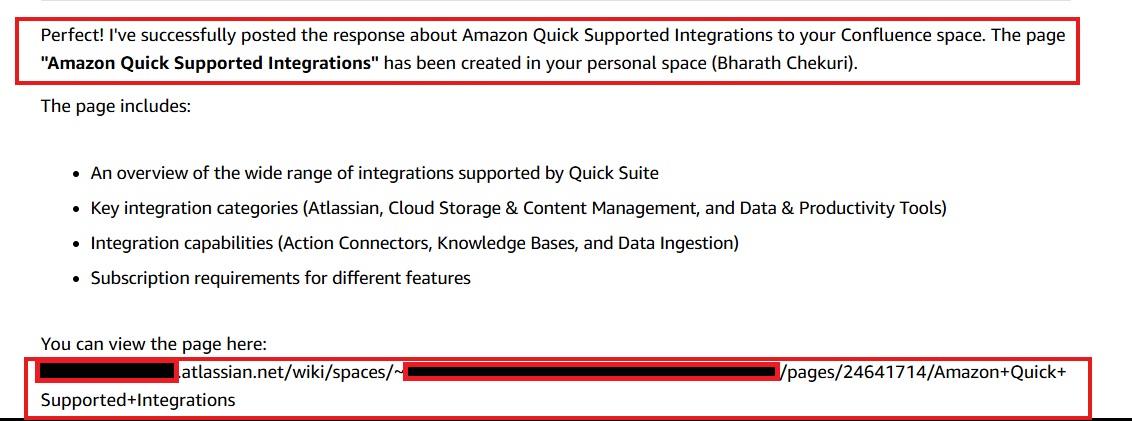
If the page creation is successful, Quick provides a success response along with the page creation details and a direct URL link to the newly created page in your Confluence Cloud space.
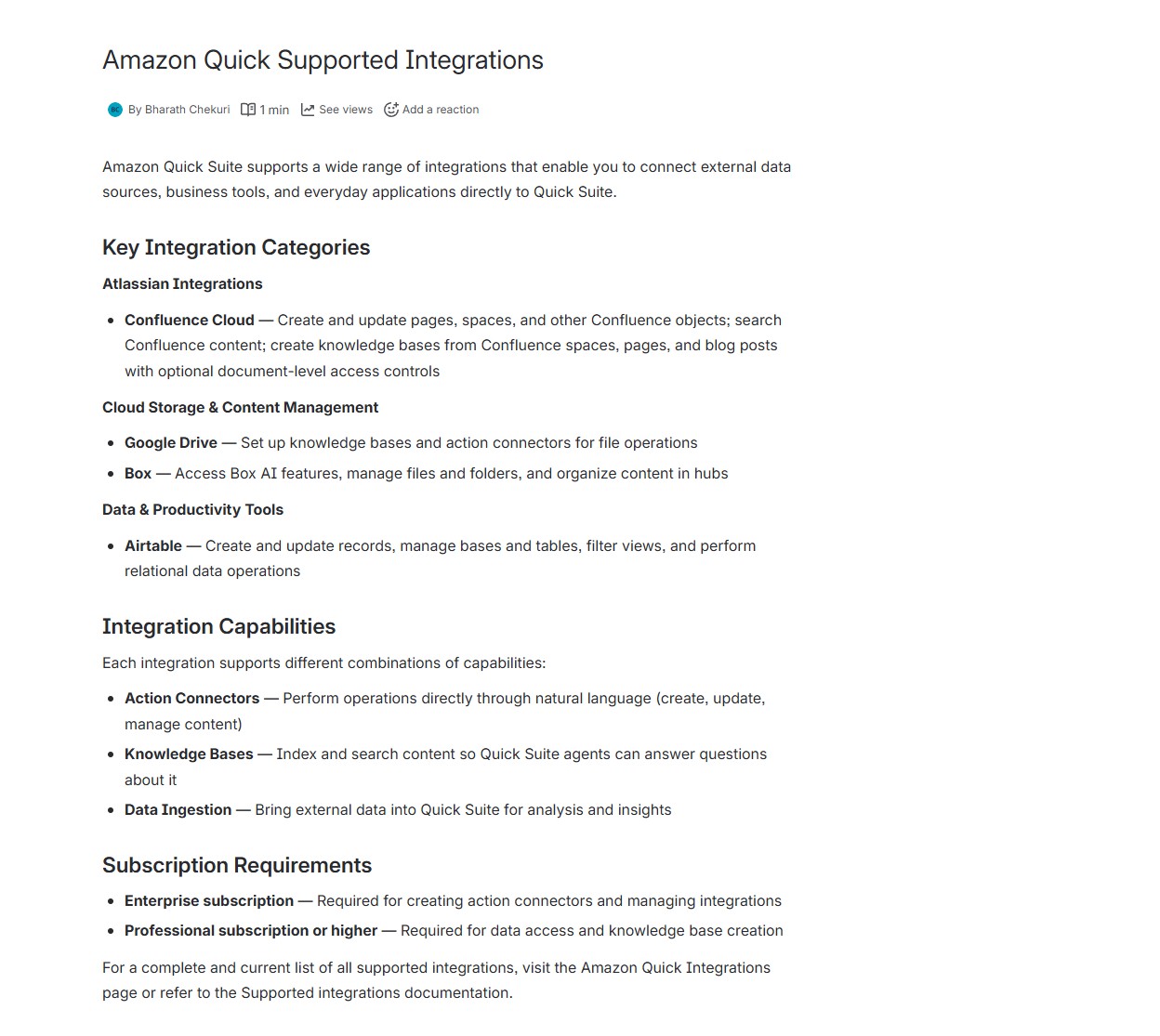
You can confirm the page creation in your Confluence Cloud Space. Quick automatically preserves the formatting from the response when creating the page in Confluence, including headings, lists, and structured content, eliminating the need for manual formatting work.
Troubleshooting and FAQs
For information about troubleshooting your connector, see Troubleshooting your Atlassian Confluence Integration. Refer to Quick FAQs for frequently asked questions.
Conclusion
The Confluence Cloud integration demonstrates how Quick approaches enterprise knowledge management. By combining semantic search through knowledge bases with targeted operations through Actions, you can search, retrieve, and update Confluence content using natural language while accessing data from other integrated systems. As organizations generate and rely on more data, Quick helps teams find, connect, and act on information more efficiently.Ready to improve your enterprise knowledge management? Explore the capabilities of Quick by:
- Starting a trial at no cost to experience AI-powered knowledge retrieval across your enterprise content
- Connecting your first integration with Confluence Cloud to see immediate value from your existing documentation
- Creating a custom chat agent tailored to your team’s specific knowledge domains and workflows
- Building a Space to aggregate critical resources and provide cross-functional collaboration
For detailed implementation guidance and best practices, visit the Quick User Guide.
About the authors