As companies of various sizes adopt graphic processing units (GPU)-based machine learning (ML) training, fine-tuning and inference workloads, the demand for GPU capacity has outpaced industry-wide supply. This imbalance has made GPUs a scarce resource, creating a challenge for customers who need reliable access to GPU compute resources for their ML workloads.
When you encounter GPU capacity limitations, you might consider creating on-demand capacity reservations (ODCRs). ODCRs apply to planned, steady-state workloads with well-understood usage patterns. Short-term ODCR availability for GPU instances, particularly P-type instances, is often limited. Additionally, without a long-term contract, ODCRs are billed at on-demand rates, offering no cost advantage. This makes ODCRs unsuitable for short or exploratory workloads such as testing, evaluations, or events. A guided approach to secure short-term GPU capacity becomes necessary.
In this post, you will learn how to secure reserved GPU capacity for short-term workloads using Amazon Elastic Compute Cloud (Amazon EC2) Capacity Blocks for ML and Amazon SageMaker training plans. These solutions can address GPU availability challenges when you need short-term capacity for load testing, model validation, time-bound workshops, or preparing inference capacity ahead of a release.
Solution overview and short-term GPU options
There are several ways to access GPU capacity on AWS for short-term workloads:
On-demand GPU instances
On-demand instances are usually the first option for short-term GPU usage. If capacity is available at launch time, you can start using GPU instances immediately without prior commitment. This works well for ad hoc experiments, short tests and development tasks.
On-demand GPU capacity depends on regional supply and current demand, and availability can change quickly. If you stop or scale down an instance, you might not be able to reacquire the same capacity when needed again. This uncertainty often leads to keeping GPU instances running longer than needed, which can increase cost. Choose on-demand instances when your workload can tolerate potential launch delays or when timing is flexible.
Spot GPU instances
Spot instances can reduce your GPU compute costs by up to 90%, but they trade cost saving for availability certainty. Spot capacity depends on unused capacity in the AWS Region. Instances can be interrupted when Amazon EC2 needs the capacity back, thus spot instances are suitable only for workloads that can handle interruption.
For ML workloads, spot instances work well when you can checkpoint progress and restart. Recommended use cases include distributed training jobs with periodic checkpoints, batch inference workloads that can be retried, and workshop environments that are designed to tolerate partial capacity.
Amazon EC2 Capacity Blocks for ML
Amazon EC2 Capacity Blocks for ML reserves GPU capacity for a specific time window so that the requested instances will be available when you launch them during the reserved period. Unlike ODCRs, Capacity Blocks are fully self-service and offer better short-term availability for GPU instances with a 40-50% discounted rate. Each Capacity Block represents a reservation of a specific number of a selected instance type for a defined duration. You can:
- Reserve a start time up to eight weeks in advance.
- Choose a duration from 1–14 days (in 1-day increments) or 15–182 days (in 7-day increments).
- Configure up to 64 instances per Capacity Block.
- Configure up to 256 instances across multiple Capacity Blocks across accounts in your AWS Organizations on a particular date (minimum of four blocks needed to reach this limit; blocks can run concurrently).
- Organizations can purchase Capacity Blocks and provision them across multiple accounts, allowing different workloads to access a pool of reserved capacity at no additional cost.
Capacity Blocks apply to workloads that run directly on Amazon EC2, where you manage the operating system, networking, and orchestration layers yourself.
Service level agreement (SLA) and hardware failures: If hardware fails during your reservation, you can terminate the affected instance and manually launch a replacement into the same Capacity Blocks reservation. The system returns the reserved capacity slot to your reservation after approximately 10 minutes of cleanup. Amazon EC2 maintains a buffer within each Capacity Block to support relaunching instances in case of hardware degradation, at no additional cost.
Note: Capacity Blocks have the following limitations:
- Support only selected Amazon EC2 instance families, such as P5, Trn1 and Trn2, and do not cover every GPU instance type.
- Can’t reserve capacity for Amazon SageMaker-managed instance types such as ml.p4dn or ml.p5.
- Can’t be shared and used with Amazon SageMaker.
- Can’t be moved or split.
- UltraServer Capacity Blocks are scoped to the AWS account where purchased and can’t be shared across accounts or within AWS Organization.
Amazon SageMaker training plans
Amazon SageMaker training plans provide access to reserve GPU capacity for ML workloads in the Amazon SageMaker AI managed environment, such as training jobs, Amazon SageMaker HyperPod clusters and inference. SageMaker training plans aren’t interchangeable with EC2 Capacity Blocks. With SageMaker training plans, you can:
- Schedule reservations for specific GPU-based instances and durations.
- Access your capacity without managing underlying infrastructure.
- Use a range of accelerated computing options, including the latest NVIDIA GPUs and AWS Trainium accelerators.
Note that G-type instances (except G6 instances) aren’t currently supported by SageMaker training plans. If you need G6 instances, contact your AWS account team. For detailed information about the supported instance types in a given AWS Region, duration, and quantity options, see Supported instance types, AWS Regions, and pricing.
Amazon SageMaker training plans apply to:
Choose this option when you want Amazon SageMaker AI to manage instance provisioning, scaling, and lifecycle while still securing reserved capacity during a defined window.
Decision framework: choosing the right option
When planning your short-term GPU strategy, you should evaluate options based on three key factors:
- Availability: From on-demand to reserved capacity.
- Cost model: On-demand pricing or upfront commitments with lower than on-demand pricing.
- Workload environment: Amazon EC2 direct access compared to Amazon SageMaker-managed workloads.
- From short-term to long-term capacity planning: While this post focuses on securing short-term GPU capacity, you might need to plan for longer-term or recurring workloads. You can run assessments based on historical data; or use short-term GPU resources to load test your workload and gain better understanding of the instance number and type needed for production. For production deployments or large-scale events requiring significant GPU capacity, start planning at least three weeks in advance. Work with your AWS account team to assess your requirements and develop a capacity strategy that meets your timeline.
Cost consideration
- Capacity Blocks for ML require upfront payment and offer 40-50% lower hourly rates compared to on-demand pricing. For example in US East (N. Virginia), p5.48xlarge costs $34.608/hour with Capacity Blocks versus $55.04/hour on-demand.
- SageMaker training plans are priced 70-75% below on-demand rates. You pay the price up front at the time you schedule the reservation. AWS regularly updates prices based on trends in supply and demand. You pay the rate that’s current at the time that you make the reservation, even if the training plan starts later after the price changes.
- If your instances don’t run continuously throughout the reservation period, the total cost of making reservations might exceed on-demand cost. Evaluate based on your workload’s actual runtime needs.
- Disclaimer: All pricing figures referenced in this section are based on publicly available AWS pricing as of the date of publication and are subject to change. For the most current pricing, refer to Amazon EC2 pricing and SageMaker AI pricing.
Decision process
Start with the least restrictive option and move toward reserved capacity when availability or timing becomes critical.
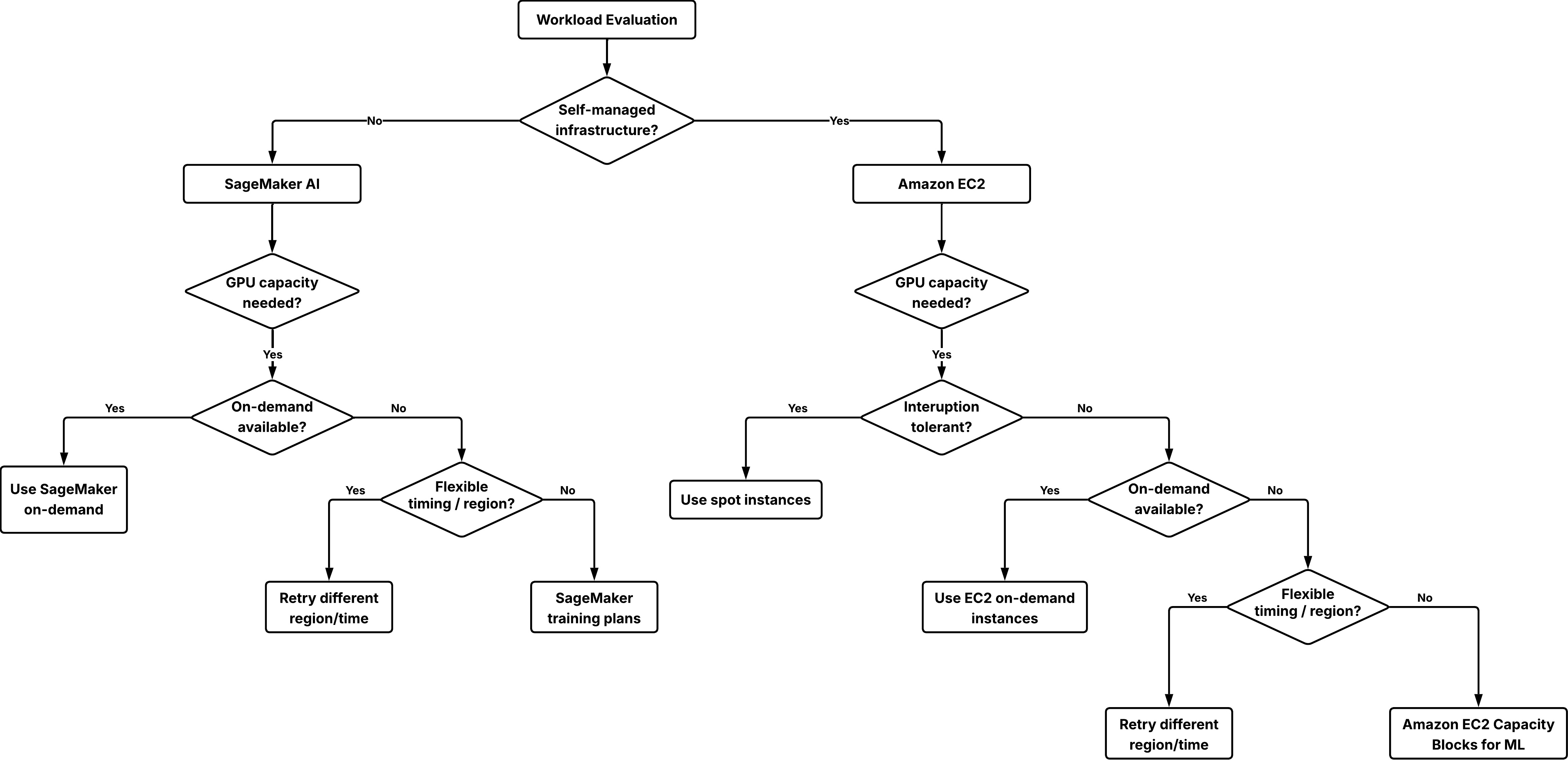
Decision tree to choose the right option for securing GPU capacity.
Step 1: Determine your infrastructure management model
- If you need full control over the operating system, networking, and orchestration, use Amazon EC2 and use on-demand instances, spot instances, or Capacity Blocks.
- If you want a managed service that handles infrastructure provisioning and operations for you, use Amazon SageMaker AI and use SageMaker on-demand or SageMaker training plans for ml.* instance types.
Step 2: Try on-demand capacity first
For both Amazon EC2 and Amazon SageMaker AI workloads, start with on-demand capacity. This approach:
- Requires no prior commitment.
- Allows immediate start if capacity is available.
If an initial launch fails, try these flexibility options:
- Try a different AWS Region where capacity might be available.
- Adjust the start time to off-hours when demand is typically lower.
- Use spot instances as a supplement on workloads that can tolerate interruption.
Step 3: Use reserved capacity when certainty is required
If your workload must start at a specific time or your delivery timeline depends on reserved GPU access, reserving capacity becomes the appropriate choice:
- For Amazon EC2 workloads, use Capacity Blocks for ML.
- For Amazon SageMaker AI workloads, use Amazon SageMaker training plans for either training jobs, HyperPod clusters, or inference workloads.
Technical implementation: Reserving GPU capacity for inference with SageMaker training plans
This section shows you how to reserve and use GPU capacity for inference workloads managed by Amazon SageMaker training plans. Note that SageMaker training plans reservations are specific to the selected target resource. A plan purchased for inference can’t be used for Training Jobs or HyperPod clusters, or the reverse.
For other scenarios:
- If you’re reserving capacity for SageMaker training jobs or SageMaker HyperPod clusters, refer to create training plans for training jobs or HyperPod clusters.
- If your workload runs directly on Amazon EC2 and requires reserved capacity for a fixed window, refer to Capacity Blocks for ML.
Prerequisites
Before you begin, confirm that you have:
- An AWS account with appropriate AWS Identity and Access Management (IAM) permissions.
- For creating training plans, use AmazonSageMakerTrainingPlanCreateAccess managed policy.
- For creating, describing, and deleting inference endpoints, use the following policy:
{
    "Version": "2012-10-17",
    "Statement": [
        {
            "Effect": "Allow",
            "Action": [
                "sagemaker:CreateEndpointConfig",
                "sagemaker:CreateEndpoint",
                "sagemaker:DescribeEndpoint",
                "sagemaker:DeleteEndpoint",
                "sagemaker:DeleteEndpointConfig"
            ],
            "Resource": [
                "arn:aws:sagemaker:*:*:endpoint/*",
                "arn:aws:sagemaker:*:*:endpoint-config/*"
            ]
        }
    ]
}- A SageMaker AI model resource created and ready for deployment. For instructions, see create a model.
- The AWS Command Line Interface (AWS CLI) version 2.0 or later.
Create a training plan
To get started, go to the Amazon SageMaker AI console, choose Training plans in the left navigation pane, and choose Create training plan.
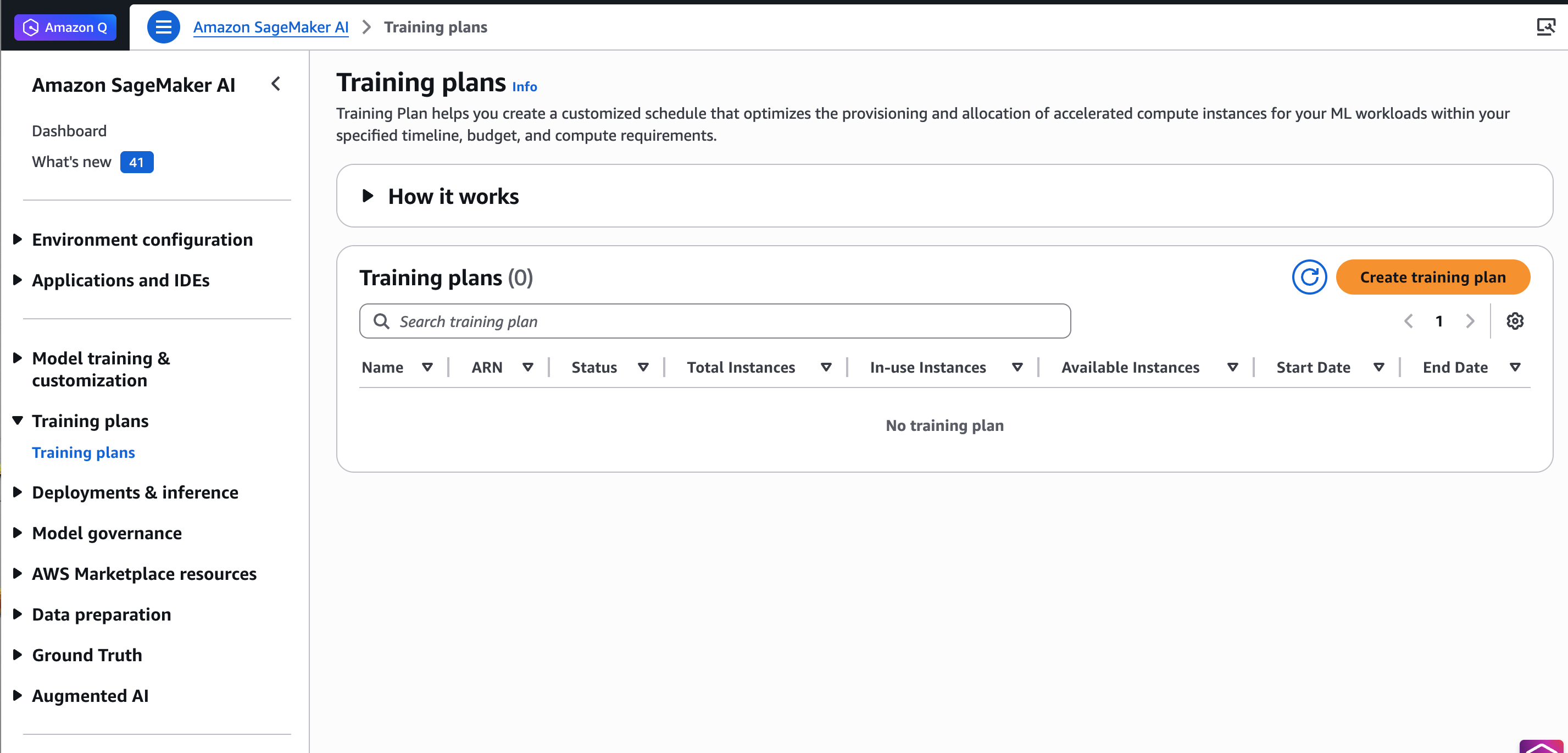
The Training plans page in the Amazon SageMaker AI console.
For example, choose your preferred training date and duration (1 day), instance type and count (1 ml.trn1.32xlarge) for Inference Endpoint, and choose Find training plan.
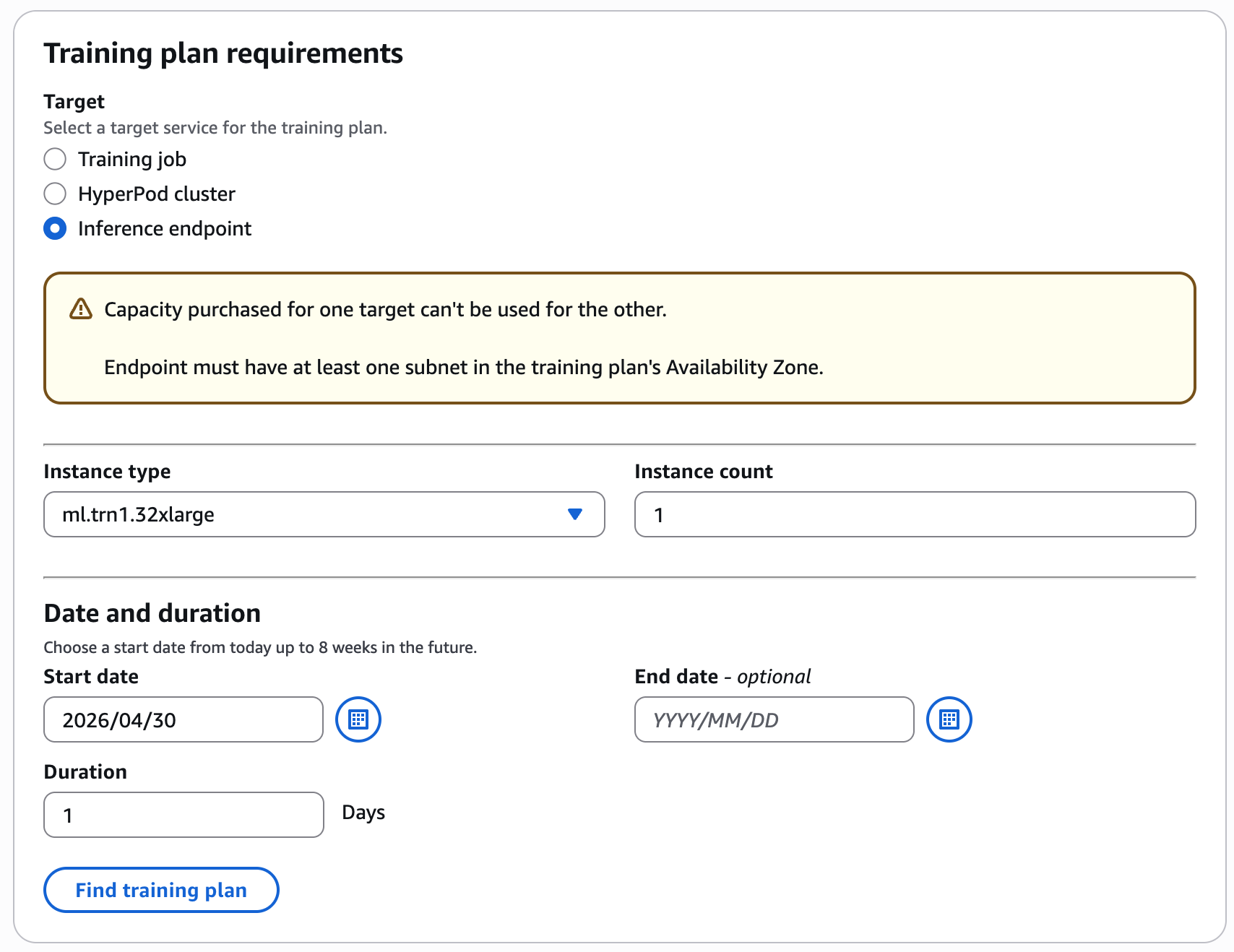
Configure your training plan by selecting the instance type, instance count, date and duration for your inference workload.
The console displays available plans with the total price.
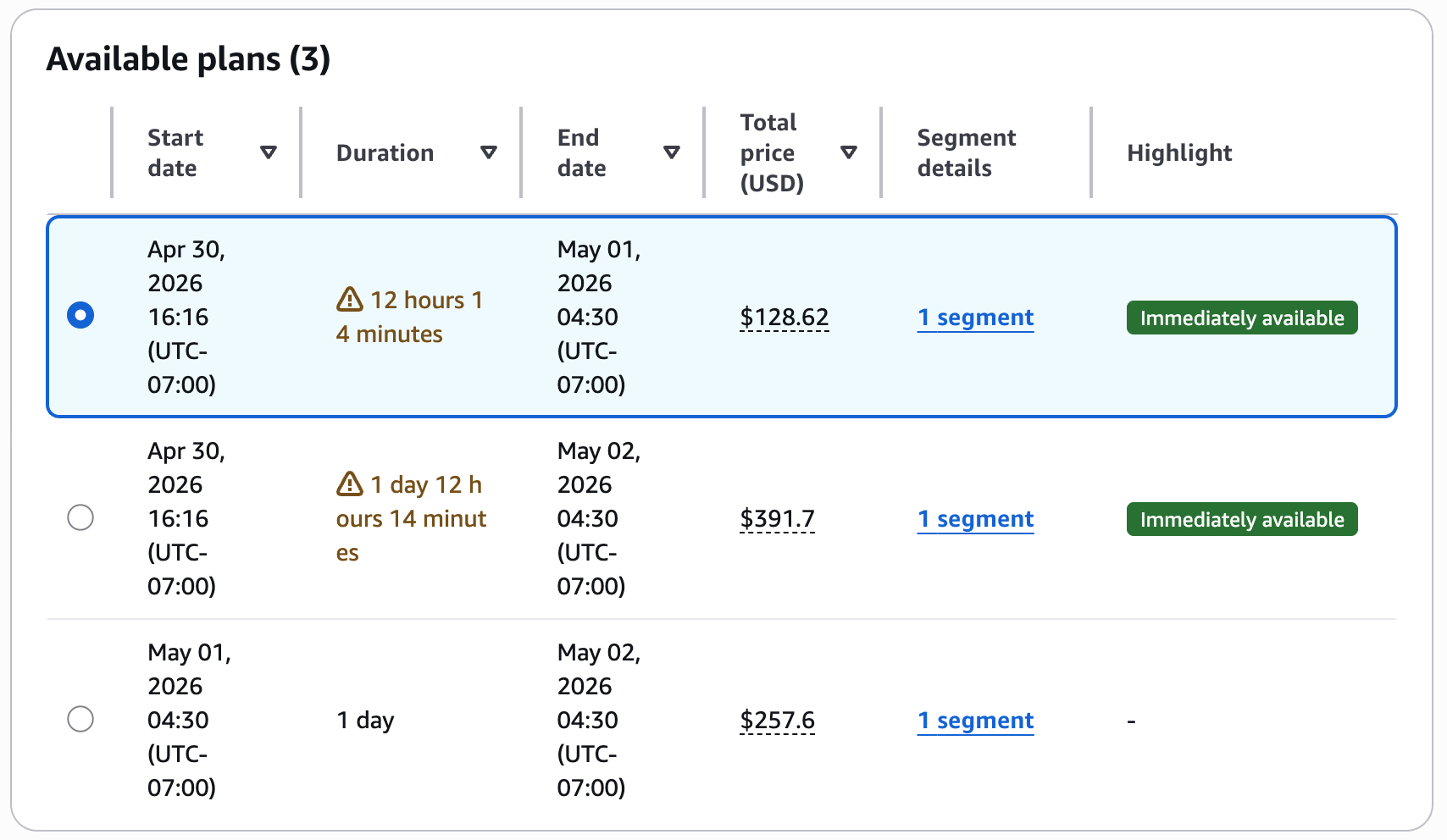
Review the suggested plans with upfront pricing before accepting the reservation.
If you accept this training plan, add your training details in the next step and choose Create your plan.
Note: SageMaker training plans can’t be canceled after purchase. The reservation will expire automatically at the end of the reserved period.
To monitor training plan status
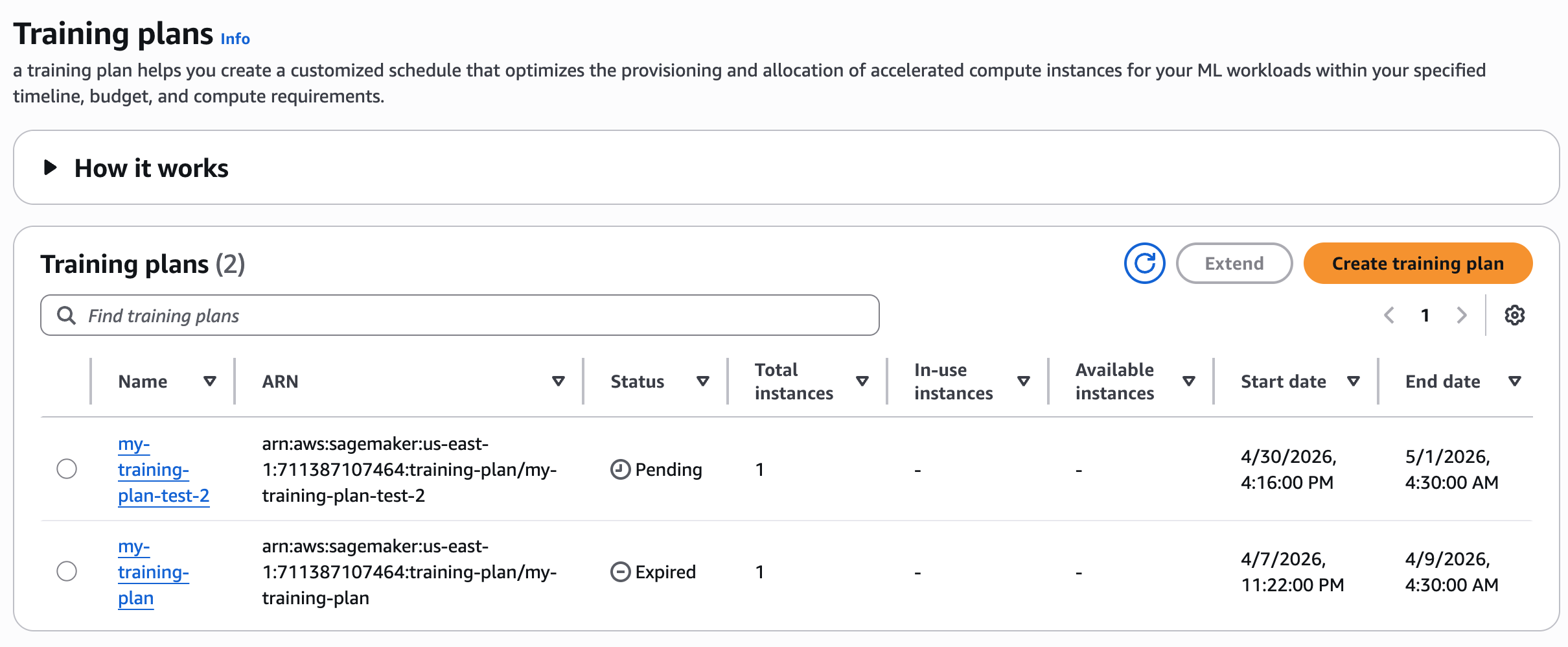
Review your training plan status in the console.
After creating your training plan, you can see the list of training plans. The plan initially enters a Pending state, awaiting payment. You pay the full price of a training plan up front. After AWS completes payment processing, the plan will transition to the Scheduled state. On the plan’s start date, it becomes Active, and the system allocates resources for your use.
To verify training plan status with AWS CLI
Use the following command to check the training plan status:
aws sagemaker describe-training-plan
--training-plan-name your-training-plan-name
--region your-region
When the response shows "Status": "Active", you can start running your inference tasks. Verify that the TargetResources field shows endpoint to confirm the plan is configured for inference workloads.
To create endpoint configuration
Use the following command to generate an endpoint configuration that uses the training plan resources:
aws sagemaker create-endpoint-config
--endpoint-config-name your-endpoint-config-name
--production-variants '[
    {
        "VariantName": "your-variant-name",
        "ModelName": "your-model-name",
        "InitialInstanceCount": 1,
        "InstanceType": "ml.trn1.32xlarge",
        "CapacityReservationConfig": {
            "MlReservationArn": "your-training-plan-arn",
            "CapacityReservationPreference": "capacity-reservations-only"
        }
    }
]'
To deploy the endpoint
Create your endpoint resource by specifying the endpoint configuration from the previous step:
aws sagemaker create-endpoint
--endpoint-name your-endpoint-name
--endpoint-config-name your-endpoint-config-name
To verify endpoint status
Check your endpoint status and training plan capacity reservation status:
aws sagemaker describe-endpoint
--endpoint-name your-endpoint-name
--region your-region
Clean up resources
To avoid incurring ongoing charges, delete the resources that you created:
Delete the endpoint:
aws sagemaker delete-endpoint --endpoint-name your-endpoint-nameDelete the endpoint configuration:
aws sagemaker delete-endpoint-config --endpoint-config-name your-endpoint-config-nameConclusion
Securing GPU capacity for transient workloads requires a different approach than planning long-term, steady-state usage. In this post, you learned how to approach short-term GPU capacity planning by:
- Starting with on-demand capacity and increasing flexibility when possible.
- Distinguishing between Amazon EC2–based workloads and Amazon SageMaker AI managed workloads.
- Reserving capacity using Capacity Blocks or SageMaker training plans when availability and certainty are required.
You also learned how to use SageMaker training plans to reserve GPU capacity ahead of time. This capability helps reduce operational friction when preparing inference capacity for planned evaluations, releases, or expected traffic increases.
To learn more, refer to the following resources:
- Capacity Blocks for ML
- Reserve training plans for your training jobs or HyperPod clusters
- Amazon SageMaker AI now supports Flexible Training Plans capacity for Inference
- Amazon SageMaker AI Pricing
- Reserve compute capacity with EC2 On-Demand Capacity Reservations
About the authors