Comet

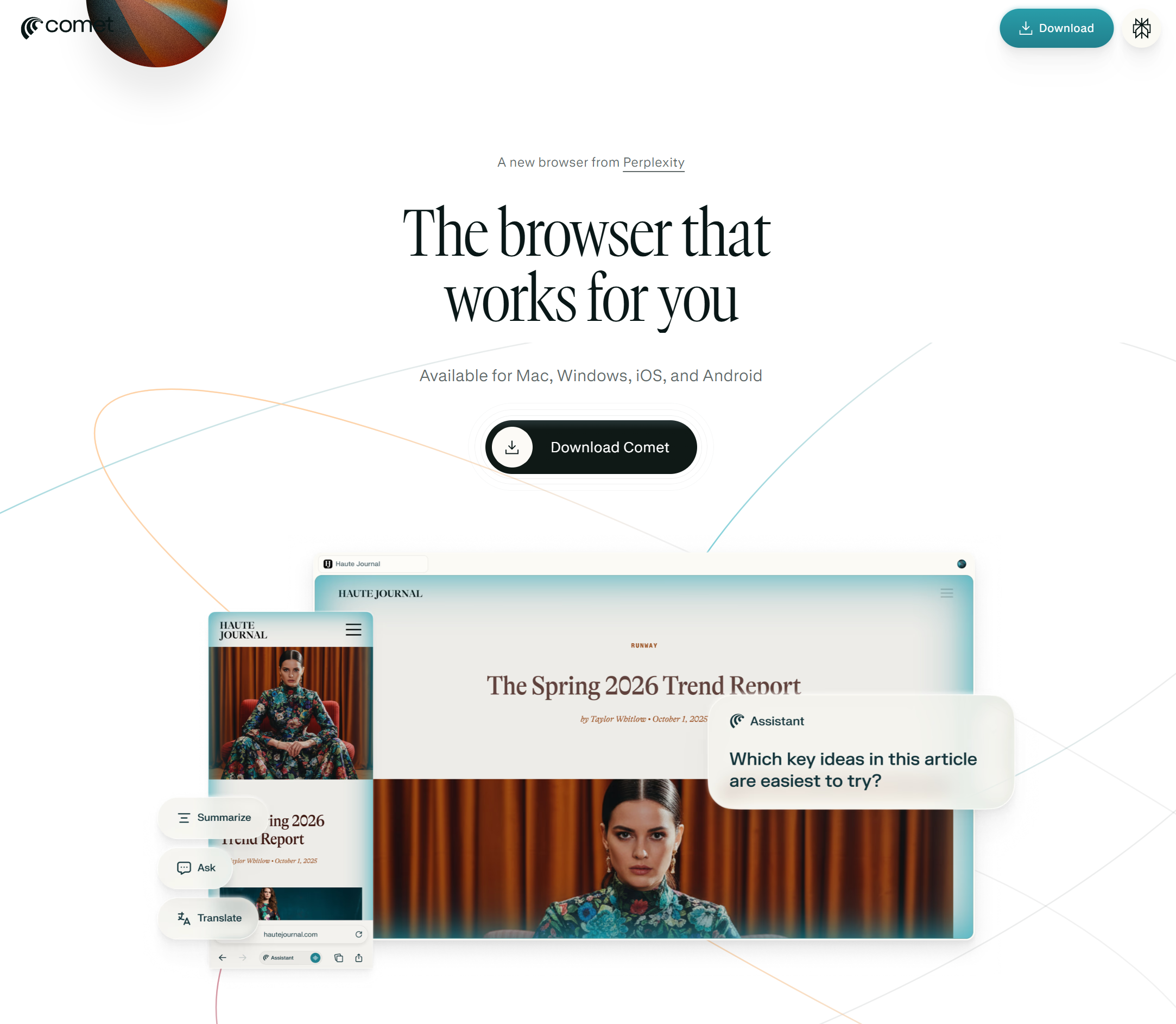
Perplexity Comet is an AI-native web browser developed by Perplexity AI, built on the Chromium engine. Unlike traditional browsers that use extensions to add AI features, Comet integrates a conversational AI assistant (Comet Assistant) directly into the browser’s core functionality to automate tasks and interact with web content in real-time.

Visit Comet website for full experience
Remarks

Comet is designed to act as a “digital executor” that can navigate the web on your behalf.

  1. Agentic Browsing: The assistant can click buttons, fill out forms, and perform multi-step workflows (e.g., “Find a flight on Expedia that fits my Tuesday calendar and show me the best option”).
  2. Tab Management: You can ask it to “Close all tabs I haven’t touched in three days” or “Group my research tabs into a collection.”
  3. Content Interaction: You can chat with your open tabs using the @tab feature to ask questions specifically about the information currently on your screen.
  4. Productivity Integration: It connects with Gmail and Google Calendar to summarize your day, find specific emails, or draft replies.
  5. AI Previews: Hovering over tabs provides instant AI-generated summaries of the page content without needing to click into them.

Limitation

  1. Subscription Tiers: While the browser itself is free, the most advanced “Agentic” features (like complex autonomous tasks) often require a Perplexity Pro or Enterprise subscription. Free users have limited “Pro Search” and Assistant queries.
  2. Security Concerns: Some security researchers have noted potential vulnerabilities (like “CometJacking”) where malicious websites could theoretically interact with the browser’s agentic features.
  3. Misfires: As an early-stage AI tool, the agent can occasionally misinterpret web elements or fail to complete complex multi-page checkouts if the website’s UI is non-standard.
  4. Extension Compatibility: While based on Chromium, not all Chrome extensions work perfectly, and data/settings from existing extensions do not always transfer over seamlessly.
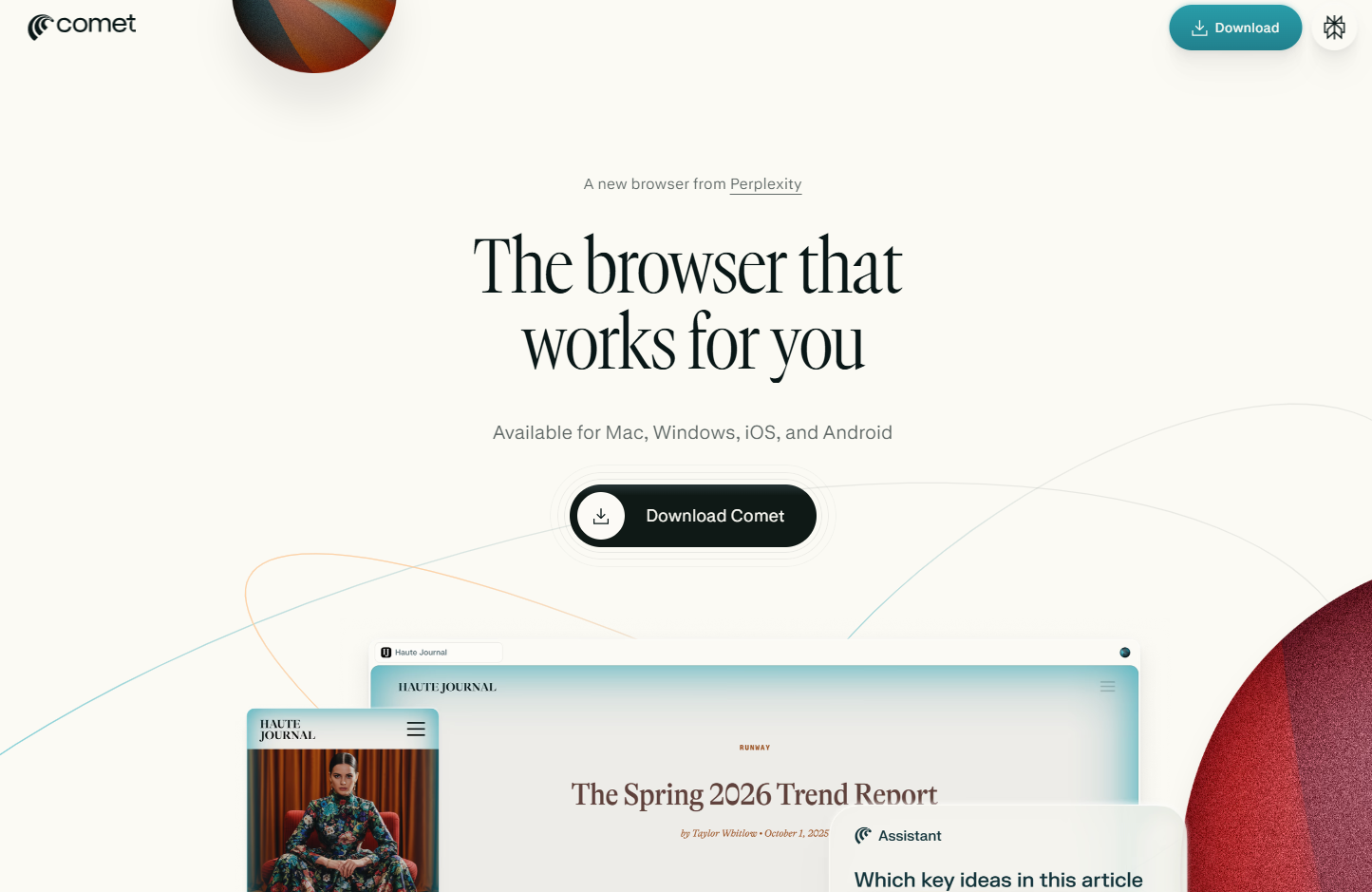
Step 1 : Installation

Download the browser from perplexity.ai/comet. It is available for Windows, macOS, Android, and iOS.

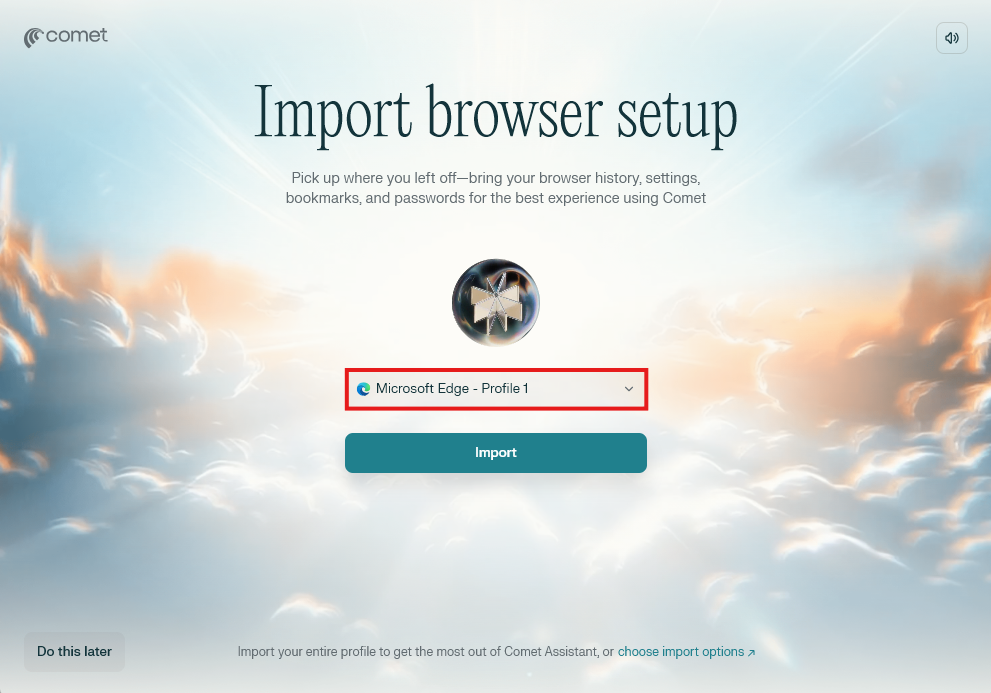
Step 2 : Setup

You can import bookmarks and extensions from other browser during the initial setup, though some extensions may require a fresh installation

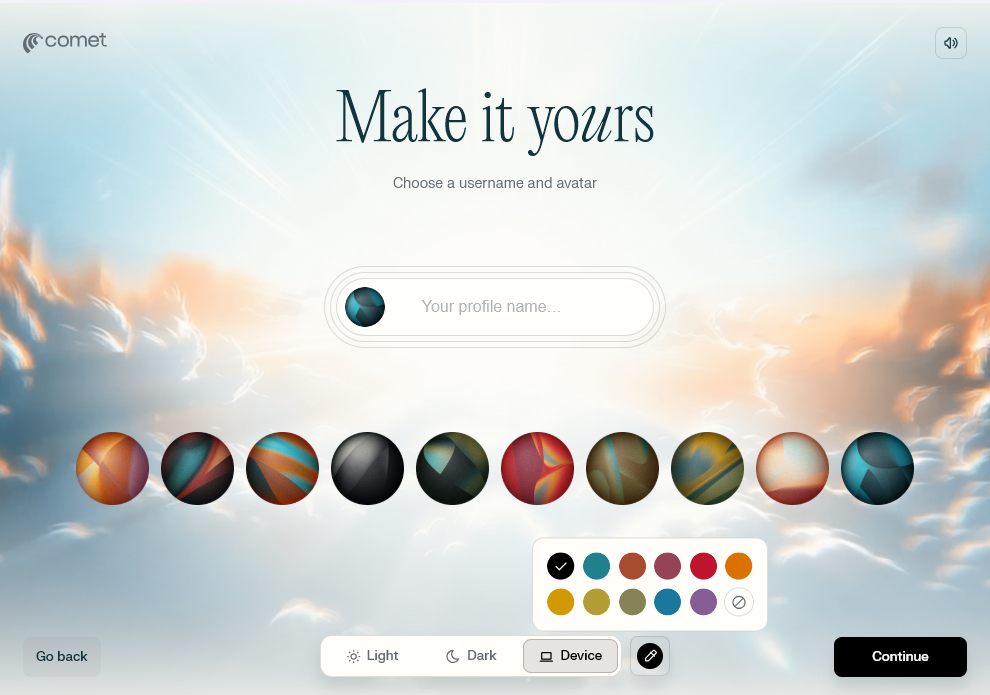
1. Click where it says “Your profile name…” and type your name.
2. Tap one of the 10 colorful circles. These are “Avatars.” Pick the color or shape you like best; this icon will represent you in the browser.
3. Light / Dark: Pick whether you want the menus to be bright or dark.
Colors: Tap a color on the right to change the “highlight” color of the buttons and tabs.
4. Click the Continue button at the bottom.

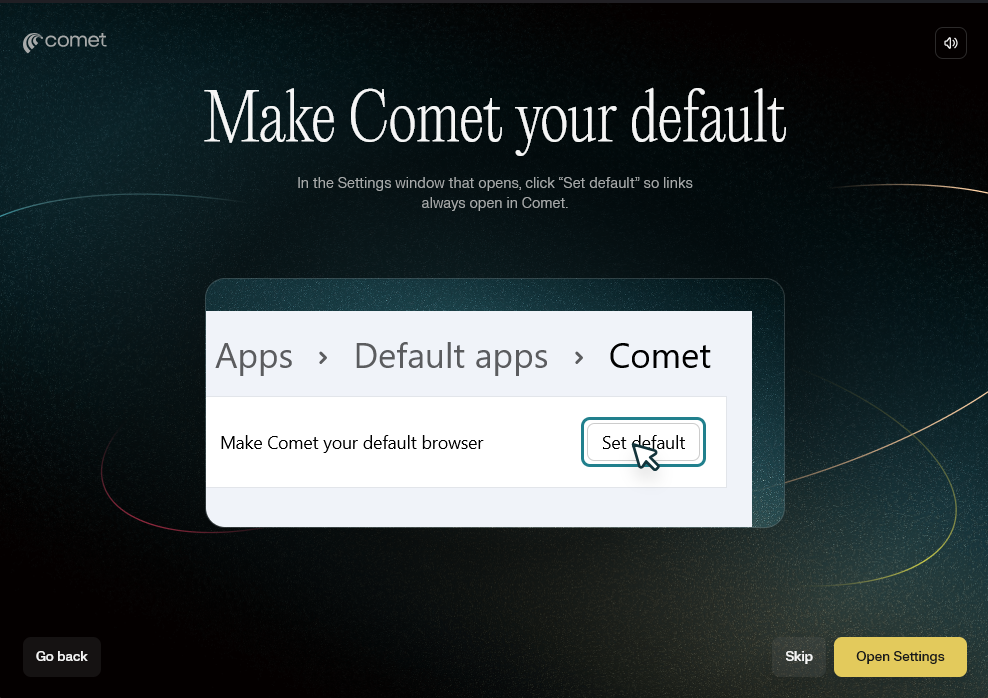
Set as Default: For the full experience, go to Settings → Default Browser and select Comet.

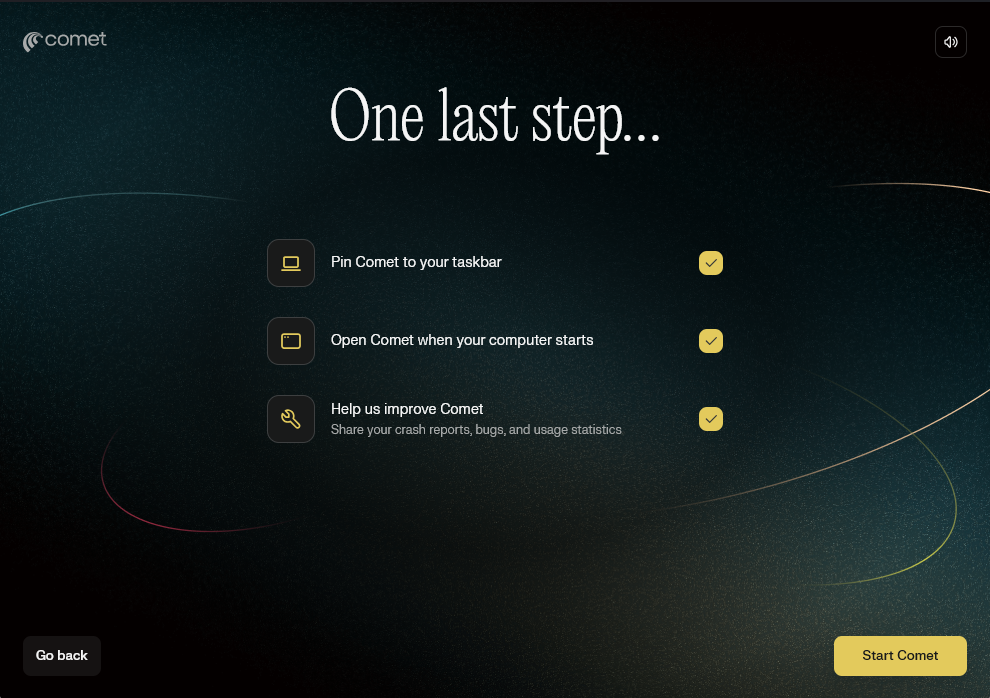
Pin Comet to your taskbar: This puts the Comet icon at the bottom of your screen (Windows) or in your Dock (Mac) so you can open it with one click anytime.
Open Comet when your computer starts: If you check this, the browser will automatically pop up as soon as you turn on your computer.
Help us improve Comet: This sends technical “crash reports” to the developers if the app breaks, helping them fix bugs. It doesn’t share your personal searches.

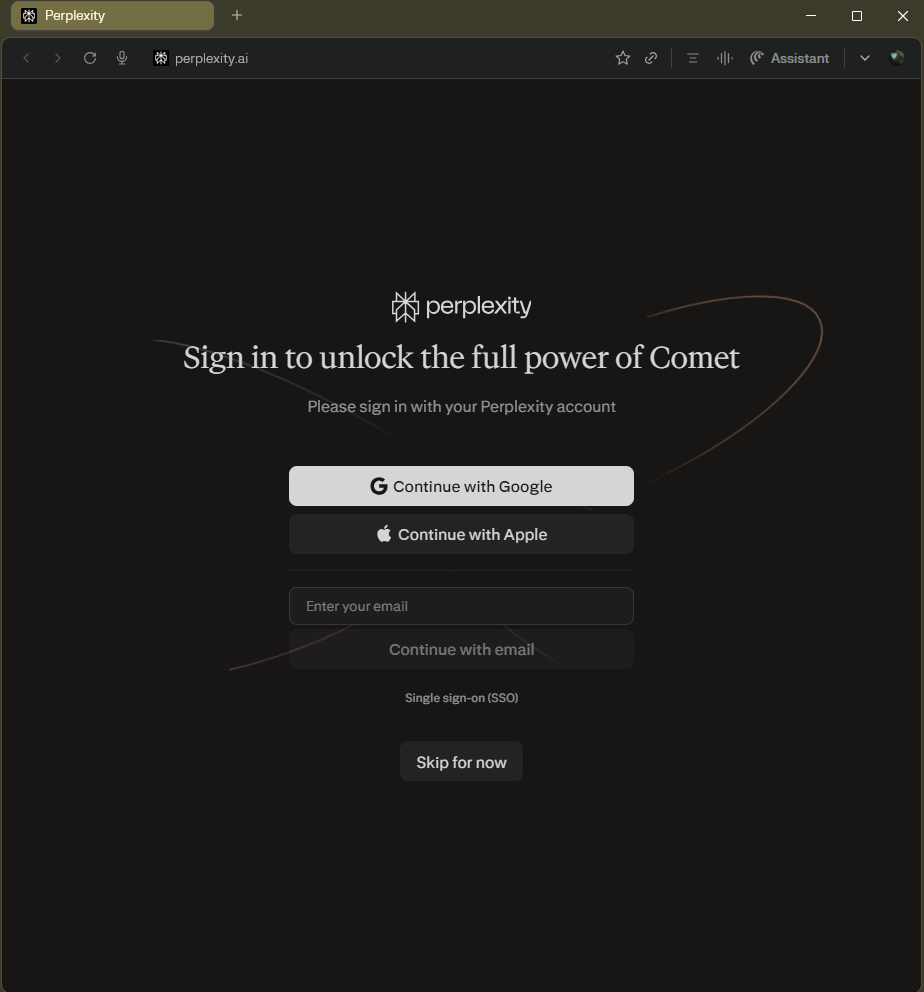
Continue with Google / Apple: The fastest way. It uses your existing accounts to log you in instantly.
Enter your email: Use this if you have a specific email and password for Perplexity.
Skip for now: You can click this at the bottom if you want to start browsing immediately without an account.

Step 3 : Interaction Methods

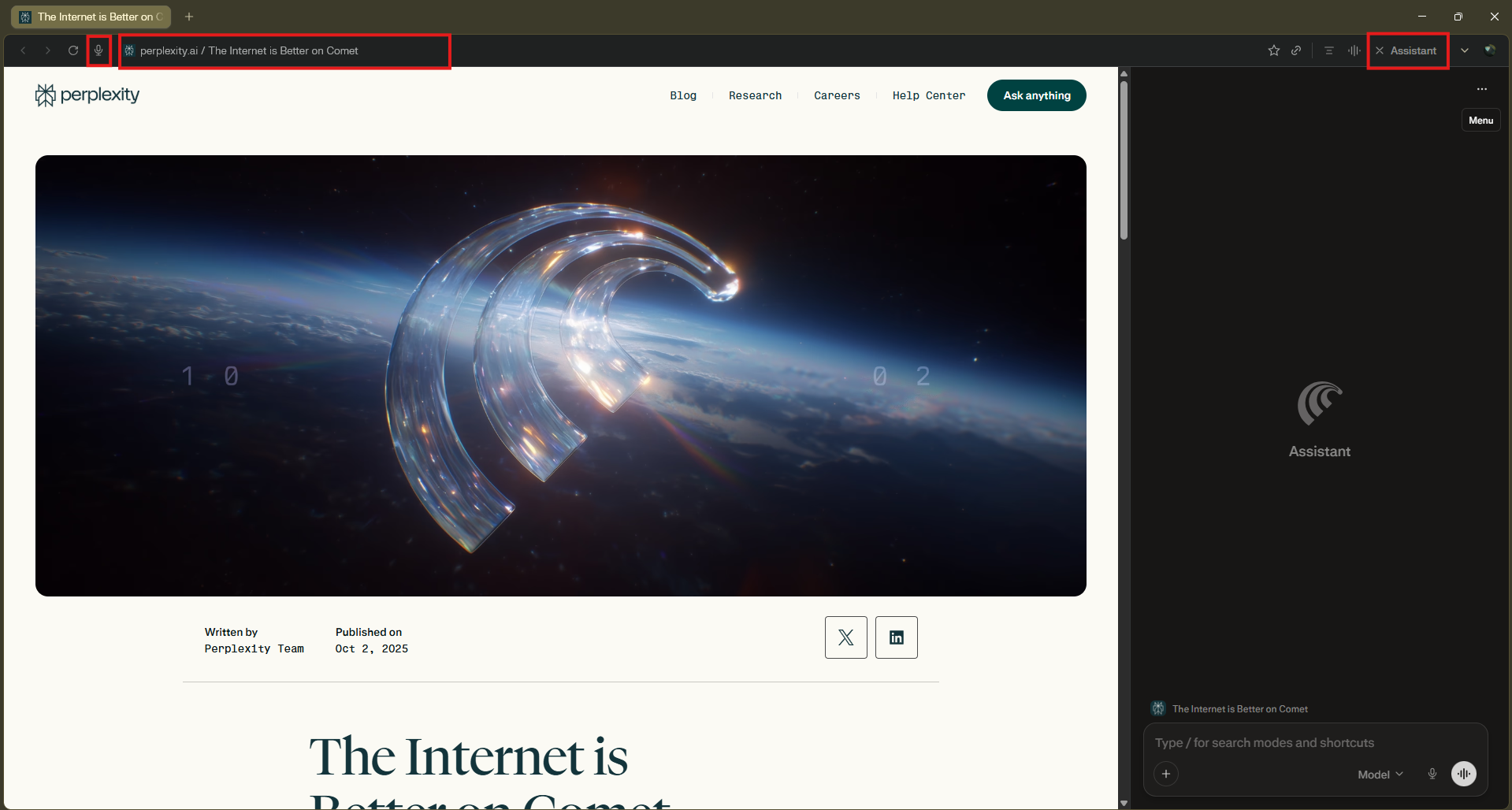
Smart Address Bar: Type natural language commands directly into the URL bar (e.g., “Summarize this article”).
Assistant Sidebar: Click the lightning bolt icon or use the shortcut Ctrl/Cmd + I to open the sidebar for deep research and complex tasks. (Summarize and follow-up, Ask anything, Find that moment, Delegate a task etc.)
Voice Mode: Use Shift + Alt + V (Windows) or Shift + Option + V (Mac) to speak commands to the browser.

Remarks : Official Support Resources

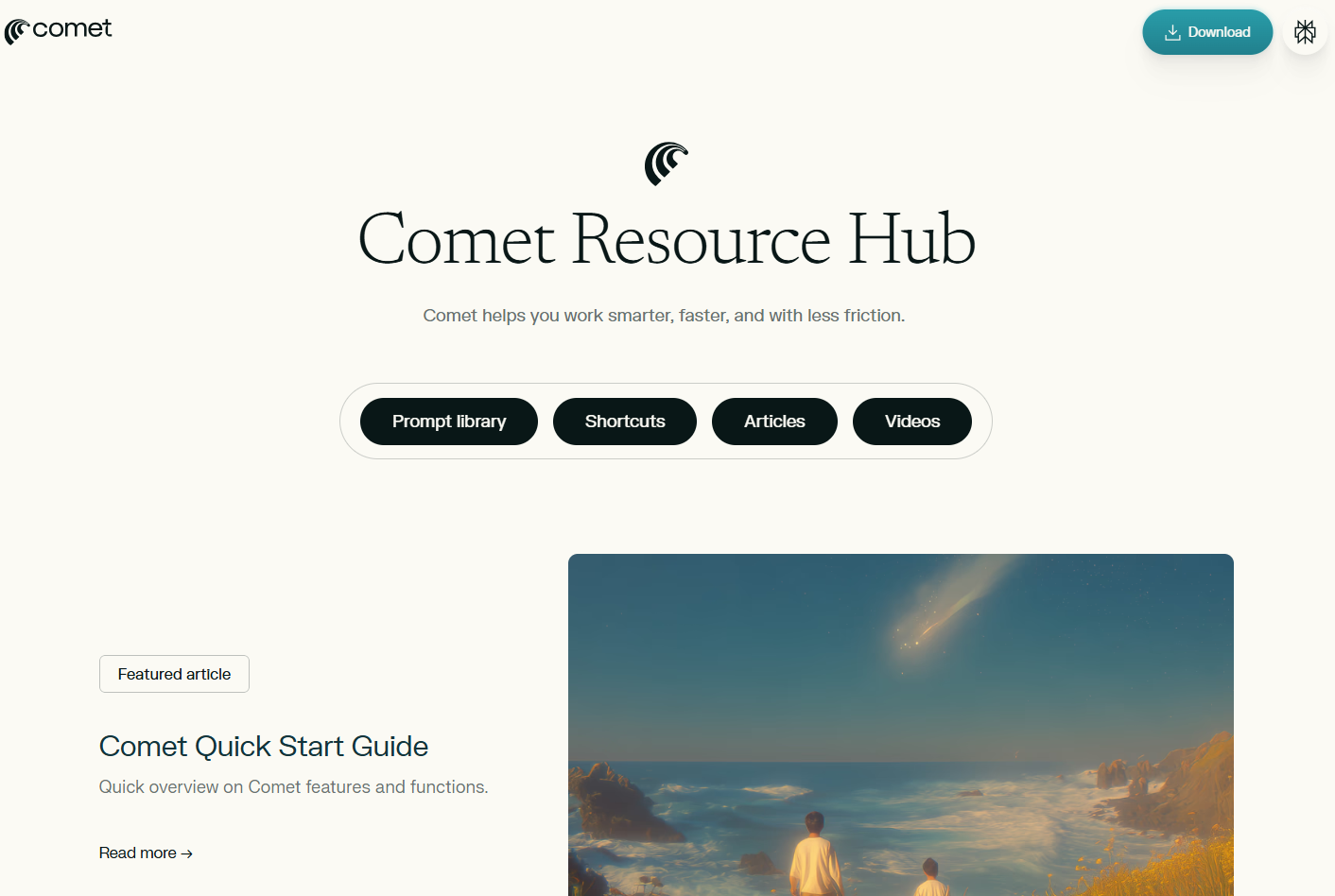
To learn the fundamental functions of Comet, explore the following resources for more comprehensive information:
Comet Resource Hub : https://www.perplexity.ai/comet/resources

01

Introducing Comet: Browse at the Speed of Thought

02

Comet for iOS: Search, Browse, and Ask with AI

03

Comet for Android: The First AI-Native Browser Is Here

04

Comet for Enterprise: AI answers for every team

Visit Deepseek website for full experience

Remarks

DeepSeek is an AI-powered tool designed for deep information retrieval, analysis, and content generation. It is commonly used in areas such as:

  1. Advanced Information Retrieval
    • DeepSeek can process and analyze large datasets to extract relevant insights.
    • It helps users find precise information beyond standard search engines.
  2. Natural Language Processing (NLP) Applications
    • Used for text summarization, sentiment analysis, and question-answering systems.
    • Supports various languages and can generate human-like responses.
  3. AI-Assisted Research and Writing
    • Helps researchers analyze academic papers, generate summaries, and suggest references.
    • Useful for drafting articles, reports, and creative writing.
  4. Code Assistance and Debugging
    • Provides AI-powered code suggestions, optimizations, and bug fixes.
    • Supports multiple programming languages, aiding developers in software development.
  5. Business and Decision-Making Support
    • Analyzes market trends, customer feedback, and financial data for businesses.
    • Assists in generating insights for strategic decision-making.

limitation:

  1. Accuracy and Hallucination Issues
    • AI models can sometimes generate incorrect or misleading information.
    • Requires human verification before relying on outputs.
  2. Limited Real-Time Data Access
    • May not always provide the latest information if it’s not connected to live data sources.
    • Some AI models work with pre-trained datasets, limiting real-time updates.
  3. Context Limitations
    • Struggles with highly nuanced or ambiguous queries.
    • Long conversations may lead to context loss or inconsistencies.
  4. Ethical and Bias Concerns
    • AI models can reflect biases present in training data.
    • Requires careful consideration when used in sensitive applications.
  5. Computational Resource Constraints
    • Running deep learning models requires significant computational power.
    • Latency issues may arise during complex queries or large-scale data analysis.
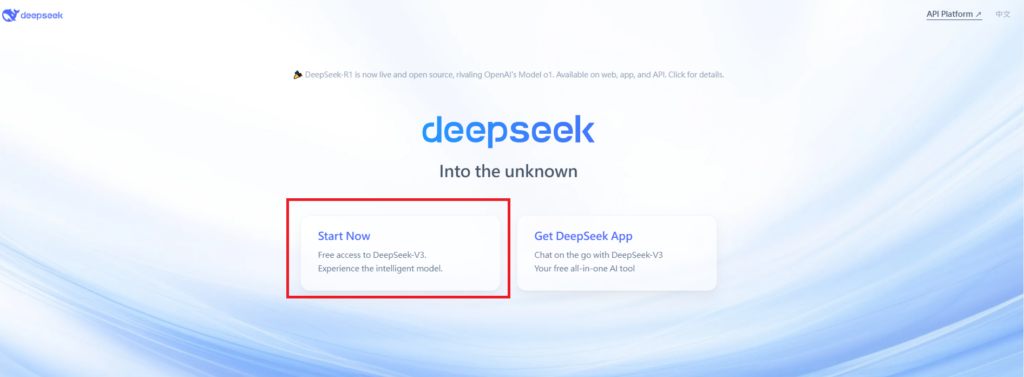
Step 1

Visit the DeepSeek website. Click on “Start Now” and fill in your details.
Verify your email address to activate your account.

Step 2

Log in to your DeepSeek account.
Navigate to the “Chat” section to start using the chatbot.

Step 3

Type your question or request in the chat box. Press “Enter” to send your message. The chatbot will respond with relevant information or assistance.


Writing Assistance: Ask the chatbot to help with writing tasks, such as drafting emails, creating content, or summarizing text.
Translations: Request translations for text in different languages.
Information Retrieval: Ask questions to get quick answers on various topics.

Remarks.

You can view and manage your chat history.Save important conversations for future reference. Customize Your Experience:

Lorem ipsum dolor sit amet, consectetur adipiscing elit. Ut elit tellus, luctus nec ullamcorper mattis, pulvinar dapibus leo.

Sign In

Register

Reset Password

Please enter your username or email address, you will receive a link to create a new password via email.

Scroll to Top