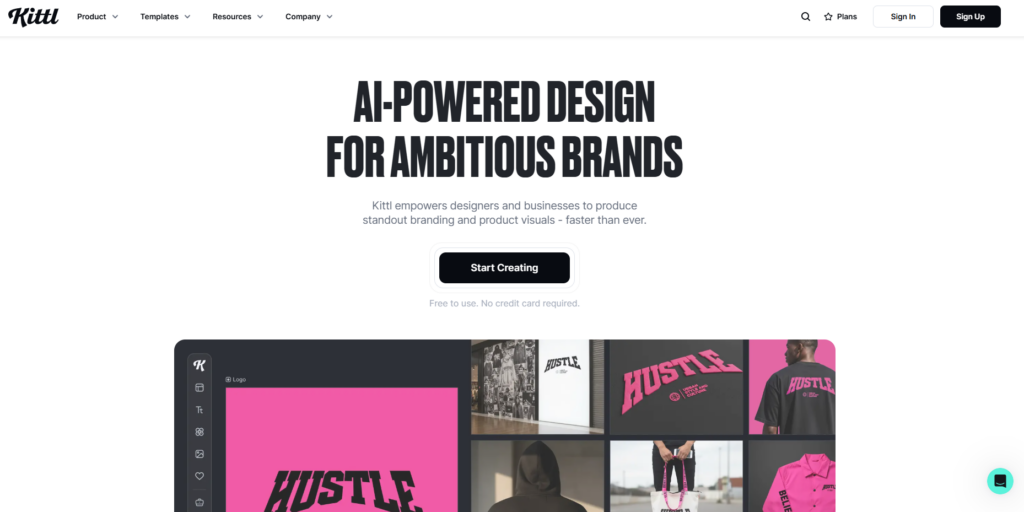
Kittl

Kittl is a high-end, browser-based graphic design platform that sits between the ease of use of Canva and the professional power of Adobe Illustrator. Founded in 2020, it has become a favorite for creators in the print-on-demand (POD) and branding industries because of its advanced typography tools and vector editing capabilities.

Visit Kittl website for full experience
Remarks

Kittl is an AI-powered, browser-based graphic design platform that sits perfectly between the simplicity of Canva and the professional depth of Adobe Illustrator. Originally launched as “Heritage Type” in 2020, it has evolved into a powerhouse for creators who want high-end typography, intricate vector work, and “scroll-stopping” branding assets.

As of 2026, Kittl has transitioned into Kittl 2.0, integrating deep AI “Copilot” features that help you generate and restyle designs instantly.

Kittl is specifically optimized for designs where text and branding are the stars.

  1. Print-on-Demand (POD): Creating t-shirt graphics, posters, and labels that require vector precision.
  2. Logo & Branding: Designing professional-grade logos with advanced warping and shading effects.
  3. Social Media Assets: Crafting high-quality Instagram/TikTok/Facebook posts using AI-generated art and “3D pop-out” effects.
  4. Merchandising: Using integrated Mockup Tools to see your design on hoodies, mugs, or packaging before exporting.

Limitations

While powerful, Kittl has specific trade-offs compared to its competitors:

  1. No Video/Animation: As of 2026, Kittl remains strictly a static graphic tool. If you need to edit Reels, TikToks, or GIFs, you will need a tool like Canva or CapCut.
  2. Web-Only: It is exclusively a browser-based application. There is no offline desktop version, which can be a bottleneck if your internet connection is unstable.
  3. Free Tier Constraints: The free plan is quite restrictive—it limits you to low-resolution exports, requires design attribution, and caps the number of projects you can save.
  4. Learning Curve: Because it includes professional features like “blend modes” and “anchor point editing,” it takes slightly longer to master than simpler drag-and-drop editors.
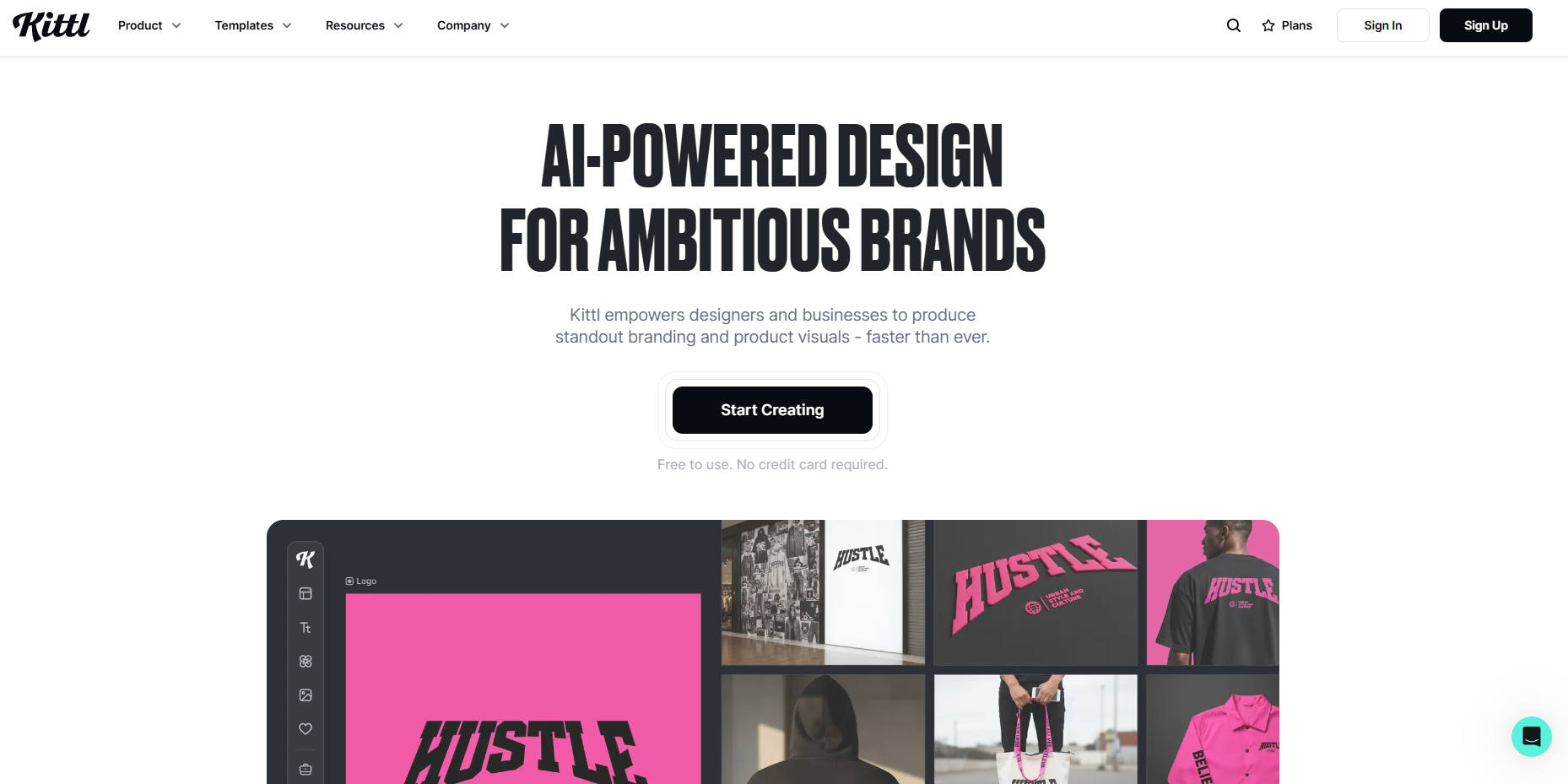
Step 1 : Access Kittl

Navigate to the Kittl. Select the ‘Sign Up or Sign In’ option to begin using.

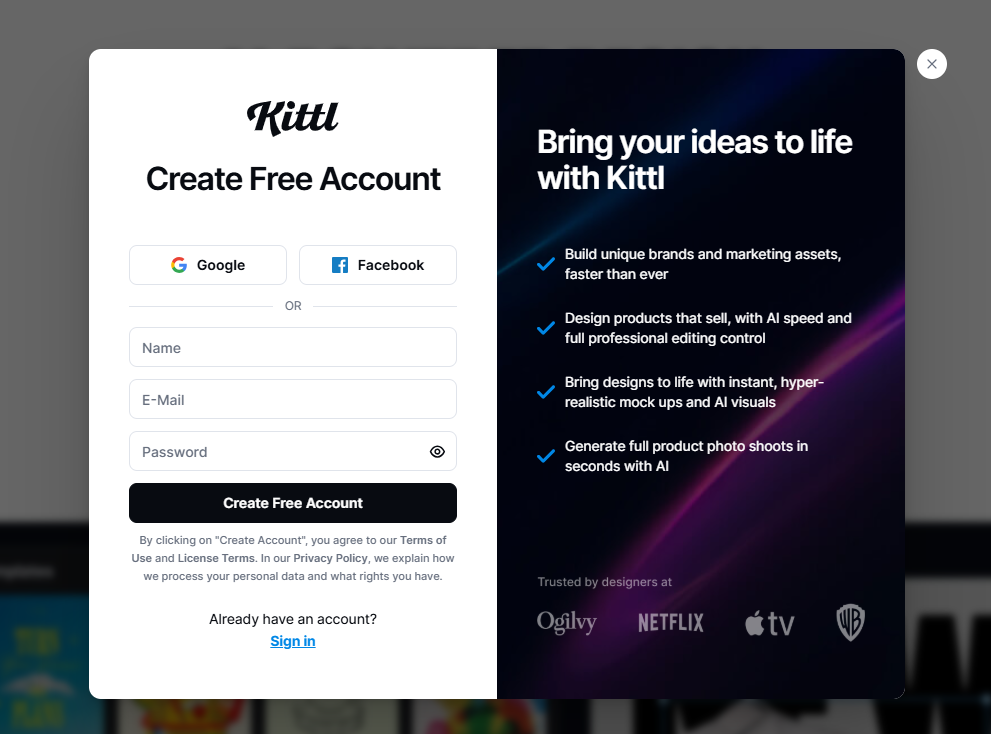
Step 2 : Sign Up or Sign In

You are using Facebook/Google/email to sign up or sign in.

Step 3 : Create a project or start with template

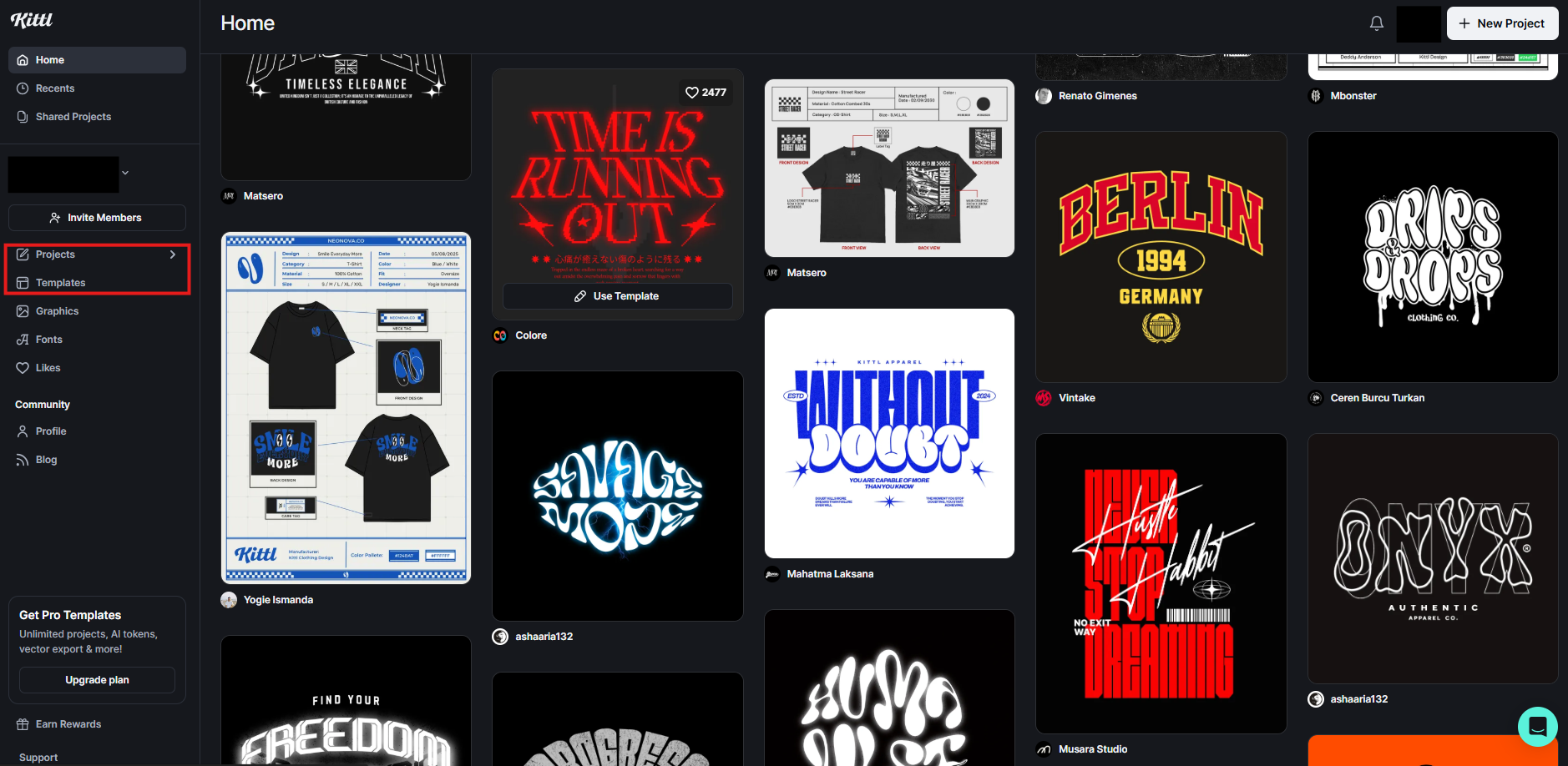
Upon logging in, you can either click “Project” to set custom dimensions or browse the Template Library.
You have two main ways to begin:
-Method A (Template): Browse the library, select a design you like, and click “Use Template.” This is the fastest way to get a professional result.
-Method B (Blank Canvas): Click “New Project,” set your dimensions (e.g., 4000x5000px for high-quality t-shirt prints), and start from scratch.

Step 4 : Customize Your Design

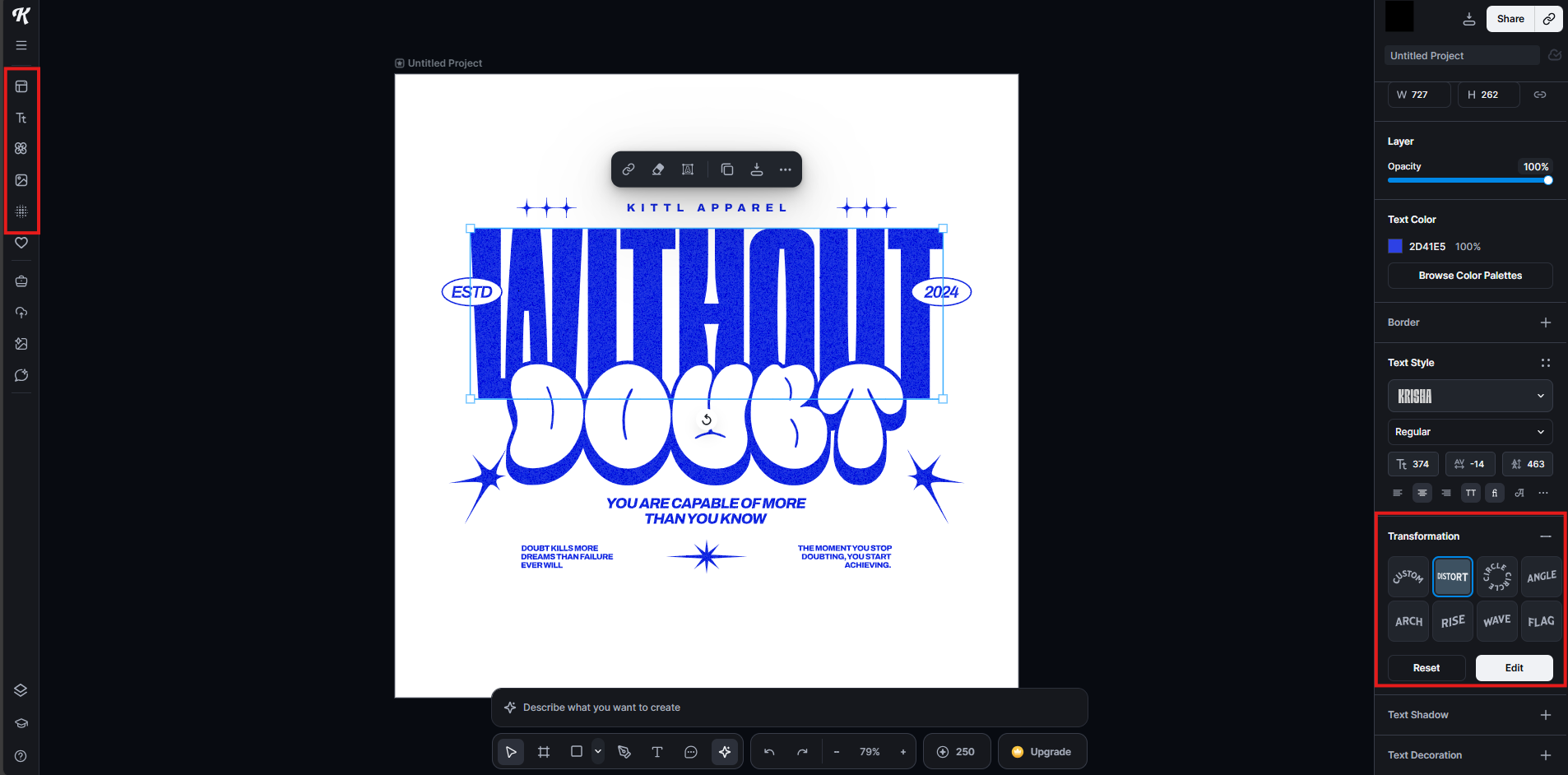
Once inside the editor, use the tools on the left and right panels:
-Editing Text: Click any text to change the words. Use the right-side panel to apply Transformation effects (like curving text into a circle) or Shading (to add vintage outlines and shadows).
-Adding Graphics: Click the Elements tab on the left. Search for icons, illustrations, or shapes. Most elements in Kittl are vector-based, meaning you can click them and change their individual colors.
-Textures: Go to the Textures tab to add a “distressed” or “vintage” look. You can adjust the intensity and blending mode to make it look like a worn-out print.

Step 5: Leverage Kittl AI

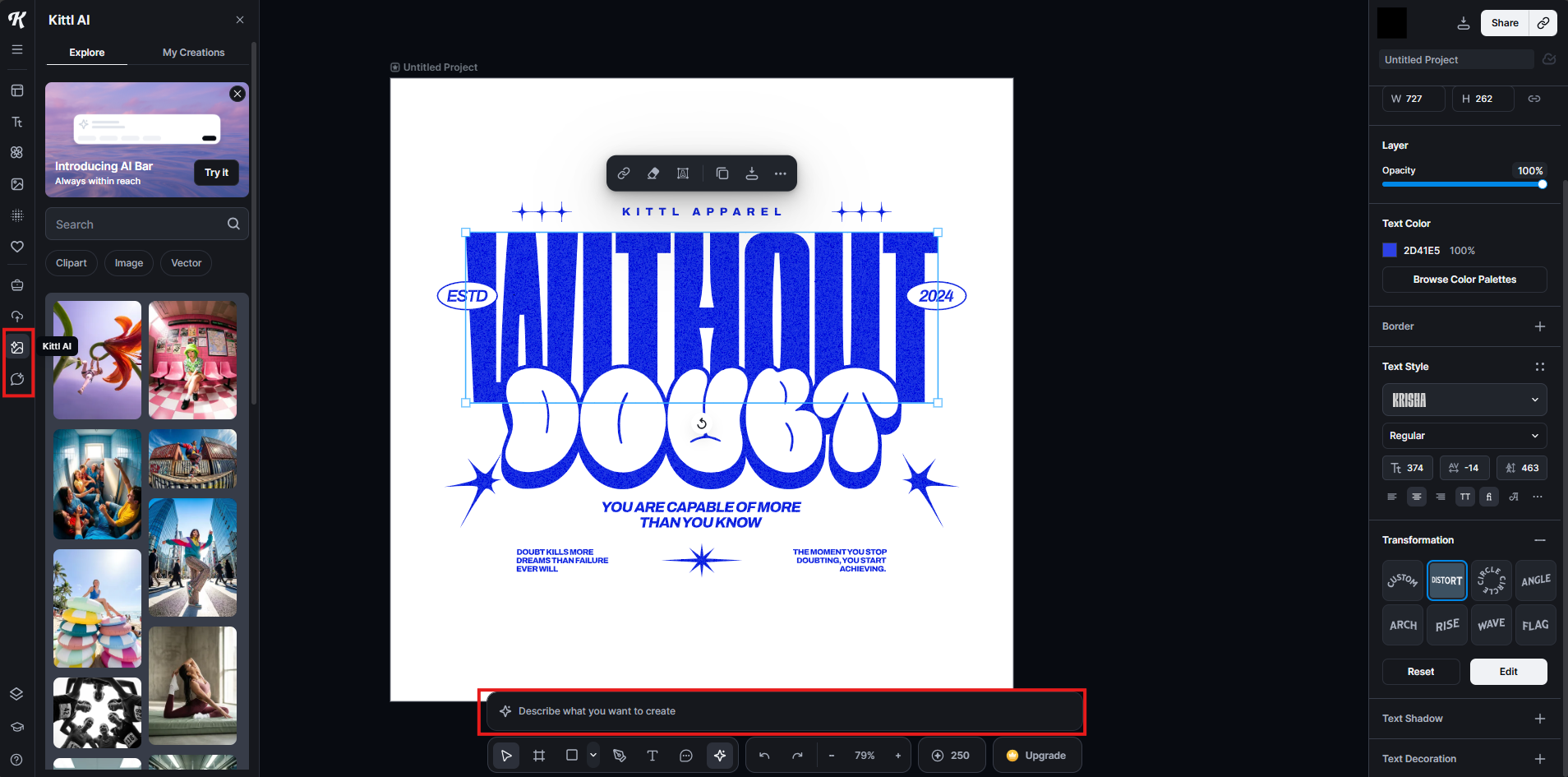
Kittl stands out because of its built-in AI tools:
-AI Image Generator: Type a prompt (e.g., “Vintage eagle with a sunset background”) to create a unique graphic for your design.
-Kittl Copilot: If you’re stuck, use the Copilot to suggest font pairings or layout improvements.
-Background Remover: If you upload your own photo, use the one-click background remover tool (located in the top menu when an image is selected).

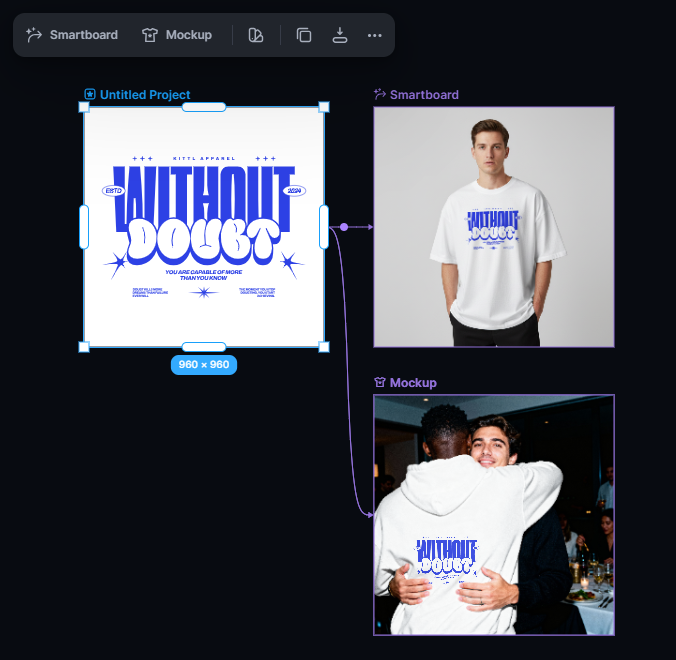
Step 6 : Preview with Mockups or Smartboard

Before you finish, see how your design looks in the real world:
Click the Project Title located at the top-left of the canvas.
Mockups :
-Click the Mockup button.
-Choose a product (T-shirt, Hoodie, Tote Bag, etc.).
Smartboard :
-Click the Smartboard button.
-Use Kittl AI to generate an image by entering a text description.

Adjust the placement of your design on the product and download the preview image for your portfolio or social media.

Step 7 : Export Your Work

When you’re ready:
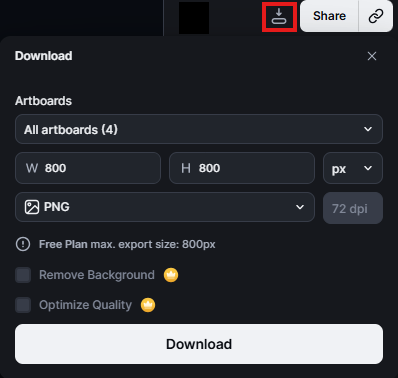
Click the Export button in the top right.
Select Format: Choose PNG (with transparent background) for t-shirts/stickers, or PDF for high-quality printing.
Resolution: Always check the DPI. For physical printing, 300 DPI is the industry standard.

Remarks 1 : Official Support Resources

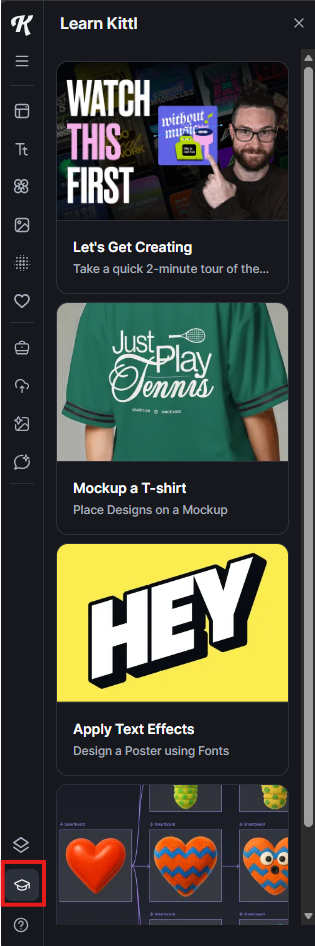
To learn the fundamental functions of Kittl, click the Help icon located in the bottom-left corner. Alternatively, you can explore the following resources for more comprehensive information:
Kittl Help: Kittl Help – How Can We Help?
Graphic Design Tools: Graphic Design Tools | Kittl

01

The Design Tool You’ve Been Asking For Is Finally Here

02

Make More Passive Income As A Designer Using Kittl

03

The Easiest Way To Make Print On Demand Designs For Your Shop

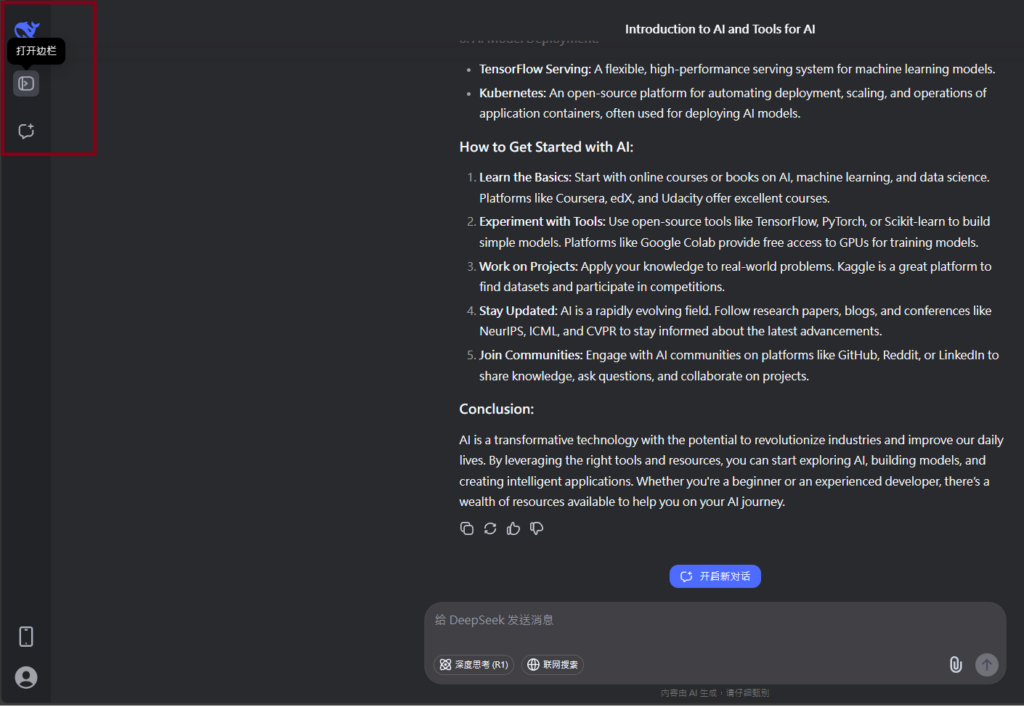
Visit Deepseek website for full experience

Remarks

DeepSeek is an AI-powered tool designed for deep information retrieval, analysis, and content generation. It is commonly used in areas such as:

  1. Advanced Information Retrieval
    • DeepSeek can process and analyze large datasets to extract relevant insights.
    • It helps users find precise information beyond standard search engines.
  2. Natural Language Processing (NLP) Applications
    • Used for text summarization, sentiment analysis, and question-answering systems.
    • Supports various languages and can generate human-like responses.
  3. AI-Assisted Research and Writing
    • Helps researchers analyze academic papers, generate summaries, and suggest references.
    • Useful for drafting articles, reports, and creative writing.
  4. Code Assistance and Debugging
    • Provides AI-powered code suggestions, optimizations, and bug fixes.
    • Supports multiple programming languages, aiding developers in software development.
  5. Business and Decision-Making Support
    • Analyzes market trends, customer feedback, and financial data for businesses.
    • Assists in generating insights for strategic decision-making.

limitation:

  1. Accuracy and Hallucination Issues
    • AI models can sometimes generate incorrect or misleading information.
    • Requires human verification before relying on outputs.
  2. Limited Real-Time Data Access
    • May not always provide the latest information if it’s not connected to live data sources.
    • Some AI models work with pre-trained datasets, limiting real-time updates.
  3. Context Limitations
    • Struggles with highly nuanced or ambiguous queries.
    • Long conversations may lead to context loss or inconsistencies.
  4. Ethical and Bias Concerns
    • AI models can reflect biases present in training data.
    • Requires careful consideration when used in sensitive applications.
  5. Computational Resource Constraints
    • Running deep learning models requires significant computational power.
    • Latency issues may arise during complex queries or large-scale data analysis.
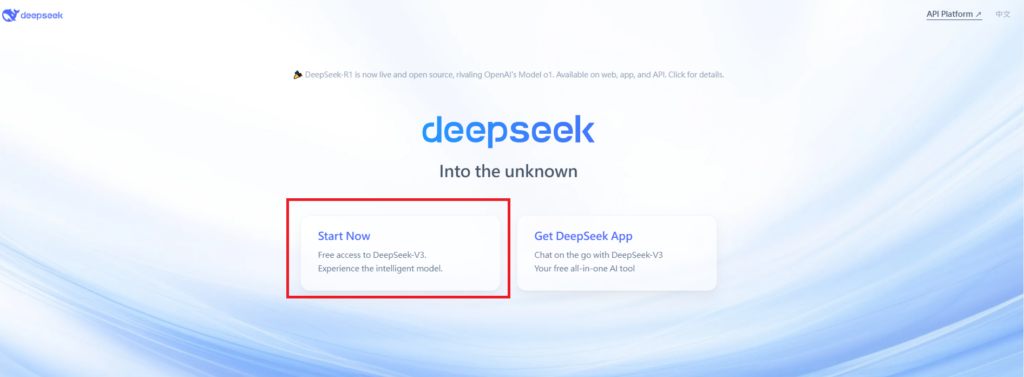
Step 1

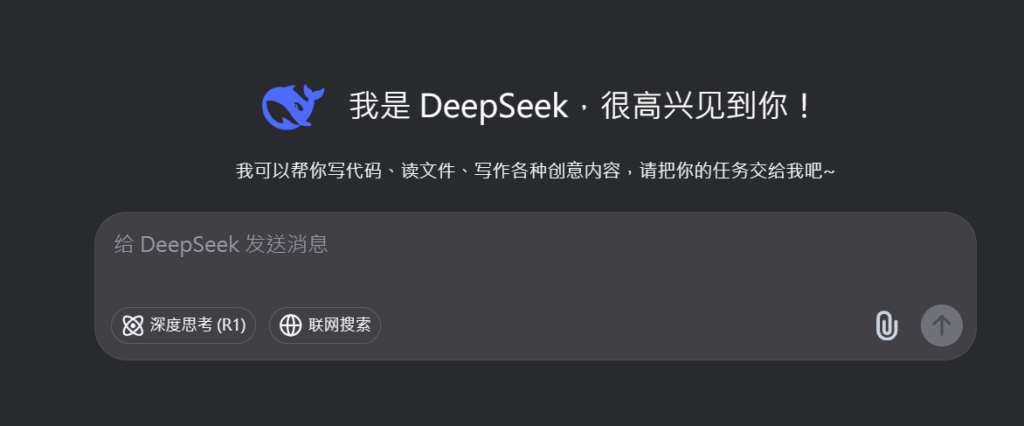
Visit the DeepSeek website. Click on “Start Now” and fill in your details.
Verify your email address to activate your account.

Step 2

Log in to your DeepSeek account.
Navigate to the “Chat” section to start using the chatbot.

Step 3

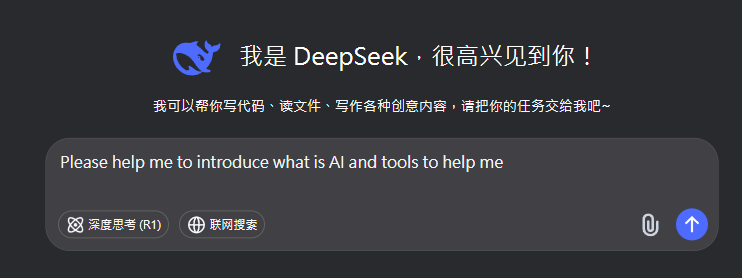
Type your question or request in the chat box. Press “Enter” to send your message. The chatbot will respond with relevant information or assistance.


Writing Assistance: Ask the chatbot to help with writing tasks, such as drafting emails, creating content, or summarizing text.
Translations: Request translations for text in different languages.
Information Retrieval: Ask questions to get quick answers on various topics.

Remarks.

You can view and manage your chat history.Save important conversations for future reference. Customize Your Experience:

Lorem ipsum dolor sit amet, consectetur adipiscing elit. Ut elit tellus, luctus nec ullamcorper mattis, pulvinar dapibus leo.

Sign In

Register

Reset Password

Please enter your username or email address, you will receive a link to create a new password via email.

Scroll to Top