

Visit SAM 3D website for full experience
Remarks
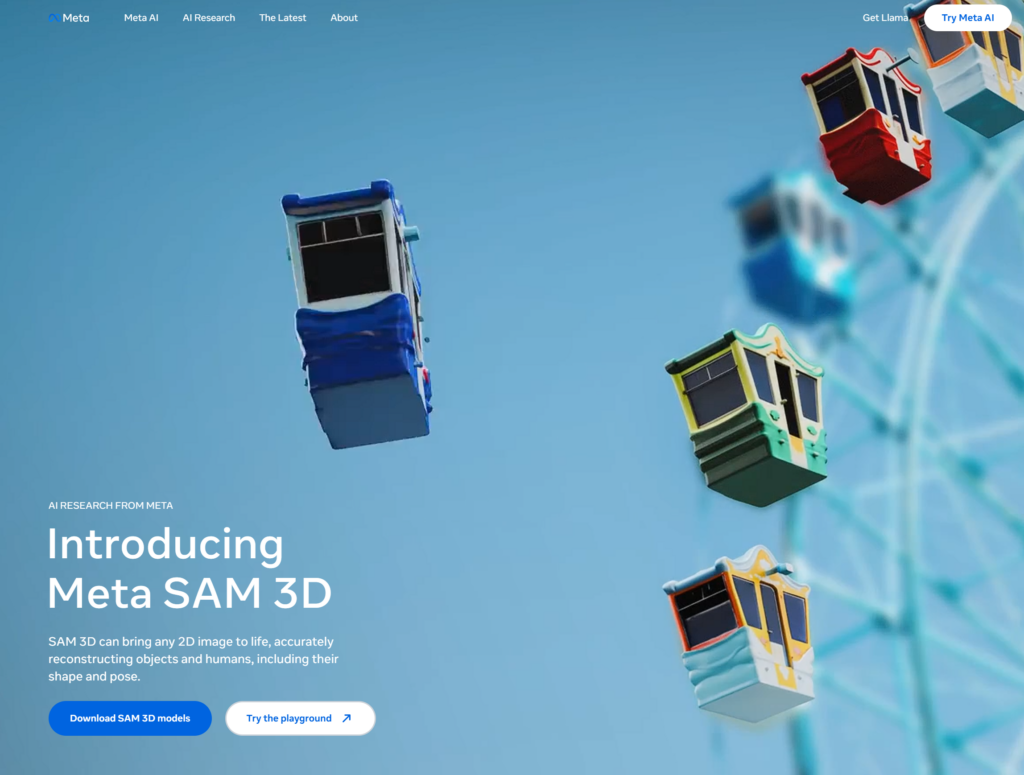
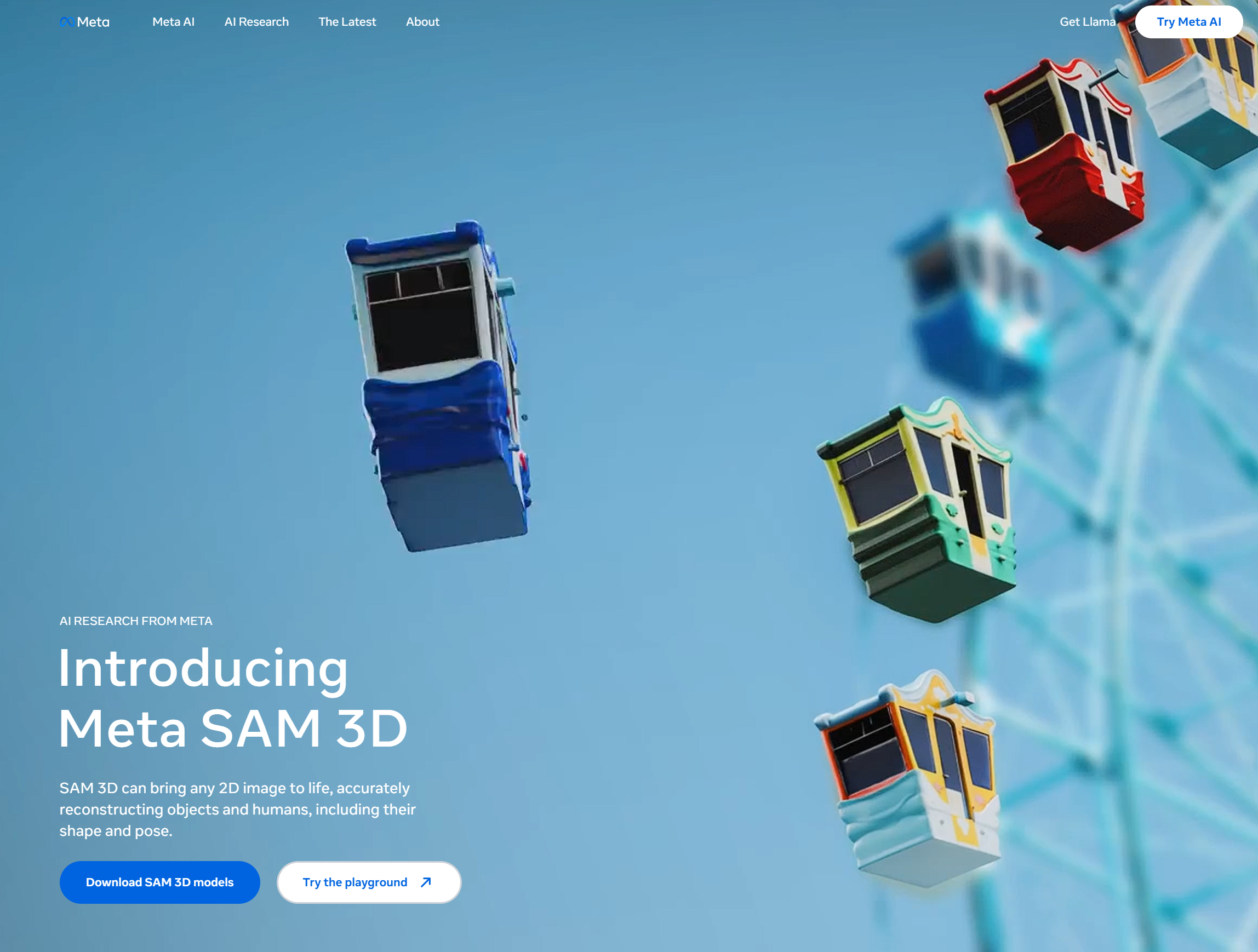
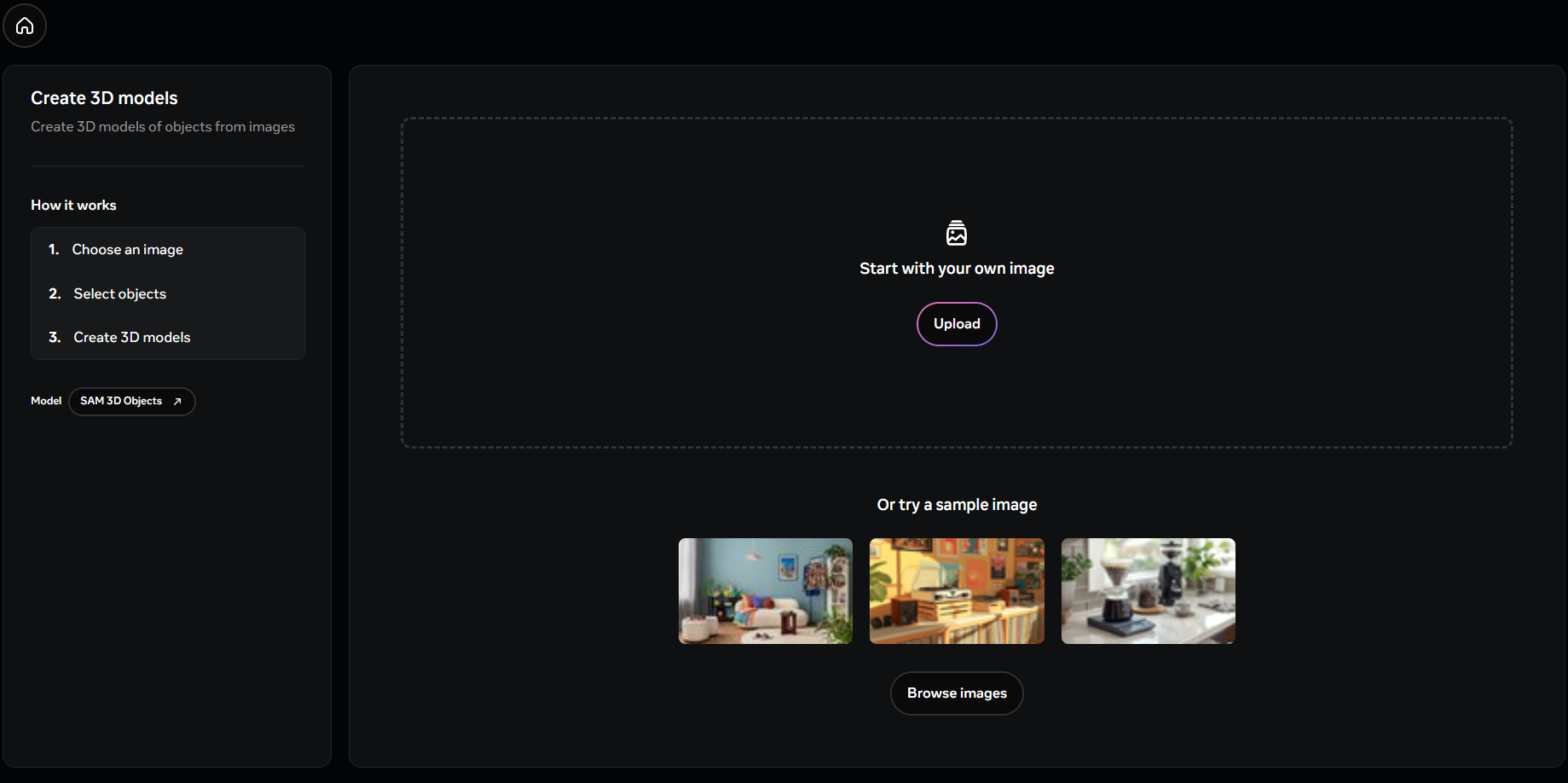
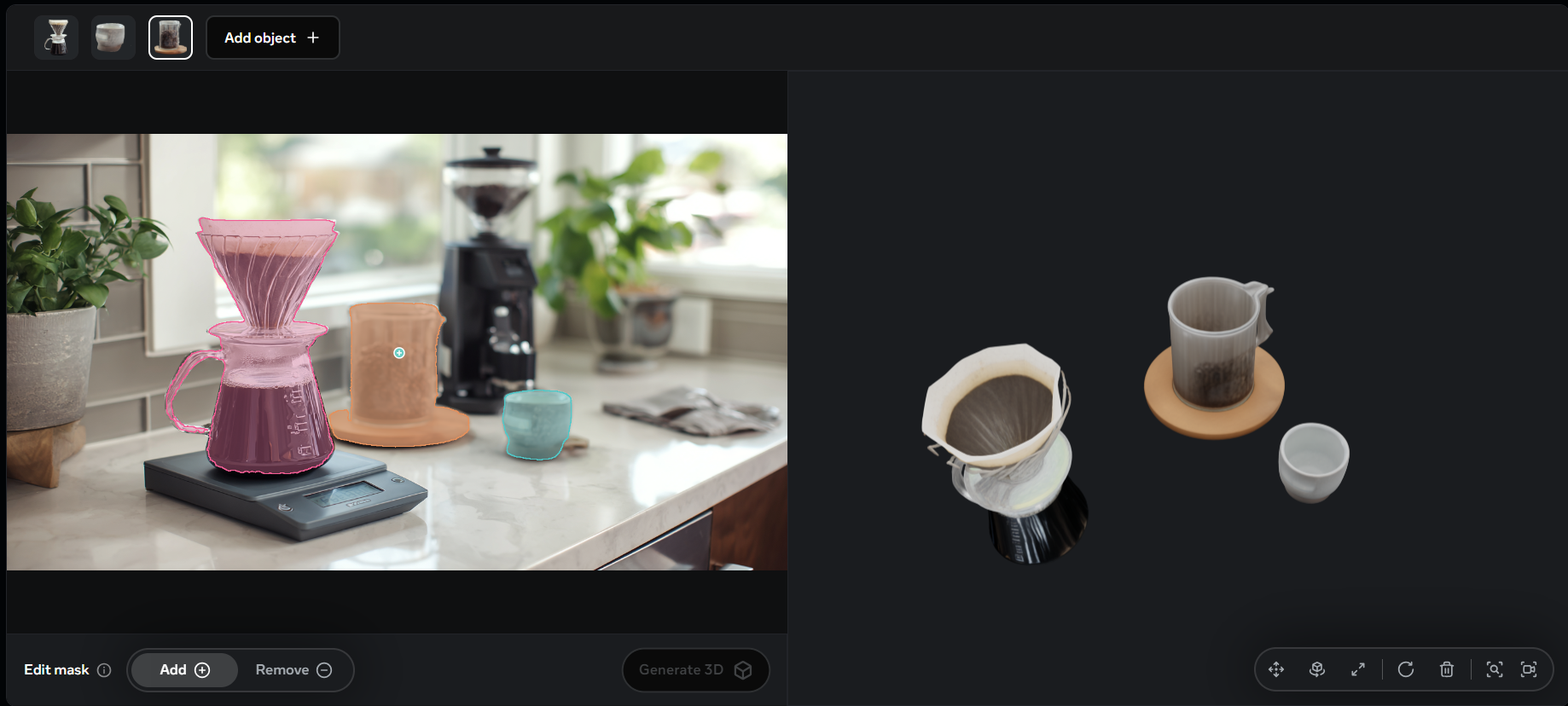
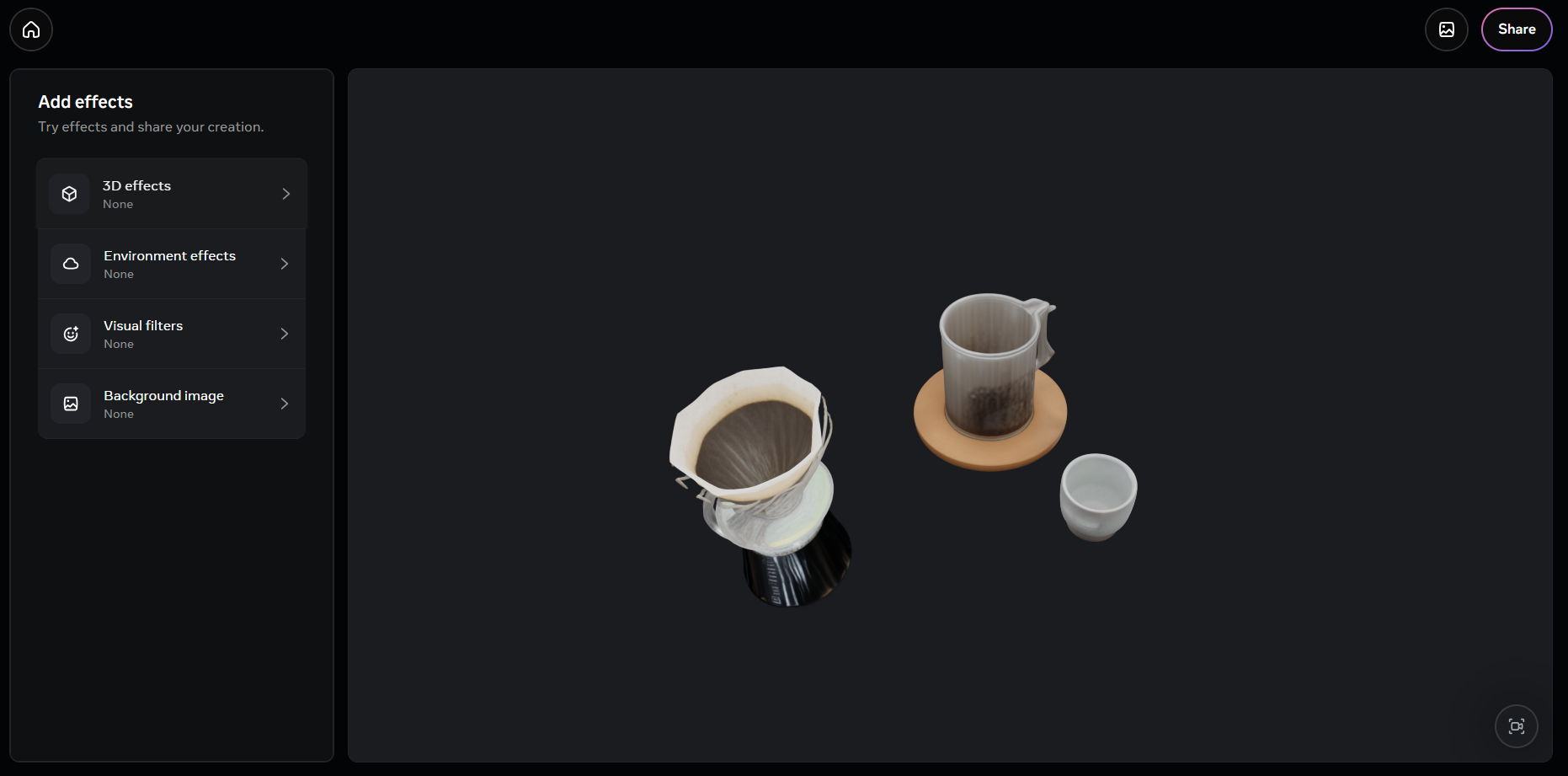
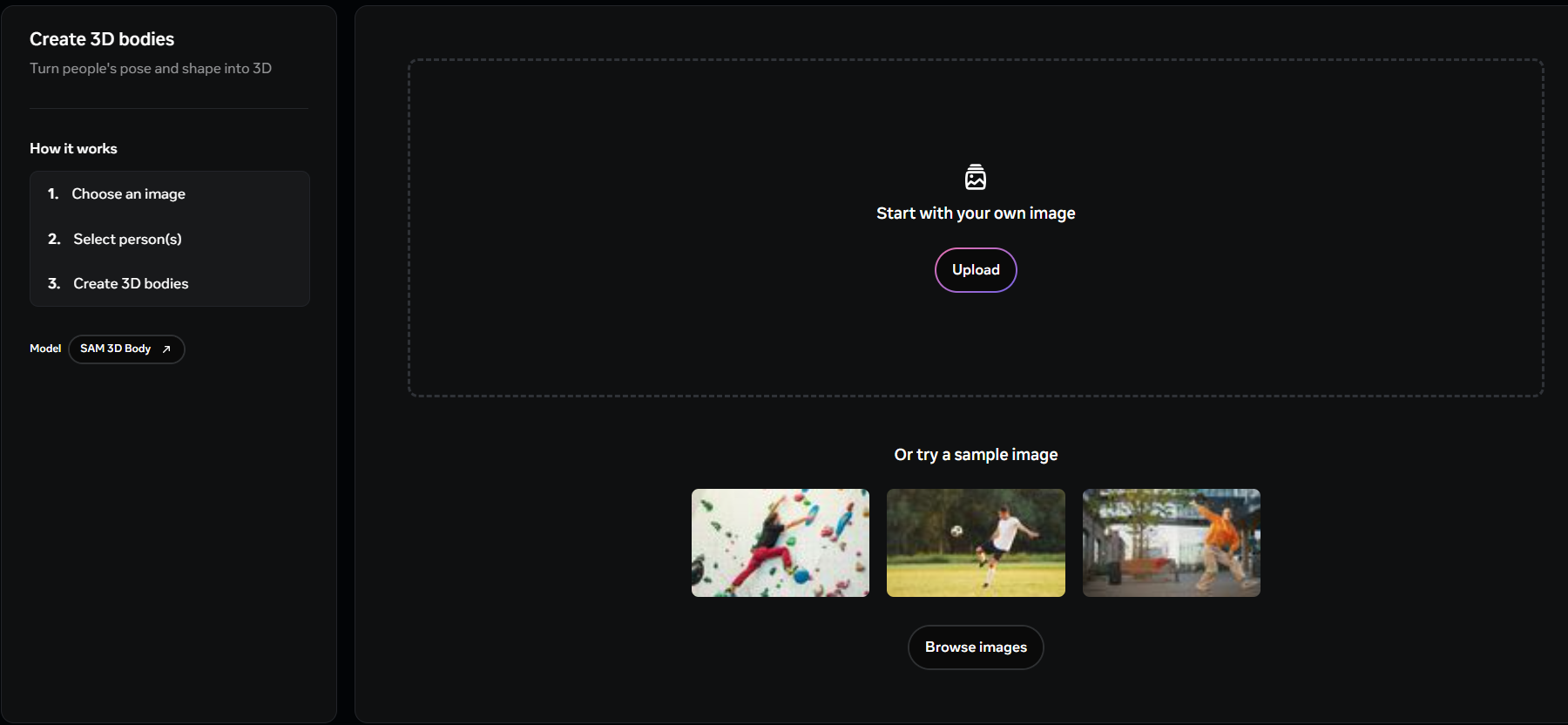
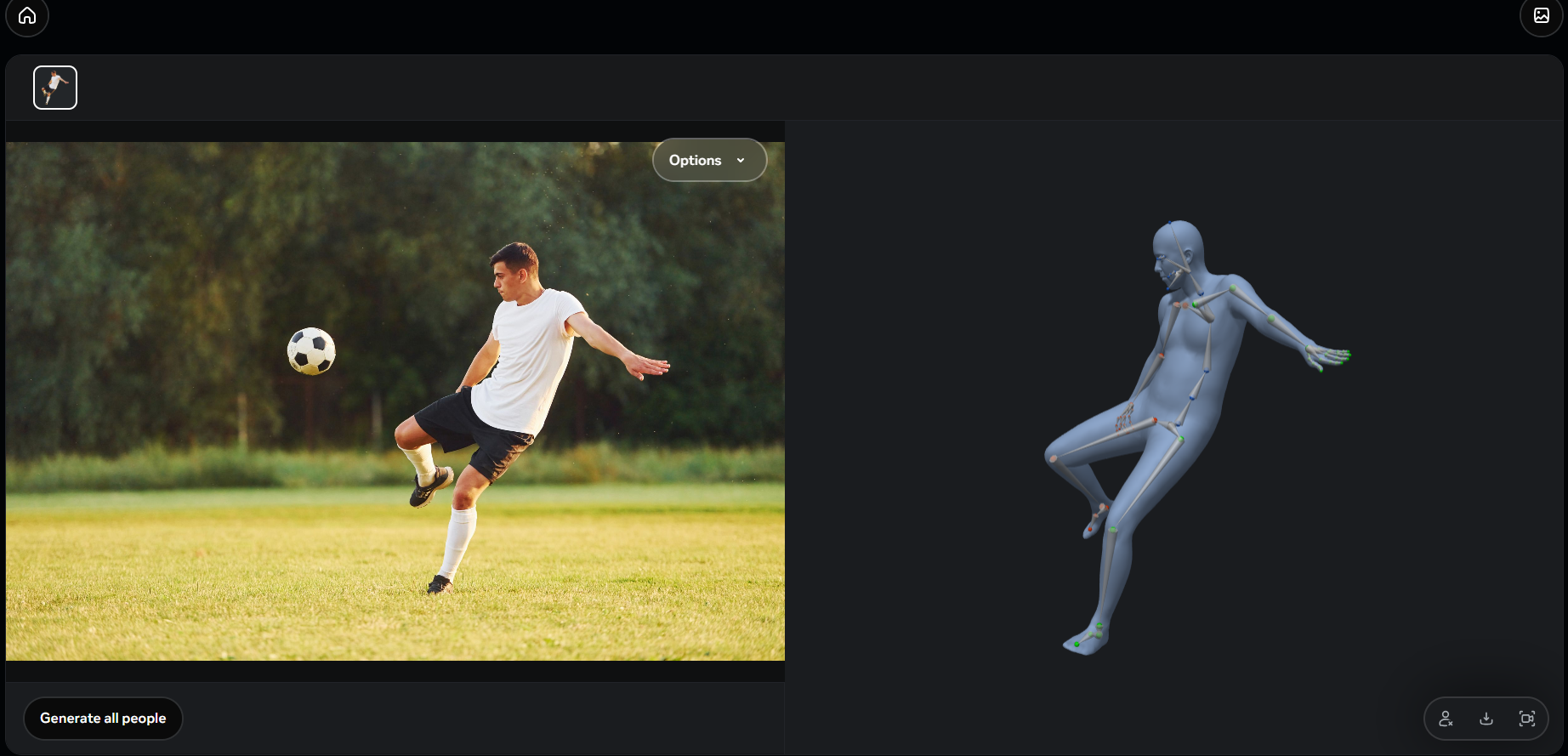
SAM 3D (Segment Anything Model 3D) is a groundbreaking generative AI model suite released by Meta as part of its Segment Anything Collection. Its primary function is to transform a single 2D image into a detailed 3D representation, a process that traditionally required multiple images or complex scanning.
It consists of two specialized foundation models:
1.SAM 3D Objects: Reconstructs the full 3D shape, texture, and spatial layout of general objects and scenes in everyday environments.
2.SAM 3D Body: Focuses on accurate human body pose and shape estimation from a single image, even in complex poses or when the body is partially visible.
SAM 3D brings a “common-sense” understanding of the physical world to computer vision, inferring depth and volume that isn’t explicitly visible in a 2D photo.
The model significantly lowers the barrier to entry for 3D content creation
- E-commerce / AR/VR
- Enabling features like “View in Room” on Facebook Marketplace.
- Allowing users to preview furniture in their own space before buying.
- Gaming / Creative
- Rapidly generating 3D assets (props, environmental objects, character models).
- Assets are created from simple reference photos for games or interactive media.
- Robotics
- Creating a powerful 3D perception module for robots.
- Module allows robots to better understand object shapes and layouts in real-time.
- Scientific / Medical
- Accelerating research in fields like sports medicine.
- Research is accelerated by accurately estimating human body shape and pose.
- Design / Architecture
- Quickly generating 3D context models (e.g., simple building forms) from reference photos.
- Models are used for early-stage urban context studies.
Limitations
While powerful, SAM 3D has some notable limitations based on its current release:
- Texture Quality: Models generated using the original Gaussian Splatting output may have blurry or degraded textures that often require additional post-processing and refinement for professional-grade results.
- Multi-Object Interaction: The model is primarily trained to predict a single object at a time. It may struggle to accurately reflect complex interactions or spatial relationships between multiple closely located objects.
- Thin/Occluded Structures: Fine details, thin structures, or areas with heavy occlusion (objects blocking other objects) may require manual touch-up after generation.
- Hardware Requirements (Local Use): For developers running the open-source code locally, the model requires significant hardware resources (e.g., 32GB VRAM recommended for optimal performance) and often a Linux-based system for full functionality.



Visit Deepseek website for full experience
Remarks
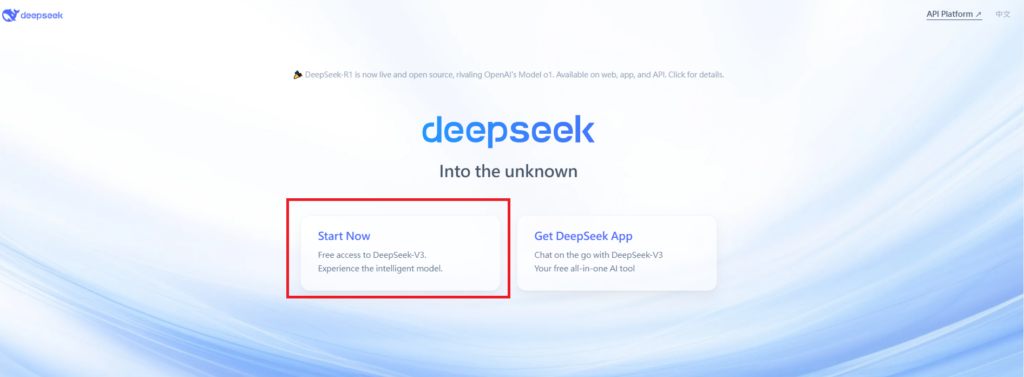
DeepSeek is an AI-powered tool designed for deep information retrieval, analysis, and content generation. It is commonly used in areas such as:
- Advanced Information Retrieval
- DeepSeek can process and analyze large datasets to extract relevant insights.
- It helps users find precise information beyond standard search engines.
- Natural Language Processing (NLP) Applications
- Used for text summarization, sentiment analysis, and question-answering systems.
- Supports various languages and can generate human-like responses.
- AI-Assisted Research and Writing
- Helps researchers analyze academic papers, generate summaries, and suggest references.
- Useful for drafting articles, reports, and creative writing.
- Code Assistance and Debugging
- Provides AI-powered code suggestions, optimizations, and bug fixes.
- Supports multiple programming languages, aiding developers in software development.
- Business and Decision-Making Support
- Analyzes market trends, customer feedback, and financial data for businesses.
- Assists in generating insights for strategic decision-making.
limitation:
- Accuracy and Hallucination Issues
- AI models can sometimes generate incorrect or misleading information.
- Requires human verification before relying on outputs.
- Limited Real-Time Data Access
- May not always provide the latest information if it’s not connected to live data sources.
- Some AI models work with pre-trained datasets, limiting real-time updates.
- Context Limitations
- Struggles with highly nuanced or ambiguous queries.
- Long conversations may lead to context loss or inconsistencies.
- Ethical and Bias Concerns
- AI models can reflect biases present in training data.
- Requires careful consideration when used in sensitive applications.
- Computational Resource Constraints
- Running deep learning models requires significant computational power.
- Latency issues may arise during complex queries or large-scale data analysis.


Lorem ipsum dolor sit amet, consectetur adipiscing elit. Ut elit tellus, luctus nec ullamcorper mattis, pulvinar dapibus leo.